1
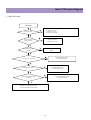
6.Adjusting Method
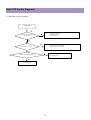
6-1. Adjusting WHITE BALANCE
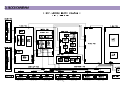
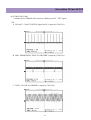
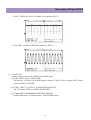
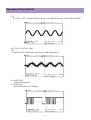
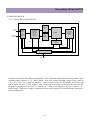
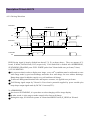
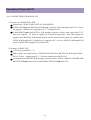
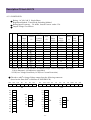
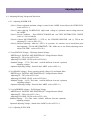
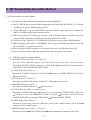
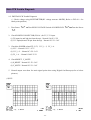
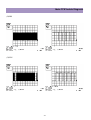
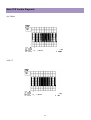
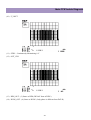
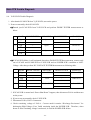
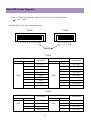
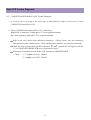
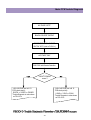
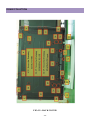
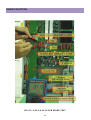
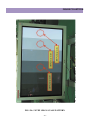
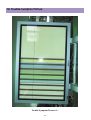
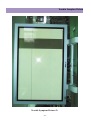
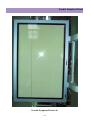
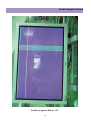
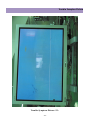
(1) Input 5 STEP GRAY SCALE PATTERN to Video Input Terminal. (refer to FIG<26>)
(2) Set the SCREEN MODE to NORMAL .
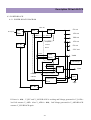
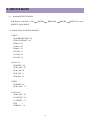
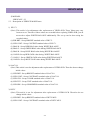
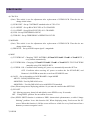
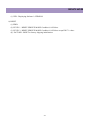
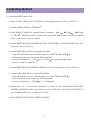
(3) Enter SERVICE MODE by inputting remote controller s
=> MUTE
UP
MUTE
DISPLAY
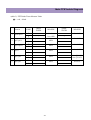
BUTTON, and then select PW171 and check Default Values of SERVICE MODE
Items. (refer to article 5. Service Mode)
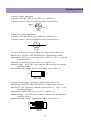
(4) Attach WHITE BALANCE METER(FACTORY USE METER: CA-100) SENSOR to 80% Gray
Scale part. (refer to FIG<26>)
(5) Adjust WHITE BALANCE by varying R,G,B GAIN
-. Control R,G,B GAIN values so that the ranges are within Default Value
10.
If deviate from the range, classify the SET disqualified.
-. Set color coordinate to x = 0.280
0.01, y = 0.290
0.01 and color temperature
to above or equal to 10,000 K.
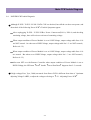
(6) Attach WHITE BALANCE METER s SENSOR to 40% Gray Scale part. (refer to FIG<26>)
(7) Adjust WHITE BALANCE by varying R,G,B BIAS
-. Control R,G,B BIAS values so that the ranges are within Default Value
5.
If deviate from the range, classify the SET disqualified.
-. Set color coordinate to x = 0.280
0.01, y = 0.290
0.01.
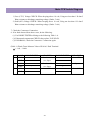
(8) Repeat above (4) ~ (7) until color coordinate is x=0.280, y=0.290. Attach WHITE BALANCE
METER s SENSOR to 100% Gray Scale part. (refer to FIG<26>) Control SUB CONTRAST so
that LUMINANCE is above or equal to 140 Cd/m2.
(9) Enter MENU BUTTON and Exit SERVICE MODE.
-37-