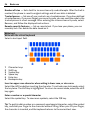
1
Basic use
25
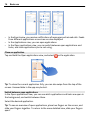
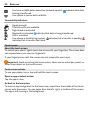
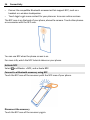
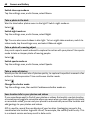
Enter an accented character
Select and hold the character to which you want to add an accent, and slide your finger
to the desired accented character without lifting.
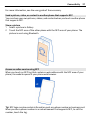
Delete a character
Select the backspace key.
Change the font
In some applications, such as Mail and Notes, you can change the font. Select the text
input field, and from the pop-up menu, select the desired option. To change the font
of an individual word, drag to select the word, and select and the desired option.
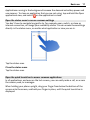
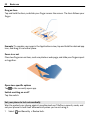
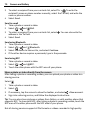
Copy and paste text
In a text input field, drag to select the text you want to copy, and from the pop-up
menu, select Copy. To paste the text, select a text input field, then select the place
where you want to paste the text, and from the pop-up menu, select Paste.
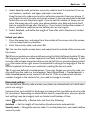
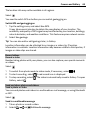
Use several writing languages
Select and Time and language > Text input > Installed input methods, then select
the writing languages.
If you have selected more than one writing language, you can switch between
languages.
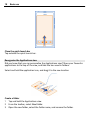
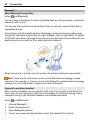
Change the writing language
Place a finger beyond the left or right edge of the touch screen, and drag your finger
across over the virtual keyboard.
Close the virtual keyboard
Flick the virtual keyboard down, or tap outside the text input field.
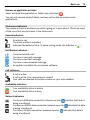
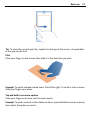
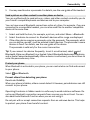
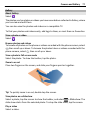
Tip: To place the cursor precisely where you want to, select and hold the text, until a
magnifier is displayed. Without lifting your finger, drag the cursor to the desired
location.