1
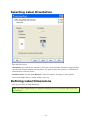
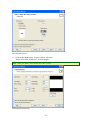
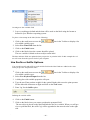
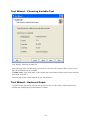
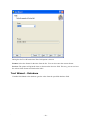
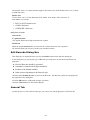
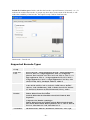
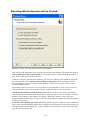
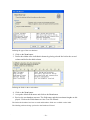
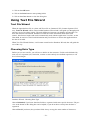
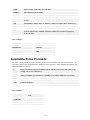
Selecting barcode type
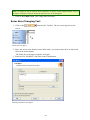
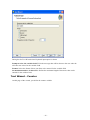
7. Click on the Finish button to return to the label.
8. Change the position of the barcode by selecting the barcode and dragging it to the desired position.
9. Change the object size by dragging the object handles. The handles are small rectangles surrounding the object when it is selected.
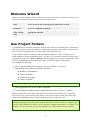
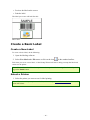
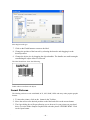
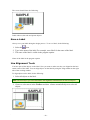
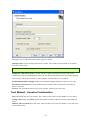
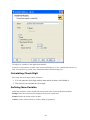
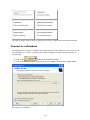
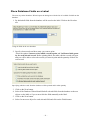
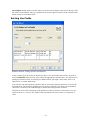
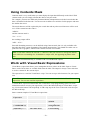
The label should now show the following:
Label with text and barcode objects
Insert Pictures
The labeling software works with BMP, PCX, GIF, WMF, JPEG and many o ther popular graphic formats.
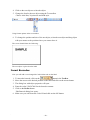
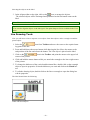
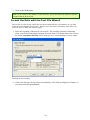
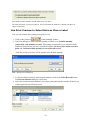
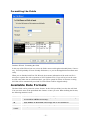
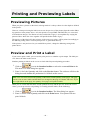
1. To insert the picture, click on the button in the Toolbox.
2. Move the cursor to the desired position on the label and click on the mouse button.
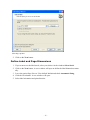
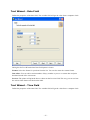
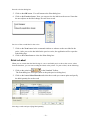
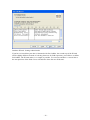
3. The Open dialog box will open allowing you to browse for your picture on your hard drive. Go to the folder Sample Graphics and select the picture LEISURE.WMF. Click on the Open button.
- 21 -