1
3
Integrated Instrument Control Software
Application Menu Structure
Home Menu
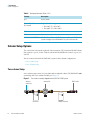
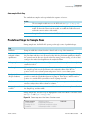
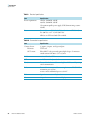
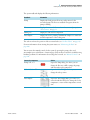
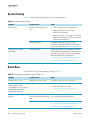
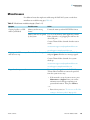
Use the three pages of the Home menu to view the status of your sample runs and the
instrument components, edit batch jobs in the queue, and take direct control of the valves,
the pumps, the autosampler’s XYZ robot, and the cooler temperature.
Page
Function
Overview
Manually control the valves, the pumps, and “Manual Controls” on page 141.
the autosampler components.
Monitor the system status.
Go to
“Viewing the System Status and Using the
Manual Controls” on page 50 and
“Monitoring the Run” on page 109.
Graphs
Display up to four graphs, each selectable
“Using the Graphs Page in the Home Menu”
from a list, with time-dependent data for the on page 111.
active run. The selection list includes
Pump A, Pump B, Pump S, Valve A,
Valve B, Valve S, Valve W, sample cooling,
and Gradient.
Queue
View a list of the batch jobs, currently
running or waiting.
“Editing the Running Batch” on page 114.
Batch Setup Menu
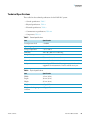
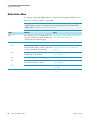
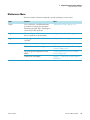
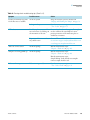
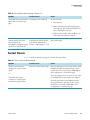
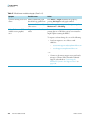
Use the two pages of the Batch Setup menu to set up sample processing jobs. For information
about setting up and submitting a batch run, see these procedures: “Creating a Batch” on
page 103 and “Starting Sample Acquisition” on page 108.
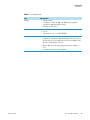
Page
Function
Go to
File
View or change a directory tree of saved
batch jobs. You can create or import new
jobs and create or delete directories on this
page.
“Viewing the Batch List and Setting Up a
Batch Record” on page 103.
Edit
Set up new batch jobs.
View Racks view
Select the vial or well positions for the batch “Specifying the Method, Sample Positions,
job from a graphical view of the configured and Number of Injections Per Sample” on
plate format.
page 104.
View List view
View the batch job as a list of samples in the “Editing the Running Batch” on page 117.
order of processing. Each row in the
table holds information about the position,
name, and method for that position.
Thermo Scientific
EASY-nLC 1000 User Guide
53