1
M380_UG.book Page 105 Thursday, March 31, 2011 3:22 PM
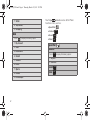
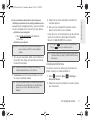
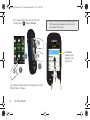
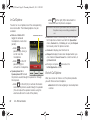
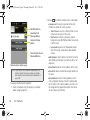
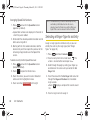
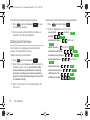
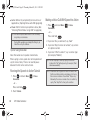
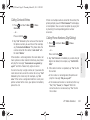
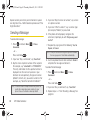
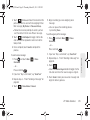
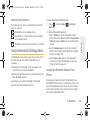
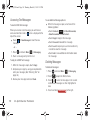
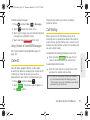
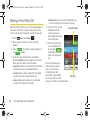
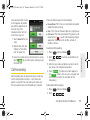
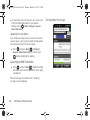
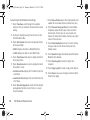
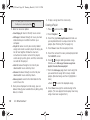
The following icons show your Bluetooth connection
status at a glance:
– Bluetooth is active (default status)
– Bluetooth is in visible mode and searching for
a compatible device
– Bluetooth is paired and connected to a headset
Using the Bluetooth Settings Menu
The Bluetooth menu allows you to set up many of the
characteristics of your phone’s Bluetooth service,
including:
䢇 Changing the identifying name your phone uses
when communicating via Bluetooth
䢇 Setting your phone’s visibility (or “discoverability”) for
other Bluetooth devices
䢇 Displaying your phone’s Bluetooth information
䢇 Pairing with new Bluetooth devices
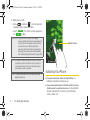
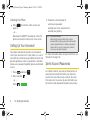
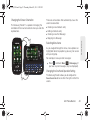
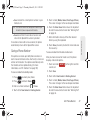
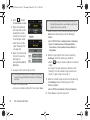
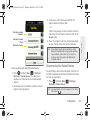
To access the Bluetooth Settings menu:
1. Press
and touch Main (
Main
) > Settings >
Bluetooth.
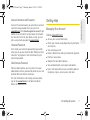
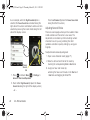
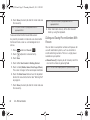
2. Set your Bluetooth options to:
Touch Visibility to set your Bluetooth visibility.
Select one of the following options: Always visible,
Visible for 3 min, or Hidden to set your Bluetooth
visibility.
䡲 Touch Trusted devices to search for available
devices. See “Viewing Information for Available
Devices” on page 106.
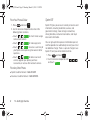
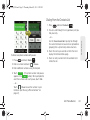
䡲 Touch Device Name and use the keyboard to
rename your phone for Bluetooth usage. See
“Entering Text” on page 34.
䡲
Bluetooth
Bluetooth Status Indicators
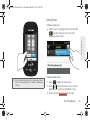
Assigning a Bluetooth Name to Your
Phone
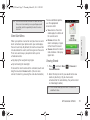
By default, your phone is given the Bluetooth name
“SPH-M380.” Whereas this is a descriptive name, it can
prove confusing when there are other similar devices
within communication range. You can easily change
your phone's Bluetooth name.
2I. Bluetooth
105