1
3
Setting Blend Width
In the Multiunit menu:
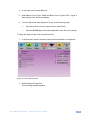
1. Select Blend Curve Type and select Align Pattern to turn on the Blend Width
alignment tool.
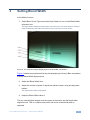
The align pattern displays a sharp border of the blend and non-blend regions, making it
easier to determine the width of the blend and to control the 4-corner set-up.
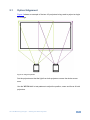
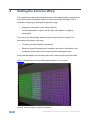
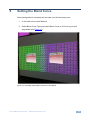
Figure 6: Two Projected Images Displaying the Horizontal Bar Test Pattern
Figure 6 shows two projections side-by-side displaying the Grey H Bars test pattern
U
U
with the Blend Width alignment tool.
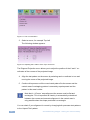
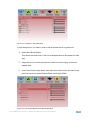
2. Select the Blend Width item.
3. Adjust the number of pixels to equal the optical overlap, using the alignment
pattern.
The default blend width is 200 pixels
4. Keep the Blend Offset value 0.
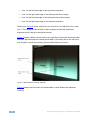
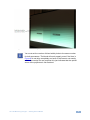
The two vertical lighter stripes near the center of the screen are the blend width
alignment tool. This is a visible cursor which will move as the blend width is
adjusted:
VP-790 Blending Images – Setting Blend Width
7