1
11. Special Features of the Digital Output
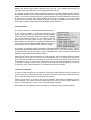
Apart from the audio data itself, digital audio signals in SPDIF or AES/EBU format include a
header containing Channel Status information. False Channel Status is a common cause of
malfunction. The DIGI96 series ignores the received header and creates a totally new one for
the output signal.
Note that in record or monitor modes, set emphasis bits will disappear. Recordings originally
done with emphasis should always be played back with the emphasis bit set!
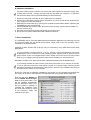
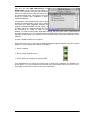
This can be done by selecting the ‘Emphasis’ switch in the Settings dialog.
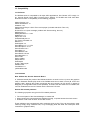
The DIGI96 series new output header is optimized for largest compatibility with other digital
devices:
•
•
•
•
•
•
•
32 kHz, 44.1 kHz, 48 kHz, 64 kHz, 88.2 kHz, 96 kHz, depending on the current sample rate
Audio use, Non-Audio
No copyright, copy permitted
Format Consumer or Professional
Category General, generation not indicated
2-Channel, No Emphasis or 50/15 µs
Aux bits audio use
Professional AES/EBU equipment can be connected to the DIGI96 thanks to the transformer-balanced coaxial outputs and the ‘Professional’ format option with doubled output voltage.
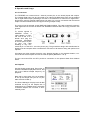
Output cables should have the same pinout as those used for input (see section 8.1
‘Connections’), but with a male XLR plug instead of a female one.
Note that most consumer-orientated equipment (with optical or phono S/PDIF inputs) will
only accept signals in ‘Consumer’ format!
The status 'Professional' should always be activated when using AES/EBU format (when the
XLR connectors are used).
The audio bit in the header can be set to 'Non-Audio'. This is necessary when Dolby AC-3 encoded data is sent to external decoders (surround-sound receivers, television sets etc. with AC3 digital inputs), as these decoders would otherwise not recognize the data as AC-3.
User's Guide DIGI96 © RME
12