1
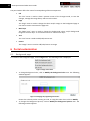
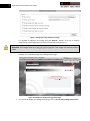
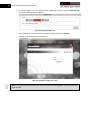
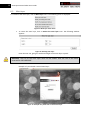
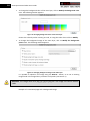
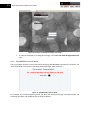
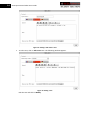
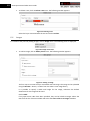
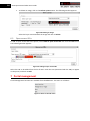
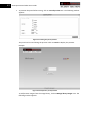
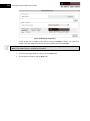
6 Securepoint Portal Editor User Guide The portal editor offers five menus for manipulating all these components: File The “File” menu is used to show a preview screen of the changes made, to save the changes, manage the image library and to exit the editor. Page The “Page” menu is used to change the colour and/or image on the background page. It can also be used to customize the page title. Main layer The “Main layer” menu is used to change the background colour and/or background image for the main layer. It can also be used to re-size the main layer. Text The “Text” menu is used to add/edit/remove text. Picture The “Image” menu is used to add/edit/remove an image. 6 Portal customization 6.1 Background page To customize the background page, click on Page menu. The following menu is displayed: Figure 5: Page menu items To change background color, click on Modify the background color item. The following window appears: Figure 6: Changing the page background color Choose the colour by either entering its code, or using the colour chart. Click on Modify. To change the background picture, click on Modify the background picture item. The following window appears: