1
Preference and Target Settings Options
Use Local Project Data Storage
Select the Use Local Project Data Storage option to store (on the host computer) data
associated with a project file on a read-only volume. Clear the option to store project data
inside the same folder as the project file itself.
After loading a project file, the IDE creates or updates an associated project data folder.
The IDE stores intermediate project data in this folder. When building or closing a project,
the IDE uses the information in the project data folder to update the project file.
By default, the IDE places the project data folder within the same folder as the project file.
However, the IDE cannot create or update a project data folder in a location that grants
read-only privileges.
If you are creating one project to be accessed by multiple users that are running
CodeWarrior on separate machines, then each user should select this option to create a
local data storage folder for the shared project. The folder containing the project file
should be set to read-only. This will cause the target information to be stored locally on
each user’s machine, instead of inside a folder next to the project file.
Use modification date caching
Use the Use modification date caching option to determine whether the IDE checks the
modification date of each project file prior to making the project. The settings include:
• enabled–the IDE caches the modification dates of the files in a project. At
compilation time, the IDE refers to this cache to determine whether a specific file
should be recompiled. This can shorten compilation time significantly for large
projects.
• disabled–the IDE checks every file at each recompile of the project. Use this setting
if using third-party editors to ensure that the IDE checks every file at compilation
time.
Use Multiple Document Interface
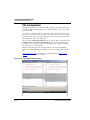
Toggle this option to change the IDE interface:
• Selected—The IDE uses MDI (Multiple Document Interface). In this interface, the
IDE uses a main application window with a gray background. IDE windows appear
inside the main application window. The gray background obscures your view of the
desktop.
• Cleared—The IDE uses FDI (Floating Document Interface). In this interface, the
IDE does not use a main application window. You can see through the IDE user
interface to your desktop. IDE windows appear above the desktop.
8/16-bit IDE User’s Guide
261