1
24 Appendix B: BIOS Operation
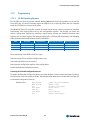
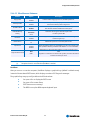
Start Phoenix BIOS Setup Utility
To start the Phoenix BIOS Setup Utility, press the <F2> key when the following string appears during
boot-up.
Press <F2> to enter Setup
The Main Menu then appears.
24.2.1 General Information
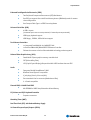
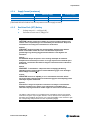
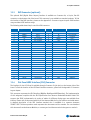
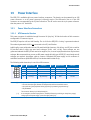
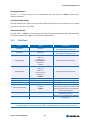
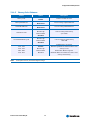
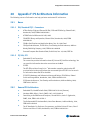
The Setup Screen is composed of several sections:
Setup Screen
Location
Function
Menu Bar
Legend Bar
Item Specific Help Window
Menu Window
General Help Window
Top
Bottom
Right
Left Center
Overlay (center)
Lists and selects all top-level menus.
Lists setup navigation keys.
Help for selected item.
Selection fields for current menu.
Help for selected menu.
Menu Bar
The menu bar at the top of the window lists different menus. Use the left/right arrow keys to make a
selection.
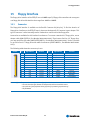
Legend Bar
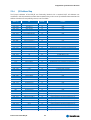
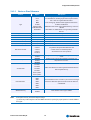
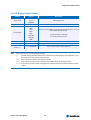
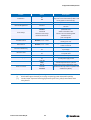
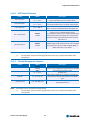
Use the keys listed in the legend bar on the bottom to make your selections or exit the current menu. The
table below describes the legend keys and their alternates.
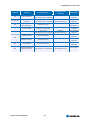
Key
Function
<F1> or <Alt-H>
<Esc>
← or → Arrow key
General Help window.
Exit menu.
Select a menu.
↑ or ↓ Arrow key
<Tab> or <Shift-Tab>
<Home> or <End>
<PgUp> or <PgDn>
<F5> or <->
<F6> or <+> or <Space>
<F9>
<F10>
<Enter>
<Alt-R>
Select fields in current menu.
Cycle cursor up and down.
Move cursor to top or bottom of current window.
Move cursor to next or previous page.
Select previous value for the current field.
Select next value for the current field.
Load the default configuration values for this menu.
Save and exit.
Execute command or select submenu.
Refresh screen.
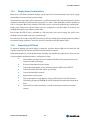
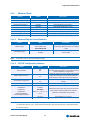
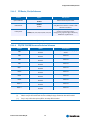
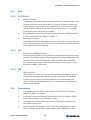
Selecting an Item
Use the ↑ or ↓ key to move the cursor to the field you want. Then use the + and - keys to select a value
for that field. Save Value commands in the Exit menu save the values displayed in all menus.
Kontron User's Guide EPIC/CE
68