1
1.3 Terminology & Usage
13
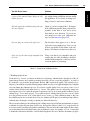
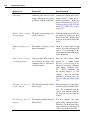
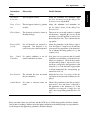
click A single click with the left mouse button,
e.g., to mark and select items or to activate buttons. To
select multiple items, hold down the Ctrl key and click the desired items. To select many items
from a list, click the first item, hold down the Shift key and click the last item. All intermediate
items are then also selected.
double-click Two quick successive clicks with the left mouse button, e.g., to open dialogs of selected
items. Double-clicks are mostly shortcuts for single clicks followed by an additional action.
right-click A single click with the right mouse button to access additional functionality of the user
interface, e.g., context-sensitive menus. Clicking the right mouse button also ends interactive
drawing functions in HDevelop.
drag Keeping the left mouse button pressed while moving the mouse and finally releasing the mouse
button. Typically used to move items, resize windows, select multiple items at once, e.g., program
lines, or to draw shapes.
drag-and-drop HDevelop supports drag-and-drop of image files and HDevelop programs from other
applications. You can, e.g., drag an HDevelop program icon from a file browser and drop it on the
HDevelop window to load it.
middle mouse button With three-button mice, the middle mouse button is used under UNIX to paste
text from the clipboard into text fields.
mouse wheel Most recent three-button mice combine the middle mouse button with a scrolling wheel.
HDevelop supports the mouse wheel in many places. The mouse wheel operates the GUI element under the mouse cursor. Using the mouse wheel you can, for instance, quickly scroll large
program listings, select values from lists or perform continuous zooming of displayed images. In
general, windows that provide a scroll bar can be quickly scrolled with the mouse wheel. Furthermore, the values of spinner boxes (text fields that expect numerical data) can be decremented and
incremented with the mouse wheel.
Keyboard Usage
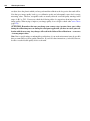
HDevelop is very keyboard-friendly. Most functions of the graphical user interface that can be operated
using the mouse can be accessed from the keyboard as well. Many of the most important functions
are available through keyboard shortcuts, which are worthwhile memorizing. When programming with
HDevelop, keeping both hands on the keyboard can increase the productivity. Therefore, many navigational tasks like selecting parameter fields or selecting values from lists can easily be done using just the
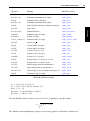
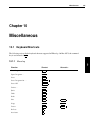
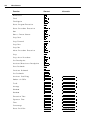
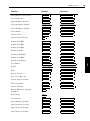
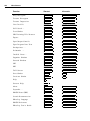
keyboard. The most common keyboard functions are listed in the section 10.1 on page 397.
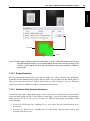
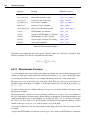
To make it easier for you to memorize the keyboard shortcuts, many of them are introduced by a common combination to indicate
related to the graphics window
the context. For example, many shortcuts
are introduced by pressing Ctrl+Shift+G followed by another key, e.g., Ctrl+Shift+G,Del clears the graphics
window.
Because it is often easier to keep Ctrl+Shift pressed when hitting the second key the alternative
Ctrl+Shift+G,Ctrl+Shift+Del is also allowed.
On Mac OS X, the command key is used instead of Ctrl .
Introduction
Mouse Usage