1
and the accuracy decreases. When using the line profile tool (page 210), smoothing can either be
applied with the Measure Assistant or it can be performed with the smoothing slider within the line
profile window. The smoothing values are immediately transfered to the Measure Assistant and
the line profile window, respectively.
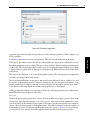
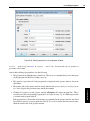
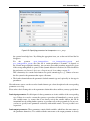
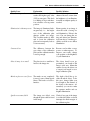
• With ROI Width you can specify how many pixels alongside, i.e., perpendicular, to the line or arc
of measuring are used to detect edges. A larger value helps to reduce noise; however, if the edges
themselves are not perpendicular to the line or arc of measure you must choose a smaller value,
otherwise the edge will "loose its strength". The general rule here is to choose the ROI always
perpendicular and as wide as possible. This will lead to both a high precision and accuracy. If
changing the ROI width leads to an edge length that is inconvenient for the display, e.g., because it
is very short or very long, you can choose another length for the display instead of the ROI width
under Display Parameters.
• With the Interpolation Method you influence the accuracy of the edge extraction, but also
the processing time. Processing time and accuracy both increase from nearest_neighbor over
bilinear up to bicubic. Activating Highest Accuracy influences the way the interpolation is
calculated, it takes a bit more processing time and also slightly improves accuracy.
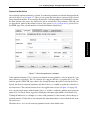
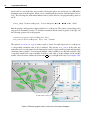
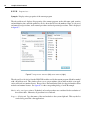
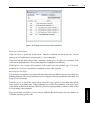
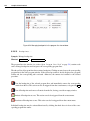
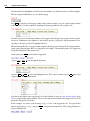
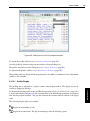
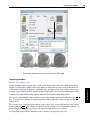
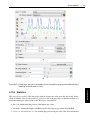
If one or more edges cannot be found without further processing, or if false edges are detected, the Line
Profile (page 210) which can be opened with the View Line Profile button on the upper right edge
of the Edges tab can provide the missing details to solve the problem. In its display, the line profile
shows a green line with a gray top for each successfully detected edge that is above a certain level to
qualify as an edge. Potential edges that do not qualify as edges are displayed as vertical red lines. It
may also be helpful to view the line profile along an ROI while changing parameters for edge detection,
to see exactly how your actions influence the line profile and therefore possibly change which edges are
detected. This profile can consequently be a basis for the decision which steps should be taken next, i.e.,
what would be necessary to enhance weak edges or suppress false edges.
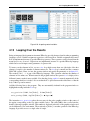
In order to select which edges or edge pairs from your current results are relevant, proceed to Edge
Selection. If you are already satisfied with the detected edges, continue to the Results tab (page
334).
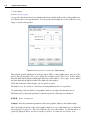
2 Edge Selection
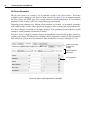
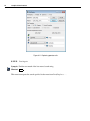
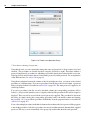
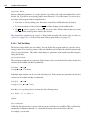
Edge Selection allows you to specify what kind of edges you are looking for. First you decide whether
you want to find single edges or edge pairs. Depending on your choice, you have different options for
the drop-down menus Transition and Position. These options will be explained for edge pairs in the
following paragraph and subsequently for single edges.
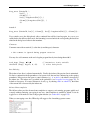
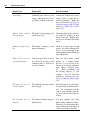
You can activate Group Edges to Pairs to find an even number of edges with alternating transitions.
The parameter Transition lets you select which edges are chosen to resolve ambiguity: The default
setting of all will always accept the first matching edge. The values positive and negative restrict
the transition of the very first edge. The *_strongest variants will pick the strongest edge instead of
the first edge in a sequence of edges with the same transition. Position lets you decide whether you
are looking for all edge pairs, or just want to detect the first or last edge pair.
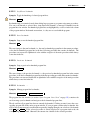
If you are looking for single edges (instead of edge pairs) you can choose with Transition whether
you want edges with all transitions (i.e. positive and negative) or just positive or just negative.
297
Assistants
7.4.2 How to Use the Measure Assistant of HDevelop