Transcript
Page
1e
Issue 08.07
Operating instructions usb-adapt-xxx
1 USB-adapt-uni
Operating instructions usb-adapt-xxx
Issue 08.07, page
2e
2 USB-adapt-alpha
Used with a USB lead, the usb-adapt-uni forms a universal connecting link between the 5 V-SIO
connector fitted to our devices and the USB input / output of a personal computer (PC or laptop).
The usb-adapt-alpha is an interface adaptor which provides a simple means of configuring our
alpha receivers using one of your PC’s USB ports.
The usb-adapt-uni can be used to transfer charge / discharge data from a charger to a graphical
analysis program running on the PC.
The only additional item you need is a USB lead (and not, as previously, two adaptors); you also do
not need to connect a receiver battery to power your receiver, as was previously the case.
1.1 Preparing to connect the unit
2.1 Preparing to connect the unit
If you have not already done so, install the requisite USB driver (for the FTDI converter chip in the
USB adaptor) on your PC. The driver assigns a virtual COM interface to the USB port of your
computer as soon as the usb-adapt-uni is connected to the PC. This interface can then be
addressed by the analysis program Akkusoft, winsoft or a terminal program.
If you have not already done so, install the requisite USB driver (for the FTDI converter chip in the
USB adaptor) on your PC. The driver assigns a virtual COM interface to the USB port of your
computer as soon as the usb-adapt-uni is connected to the PC. This interface can then be
addressed by the alphasoft program.
You can find this driver:
a) in the Download section C 4 of our website;
b) on the USB stick which is supplied with the USB-adapt-uni-set.
You can find this driver:
a) in the Download section C 4 of our website;
b) on the USB stick which is supplied with the USB-adapt-alpha-set.
1.2 Connecting the unit
2.2 Connecting the unit to a PC
1.2.1 Connect the USB connector attached to the usb-adapt-uni to one of your PC’s USB ports.
The connecting lead required is supplied, for example, with the usb-adapt-uni-set.
Connect the USB connector attached to the usb-adapt-alpha to one of your PC’s USB ports. The
connecting lead required is supplied, for example, with the usb-adapt-alpha-set.
As soon as the connection is made, the driver occupies one of your PC’s COM ports.
As soon as the connection is made, the driver occupies one of your PC’s COM ports.
1.2.2 Connect the 5 V-SIO connector to your battery charger (nextGeneration, LiPoCard, …)
1.3 Establishing the COM interface in use (under Windows)
You can establish the number of the COM port occupied by the driver by right-clicking on the
workplace symbol of your PC; click or double-click on Properties, Hardware, Device Manager, Ports
(COM and LPT).
1.4 Setting the COM port (in the Akkusoft analysis program)
Open Akkusoft (program written by Martin Adler). Open the pull-down menu entitled “Connection”,
then click on “Properties”. Select the port identified under 1.3, then click on OK.
1.5 Checking the function of the COM interface (in the Akkusoft analysis program)
Click on “Info”, then on “Online Info”. An information window opens, displaying the communication
between the charger and the PC.
Now connect the charger to the power supply, or – if you have already done that – connect a battery
to the charger.
The interface data appears in the “Online Data” window mentioned above.
If a) you have connected a nextGeneration charger to the power supply and the USB-adapt-uni, and
b) you have not yet connected a battery, and c) the Online Data window of Akkusoft is set to
“Terminal Mode”, then you can very easily check the interface (in both directions) using the following
method: type a few letters or numerals on your PC keyboard, and the text should then appear in the
“Online Data” window.
2.3 Establishing the COM interface in use (under Windows)
You can establish the number of the COM port occupied by the driver by right-clicking on the
workplace symbol of your PC; click or double-click on Properties, Hardware, Device Manager, Ports
(COM and LPT).
2.4 Setting the COM port (in the alphasoft configuration program)
Open alphasoft. Open the pull-down menu entitled “File”, then click on “Settings”. Select the port
identified under 2.3, then click on OK.
Note: if you had started alphasoft before connecting the USB port, then it will not be aware of the
new interface. In this case you must close alphasoft and re-start it.
2.5 Configuration
Click on “Connection”, then on “Make connection”. A window opens, requesting you to connect the
power supply.
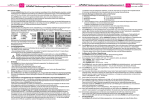
This means that you must insert the 6-pin plug into channels 1 and 2 (alpha 8 – figs 2.5.1 and 2.5.2)
or channels 1 and 4 (alpha 4 – fig. 2.5.3).
The monitor window now displays the message “Making connection”, and a few seconds later
“Connection successful”. You can now configure the receiver, or read out the old configuration.
When configuring an alpha receiver it is essential that no servos are connected to the alpha, as
the PC’s USB output might detect an excess current situation, and switch off the USB output.
2.5.1
2.5.2
2.5.3