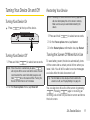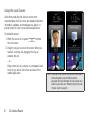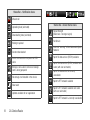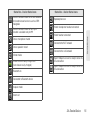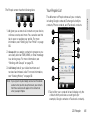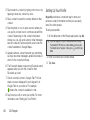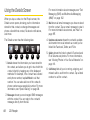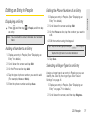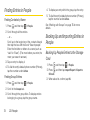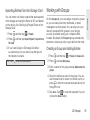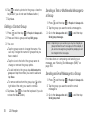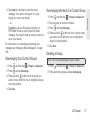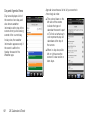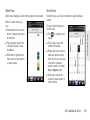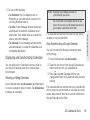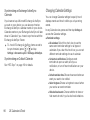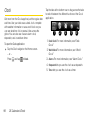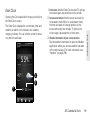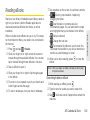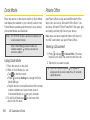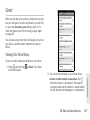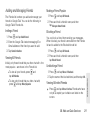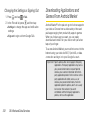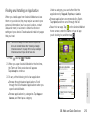
1
User Guide www.sprint.com ©2011 Sprint. SPRINT and the logo are trademarks of Sprint. Other marks are the property of their respective owners. 5/18/11 Consejo: Para encontrar esta guía para usuarios en español, por favor visita a sprint.com y haz clic en Support > Devices. To find this user guide in Spanish, please visit sprint.com and click Support > Devices. Important Privacy Message – Sprint’s policies often do not apply to third-party applications. Third-party applications may access your personal information or require Sprint to disclose your customer information to the third-party application provider. To find out how a third-party application will collect, access, use, or disclose your personal information, check the application provider’s policies, which can usually be found on their website. If you aren’t comfortable with the third-party application’s policies, don’t use the application. Table of Contents Tip: Looking for something? If you don’t see it in the headings listed here, try the Index on page 297. Introduction . . . . . . . . . . . . . . . . . . . . . . . . . . . . . . . i Your Device’s Menu . . . . . . . . . . . . . . . . . . . . . . . . i Section 1: Getting Started . . . . . . . . . . . . . . . . . 1 1A. Setting Up Service . . . . . . . . . . . . . . . . . . . 2 Setting Up Your Device . . . . . . . . . . . . . . . . . . . . . . Activating Your Device . . . . . . . . . . . . . . . . . . . . . . Setting Up Your Voicemail . . . . . . . . . . . . . . . . . . . Sprint Account Passwords . . . . . . . . . . . . . . . . . . . Getting Help . . . . . . . . . . . . . . . . . . . . . . . . . . . . . . . 2 3 4 4 5 Section 2: Your Device . . . . . . . . . . . . . . . . . . . . 7 2A. Device Basics . . . . . . . . . . . . . . . . . . . . . . . 8 Your Device . . . . . . . . . . . . . . . . . . . . . . . . . . . . . . . . 8 Turning Your Device On and Off . . . . . . . . . . . . . 11 Viewing the Display Screen . . . . . . . . . . . . . . . . . 13 Battery and Charger . . . . . . . . . . . . . . . . . . . . . . . 18 Getting Around Your Device . . . . . . . . . . . . . . . . 21 Displaying Your Phone Number . . . . . . . . . . . . . Making and Answering Calls . . . . . . . . . . . . . . . Speed Dialing . . . . . . . . . . . . . . . . . . . . . . . . . . . . Dialing Sprint Services . . . . . . . . . . . . . . . . . . . . . Entering Text . . . . . . . . . . . . . . . . . . . . . . . . . . . . . . Home Screen . . . . . . . . . . . . . . . . . . . . . . . . . . . . . 23 23 28 29 29 35 2B. Settings . . . . . . . . . . . . . . . . . . . . . . . . . . . . 40 Personalization Settings . . . . . . . . . . . . . . . . . . . . Sound Settings . . . . . . . . . . . . . . . . . . . . . . . . . . . Display Settings . . . . . . . . . . . . . . . . . . . . . . . . . . . Location Settings . . . . . . . . . . . . . . . . . . . . . . . . . . Messaging Settings . . . . . . . . . . . . . . . . . . . . . . . Airplane Mode . . . . . . . . . . . . . . . . . . . . . . . . . . . . TTY Use With Sprint Service . . . . . . . . . . . . . . . . Security Settings . . . . . . . . . . . . . . . . . . . . . . . . . . Data Synchronization Settings . . . . . . . . . . . . . . Social Network Settings . . . . . . . . . . . . . . . . . . . . Application Settings . . . . . . . . . . . . . . . . . . . . . . . Date & Time Settings . . . . . . . . . . . . . . . . . . . . . . Power-Saving Tips . . . . . . . . . . . . . . . . . . . . . . . . 40 41 44 46 47 49 49 50 53 55 56 57 57 2C. History . . . . . . . . . . . . . . . . . . . . . . . . . . . . . 60 2E. Calendar & Tools . . . . . . . . . . . . . . . . . . . 88 Viewing History . . . . . . . . . . . . . . . . . . . . . . . . . . . 60 Making a Call From History . . . . . . . . . . . . . . . . . 61 Saving a Number From History . . . . . . . . . . . . . . 61 Prepending a Number From History . . . . . . . . . 62 Erasing History . . . . . . . . . . . . . . . . . . . . . . . . . . . 62 Calendar . . . . . . . . . . . . . . . . . . . . . . . . . . . . . . . . . 88 Calculator . . . . . . . . . . . . . . . . . . . . . . . . . . . . . . . . 97 Clock . . . . . . . . . . . . . . . . . . . . . . . . . . . . . . . . . . . . 98 Flashlight . . . . . . . . . . . . . . . . . . . . . . . . . . . . . . . . 102 Reading eBooks . . . . . . . . . . . . . . . . . . . . . . . . . 103 Sharing Games and Applications . . . . . . . . . . 105 Car Panel . . . . . . . . . . . . . . . . . . . . . . . . . . . . . . . 107 Dock Mode . . . . . . . . . . . . . . . . . . . . . . . . . . . . . . 108 Polaris Office . . . . . . . . . . . . . . . . . . . . . . . . . . . . 108 Adobe Reader . . . . . . . . . . . . . . . . . . . . . . . . . . . 109 HTC Sync . . . . . . . . . . . . . . . . . . . . . . . . . . . . . . . 110 HTCSense.com . . . . . . . . . . . . . . . . . . . . . . . . . . 118 Updating Your Device . . . . . . . . . . . . . . . . . . . . . 120 2D. People . . . . . . . . . . . . . . . . . . . . . . . . . . . . . 63 About People . . . . . . . . . . . . . . . . . . . . . . . . . . . . . 63 Using the People Screen . . . . . . . . . . . . . . . . . . 64 Adding a New People Entry . . . . . . . . . . . . . . . . . 67 Saving a Phone Number . . . . . . . . . . . . . . . . . . . 67 Using the Details Screen . . . . . . . . . . . . . . . . . . . 68 Merging Entries in People . . . . . . . . . . . . . . . . . . 69 Editing an Entry in People . . . . . . . . . . . . . . . . . . . 71 Finding Entries in People . . . . . . . . . . . . . . . . . . . 74 Backing Up and Importing Entries in People . . 74 Working with Groups . . . . . . . . . . . . . . . . . . . . . . . 75 Using People Widgets . . . . . . . . . . . . . . . . . . . . . . 78 Connecting with Your Social Networks . . . . . . . 79 2F. Voice Services . . . . . . . . . . . . . . . . . . . . 121 Automatic Speech Recognition (ASR) . . . . . . . 121 Managing Voice Memos . . . . . . . . . . . . . . . . . . 123 Voice Input . . . . . . . . . . . . . . . . . . . . . . . . . . . . . . 124 2G. microSD Card . . . . . . . . . . . . . . . . . . . . . 125 Your Device’s microSD Card . . . . . . . . . . . . . . . 125 Using the Device’s microSD Card as a USB Drive . . . . . . . . . . . . . . . . . . . . . . . . . . . 128 2H. Camera & Video . . . . . . . . . . . . . . . . . . . . 130 Taking Pictures and Shooting Videos . . . . . . . 130 Viewing Pictures and Videos Using Gallery . . 138 Sharing Live Videos with Qik . . . . . . . . . . . . . . . 149 2I. Bluetooth . . . . . . . . . . . . . . . . . . . . . . . . . . 150 Using Bluetooth . . . . . . . . . . . . . . . . . . . . . . . . . . 150 Section 3: Sprint Service . . . . . . . . . . . . . . . . 159 3A. Sprint Service: The Basics . . . . . . . . . . 160 Voicemail . . . . . . . . . . . . . . . . . . . . . . . . . . . . . . . . Text Messaging (SMS) and Multimedia Messaging (MMS) . . . . . . . . . . . . . Caller ID . . . . . . . . . . . . . . . . . . . . . . . . . . . . . . . . . Call Waiting . . . . . . . . . . . . . . . . . . . . . . . . . . . . . . Making a 3-Way Call . . . . . . . . . . . . . . . . . . . . . . Call Forwarding . . . . . . . . . . . . . . . . . . . . . . . . . . Roaming . . . . . . . . . . . . . . . . . . . . . . . . . . . . . . . . 160 162 173 173 174 174 175 3B. Web and Data Services . . . . . . . . . . . . . 178 Ways of Connecting to the Internet . . . . . . . . . Connecting Using Wi-Fi . . . . . . . . . . . . . . . . . . . Connecting Using Sprint 4G . . . . . . . . . . . . . . . Getting Started With Data Services . . . . . . . . . 178 178 181 182 Connecting to a Virtual Private Network (VPN) . 184 Using the Device’s Web Browser . . . . . . . . . . . 186 Mail . . . . . . . . . . . . . . . . . . . . . . . . . . . . . . . . . . . . 197 Gmail . . . . . . . . . . . . . . . . . . . . . . . . . . . . . . . . . . 207 Google Talk . . . . . . . . . . . . . . . . . . . . . . . . . . . . . 209 Downloading Applications and Games From Android Market . . . . . . . . . . . . . . . . . . . . . . . . . . 212 Stocks . . . . . . . . . . . . . . . . . . . . . . . . . . . . . . . . . . 215 Weather . . . . . . . . . . . . . . . . . . . . . . . . . . . . . . . . . 218 News Feeds . . . . . . . . . . . . . . . . . . . . . . . . . . . . . 220 Sprint Hotspot . . . . . . . . . . . . . . . . . . . . . . . . . . . 222 Using Your Device as a Modem . . . . . . . . . . . 225 Connecting Your Device to the Internet Through a Computer (Internet Pass-through) . . . . . . . . 226 Data Services FAQs . . . . . . . . . . . . . . . . . . . . . . 226 3C. Entertainment: TV and Music . . . . . . . 228 Sprint TV & Movies . . . . . . . . . . . . . . . . . . . . . . . Music - MP3 Store . . . . . . . . . . . . . . . . . . . . . . . Sprint Radio . . . . . . . . . . . . . . . . . . . . . . . . . . . . Listening to Music . . . . . . . . . . . . . . . . . . . . . . . . Connected Media . . . . . . . . . . . . . . . . . . . . . . . . Listening to the Radio . . . . . . . . . . . . . . . . . . . . 228 232 233 234 240 242 YouTube . . . . . . . . . . . . . . . . . . . . . . . . . . . . . . . . 244 HTC Watch . . . . . . . . . . . . . . . . . . . . . . . . . . . . . . 246 NASCAR Sprint Cup Mobile . . . . . . . . . . . . . . . 246 3D. GPS Navigation . . . . . . . . . . . . . . . . . . . . 250 GPS Services . . . . . . . . . . . . . . . . . . . . . . . . . . . 250 TeleNav GPS Navigator . . . . . . . . . . . . . . . . . . 251 Google Maps . . . . . . . . . . . . . . . . . . . . . . . . . . . 252 Google Latitude . . . . . . . . . . . . . . . . . . . . . . . . . 258 Footprints . . . . . . . . . . . . . . . . . . . . . . . . . . . . . . . 261 Section 4: Safety and Warranty Information . . . . . . . . . . . . . . . . . . . . 265 4A. Important Safety Information . . . . . . . . 266 Important Health Information and Safety Precautions . . . . . . . . . . . . . . . . . . . . . . . 266 General Precautions . . . . . . . . . . . . . . . . . . . . . . 272 Additional Safety Information . . . . . . . . . . . . . . . 276 Regulatory Agency Identifications . . . . . . . . . . 282 Federal Communication Commission Interference Statement . . . . . . . . . . . . . . . . . . . . 283 SAR Information . . . . . . . . . . . . . . . . . . . . . . . . . 286 Telecommunications & Internet Association (TIA) Safety Information . . . . . . . . 288 WEEE Notice . . . . . . . . . . . . . . . . . . . . . . . . . . . . . RoHS Compliance . . . . . . . . . . . . . . . . . . . . . . . Owner’s Record . . . . . . . . . . . . . . . . . . . . . . . . . . User Guide Proprietary Notices . . . . . . . . . . . . . 289 290 290 290 4B. Manufacturer’s Warranty . . . . . . . . . . . 292 Manufacturer’s Warranty . . . . . . . . . . . . . . . . . . . Privacy Restrictions . . . . . . . . . . . . . . . . . . . . . . . Weather Disclaimer . . . . . . . . . . . . . . . . . . . . . . . Warranty Disclaimer . . . . . . . . . . . . . . . . . . . . . . Limitation of Damages . . . . . . . . . . . . . . . . . . . . 293 295 295 295 296 Index . . . . . . . . . . . . . . . . . . . . . . . . . . . . . . . . . . 297 Introduction Your Device’s Menu This User Guide introduces you to Sprint® service and all the features of your new device. It’s divided into four sections: The following table outlines your device’s main menu structure. From the Home screen, press to open the menu. If the screen is locked, drag the ring upward until the Home screen opens. ⽧ Section 1: Getting Started ⽧ Section 2: Your Device ⽧ Section 3: Sprint Service ⽧ Tip: For most programs or games on the device, pressing brings up options available for the application or game. Section 4: Safety and Warranty Information WARNING: Please refer to the Important Safety Information section on page 266 to learn about information that will help you safely use your device. Failure to read and follow the Important Safety Information in this device guide may result in serious bodily injury, death, or property damage. All apps Notifications Personalize 1: Personalize display 1: Scene 3: Wallpaper 2: Skin 4: Lock screen i 2: Add items to Home 5: Bluetooth settings 1: Widget 3: Shortcut 1: Bluetooth 3: Discoverable 5: Scan for devices 2: App 4: Folder 3: Personalize sound 1: Sound set 3: Notification sound 6: Sprint Hotspot 2: Ringtone 4: Alarm 7: Sprint Hotspot settings Wallpaper 1: HTC wallpapers 3: Gallery 2: Live wallpapers Ringtones Settings 1: Router name (SSID) 3: Password 9: 4G settings 1: 4G 3: Signal strength 10: VPN settings 2: Wireless & networks 11: Mobile network 1: Airplane mode 12: Mobile networks 2: Wi-Fi 3: Wi-Fi settings 1: Wi-Fi 2: Network notification 3: Wi-Fi Protected Setup 4: Add Wi-Fi network 2: Security 4: Manage users 8: 4G 1: Personalize (see “Personalize” on page i) 4: Bluetooth 2: Device name 4: Advanced Settings 1: Data roaming sound 3: Roaming 5: Domestic Data 7: International Data 2: Network provider 4: IP address 2: Roaming Guards 4: Domestic Voice 6: International Voice 8: Enable always-on mobile data 13: USB tethering 14: USB tethering setting ii 15: Internet Pass-through 3: Call 1: Auto-rotate screen 3: Brightness 5: Notification flash 1: Voicemail 1: Voicemail service 2: Voicemail settings 3: Clear voicemail notification 2: Phone settings 4: Home dialing 6: DDTM mode 8: Automatic prepend 3: Internet call settings 1: Accounts 2: Use Internet calling 6: Accounts & sync 2: Auto-sync 3: Exchange ActiveSync (if available) 1: General settings 2: Mail 3: Contacts 4: Calendar 5: Update when opened 6: Update schedule 4: Facebook for HTC Sense (if available) 1: Sync live feed 3: Sync contacts 4: Sound 1: Sound profile 3: Vibrate 5: Quiet ring on pickup 7: Flip for speaker 9: Audible touch tones 11: Screen lock sounds 13: Emergency tone 2: Animation 4. Screen timeout 6: G-Sensor calibration 1: Background data 2: Other call settings 1: Hearing aids 3: Home country 5: TTY mode 7: Voice Privacy 9: Plus code dialing 5: Display 2: Volume 4: Phone ringtone 6: Pocket mode 8: Notification sound 10: Audible selection 12: Vibrate feedback 2: Sync Calendar 4: Update schedule 5: Flickr (if available) 1: Sync stream 3: Update schedule 2: Sync contacts 6: Google (if available) 1: Sync contacts 3: Sync Calendar 2: Sync Gmail iii 7: HTC Sense (if available) 1: Sync HTC Sense 2: Sync HTC Hub 3: Update when opened 4: Update schedule 8: Mail (if available) 9: Qik Video (if available) 2: Sync contacts 10: Twitter for HTC Sense (if available) 1: Sync Peep 2: Sync Friend 3: Update when opened 4: Update schedule 11: Watch account 1: Account Settings 2: Update widget when opened 12: News 1: Sync news 3: Update schedule iv 2: Update when opened 1: Use wireless networks 2: Location setting 3: Use GPS satellites 4: Phone finder 8: Search 1: Google search 3: Clear shortcuts 2: Searchable items 9: Privacy 1: Display message text on lock screen 2: Back up my settings 3: Automatic restore 10: Connect to PC 1: Default connection type 2: Ask me 11: Security 2: Update when opened 13: Stocks 1: Sync stock info 3: Update schedule 1: Sync weather 3: Update schedule 7: Location 1: Account settings 2: Sync mail 3: Update when opened 4: Update schedule 1: Account Settings 14: Weather 2: Update when opened 1: Set up screen lock 3: Set password 5: Install from SD card 2: Visible passwords 4: Use secure credentials 6: Clear all credentials 12: Power 1: Enable power saver 3: Power saver settings 2: Turn power saver on at 4: Fast boot 13: Applications 1: Unknown sources 3: Running services 5: Storage use 7: Notifications 3: Touch Input 2: Manage applications 4: Development 6: Start automatically 14: SD & phone storage 1: Total space 3: Unmount SD card 5: Available space 7: Factory data reset 2: Available space 4: Erase SD card 6: Make more space 2: Set date 4: Set time 6: Select date format 16: Language & keyboard 1: Select language 1: English 2: International keyboard 4: Text input 6: Tutorial 8: Personal dictionary 17: Accessibility 18: Voice input & output 1: Voice recognizer settings 2: Text-to-speech settings 19: System updates 15: Date & time 1: Automatic 3: Select time zone 5: Use 24-hour format 1: Keyboard types 3: Bilingual prediction 5: Chinese text input 7: Trace keyboard 2: Español 2: Swype 1: Language 2: Word prediction 3: Audio feedback 4: Vibrate on keypress 5: Enable tip indicator 6: Auto-spacing 7: Auto-capitalization 8: Show complete trace 9: Word choice window 10: Speed vs. accuracy 11: Swype help 12: Tutorial 1: Firmware update 3: Update PRL 2: Update profile 4: HTC software update 20: About phone 1: Tell HTC 1: Report errors to HTC 2: Report preference 3: Report usage to HTC 4: Send reports 2: Phone identity 1: Model number 3: Phone number 5: Current username 2: MEID 4: IMSI v 3: Battery 1: Battery status 3: Battery use 5: Awake time 2: Battery level 4: Up time 4: Hardware information 1: Hardware version 3: Memory 5: Main camera 7: Wi-Fi 9: Bluetooth 11: 4G MAC address 2: Processor 4: Display 6: Front camera 8: Wi-Fi MAC address 10: Bluetooth address 5: Software information 1: Android version 3: Software number 5: PRI Version 2: HTC Sense version 4: More 6: PRL Version 6: Legal information 1: HTC legal 3: Google legal vi 2: Sprint legal 4: Open source licenses Section 1 Getting Started Setting Up Your Device 1A. Setting Up Service ⽧ Setting Up Your Device (page 2) ⽧ Activating Your Device (page 3) ⽧ Setting Up Your Voicemail (page 4) ⽧ Sprint Account Passwords (page 4) ⽧ Getting Help (page 5) 2 1A. Setting Up Service 1. Install the battery. 䡲 Insert a coin or other flat object into the slot at the bottom of the battery compartment cover and lift the cover up gently to remove. 䡲 Insert the battery, contacts end first, and then gently press the battery into place. Replace the battery compartment cover, making sure all the locking tabs are seated and there are no gaps around the cover. Activating Your Device 䢇 If you purchased your device at a Sprint Store, it is 䢇 If you received your device in the mail and it is for a new Sprint account or a new line of service, it is designed to probably activated and ready to use. 2. Press to turn the device on. 䡲 If your device is activated, it will turn on, search for Sprint service, and enter standby mode. 䡲 If your device is not yet activated, see “Activating Your Device” for more information. Note: When you turn on your device for the first time, you will be given options to let you quickly set up various accounts, such as your Google account, Facebook, Flickr, Twitter, ® ® Microsoft Exchange ActiveSync , and other email accounts. We recommend that you skip these. 3. Make your first call. Tap . Use the onscreen keypad to enter a phone number. 䡲 Tap . 䡲 䡲 Note: Your device’s battery should have enough charge for your device to turn on and find a signal, set up your voicemail, and make a call. You should fully charge your battery as soon as possible. See “Charging the Battery” on page 20 for details. activate automatically. To confirm your activation, make a phone call. 䢇 If you received your device in the mail and you are activating a new device for an existing number on your account, you will need to go online to activate your new device. 䡲 From your computer’s Web browser, go to sprint.com/activate and complete the onscreen instructions to activate your device. When you have finished, make a phone call to confirm your activation. If your device is still not activated or you do not have access to the Internet, contact Sprint Customer Service at 1-888-211-4727 for assistance. Tip: Do not press activated. Pressing process. while the device is being cancels the activation 1A. Setting Up Service 3 Setting Up Service 䡲 Note: If you are having difficulty with activation, contact Sprint Customer Service by dialing 1-888-211-4727 from any other phone. Setting Up Your Voicemail Your device automatically transfers all unanswered calls to your voicemail, even if your device is in use or turned off. You should set up your Sprint Voicemail and personal greeting as soon as your device is activated. Always use a password to protect against unauthorized access. 1. Press and tap > Voicemail. 2. In the Personalize your voicemail window, tap Personalize now. 3. Your device will automatically connect with Sprint voicemail service. Follow the system prompts to: 䡲 Create your password. 䡲 Record your name announcement. 䡲 Record your greeting. For more information about using your voicemail, see “Voicemail” on page 160. 4 1A. Setting Up Service Note: Voicemail Password Sprint strongly recommends that you create a password when setting up your voicemail to protect against unauthorized access. Without a password, anyone who has access to your device is able to access your voicemail messages. Sprint Account Passwords As a Sprint customer, you enjoy unlimited access to your personal account information, your voicemail account, and your data services account. To ensure that no one else has access to your information, you will need to create passwords to protect your privacy. Account User Name and Password If you are the account owner, you will create an account user name and password when you sign on to sprint.com. (Click Sign in and then click Sign up now! to get started.) If you are not the account owner (if someone else receives the bill for your Sprint service), you can get a sub-account password at sprint.com. Getting Help You’ll create your voicemail password when you set up your voicemail. See “Setting Up Your Voicemail” for more information on your voicemail password. Managing Your Account Data Services Password Online: www.sprint.com With your Sprint device, you may elect to set up an optional data services password to control access and authorize Premium Service purchases. For more information, or to change your passwords, sign on to sprint.com or call Sprint Customer Service at 1-888-211-4727. 䢇 䢇 䢇 䢇 䢇 䢇 䢇 䢇 Access your account information. Check your minutes used (depending on your Sprint service plan). View and pay your bill. Enroll in Sprint online billing and automatic payment. Purchase accessories. Shop for the latest Sprint phones. View available Sprint service plans and options. Learn more about data services and other products like games, ring tones, screen savers, and more. 1A. Setting Up Service 5 Setting Up Service Voicemail Password Sprint 411 From Your Sprint Phone 1. Press and tap . 2. Do any of the following: Tap to check minute usage and account balance. 䡲 Tap to make a payment. 䡲 Tap to access a summary of your Sprint service plan or get answers to other questions. 䡲 From Any Other Phone 䢇 䢇 Sprint Customer Service: 1-888-211-4727. Business Customer Service: 1-888-788-4727. Sprint 411 gives you access to a variety of services and information, including residential, business, and government listings; movie listings or showtimes; driving directions, restaurant reservations, and major local event information. You can get up to three pieces of information per call, and the operator can automatically connect your call at no additional charge. There is a per-call charge to use Sprint 411, and you will be billed for airtime. 䊳 Tap . Sprint Operator Services Sprint Operator Services provides assistance when you place collect calls or when you place calls billed to a local telephone calling card or third party. 䊳 Tap . For more information or to see the latest in products and services, visit us online at sprint.com. 6 1A. Setting Up Service Section 2 Your Device Your Device 2A. Device Basics ⽧ ⽧ ⽧ ⽧ ⽧ ⽧ ⽧ ⽧ ⽧ ⽧ ⽧ Your Device (page 8) Turning Your Device On and Off (page 11) Viewing the Display Screen (page 13) Battery and Charger (page 18) Getting Around Your Device (page 21) Displaying Your Phone Number (page 23) Making and Answering Calls (page 23) Speed Dialing (page 28) Dialing Sprint Services (page 29) Entering Text (page 29) Home Screen (page 35) Tip: Device Software Upgrades – Updates to your device’s software may become available from time to time. Sprint will automatically send critical updates to your device. You can also check for and download updates by > , and then tapping Settings > System pressing updates > Firmware update to search for and download available updates. 8 2A. Device Basics 1 2 10 9 3 4 8 5 7 6 1. Earpiece lets you hear the caller and automated prompts. 2. Proximity Sensor automatically switches the display screen off when you hold the device near your face during a call. When activated, the proximity sensor does not affect the device’s 3G, 4G, or Wi-Fi connection. 8. Back Key allows you to go back to the previous screen, or close a dialog box, options menu, the Notifications panel, or onscreen keyboard. 9. Front Camera allows you to take photos and videos or start a video call. 10. Front Indicator Light (LED) shows your device’s status or pending notifications at a glance. 11 12 3. Display Screen displays all the information needed to operate your device, such as the call status, the People list, the date and time, and the signal and battery strength. 4. Menu Key allows you to open a list of actions that you can do on the current screen. 5. Home Key takes you back to the Home screen. When in standby mode, press and hold to open the recently used applications window. 11. 3.5 mm Headset Jack allows you to plug in either a stereo headset or an optional headset for convenient, hands-free conversations. CAUTION! Inserting an accessory into the incorrect jack may damage the device. 12. Power Button lets you turn the device on or off, turn the screen on or off, restart the device, or switch the device to airplane mode. 6. Microphone allows other callers to hear you clearly when you are speaking to them. 7. Search Key allows you to search information on the current screen or application. For example, while in People, press to search for a contact. 2A. Device Basics 9 Device Basics Key Functions 13. Volume Buttons allow you to adjust the ringer or 17 19 13 14 media volume or adjust the voice volume during a call. 14. Dual flash helps illuminate subjects in low-light environments when the camera is focusing and capturing a photo or video. 18 15. 2D/3D Switch allows you to set the camera to 17 16. Camera Button allows you to launch the camera. If capture photos or videos in 2D or 3D. the camera is activated, press this button to capture the photo or start recording video. 17. Camera lenses allow you to capture high-definition photos and videos in 2D or 3D. 15 18. Charger/Accessory Jack allows you to connect the 16 device charger or the USB cable (included). CAUTION! Inserting an accessory into the incorrect jack may damage the device. 19. Speaker lets you hear the different ringers and sounds. The speaker also lets you hear the caller’s voice in speakerphone mode. 10 2A. Device Basics Turning Your Device On and Off Restarting Your Device Note: Restarting the device will close all running apps and 䊳 Press at the top of the device. will clear all temporary files in the device’s memory. Make sure to save your work before restarting the device. 1. Press and hold for about two seconds. Device Basics Turning Your Device On 2. On the Power options menu, tap Restart. 3. In the Restart phone confirmation box, tap Restart. Turning Your Device Off 1. Press and hold for about two seconds. Note: When the screen is locked and you press , it will only turn off the screen and not the device. You will need to unlock the screen first before you press and hold to turn the device off. See “Turning the Screen Off When Not in Use” for details. 2. On the Power options menu, tap Power off. Turning the Screen Off When Not in Use To save battery power, the device automatically turns off the screen after a certain period of time when you leave it idle. You will still be able to receive messages and calls while the device’s screen is off. Tip: For information on how to adjust the time before the screen turns off, see “Display Settings” on page 44. You can also turn off and lock the screen by pressing . Pressing again or receiving an incoming call will turn on your device screen and show the lock screen. 2A. Device Basics 11 Using the Lock Screen Aside from protecting the device’s screen from unwanted taps, the lock screen also displays important information, updates, and messages at a glance, or provide shortcut icons to your favorite applications. To unlock the screen: 1. When the screen is off, press to show the lock screen. 2. Drag the ring up to unlock the screen. When you have an incoming call, dragging the ring up answers the call. – or – Drag a shortcut icon, a photo, or a message board to the ring to unlock the screen and launch the related application. Note: If you have set up a screen lock, you will be prompted to draw the pattern, enter the PIN, or enter the password. For more information on how to create and enable a screen lock, see “Protecting Your Device with a Screen Lock” on page 50. 12 2A. Device Basics Viewing the Display Screen Your device’s display screen provides information about notifications and your device’s status. This list identifies the symbols you’ll see on your device’s display screen: Status Bar – Notification Icons Upcoming event Music is playing Device Basics General notification (for example, sync error) Storage card is low on free space Status Bar – Notification Icons Wi-Fi is on and wireless networks are available New Text or Multimedia Message 4G is on and 4G networks are available New Voicemail Data synchronizing – connected to HTC Sync New Gmail message New location detected New Microsoft Exchange ActiveSync or POP3/IMAP email message Problem with Text/Multimedia Message delivery More (undisplayed) notifications Call in progress (Voice Privacy locked) New instant message from Google Talk Call in progress (Voice Privacy unlocked) 2A. Device Basics 13 Status Bar – Notification Icons Missed call Uploading data (animated) Downloading data (animated) Waiting to upload Content downloaded Device connected to computer via USB cable Storage card is safe to remove or storage card is being prepared No storage card installed in the device Status Bar – Device Status Icons Signal Strength (More bars = stronger signal) No Service Device is “roaming” off the Nationwide Sprint Network Sprint 3G data service (EVDO) available Sprint 3G data service (EVDO) available and active (with icon animation) Sprint 3G data service is currently unavailable Sprint 1xRTT network available New tweet Updates available for an application Sprint 1xRTT network available and active (with icon animation) Sprint 1xRTT network is currently unavailable 14 2A. Device Basics Device’s location feature is on and available for location-based services such as GPS Navigation Device’s location feature off and your location is available only for 911 Status Bar – Device Status Icons Speakerphone on Wired microphone headset connected Wired headset connected Device Basics Status Bar – Device Status Icons Device microphone muted Connected to Wi-Fi network Device speaker muted Connected to a 4G network Vibrate mode Shows current battery charge level (Icon shown is fully charged) Bluetooth on Sprint Hotspot is on and is ready to share its 4G connection Sprint Hotspot is on and is ready to share its 3G connection Connected to Bluetooth device Airplane mode Alarm set 2A. Device Basics 15 Notifications Panel When you get a new notification, you can open the Notifications panel to see the message, reminder or event notification. The Notifications panel lets you quickly switch between recently opened apps, and also lets you easily turn on settings such as 4G, Wi-Fi and Bluetooth. To open the Notifications panel: To open the Notifications panel, press and hold the status bar, and then slide your finger downward. If you have several notifications, you can scroll down the screen to view more notifications. Tip: You can also open the Notifications panel from the Home screen by pressing Notifications. and then tapping To close the Notifications panel: 䊳 Press and hold the bottom bar of the Notifications panel, and then drag it up the screen. – or – Press 16 . 2A. Device Basics Tap a notification to open the related application. Press and hold, and then drag up to close the Notifications panel. To switch between recently opened apps: To use Quick Settings: On the Notifications panel, you can easily access up to eight apps you just recently opened. The Quick Settings tab lets you easily turn on 4G, Wi-Fi, Bluetooth, GPS, and more, and also provides a quick shortcut to all device settings. 2. In the Recent applications section, slide your finger left or right to see recently opened apps. 1. Open the Notifications panel. 2. Tap the Quick Settings tab. Device Basics 1. Open the Notifications panel. 3. Tap the check box next to an item to turn it off or on. 3. Tap an application to open it. Tip: Press and hold to view recently opened applications. 2A. Device Basics 17 Battery and Charger Notification LED The Notification LED located near the right end of the earpiece provides information on the device status or pending notifications. LED Status Indication Solid green Battery is fully charged (when the device is connected to the AC adapter or a computer). Solid red Battery is charging. Flashing red Battery is low. (Power is below 14%.) Flashing green You have a pending notification (for example, a new message or a missed call). WARNING: Use only Sprint-approved or HTC-approved batteries and chargers with your device. The failure to use an Sprint-approved or HTC-approved battery and charger may increase the risk that your device will overheat, catch fire, or explode, resulting in serious bodily injury, death, or property damage. Sprint-approved or HTC-approved batteries and accessories can be found at Sprint Stores or through HTC; or call 1-866-866-7509 to order. They’re also available at sprint.com. Battery Capacity Your device is equipped with a rechargeable battery. The battery provides up to 6 hours of continuous talk time. For battery-saving tips, see “Power-Saving Tips” on page 57. Note: Long backlight settings, searching for service, vibrate Note: The indicators are listed in order of priority. For example, if your device is connected to the AC adapter and the battery is charging, the LED will be solid red and will not switch to a flashing green light even if there is a pending notification. 18 2A. Device Basics mode, browser use, and other variables may reduce the battery’s talk and standby times. Tip: Watch your device’s battery level indicator and charge the battery before it runs out of power. Installing the Battery 1. With the device turned off, insert a coin or other flat object into the slot at the bottom of the battery compartment cover and lift up gently to remove. 3. Replace the battery compartment cover and press until it snaps into place, making sure all the locking tabs are seated and there are no gaps around the cover. Removing the Battery any stored numbers or messages. 2. Remove the battery compartment cover. (See step 1 of “Installing the Battery.”) 3. Lift the battery out at the notch at the bottom of the battery compartment. 2. Insert the contact end of the battery first, and then gently push the battery into place. WARNING: Do not handle a damaged or leaking Li-Ion battery as you can be burned. 2A. Device Basics 19 Device Basics 1. Make sure the power is off so that you don’t lose Charging the Battery Keeping track of your battery’s charge is important. If your battery level becomes too low, your device automatically turns off, and you will lose any information you were just working on. Always use a Sprint-approved or HTC-approved desktop charger, travel charger, or vehicle power adapter to charge your battery. Tip: With the Sprint-approved Li-ion battery, you can recharge the battery before it becomes completely run down. 1. Plug the USB connector of the AC adapter into the charger/accessory jack on the upper left side of your device. 20 2A. Device Basics 2. Plug the AC adapter in to an electrical outlet to start charging the battery. Charging is indicated by a solid red light in the Notification LED. As the battery is being charged while the device is on, the charging battery icon ( ) is displayed in the status bar of the Home screen. After the battery has been fully charged, the Notification LED shows a solid green light and a full battery icon ( ) displays in the status bar of the Home screen. For more information about Notifications, see “Notification LED” on page 18 for more details. Getting Around Your Device Swipe, Slide or Drag There are different ways to navigate around your device’s Home screen, menus, and application screens. To swipe or slide means to quickly drag your finger vertically or horizontally across the screen. When you want to type using the onscreen keyboard, select items on the screen such as application and settings icons or buttons, simply tap them with your finger. Press and Hold To open the available options for an item (for example, contact or link in a Web page), simply press and hold the item. To drag, press and hold your finger with some pressure before you start to move your finger. While dragging, do not release your finger until you have reached the target position. Device Basics Tap Flick Flicking the screen is similar to swiping, except that you need to swipe your finger in light, quick strokes. This finger gesture is always in a vertical direction, such as when flicking the contacts or message list. 2A. Device Basics 21 Rotate Pinch and Spread For most screens, you can automatically change the screen orientation from portrait to landscape by turning the device sideways. When entering text, you can turn the device sideways to bring up a bigger keyboard. See “Using the Onscreen Keyboard” for more details. “Pinch” the screen using your thumb and forefinger to zoom out or “spread” the screen to zoom in when viewing a picture or a Web page. (Move fingers inward to zoom out and outward to zoom in.) Note: The Auto-rotate screen check box in > > Settings > Display needs to be selected for the screen orientation to automatically change. 22 2A. Device Basics 䊳 Press > and tap Settings > About phone > Phone identity. (Your phone number and other information about your device and account will be displayed.) Making and Answering Calls Making Calls There are several convenient methods to make a call from your device. Calling Using the Phone Dialer You can dial a number directly in the Phone’s dialer. As you enter the first digits of the phone number, Smart Dial searchs for contacts that match. If you see the number that you want, you can tap it to dial it immediately without entering the rest of the phone number. Note: Smart Dial will also search your contacts if you enter the letters in the name of a contact using the letters on the number pad. As you enter more letters or numbers, the list shows only the corresponding matches. 1. Press and tap . 2. Begin entering the first few digits or characters by tapping the keys on the Phone keypad. If you enter an incorrect digit, tap to erase it. To erase the entire number, press and hold . 3. Tap the phone number or contact from the list. – or – To call a different phone number associated with the contact, tap the contact card icon at the right side of the contact name. On the contact details screen, tap the number you want to call. Tip: Tap to close the Phone keypad and to see if there are more matching numbers or contacts. To browse through the filtered list, flick through the list or slide your finger up or down the list slowly. 2A. Device Basics 23 Device Basics Displaying Your Phone Number Calling a Phone Number in a Text Message While viewing a text message, you can place a call to a number that is in the body of the message. 1. Press and tap > Messages. 2. Tap the message with the phone number, and then tap the phone number. 3. On the Verify the phone number screen, tap Call. Your device then dials the phone number. For more information about text messages, see “Text Messaging (SMS) and Multimedia Messaging (MMS)” on page 162. Calling a Phone Number in an Email Message While viewing an email message, you can tap a phone number within the body of the email message to open the Phone screen and dial the selected number. Calling a Speed Dial Number To call a stored speed dial number, press and hold a number key. For information on setting up speed dial numbers, see “Speed Dialing” on page 28. 24 2A. Device Basics You can also place calls from your device using your History listings (page 60) and Automatic Speech Recognition (page 121). Receiving Calls When you receive a phone call from a contact, the Incoming call screen appears and displays the caller ID icon, name, and phone number of the calling party. When you receive a phone call from someone who is not stored in People, only the default caller ID icon and phone number appear on the Incoming call screen. Note: If your device is turned off, all calls automatically go to voicemail. Answering an Incoming Call 䊳 If the display is on, tap Answer. 䊳 If the display is off, the display will come on with the Lock screen. To answer the call, pull the ring up, or press and hold the Answer button and then drag it to the ring. Rejecting a Call and Sending a Text Message To mute the ringer without rejecting the call, you can do any of the following: You can automatically send a default text message to a caller and reject the incoming voice call. Press and tap Send message when you have an incoming call to send the text message. 䊳 Press the volume down button. 䊳 Press 䊳 Place the device face down on a level surface. (You can do this even on the Lock screen.) and tap Mute. While on the Phone screen, you can change the default text message by pressing and tapping Settings > Edit default message. Using the Quiet Ring on Pickup Feature Answering a Roam Call With Call Guard Enabled Your device automatically reduces the ringer volume when you pick up the device to answer calls. Call Guard is an option that helps you manage your roaming charges when making or receiving calls while outside the Nationwide Sprint Network. See “Roaming” on page 175 for more information. 1. Press > , and then tap Settings > Sound. 2. Scroll down the screen, and then select the Quiet ring on pickup check box. 3. Press . 䊳 Note: If your device is turned off, all calls automatically go to Rejecting an Incoming Call 䊳 If the display is on, tap Decline. 䊳 If the display is off, the display will come on with the Lock screen. Press and hold the Decline button and then drag it to the ring to reject and send the call to your voicemail. Tap Answer to answer the call. (See “Roaming Guards” on page 176 for more information.) voicemail. Ending a Call 䊳 Tap End call. 2A. Device Basics 25 Device Basics Muting the Ringing Sound Missed Call Notification To call the 911 emergency number normally or when your account is restricted: When you do not answer an incoming call, you will see the missed call icon in the status bar. To see who the caller was, press and hold the status bar, and then drag downward on the screen to open the Notifications panel. The missed call number or contact name is displayed. Tap the missed call number or contact name to open the Call history. Missed calls are indicated by the missed call icon ( ). Calling Emergency Numbers You can place calls to 911 even if the device’s screen is locked or your account is restricted. To call the 911 emergency number when the device’s screen is locked with a screen lock: 1. Unlock the screen. For more information, see “Using the Lock Screen.” 2. Tap Emergency call on the screen. 3. Tap 26 2A. Device Basics . 1. Unlock the screen. For more information, see “Using the Lock Screen.” 2. Tap on the Home screen. 3. Tap . Enhanced 911 (E911) Information This device features an embedded Global Positioning System (GPS) chip necessary for utilizing E911 emergency location services where available. When you place an emergency 911 call, the GPS feature of your device seeks information to calculate your approximate location. Depending on several variables, including availability and access to satellite signals, it may take up to 30 seconds or more to determine and report your approximate location. Important: Always report your location to the 911 operator when placing an emergency call. Some designated emergency call takers, known as Public Safety Answering Points (PSAPs), may not be equipped to receive GPS location information from your device. End-of-Call Options Pressing during a call displays a list of available in-call features. Tap an option to select it. The following options may be available through the Options menu: After you receive a call from or make a call to a phone number that is not in your People list, you can choose to save the number to People. On the Phone screen, tap at the right side of the number to add the new number to People. Note: When the device is completing a call, only the People, Flash, and Speaker on options are available. 䢇 Add call to initiate a three-way call. 䢇 People to display your contacts list. 䢇 Flash to accept another incoming call and put the first caller on hold. Tap Flash again to talk to the first caller. 䢇 Mute to mute the microphone. Tap Unmute to unmute 䢇 the microphone. Speaker on or Speaker off to route the device’s audio through the speaker or through the earpiece. 䊳 䊳 Tap Speaker On to route the device’s audio through the speaker. (You can adjust the speaker volume by pressing the volume up or down button.) Tap Speaker Off to use the device’s earpiece. WARNING: Because of higher volume levels, do not place the device near your ear during speakerphone use. Device Basics In-Call Options Tip: After receiving a call from a phone number that is not in your People list, an options menu is briefly displayed to allow you to save the number to People. On the options menu, tap Yes, create new contact. Saving a Phone Number You can store contacts entries in your device. Your device automatically sorts People entries alphabetically. (For more information, see “About People” on page 63.) To save a number from standby mode: 1. Press and tap . 2. Enter the phone number by tapping the keys on the keypad. 3. Tap Save to People. (This button appears after tapping six digits.) 2A. Device Basics 27 4. Tap Create new contact or Save to existing contact. Speed Dialing 5. Use the keyboard to enter the new contact name and tap Save to save the new entry. – or – Tap an existing contact name and tap Save to save the new number. Finding a Phone Number You can search People for entries by name. 1. Press and tap > People. 2. Press , tap the Search people bar and enter the first letter or letters of an entry. (The more letters you enter, the more specific the search.) 3. Tap the contact to display the contact’s phone number(s). Dialing From the People List 1. Press and tap > People. 2. Tap the entry you want to call. 3. Tap Call [Type of Number]. (For example, Call mobile.) 28 2A. Device Basics Your device can store up to nine phone numbers in speed dial locations. To assign a speed dial number to a People entry: 1. Press and tap entry in People. 2. Press > People, and then tap an and tap Set speed dial. 3. Tap the list menu under Number to select a number from the contact to assign to speed dial. 4. Tap the list menu under Location to assign the number to a speed dial location. 5. Tap Save. Note: If you assign a number to an already in-use speed dial location, the new phone number will automatically replace the previous speed dial assignment. Entering Text 䊳 Press and hold the appropriate key on the Phone keypad for approximately two seconds. The display confirms that you have dialed the number when it shows “Dialing” on the upper right side of the screen. Finding Speed Dial Numbers 1. Press and tap 2. Press and Speed dial. . 3. Tap a speed dial entry to call the contact. Tip: While on the Speed dial screen, tap Add new or press and tap Add to add new speed dial entries from People. Dialing Sprint Services 䊳 Using the Onscreen Keyboard When you start a program or select a box that requires entry of text or numbers, the onscreen keyboard becomes available. You can choose from three keyboard layouts: Standard, Phone, and Compact. Changing to Landscape Orientation When entering text, you can choose to use the landscape orientation of the onscreen keyboard by turning the device sideways. This pops up a larger Standard keyboard that lets you type easily using two thumbs Note: The landscape orientation keyboard is not supported in all applications. Dial the appropriate service number: Customer Service – 䡲 䡲 Sprint 411 – 䡲 Account Information – 䡲 Sprint Operator – 2A. Device Basics 29 Device Basics To call using Speed Dial: Changing the Onscreen Keyboard Layout Entering Text You can choose from three different keyboard layouts to suit your typing style. To change the keyboard layout, do the following: Use the following keys while entering text using the onscreen keyboard: > , and then tap Settings > Language & keyboard > Touch Input. 1. Press 2. Tap Keyboard types, and then select from the following keyboard types: Standard. This layout is similar to a desktop computer keyboard. This is the default keyboard layout. 䡲 Phone. This layout resembles a traditional wireless phone keypad. 䡲 Compact. This layout features two letters on each key. The keys are slightly larger than on the standard layout. 䡲 Press and hold keys with gray characters at the top to enter numbers, symbols, or accented letters. The gray character displayed on the key is the character that will be inserted when you press and hold that key. Some keys have multiple characters or accents associated with them. Shift key. Tap to capitalize the next letter you enter. Tap twice to turn on caps lock. Numeric key. Tap to switch to the numeric and symbol keyboard. Alphabet key. Tap to switch to the alphabetic keyboard. Enter key. Tap to create a new line. Backspace key. Tap to delete the previous character. Press and hold to delete multiple characters. Voice input key. Tap to speak the words you want to type. See “Voice Input” on page 124. 30 2A. Device Basics 䢇 Tap to hide the onscreen keyboard. Predictive Text The onscreen keyboard has predictive text to help you type quickly and accurately. Predictive text input is enabled by default, and word suggestions are displayed as you type. 䢇 Adding a Word to the Predictive Text Dictionary Your device comes with a list of words that it references for predictive text suggestions. Sometimes you may need to add a word to the predictive text dictionary, for example a name or a specialized technical word. While entering text using the Standard keyboard layout, if you tap any word on the suggestion list, it is automatically added to the predictive text dictionary if it was not in the dictionary already. To manually add a word to the predictive text dictionary: To enter a word in predictive mode, do any of the following: 䢇 If you see the word you want highlighted in green or orange, you can simply tap the space bar to insert the word into your text. 1. Press > , and then tap Settings > Language & keyboard > Touch Input > Personal dictionary. 2. Tap Edit personal dictionary and then tap Add new. 3. Enter the word to add, and then tap OK. 2A. Device Basics 31 Device Basics Tap to toggle between Multitap and XT9 predictive modes when using the Compact or Phone layout. (See “Predictive Text” for details.) If you see the word you want shown in the suggestions before you have finished typing the entire word, tap the word to insert it into your text. If an arrow is shown to the right of the suggestion list, tap the arrow to see more suggestions. Editing or Deleting a Word in Your Personal Dictionary Backing up Your Personal Dictionary to Your Storage Card You can edit or remove words that you previously added to the predictive text dictionary. You can use your microSD storage card to back up the new words you’ve added to your personal dictionary. 1. Press 1. Press 2. Tap Edit personal dictionary. 2. Tap Personal dictionary > Sync personal dictionary > > , and then tap Settings > Language & keyboard > Touch Input > Personal dictionary. 3. To edit a word, tap the word, enter your changes, and then tap OK. – or – To delete a word, press , tap Delete and then tap the X icon to the right of the word. > , and then tap Settings > Language & keyboard > Touch Input. Copy to storage card. 3. When prompted, tap OK. Restoring Your Personal Dictionary from Your Storage Card 1. Press > and then tap Settings > Language & keyboard > Touch Input. 2. Tap Personal dictionary > Sync personal dictionary > Restore from storage card. 3. When prompted, tap OK. 32 2A. Device Basics 䊳 䡲 Press > , and tap Settings > Language & keyboard > Touch Input. Phone & Compact ● Spell correction: Correct typographical errors Touch Input Settings 䢇 䢇 䢇 䢇 ● Keyboard types lets you select the keyboard layout to use. You can choose from Standard, Phone, or Compact. International keyboard lets you add or remove languages from the onscreen keyboard language list. Bilingual prediction lets you activate word prediction for a second language. Text input lets you set text input options when entering text, calibrate the keyboard, and set sound or vibration feedback whenever you tap a key. 䡲 䡲 when tapped. Vibrate when typing: Cause keys to vibrate when tapped. 䡲 Spell correction: Correct typographical errors by selecting from a list of possible words based on the keys you have tapped as well as neighboring keys. Other settings ● Sound feedback: Cause keys to audibly click ● Standard ● Prediction: Enable the word prediction feature. ● by selecting from a list of possible words that reflect the characters of the keys you have tapped as well as characters of nearby keys. Word completion: Select from a list of possible combinations based on the characters that appear on the keys that you tapped. 䢇 Finger touch precision ● Calibration tool: Lets you recalibrate the keyboard if you feel that the keys are not responding accurately to your taps. ● Reset calibration: Reset the calibration back to factory default. Chinese Text input lets you set options when entering text in Chinese. 2A. Device Basics 33 Device Basics Adjusting Touch Input Settings Pinyin: Choose Traditional Chinese or Simplified Chinese. In Simplified Chinese, you can enable Fuzzy Pinyin pairs. 䡲 Stroke: Choose Traditional Chinese or Simplified Chinese mode. Tutorial lets you go through tutorials to learn how to use the onscreen keyboard features. Trace keyboard lets you choose the pen color and pen width to use when tracing letters on the keyboard. Personal dictionary lets you add, edit, or remove words in the predictive text dictionary. For more information, see “Adding a Word to the Predictive Text Dictionary” and “Editing or Deleting a Word in Your Personal Dictionary. 䡲 䢇 䢇 䢇 Using Swype to Enter Text Aside from the touch input keyboards, you can also use Swype® to trace the letters of the word that you want to enter. With Swype, you slide your finger on the onscreen keyboard to enter words. For example, if you want to type “the”, put your finger on the “t” key, and then trace the word (by sliding your finger) “the” on the onscreen keyboard. Adjusting Swype Settings 䊳 Press > and then tap Settings > Language & keyboard > Swype. – or – While using the Swype keyboard, tap tap Options. 34 2A. Device Basics and then By default, your device uses the touch input method. You can choose to change the input method so you can use Swype. 1. On an application (for example, Messages) that lets you enter text, press and hold the text box. 2. Tap Input method, and then select the input Home Screen The Home screen is the starting point for many applications and functions. The Home screen allows you to add items like application icons, shortcuts, folders, and widgets to give you instant access to information and applications. Device Basics Switching Between Touch Input and Swype Keyboard 1 method you want to use. 2 5 3 4 2A. Device Basics 35 1. Status Bar: Displays device status and notification icons. See “Viewing the Display Screen” on page 13 for a list of icons you will see on the status bar. 2. Application icon: Tap to open the related application. 3. All apps: Tap to open the All apps screen. The All apps screen holds all applications on your device. 4. Personalize: Tap to personalize or add items to the Home screen or to an extended screen, or change the sound settings of your device. 5. Phone: Tap to open the Phone screen to make calls. Tip: While in any application, press Home screen. 36 2A. Device Basics to go back to the Extended Screens Besides the Home screen, you can access six additional screens to provide more space for adding icons, widgets, and more. Press , and then drag across the screen to move from the Home screen to an extended screen. There are six extended screens besides the main Home screen. 1. Pinch the Home screen to display thumbnail Note: You cannot add more screens. Tip: While on an extended screen, press images of all the screens. to return to the 2. Press and hold the thumbnail of the home screen you want to move. Your device vibrates. Don’t lift your finger just yet. main Home screen. To go directly to a particular screen: Device Basics 1. Pinch the Home screen to display thumbnail images of all the screens. Tip: On the Home screen, you can press to show the thumbnail overview. 2. Tap the screen you want to open. Rearranging the Home Screen Reorder your Home screen panels in any way that fits how you use them. For example, move the panels with frequently-used widgets, shortcuts, and folders closer to the main Home screen. Note: The center thumbnail in is always the main Home screen. 3. Drag the thumbnail to its new position, and then lift your finger. 2A. Device Basics 37 Customizing the Home Screen To add a Home screen item: 1. Press and tap . Note: You can also press and hold an empty area on the Home screen. 2. On the Add items to Home section, tap the item you want to add to the Home screen or an extended screen: 䡲 Widget: Add HTC or Android™ widgets to a screen such as a clock, calendar, mail, people, Footprints, and more. 䡲 App: Add shortcuts to applications on your device. To quickly add an application shortcut that is on the All apps screen to a screen, press and hold an application icon. When the device vibrates, drag the icon to an empty area on the screen, and then release it. 䡲 Shortcut: Add shortcuts to bookmarked Web page, a favorite contact, a Gmail™ label, a music playlist, and more. 38 2A. Device Basics 䡲 Folder: Add a folder where you can organize screen items. Add a shortcut to all your contacts, contacts with phone numbers, or starred contacts. Contact details are automatically updated when there are changes in the source. Customize any screen by adding application shortcuts and widgets. You can also use preset widgets from a Scene. To use a Scene, press and tap > Scene. To add a widget: 1. Press and tap > Widget. 2. Select a widget to add to a screen, and then select a layout to use, when available. Note: Most HTC widgets offer various layouts and sizes to fit your needs. 3. Tap Select. Note: Your device places the widget on an available home screen. You may need remove a widget on the screen first if there is no space to place the new widget. To create a folder and add items to it: 1. Press and hold the item on the Home screen you want to edit or reposition. The item then expands and the device vibrates. Don’ lift your finger just yet. 2. To reposition the item, drag it to the position you want on the screen, and then release it. – or – 1. Press and tap > Folder > New folder. A new folder appears on the screen. 2. Press and hold an application icon or a shortcut on the screen, and then drag it on top of the folder. To edit the item (when editing is available), drag it to the Edit button Note: To move an item from the Home screen to an extended screen, press and hold the item and then drag it to the left or right edge of the screen until the display shifts to the extended screen. Position the item on the screen, and then release it. To remove a screen item: To access the items inside a folder, tap the folder to open it and then tap the icon of the application or shortcut you want to open. Note: To delete a folder, follow the same procedure as you would for removing a screen item. To rename a folder: 1. Tap the folder to open it. 1. Press and hold the item on the screen you want to remove. The item then expands and the device vibrates. Don’ lift your finger just yet. 2. Drag the item to the You can create folders on a screen to hold application icons or shortcuts. 2. Press and hold the folder’s title bar to open the Rename folder dialog box. 3. Enter the Folder name and then tap OK. button on the lower right of the screen. 3. When the button turns red, release the item. 2A. Device Basics 39 Device Basics To edit or reposition a screen item: Personalization Settings 2B. Settings Selecting a Scene Customize your device’s Home and extended screens’ appearance by selecting a scene to reflect your lifestyle. Scenes are preset screen layouts that you can quickly apply. ⽧ Personalization Settings (page 40) ⽧ Sound Settings (page 41) ⽧ Display Settings (page 44) ⽧ Location Settings (page 46) ⽧ Messaging Settings (page 47) ⽧ Airplane Mode (page 49) Renaming or Deleting a Scene ⽧ TTY Use With Sprint Service (page 49) You can rename or delete a custom scene. ⽧ Security Settings (page 50) ⽧ Data Synchronization Settings (page 53) ⽧ Social Network Settings (page 55) ⽧ Application Settings (page 56) ⽧ Date & Time Settings (page 57) ⽧ Power-Saving Tips (page 57) 䊳 Press and tap scene to apply it. 1. Press and tap > Scene, and then tap a > Scene. 2. Select the scene you want to rename or delete. 3. Press and: Tap Rename, enter the new Scene name, and then tap Done. – or – Tap Delete, tap the scene or scenes that you want to delete and then tap Delete > OK. 40 2B. Settings Home Screen Wallpaper See “Changing the Display Screen” on page 45 for details. Note: You can use *.wav, *.mid, *.mp3, *.wma, or other types of sound files that you have downloaded from the Internet or copied from your computer as ring tones. Notification Sound Default Ring Tone See “Phone Ring Tone” on this page for details. Your device provides a variety of sounds that you can set as the default sound for notifications. > Notification sound > Sound Settings 1. Press Phone Ring Tone 2. Tap the sound you want to use, and then tap Apply. Selecting the Default Ring Tone Your device provides a variety of ring tones that you can set as the default ring tone of your device. and tap > Ringtone. Sound Set Sound sets are collections of ring tone, notification, and alarm sounds that you can use to personalize the way your device alerts you. You can apply a preset sound set or create your own. 2. Tap the ring tone you want to use, and then tap Apply. The ring tone briefly plays when selected. 2B. Settings 41 Settings The sound plays when selected. Select a default ring tone for incoming calls. 1. Press and tap Default notification. Adjusting the Device’s Volume Settings Applying a Sound Set 1. Press and tap Sound Set. > Notification sound > Adjust your device’s volume settings to suit your needs and your environment. 2. Tap the sound set you want to use. 1. Press 3. You can tap 2. Tap Volume. to hear samples of the ring tone, notification sounds, and alarm for that sound set. 4. Tap Apply. Tip: To download more sound sets, tap > > Sound set > Get more. Creating a Sound Set 1. Press and tap > Notification sound > Sound set > New sound set. 2. Enter a new sound set name, and then tap Done. 3. To customize your newly created sound set, press and tap , and then select your preferred ring tone, notification sound, and alarm. Note: Be sure to choose the sound set you want before you change the ring tone, notification sounds, and alarm since your device automatically saves your changes to the currently selected sound set. 42 2B. Settings > and tap Settings > Sound. 3. Drag the volume sliders on the screen to adjust the ringtone, media, alarm, or notification volume and then tap OK. Note: You can adjust the ringer volume in standby mode (or the earpiece volume during a call) by pressing the volume up or down button. Vibrate Silence All To set your device to vibrate instead of making any sounds: The Silence All option allows you to mute all sounds without turning your device off. Press the volume down button in standby mode until you see the image below on the screen. The device vibrates and the vibrate mode icon ( appears on the status bar. To set your device to always vibrate in addition to any ringer settings: 1. Press > and tap Settings > Sound. 2. Select the Vibrate check box. 3. Press To activate Silence All: 䊳 Press the volume down button in standby mode until you see the image below on the screen. ) The Silence All mode icon ( bar. ) appears on the status To deactivate Silence All: 䊳 Press the volume up button repeatedly to select a volume level. . 2B. Settings 43 Settings 䊳 Alert Notification Display Settings Set your device to alert you with an audible tone when you are not within the Sprint coverage area or when you make an emergency call. Changing the Screen Timeout Period 1. Press > and tap Settings > Sound. 2. Tap Emergency tone, and then tap Alert. 3. Press > and tap Settings > Display > Screen timeout. 1. Press . Enabling Touch Tones You can set the device to play a sound when you are using the phone keypad or tapping the screen. 1. Press > and tap Settings > Sound. 2. Do any or all of the following: Select the Audible selection check box to set the device to play a sound every time you tap the screen. 䡲 Tap Audible touch tones, and then tap Long tones or Short tones to set the device to play a sound when you are using the phone keypad. 䡲 3. Press 44 After a period of inactivity, the device screen turns off to conserve battery power. You can set the idle time before the screen turns off. . 2B. Settings 2. Tap the time before the screen turns off. Note: Extended screen timeout periods reduce the battery’s talk and standby times. Tip: To turn off and lock the screen quickly, press . Changing the Display Screen Adjusting the Brightness Changing the device’s display screen wallpaper with a preset wallpaper or your favorite photo is a quick and easy way to change the feel of your device and give it a fresh look. Browse the collection of wallpapers included in your device or choose from photos that you have taken with the camera. You can also change to an animated wallpaper. By default, the screen brightness automatically adjusts depending on the surrounding lighting conditions. 1. Press > and tap and tap Wallpaper. 2. Do one of the following: Tap HTC wallpapers to use a preset image. 䡲 Tap Live wallpapers to choose from preset animated wallpapers. 䡲 Tap Gallery to use a picture that you have captured using the camera or copied to your device as a wallpaper. You can crop the picture before setting it as a wallpaper. To manually adjust screen brightness: 1. Press > and tap Settings > Display. 2. Tap Brightness and then clear the Automatic brightness check box. 3. Drag the slider to adjust the brightness. 4. Tap OK. 䡲 3. Tap Save or Set wallpaper. Settings Changing the Screen Orientation By default, the screen orientation automatically changes when the device is rotated. To disable automatic screen orientation: 1. Press > and tap Settings > Display. 2. Clear the Auto-rotate screen check box and press . 2B. Settings 45 Note: Not all application screens support automatic rotation. The screen orientation automatically changes to landscape mode when you turn the device sideways. Recalibrating the Screen Recalibrate the screen if you feel that the screen orientation does not respond properly to the way you hold the device. > and tap Settings > Display > G-Sensor calibration. 1. Press 2. Place the device on a flat surface and then tap Calibrate. 3. After the recalibration process, tap OK. Location Settings Your device is equipped with a Location feature for use in connection with location-based services. The Location feature allows the network to detect your position. Turning Location off will hide your location from everyone except 911. Note: Turning Location on will allow the network to detect your position using GPS technology, making some Sprint applications and services easier to use. Turning Location off will disable the GPS location function for all purposes except 911, but will not hide your general location based on the cell site serving your call. No application or service may use your location without your request or permission. GPS-enhanced 911 is not available in all areas. To enable your device’s Location setting feature: 1. Press > and tap Settings > Location > Location setting. 2. Read the Location disclaimer and then tap ON. 3. Press 46 2B. Settings . When you turn the Location setting feature on, the device displays the icon on the status bar. When you turn Location setting off, the device displays the icon. Messaging Settings To display a notification and vibrate the device when you receive a message: 1. Press and then tap 2. Press and then tap Settings > Notifications. > Messages. 3. In the Received messages section, select the Play notification sound and Vibrate check boxes. Messaging settings allow you to decide how you would like to be notified of new messages and create your own preset messages. Setting Message Notification Note: Tap Notification sound to choose a notification sound. 4. Press . To make the front indicator light (LED) flash when you receive a message: 1. Press > and tap Settings > Display > Notification flash. Settings Your device’s advanced messaging capabilities let you send and receive many different kinds of text messages without placing a voice call. (For more information, see “Sending Text Messages (SMS)” on page 163.) 2. Select the SMS/MMS check box and then press . When you receive a message, your device notifies you by displaying an icon on your display screen. You can also choose to vibrate the device and have the screen flash when you receive a message. 2B. Settings 47 Managing Preset Messages Your device is loaded with several preset messages to help make sending text messages easier. Customize or delete these messages, such as “Where are you?,” “Let’s catch up soon,” and “Just checking in” to suit your needs, or add your own messages to the list. To edit or delete a preset message: 1. Press and then tap 2. Press , tap Compose and tap the “Add text” box. > Messages. 3. Press and tap Quick text. (You will see the list of preset messages.) 4. Press and: Tap Edit, tap the message you want to edit, edit the message and tap OK. – or – Tap Delete, select the message you want to delete, and tap Delete > OK. (Tap Cancel to cancel the deletion.) 48 2B. Settings To add a new preset message: 1. Press and then tap 2. Press , tap Compose and tap the “Add text” box. > Messages. 3. Press and tap Quick text. (You will see the list of preset messages.) 4. Press and tap Insert. 5. Enter your message and tap OK. (Your new message will be added to the beginning of the list.) TTY Use With Sprint Service Airplane Mode allows you to use many of your device’s features, such as Gallery, Camera, and Music, when you are on an airplane or in any other area where making or receiving calls or data is prohibited. When you set your device to Airplane Mode, it cannot send or receive any calls or access online information. A TTY (teletypewriter, also known as a TDD or Text Telephone) is a telecommunications device that allows people who are deaf, hard of hearing, or who have speech or language disabilities, to communicate by telephone. To quickly turn Airplane Mode on or off: 䊳 Press and hold , and then tap Airplane Mode in Power options. While in Airplane Mode, the status bar will display . To turn Airplane Mode on or off in Settings: 1. Press > and tap Settings > Wireless & networks. 2. Select the Airplane mode check box and press While in Airplane Mode, the status bar will display . . Your device is compatible with select TTY devices. Please check with the manufacturer of your TTY device to ensure that it supports digital wireless transmission. Your device and TTY device will connect using a special cable that plugs into your device’s headset jack. If this cable was not provided with your TTY device, contact your TTY device manufacturer to purchase the connector cable. When establishing your Sprint service, please call Sprint Customer Service using the state Telecommunications Relay Service (TRS) by first dialing . Then provide the state TRS with this number: 866-727-4889. 2B. Settings 49 Settings Airplane Mode To turn TTY Mode on or off: 1. Press > 2. Tap TTY Full, TTY HCO, or TTY VCO to turn TTY mode on. – or – Tap TTY Off to turn TTY mode off. Note: When enabled, TTY mode may impair the audio quality of non-TTY devices connected to the headset jack. WARNING: 911 Emergency Calling Sprint recommends that TTY users make emergency calls by other means, including Telecommunications Relay Services (TRS), analog cellular, and landline communications. Wireless TTY calls to 911 may be corrupted when received by public safety answering points (PSAPs), rendering some communications unintelligible. The problem encountered appears related to TTY equipment or software used by PSAPs. This matter has been brought to the attention of the FCC, and the wireless industry and the PSAP community are currently working to resolve this. 50 2B. Settings Security Settings and tap Settings > Call > TTY mode. Protecting Your Device with a Screen Lock You can increase the security of your device by creating a screen lock. When enabled, you have to draw the correct unlock pattern on the screen, enter the correct PIN, or enter the correct password to unlock the device’s control keys, buttons, and touchscreen. To create and enable the screen unlock pattern: > and tap Settings > Security > Set up screen lock. 1. Press 2. Tap Pattern. 3. Read the information on the screen and tap Next. 4. Study the example pattern on the screen, and then tap Next. 5. Draw the screen unlock pattern by connecting at least four dots in a vertical, horizontal, or diagonal direction. Lift your finger from the screen when finished. 6. The device records the pattern. Tap Continue. 4. Enter your PIN again to confirm and then tap OK. If you fail to enter the correct PIN after five attempts, you will be prompted to wait for 30 seconds before you can try again. 7. When prompted, draw the screen unlock pattern To create and enable a screen unlock password: pattern and not tap individual dots. again, and then tap Confirm. Tip: Clear the Use visible pattern check box if you do not want the unlock pattern to display on the screen when you unlock it. Note: To change your unlock screen pattern, press > , and then tap Settings > Security > Change screen lock. Draw the current unlock screen pattern, and then tap Pattern. Follow screen instructions to change your unlock screen pattern. If you fail to draw the correct unlock pattern on the screen after five attempts, you will be prompted to wait for 30 seconds before you can try again. To create and enable a screen unlock PIN: 1. Press > and tap Settings > Security > Set up screen lock. 2. Tap PIN. 3. Enter a PIN and tap Continue. > and tap Settings > Security > Set up screen lock. 1. Press 2. Tap Password. 3. Enter a password, tap Continue, and then enter your password again to confirm it. If you fail to enter the correct password after five attempts, you will be prompted to wait for 30 seconds before you can try again. To disable the screen lock: 1. Press > and tap Settings > Security > Change screen lock. 2. Draw your unlock screen pattern, enter your PIN, or enter your password, and then tap Continue. If you fail to enter the correct password after five attempts, you will be prompted to wait for 30 seconds before you can try again. 3. Tap None. 2B. Settings 51 Settings Note: You must slide your finger on the screen to create the Updating Your Device’s System Software Resetting Your Device From time to time, system software updates for your device may be available. Your device can automatically check and notify you if an update is available. You can download and install the update to your device. Depending on the type of update, the update may erase all your personal data and customized settings, and it could also remove any programs you have installed. Make sure that you have backed up the information and files you want to keep. Resetting the device deletes all data, including downloaded applications, and resets the device back to its initial state — the state before you turned on the device for the first time. Note: Checking and downloading system software updates may incur additional data transfer fees. To check for device system software updates manually > and tap Settings > System updates > HTC software update. Important: Make sure to back up important data you have on the device before you reset it. 䊳 Press > and tap Settings > SD & phone storage > Factory data reset > Reset phone. To reset the device using the device keys: 1. With the device turned off, press and hold the volume button down, and then press 2. When the device’s display turns on, release the 2. On the Software updates screen, tap Check now. 3. Use the volume button to select FACTORY RESET, volume button. and then press from the device.) 52 . 1. Press 2B. Settings . (All data will be deleted Enabling and Disabling Data Services You can disable data services without turning off your device; however, you will not have access to all data services, including Web and messaging. Disabling data services will avoid any charges associated with these services. While signed out, you can still place or receive phone calls, check voicemail, and use other voice services. You may enable data services again at any time. To enable or disable data services: > and tap Settings > Wireless & networks. 1. Press 2. Select the Mobile network check box to enable data services. – or – Clear the Mobile network check box to disable data services. Data Synchronization Settings Synchronizing Google Apps Your device’s Google Apps™, such as Gmail, Calendar, and Contacts, give you access to the same personal information (email messages, events, and contacts) that you add, view, and edit on your computer using Gmail or Google Calendar. Synchronize the Google Apps you want to keep information up-to-date. Note: You need to be signed in to your Google account to synchronize Google Apps. To select which Google Apps to synchronize: 1. Press > and tap Settings > Accounts & sync. Tip: Select the Auto-sync check box to automatically synchronize all applications. When the Auto-sync check box is cleared, you can synchronize individual applications manually by selecting their respective check boxes. 2. Tap Google. 3. Select the Google Apps you want to synchronize. 2B. Settings 53 Settings Security Features for Data Services To stop synchronization: 䊳 When the device is synchronizing, tap Cancel sync to stop synchronization. Synchronizing Exchange ActiveSync You can synchronize your device with your company’s Microsoft Exchange Server to access your device’s Exchange Server account’s email, contacts, and calendar events. To change the synchronization schedule: > and tap Settings > Accounts & sync > Exchange ActiveSync > Update schedule. 1. Press 2. Set the start and end of your Peak time. 3. In Frequency, tap Peak times or Off-peak times to set the time interval at which the device will check for new data. To manually start synchronization: Note: You need to have an Exchange ActiveSync account set up on your device. See “Mail” on page 197. To select which Exchange ActiveSync items to synchronize: > and tap Settings > Accounts & sync > Exchange ActiveSync. 1. Press 2. Select the Exchange ActiveSync items you want to synchronize. 䊳 On the Microsoft Exchange ActiveSync screen, tap Sync now. To change account settings: > and tap Settings > Accounts & sync > Exchange ActiveSync > General settings. 1. Press 2. Change the general settings, mail, and calendar settings according to your preference. 3. Press 54 2B. Settings . To log in to your Flickr account: 1. Press Logging in to and Synchronizing Your Social Network Accounts If you set up a Facebook for HTC Sense, Flickr, or Twitter account when you first turned on your device, you can quickly login and synchronize information such as status messages and friends lists between your device and your social network accounts on the Web. Note: You need to have an existing Facebook, Flickr, or Twitter account. To log in to your Facebook or Twitter account: 1. Press > and tap Settings > Accounts & sync. > and tap Settings > Accounts & sync. 2. Tap Add account > Flickr. 3. Enter your Yahoo! ID and password and tap Sign In. 4. Follow the screen instructions to log in to your Flickr account. To synchronize your Facebook or Twitter account: 1. Press > and tap Settings > Accounts & sync. 2. Tap Facebook for HTC Sense or Twitter. 3. Tap Sync now. To remove a social network account: 1. Press > and tap Settings > Accounts & sync. 2. Tap Add account. 2. Tap the account you want to remove. 3. Tap Facebook for HTC Sense, Twitter, or Twitter for 3. Tap Remove account. HTC Sense. 4. Follow screen instructions to enter your user name and password and then tap Sign in or Log in. 2B. Settings 55 Settings Social Network Settings Application Settings Allowing Installation of Third-Party Programs By default, you can install only programs and games downloaded from the Android Market. To install third-party programs on the device: 䊳 Press > , tap Settings > Applications, and then select the Unknown sources check box. To uninstall third-party programs on the device: 1. Press > and tap Settings > Applications > Manage applications. 2. On the Manage applications screen, tap the Downloaded, All, On SD card, or Running tab and then tap the application you want to uninstall. 3. On the Application info screen, tap Uninstall. Note: You cannot uninstall programs that are preinstalled on the device. 56 2B. Settings Clearing Application Cache and Data Free up storage space and device memory by deleting application cache and data. 1. Press > and tap Settings > Applications > Manage applications. 2. In the Manage applications list, tap the Downloaded, All, On SD card, or Running tab, and then tap the application whose cache or data you want to delete. Tip: Press to bring up sort options. 3. In the Application info screen, tap Clear data or Clear cache. Date & Time Settings Power-Saving Tips Setting Local Date, Time Zone, and Time Enabling Power Saver By default, your device automatically uses the network-provided date, time zone, and time. However, you can set the date, time zone, and time manually if you need to. A faster and simpler way to save battery power is to enable the power saver feature of your device. Power saver manages your device’s power consumption automatically when it reaches a power level that you’ve specified. Power saver is enabled by default. > and tap Settings > Date & time. 1. Press 3. Tap Set date. In the Change date window, scroll the 1. Make sure that the Enable power saver check box is date wheel to change the date. Tap OK when finished. 4. Tap Select time zone, and then select the time zone in the list. Scroll down the list to view more time zones. 5. Tap Set time. In the time window, scroll the time wheel to adjust the time. Tap OK when finished. 6. Select the Use 24-hour format check box to toggle between using a 12-hour or 24-hour time format. > and tap Settings > Power. selected. 2. Tap Power saver on at and select the battery power level when you would want power saver to start managing the device’s power. 3. Tap Power saver settings and select the settings and features that you want power saver to disable or change when the device’s battery power runs low. 7. Tap Select date format, and then select how you want dates to display on your device. The selected date format also applies to the date displayed in the Alarm Clock. 2B. Settings 57 Settings 1. Press 2. Clear the Automatic check box. Adjusting the Display Brightness and Screen On-Time 䢇 Managing Your Device’s Wireless Functions Press > , tap Settings > Display > Brightness, and then modify the backlight setting as desired. For more information, see “Display Settings” on page 44. To save battery life, you can disable the 4G, Bluetooth, GPS, Sprint Hotspot, and Wi-Fi functions of the device when not in use. – or – To change wireless settings: Add the Power Control widget to the home screen to easily adjust the screen brightness. Press and tap > Widget > Power Control. 䢇 Decrease the time before the screen turns off when the device is idle. Press > , tap Settings > Display > Screen timeout, and then select a timeout value. 䢇 To turn off the screen, press . The device will continue to function. 䊳 To change GPS settings: 䊳 2B. Settings Press > and then tap Settings > Location. Disable the GPS by unchecking Use GPS satellites. To add a wireless function widget to your Home screen: 䊳 58 Press > and then tap Settings > Wireless & networks. Disable any wireless functions (for example, Bluetooth or Wi-Fi) that are not in use. Press and tap > Widget > Settings. Tap the widget you would like to add (for example, 4G, Bluetooth, GPS, Sprint Hotspot, or Wi-Fi). Setting the Email Synchronization Schedule If you use the device to send and receive email, you can set your email account to download email more or less frequently as desired. 1. Press and tap > Mail. 2. If you have set up multiple email accounts on your device, switch to the email account that you want to edit by tapping . 3. In the Inbox, press and tap More > Settings > Send & Receive > Update schedule. Settings 4. In the Frequency section, tap Peak times or Off-peak times, and then select an email download frequency. | Note: The more frequently your device checks for new messages, the more quickly the battery will run down. Tip: You can also close applications that are not in use to conserve battery power. To do so, press > , and then tap Settings > Applications > Manage applications. Tap the Running tab, tap the application you would like to close, and then tap Stop. 2B. Settings 59 2. Tap the Call history tab . 2C. History ⽧ Viewing History (page 60) ⽧ Making a Call From History (page 61) ⽧ Saving a Number From History (page 61) ⽧ Prepending a Number From History (page 62) ⽧ Erasing History (page 62) Viewing History History is a list of phone numbers (or People entries) for calls you placed, accepted, or missed. History makes redialing a number fast and easy. It is continually updated as your device automatically adds new numbers to the beginning of the list. 3. Tap at the right side of a number of contact to view the call history for that number or contact. To view History: 1. Press 60 and then tap 2C. History Each entry contains the phone number (if it is available) and People entry name (if the number is in People). > People. Note: History records only calls that occur while the device is turned on. If a call is received while your device is turned off, it will not be included in History. Making a Call From History Saving a Number From History If the phone number of a person who called is not in People, you can choose to save the number after you hang up. 1. Press 1. Press and then tap 2. Tap the Call history tab > People. . 3. Tap an entry on the Call history list to place a call to that entry. Note: You cannot make calls from History to entries identified as No ID or Restricted. and then tap 2. Tap the Call history tab > People. . 3. Press and hold the received call and then tap Save to People on the options menu. 4. Tap Create a new contact. 5. The phone number is automatically added to the Mobile box in the Phone section. Enter the name and other contact information. options menu where you can select to view the contact information (if number is stored in People), edit the number before you redial, send a text message, or delete the entry from the Call history list and more. Tip: To store the number as another type (for example, home number), tap the Mobile button. 6. Tap Save. After you have saved the number, your device displays the new People entry. (See “Displaying an Entry” on page 71.) Note: You cannot save phone numbers already in People or from calls identified as No ID or Restricted. 2C. History 61 History Tip: Press and hold an entry in the Call history list to open the Prepending a Number From History Erasing History If you need to make a call from History and you are outside your local area code, you can add the appropriate prefix by prepending the number. 1. Press and then tap 2. Tap the Call history tab . 2C. History > People. . tap Delete from call history. to call the To erase all History entries: 1. Press and then tap > People. 2. Tap the Call history tab 3. Press 62 and then tap 3. Press and hold the entry you want to delete and Edit number before calling. number. 1. Press 2. Tap the Call history tab > People. 3. Press and hold the entry you want to call and tap 4. Enter the prefix and tap To erase a History entry: and tap Delete all. . 2D. People Contacts About People In People, you can easily manage your communications with contacts through phone, messaging, and email. You can also view updates on their Facebook, Flickr, and Twitter accounts. ⽧ About People (page 63) ⽧ Using the People Screen (page 64) ⽧ Adding a New People Entry (page 67) ⽧ Saving a Phone Number (page 67) ⽧ Using the Details Screen (page 68) ⽧ Merging Entries in People (page 69) Ways of Getting Contacts Into Your Device ⽧ Editing an Entry in People (page 71) ⽧ Finding Entries in People (page 74) ⽧ Backing Up and Importing Entries in People (page 74) ⽧ Working with Groups (page 75) ⽧ Using People Widgets (page 78) ⽧ Connecting with Your Social Networks (page 79) ⽧ Using Friend Stream (page 84) You can add contacts to your device from: 䡲 Your old phone Use the Transfer app to transfer contacts from your old phone to your new device using Bluetooth. For more information, see “Transferring Contacts from Your Old Phone” on page 64. 䡲 Gmail contacts that are imported to your device after you set up a Google Account. For more information, see “Gmail” on page 207. If you are synchronizing contacts with your Google account, with your PC, or with an Exchange Server, any contacts stored in those accounts are displayed in People. You can also synchronize contacts from your Facebook account in People. 2D. People 63 䡲 Phone contacts For more information, see “Adding a New People Entry” on page 67. 䡲 Exchange ActiveSync Server For more information, see “Mail” on page 197. 䡲 Contacts on your computer For more information, see “HTC Sync” on page 110. 䡲 Facebook For more information, see “Your People List” on page 65. Transferring Contacts from Your Old Phone Easily transfer contacts from your old phone to your new device through Bluetooth. Depending on your old phone’s model, you may also transfer other types of data such as calendar events and text messages to your new device. 1. Press and then tap > Transfer. 2. Tap Next and then choose your old phone’s name and model. 3. On your old phone, turn Bluetooth on and set it to discoverable mode. 4. On your new device, tap Next to continue. Your device automatically turns Bluetooth on and searches for Bluetooth devices. 64 2D. People 5. From the device list, choose your old phone and then tap Next. Your new device then tries to pair with your old phone. You’ll see a security passkey on the screen. 6. On your old phone, enter this passkey or simply confirm it. 7. Select the Contacts check box (and other supported types of data you want to import), and then tap Next. 8. When your new HTC EVO 3D finishes importing data, tap Done. Using the People Screen The People screen gives you easy access to all your contacts, as well as even faster access to the people and groups of people you contact most often. To open People: 䊳 Press and then tap > People. (You may need to scroll down the screen to see the icon.) 1 2 3 1. All gives you access to all contacts on your device, online accounts, and more. You can also use this tab to open or update your profile. For more information, see “Setting Up Your Profile” on page 66. Your People List The All screen of People shows all your contacts, including Google contacts, Exchange ActiveSync contacts, Phone contacts, and Facebook contacts. 1 2 2. Groups lets you assign contacts to groups so you can easily send an SMS, MMS, or email message to a whole group. For more information, see “Working with Groups” on page 75. 3. Call history lists all your dialed numbers and received and missed calls. For more information, see “Viewing History” on page 60. Note: If you signed in to your Google Account and Facebook account when you first set up the device, your contacts from those accounts will appear in the contacts list when you open People. Contacts The People screen has the following tabs: 3 8 7 6 4 5 1. Tap to filter your contacts list and display only the contacts from particular account types (for example, Google contacts or Facebook contacts). 2D. People 65 2. Tap to search a contact by typing on the box or by tapping to search a contact by voice. 3. Tap a contact to open the contact details for that contact. 4. Tap the photo or icon to open a menu where you can quickly choose how to communicate with the contact. Depending on the contact information stored, you can call, send a text or email message, see the contact’s Facebook profile, and locate the contact’s address in Google Maps. 5. Appears when a contact has sent you something such as new email messages, posted live feeds, or when it’s the contact’s birthday. 6. The Facebook status or upcoming Facebook event appears when you link the contact to their Facebook account. 7. Check out who’s online in Google Talk™. Online status icons are displayed if you’re signed in to Google Talk on your device. For example, means the contact is available to chat. 8. Tap to set up, edit, or send your profile. For more information, see “Setting Up Your Profile.” 66 2D. People Setting Up Your Profile My profile provides a convenient way to store your personal contact information so that you can easily send it to other people. To set up your profile: 1. On the All screen of the People application, tap Me. Tip: If you are logged in to your Facebook account through Facebook for HTC Sense, instead of Me, you’ll see your and then tap Facebook name. Tap your name, press Edit. 2. Enter your name and contact details. 3. Tap Save. 1. On the All screen, press and tap Add contact. Note: If you have set up a Google Account or an Exchange ActiveSync email account, the Contact type option appears to determine which account the contact will sync with. 2. Tap the Name box, enter the first and last name of the contact and tap OK. 3. Enter the contact information in the boxes provided. Press if you want to close the onscreen keyboard and view other contact information. 4. Tap Save. Saving a Phone Number Contacts Adding a New People Entry To save a number from standby mode: 1. Press and tap . 2. Enter the phone number by tapping the keys on the keypad. 3. Tap Save to People. (This button appears after tapping six digits.) 4. Tap Create new contact or Save to existing contact. 5. Enter the new contact name and tap Save. – or – Tap an existing contact name and tap Save. Tip: ICE - In Case of Emergency To make it easier for emergency personnel to identify important contacts, you can list your local emergency contacts under “ICE” in your device’s People list. For example, if your mother is your primary emergency contact, list her as “ICE-Mom” in your Contacts. To list more than one emergency contact, use “ICE1-___,” “ICE2-___,” etc. 2D. People 67 Using the Details Screen When you tap a contact on the People screen, the Details screen opens, showing you the information stored for that contact, exchanged messages and phone calls with that contact, Facebook notifications, and more. For more information about messages, see “Text Messaging (SMS) and Multimedia Messaging (MMS)” on page 162. 3. Mail shows all email messages you have received from the contact. Tap an email message to view it. For more information about email, see “Mail” on page 197. 4. Updates and events shows the contact’s updates The Details screen has the following tabs: and events from social network accounts you've linked like Facebook, Twitter, and Flickr. 5. Gallery shows the linked contact’s Facebook and 1 2 3 4 5 6 1. Details shows the information you have stored for the contact, and allows you to get in touch with the contact directly by tapping any of the displayed methods. For example, if the contact has a stored work phone number, tap Call Work to call that number. You can also add one of the contact’s phone numbers as a speed dial number. For more information, see “Speed Dialing” on page 28. 2. Messages shows your exchanged SMS messages with the contact. You can reply to the contact’s message directly from this tab. 68 2D. People Flickr albums and photos. For more information, see “Viewing Photos in Your Social Networks” on page 141. 6. Call history lists all your incoming, outgoing, and missed calls to and from the contact. Tap a listed number to call the contact. Contacts Merging Entries in People If you have the same contacts on your device, Google Account, and social network accounts such as Facebook and Twitter, your device will try to combine them automatically or let you decide which contacts to combine. Combining the same contacts avoids duplicated entries in your contacts list. Accepting Matched Contacts Suggestions When your device finds contacts that can be merged, you’ll see a link icon ( ) in the notifications area of the status bar. 1. Slide the Notifications panel down, and then tap Matched contacts suggestion. Your device displays all suggested contacts that you can merge. 2. To merge, tap . 3. Tap OK. Note: If you don’t want to merge any of your contacts, tap Dismiss all. 2D. People 69 Manually Merging Entries in People 1. Press and then tap Viewing a List of All Your Linked Entries 1. Press > People. 2. On the All screen, tap the entry (not the icon or or (if there are suggested links.) 4. On the screen, you can: On the Suggested links section, tap to link the entry to the selected account. 䡲 On the Add contact section, tap one of the options to link to another contact. 䡲 5. Tap Done. > People. and tap More > Linked contacts. The All linked contacts screen then photo) you want to merge with another entry on your device. 3. On the upper right corner of the screen, tap and then tap 2. On the All screen, press opens where you can see the account types and information merged. 3. You can choose to break the link of an account type or relink. 4. When you’re done, tap OK. Breaking Linked Entries 1. Press and then tap > People. 2. On the All screen, tap the entry (not the icon or photo) whose contact information link you want to break. 3. On the upper right corner of the screen, tap 4. On the Linked contacts section, tap entry to break the link. 5. Tap Done. 70 2D. People . beside the Editing an Entry in People Editing the Phone Number of an Entry 䊳 Press and then tap an entry. Contacts 1. Display an entry in People. (See “Displaying an Displaying an Entry Entry” for details.) > People, and then tap Note: You cannot edit the contact information of a Facebook friend. Adding a Number to an Entry 1. Display an entry in People. (See “Displaying an Entry” for details.) 2. Scroll down the screen and tap Edit. 3. On the Phone section tap Add. 4. Tap the type of phone number you want to add. (For example, Home or Work.) 5. Enter the phone number and tap Save. 2. Scroll down the screen and tap Edit. 3. On the Phone section, tap the number you want to edit. 4. Edit the number using the keypad. Tips: Tap the Number type (for example, ) to change it. Tap X at the right side of a number to delete it. 5. Tap Save. Selecting a Ringer Type for an Entry Assign a ringer type to an entry in People so you can identify the caller by the ringer type. See “Sound Settings” on page 41. 1. Display an entry in People. (See “Displaying an Entry” on page 71 for details.) 2. Scroll down the screen, and then tap Ringtone. 2D. People 71 3. Select a ring tone (the ring tone plays back) from the menu and tap OK. Adding an Email Address to an Entry 1. Display an entry in People. (See “Displaying an Assigning a Picture to an Entry Assign a picture to a contact entry to display it when that contact calls you. 1. Display an entry in People. (See “Displaying an Entry” for details.) 2. Scroll down the screen and tap Edit. 3. On the Email section, tap Add. 4. Enter the email address and tap Save. Entry” for details.) 2. Scroll down the screen and tap Edit. 3. Tap at the top-left corner of the screen. 4. Tap Gallery or Camera. If you selected Gallery, select an album to find the picture, tap the picture you want to use, crop the picture, and tap Save. 䡲 If you selected Camera, the camera will launch and you will use it to take a new picture. (See “Taking Pictures and Shooting Videos” on page 130.) 䡲 5. Tap Save. Sending Contact Information as a vCard 1. Press and then tap > People. 2. On the All screen, do the following: To send a contact’s information, press and hold the name of the contact (not the icon or photo) and then tap Send contact as vCard. 䡲 To send your contact information, press and hold [Your name] My profile and then tap Send my profile. 䡲 3. Tap the box under the contact name or your name, to select how you want to send it. 4. Select the type of information you want to send, and then tap Send. 72 2D. People then tap Send. Deleting an Entry 1. Press and then tap > People. You can also send the vCard using Bluetooth. To learn how to send files through Bluetooth, see “Using Bluetooth” on page 150. 3. Press Sending an Entry as a vCard 4. Tap OK to confirm the deletion. Easily share your own contact information or any contact on your device. 1. Press and then tap > People. 2. On the All screen, do the following: To send a contact’s information, press and hold the name of the contact (not the icon or photo) whose contact information you want to send, and then tap Send contact as vCard. 䡲 To send your contact information, tap [Your name] My profile, tap Share my contact card, and then choose how you want to send it. 䡲 Contacts 5. Enter the recipient’s number or email address, and 2. Tap a contact you wish to delete. and then tap Delete. Deleting Multiple Entries 1. Press and then tap 2. On the All screen, > People. and then tap Delete. 3. Select the entries you want to delete, and then tap Delete. 4. Tap OK to confirm the deletions. 3. Select the type of information you want to send, and then tap Send. 2D. People 73 Finding Entries in People 4. To display an entry within the group, tap the entry. 5. To dial the entry’s default phone number (Primary), tap the number under Action. Finding Contacts by Name 1. Press and then tap > People. 2. Scroll through all the entries. – or – Scroll up to the beginning of the contacts list and then tap the box with the word “Search people.” Enter the first letter or letters of a name (such as “dav” for “Dave”). (The more letters you enter, the more your search narrows.) 3. Tap an entry to display it. 4. To dial the entry’s default phone number (Primary), tap the number under Action. Finding Group Entries 1. Press and then tap 2. Scroll to the Groups tab. belonging to a group, tap the group name. 2D. People Backing Up and Importing Entries in People Backing Up People Entries to the Storage Card 1. Press and then tap 2. Press , and then tap Import/Export > Export to > People. SD card. 3. When asked to confirm, tap OK. > People. 3. Scroll through the group titles. To display entries 74 See “Working with Groups” on page 75 for more details. You can import only those contacts that were exported to the storage card using the Export to SD card feature on the device. See “Backing Up People Entries to the Storage Card”. 1. Press 2. Press and then tap > People. , and then tap Import/Export > Import from SD card. 3. If you have Google or Exchange ActiveSync accounts set up on your device, tap the type for the imported contacts. Tip: Press to stop the import process. Working with Groups On the Groups tab, you can assign contacts to groups so you can easily send text, multimedia, or email messages to a whole group. You can also sync your device’s groups with the groups in your Google account, accessible using your computer’s Web browser. By default, the Frequent group automatically stores the contacts you dial or get calls from the most. Creating a Group and Adding Entries 1. Press and then tap 2. Press and tap Add group. > People > Groups tab. 3. Enter a name for the group and tap Add contact to group. 4. Select the entries you want in the group. You can use the search bar to search for entries quickly or press to hide the onscreen keyboard and scroll through the list. 5. Tap Save. (Tap to close the keyboard if you do not see the Save button.) 2D. People 75 Contacts Importing Entries From the Storage Card 6. Tap to select a photo for the group. close the keyboard if you do not see the Save button.) 7. Tap Save. Sending a Text or Multimedia Message to a Group 1. Press Editing a Contact Group 1. Press and then tap > People > Groups tab. 2. Press and hold a group and tap Edit group. 3. You can: Tap the group name to change the name. You can only change the name for groups that you have created. 䡲 Tap the icon to the left of the group name to change or remove the group photo. 䡲 To add entries to the group, tap Add contact to group and tap the entries you want to add and tap Save. 䡲 To remove entries from the group, tap at the right side of the entry you want to remove. 䡲 4. Tap Save. (Tap to close the keyboard if you do not see the Save button.) and then tap 3. Go to the Group action tab ( 2D. People ), and then tap Send group message. Note: Depending on your account, you may be charged per group member for each message sent. For example, if you send a message to a group of five people, you will be charged for five messages. For instructions on composing and sending your message, see “Sending Text Messages (SMS)” on page 163. Sending an Email Message to a Group 1. Press and then tap > People > Groups tab. 2. Tap the group you want to send the email message to. 3. Go to the Group action tab ( Send group mail. 76 > People > Groups tab. 2. Tap the group you want to send a message to. ), and then tap message. (You need to be signed in to your Google account to use Gmail.) Rearranging Members in a Contact Group 1. Press and then tap > People > Groups tab. – or – 2. Tap the group to view its members. Tap Mail to use your Exchange ActiveSync or POP3/IMAP email account to send the email message. (You need to have an email account set up on your device.) 3. Press For instructions on composing and sending your message, see “Managing Email Messages” on page 200. Rearranging Your Contact Groups 1. Press and then tap 2. Press and tap Rearrange. > People > Groups tab. and tap Rearrange. 4. Press and hold at the end of the contact name you want to move. When the row is highlighted, drag it to its new position. 5. Tap Save. Deleting a Group Note: You can only delete groups that you’ve created. 1. Press and then tap > People > Groups tab. 2. Press and hold a group and tap Delete group. 3. Press and hold at the end of the group you want to move. When the row is highlighted, drag it to its new position. 4. Tap Save. 2D. People 77 Contacts 4. Tap Gmail to use Gmail to send the email Using People Widgets Stay in touch with different circles of friends or colleagues in your life. Using the People widget, you can instantly place a call, send a message, view details of a favorite contact, and even check Facebook and Twitter updates. You can add several People widgets on the Home screen, with a different group of contacts on each widget. Adding the People Widget 1. Press and tap > Widget > People. 2. Choose the widget style, and then tap Select. 3. Select the group you want to add to the widget. 4. Drag the widget to a blank Home screen, and then release. 5. Repeat the steps to add another People widget. Tip: The People widget requires a whole screen. 78 2D. People Setting the Default Communication Method 1. Press and go to the People widget. 2. Tap a contact on the widget. 3. On the Select default action screen, tap the communication method you want for the contact. Changing the Default Communication Method 1. Press and go to the People widget. 2. Tap the name of a contact on the widget to open the person’s contact card. 3. Press , and then tap Set default action. 4. On the Select default action screen, tap the communication method you want for the contact. 1. Press and go to the People widget. Connecting with Your Social Networks Contacts Getting In Touch With a Contact 2. You can: Tap a contact photo or icon to perform the default communication method you’ve selected. For example, if you’ve set it to call the contact’s work number, then the device will open Phone and dial that number. – or – Tap the name of the contact to open the contact details screen. On the contact details screen, choose how you want to communicate with the contact by tapping an option under Action. Facebook for HTC Sense View your Facebook updates in supported applications on the device. See “Logging in to and Synchronizing Your Social Network Accounts” on page 55 to learn how to sign in to Facebook for HTC Sense. After signing in to Facebook for HTC Sense, you can: 䢇 䢇 See all your Facebook contacts and their instant status updates in People. When you tap a contact on the All screen, slide to the Updates and events tab to see updates such as posted status messages, uploads, and profile changes. 2D. People 79 䢇 䢇 䢇 䢇 You can also upload one or more photos from your microSD card to Facebook, and then tag and add captions that go with it. When you’re viewing the albums of a Facebook friend, you can also share a link to a particular album, or comment on the album photos. Check your friends’ Facebook status updates in Friend Stream. (See “Using Friend Stream” on page 84 for details.) Add your Facebook events and your friends’ birthdays to the Calendar application. Updating Your Facebook Status 1. Press and then tap > People > All screen. 2. Tap [Your Name] My profile > Facebook. Updates and events tab of a Facebook contact 䢇 䢇 80 Gallery tab of a Facebook contact When there is a notification of the contact’s birthday, you can tap the notification to send a greeting. Browse through Facebook photo albums in Gallery. (See “Viewing Photos in Your Social Networks” on page 141 for details.) 2D. People 3. Enter your status in the “What’s on your mind” text box and tap Share. Synchronizing Facebook for HTC Sense See “Social Network Settings” on page 55. 1. Press > and tap Settings > Accounts & sync. 2. Tap Facebook for HTC Sense. 3. Tap Update schedule, and then select the time interval. Tweeting on Your Device using Peep You can post and read tweets, send and receive direct messages, search for new Twitter users to follow using the Peep app. Peep is a Twitter client that lets you enjoy “tweeting” on your device. You can also link your contacts in People to their Twitter profiles (if you’re following them). If you did not sign in to your Twitter account when you first turned on the device, you can do one of the following: 䡲 Sign in to your Twitter account from Peep. From the Home screen, tap > Peep, and then follow the onscreen instructions. 䡲 Add the Twitter for HTC Sense account in Settings > Accounts & sync. Note: Twitter for HTC Sense and Peep share the same login credentials. This means that when you use Peep on your device for tweeting, you can also link your contacts to their Twitter profiles via Twitter for HTC Sense. 2D. People 81 Contacts Changing Facebook for HTC Sense Update Settings 2. Tap a person’s name to check profile details and Using Peep 䊳 Press and then tap > Peep. (You may need to scroll down the screen to see the icon.) Peep opens in the All tweets tab. Slide your finger on the bottom row to go to the tab you want. all of his or her tweets. 3. If you have linked the contact in People, tap the photo or icon to open a menu where you can quickly choose how to communicate with the contact. 4. Shows all the tweets from people you follow and tweets that you have sent out. 1 5. Shows all tweets that mentions your user name 2 using the “@[your username]” convention. 6. Shows all private and direct messages that you 3 have received or sent out. 8 7. Shows tweets that were marked as favorites. 8. Press and hold a tweet to open an options menu to reply, send a direct message, retweet, and more. Sending a Tweet 1. On the All tweets tab, tap the “What’s happening?” text box. 2. Enter your tweet. 4 5 6 7 1. Tap to compose and send a tweet. 82 2D. People Tap to post a picture from Camera or Gallery to your default photo hosting site and add the link to the picture in your tweet. 䡲 Tap to insert your location into the tweet. 䡲 Note: On the Peep screen, press and tap More > Settings > Services to check or change your photo hosting site, location options, and URL shortening host. Searching and Following a Twitter User 1. In any of the tabs in Peep, press . 2. Type a Twitter name in the search box. Narrow down your search by tapping > Users. . 4. In the list of search results, tap the Twitter user you want to follow. 5. Press 1. On the All Tweets tab, tap the name of the Twitter user you want to stop following. 2. Press and tap Unfollow. Sending a Direct Message 4. Tap Post. 3. Tap To stop following a Twitter user: Contacts 3. Add a picture or location to your tweet: and tap Follow. You can only send a direct message to someone who is following you. 1. In any of the tabs in Peep, press and tap New message. 2. Tap the text box at the top of the screen, and then enter the name. As you enter characters, the names of the Twitter users that match the characters you enter will appear. Tap the name when you see it. 3. Enter your message, and then tap Post. You can also send a direct message when you press and hold a tweet of the person you want to send the direct message to, and then tap Send direct message on the options menu. 2D. People 83 Using Friend Stream Setting Peep Options 䊳 In any of the tabs in Peep, press , and then tap More > Settings. You can set these options: 䡲 Account settings: Sign out of your Twitter account. 䡲 General settings: Choose whether to show the screen name or the real name of the people you follow. 䡲 Send & receive: Set the frequency to check for new tweets and set the number of tweets to download. 䡲 Services: Set your photo hosting site, photo quality, location options, and URL shortening host. 䡲 Notification settings: Select when and how you want to be notified. Adding the Twitter Widget Add the Twitter widget to let you send and follow your tweets right on the Home screen. 1. Press and tap > Widget > Twitter [HTC]. 2. Choose the widget style, and then tap Select. 3. Drag the widget to a blank space on a screen, and then release. 84 2D. People Friend Stream connects you to your social networks. Share and get updates from friends in popular networks like Facebook and Twitter in a single feed. With Friend Stream, you can easily track your friends’ status messages, photo uploads, notifications, and more — or comment and post your own. Note: You must be signed in to at least one social network account to use Friend Stream. To use your Facebook account on Friend Stream, you need to be signed in via Facebook for HTC Sense. Opening Friend Stream 䊳 Press and tap > Friend Stream. Friend Stream opens in the All updates tab. Slide your finger on the bottom row to go to the tab you want. 2. When you tap someone’s status update, you can: View all tweets. Write a comment. 䡲 Like or unlike someone’s Facebook posts. 䡲 Look at someone’s album photos. Contacts 䡲 䡲 1 3. Slide to the other tabs to view social network updates grouped as status updates only, photo uploads, links, updates from members of your Facebook list, or social network notifications. 2 Updating Your Status You can update your status on one or on all social network accounts you are signed in to. 3 1. Press and tap > Friend Stream. 2. On the All Updates tab, tap the “What’s on your 1. When you tap someone’s photo or name, you can: Check the person’s profile details. 䡲 Look at the person’s Facebook wall. 䡲 Check the person’s posted tweets. 䡲 mind?” box. 3. Enter your status update. 4. If you want to post your update to a specific social network account, tap , uncheck the accounts you want to exclude and tap Done. 2D. People 85 Note: Only the accounts that you are signed in to will be shown on the dialog box. 5. Tap and then choose what you want to attach to your tweet or status update: Picture Select From Camera to take a photo and attach it or From Gallery to attach a photo from your storage card. 䡲 Location Add your current location or a location you pick on a map. 䡲 App recommendation Choose an app you’ve installed from Android Market that you want to share with others. The URL from which the app can be downloaded will be inserted to your status. 䡲 6. Tap Post. Adding the Friend Stream Widget 1. Press and tap > Friend Stream. 2. On the All Updates tab, tap someone’s status update, and do any of the following: Tap a photo or the album name shown in the status update to view and comment on the album photos using the Gallery app. 䡲 Tap Like or Unlike to like or unlike the person’s status update. 䡲 Tap the text box that says Write a comment, and then enter what you think about the person’s status update. 䡲 Checking Notifications From Your Social Networks 1. Press and tap > Friend Stream. 2. Slide to the Notifications tab to easily see a single feed of your notifications from different social networks. It can be a comment on your Facebook post, a mention or direct message in Twitter, a tagged photo of you, and more. 86 2D. People Adding the Friend Stream Widget 1. Press and tap Contacts Use the Friend Stream widget so you can easily update your status and view other people’s status updates right on the Home screen. If you want to keep up with just one person's Facebook updates, you can add the Friend Channel widget. You can find it in the Friend Stream widget layout options. > Friend Stream. 2. Select the widget style, and then tap Select. 3. Drag the widget to a blank space on a screen, and then release. 2D. People 87 Calendar 2E. Calendar & Tools ⽧ Calendar (page 88) ⽧ Calculator (page 97) ⽧ Clock (page 98) ⽧ Flashlight (page 102) ⽧ Reading eBooks (page 103) ⽧ Sharing Games and Applications (page 105) ⽧ Car Panel (page 107) ⽧ Polaris Office (page 108) ⽧ Adobe Reader (page 109) ⽧ HTC Sync (page 110) ⽧ Updating Your Device (page 120) 88 2E. Calendar & Tools Never miss an important date again. Use the Calendar app to schedule your events, meetings, and appointments. You can set up your device to stay in sync with the following types of calendars: 䢇 On your device, sign in to your Google Account so you’ll be able to sync the Calendar app with your Google Calendar online. You can add multiple Google Accounts. 䢇 If you’re using Microsoft Outlook® on your computer, you can set up HTC Sync on your computer to sync Outlook Calendar with the Calendar app. 䢇 If you have a Microsoft Exchange ActiveSync account and you have added it on your device, you can sync the Calendar app with your Exchange ActiveSync calendar events. If you’ve signed in to your social network accounts such as Facebook, birthdays and events of friends will appear in Calendar. Creating an Event and tap > Calendar. 2. On any Calendar view, tap . Note: To quickly create an event in monthly, weekly, or daily Calendar view, press and hold an empty time slot or date and tap New event. 3. If you have more than one calendar, select a calendar in which to add the event by tapping the Calendar menu arrow ( ) at the top of the screen and selecting any of the following calendars: 䡲 Select your Google Account to create a Google Calendar event. If you have several Google calendars on the Web, select one in which to add your event. 䡲 Select PC Sync to create calendar events on your device. You can sync them with your computer’s Outlook Calendar using HTC Sync. 4. Enter a name for the event. 5. To specify the date and time of the event, do one of the following: If there is a time frame for the event, tap the From and To date and time to set them. 䡲 If it is a special occasion such as a birthday or an all-day event, set the From and To date, and then select the All Day check box. 䡲 6. Enter the event location and description. 7. Set the reminder time. Note: You can add another reminder time in a Google and then tap Add reminder Calendar event. Press to add another reminder. 8. If the event occurs on a regular basis, tap the Repetition box and then choose how often the event occurs. 9. Tap Save. 2E. Calendar & Tools 89 Calendar & Tools You can create events that sync with your Google Calendar, your computer’s Outlook Calendar, or Exchange ActiveSync calendar, as well as events that appear on your device only. 1. Press Select your Exchange ActiveSync account to create an Exchange ActiveSync calendar event. 䡲 Select Facebook to create a Facebook event that synchronizes with your Facebook account. 䡲 Inviting Guests to Your Event (Google Account Only) If you want to invite guests to your event, you need to create and add the event in your Google Calendar. An email invitation will be sent to your guests using your Google Account. 1. Open Calendar and create a new event. For the steps, see “Creating an Event.” 2. Tap the Calendar type at the top of the screen and then select your Google Account (or one of your other Google Calendars). 3. Add details about the event, such as date and time, location, and more. 4. In the To field (below the Calendar type), enter the email addresses of everyone you want to invite to the event. Separate multiple addresses with commas. Tip: Tap to select the people you want to invite from your contacts list. If the people to whom you send invitations use Google Calendar, they’ll receive an invitation in Calendar and by email. 5. Tap Save to add the event to your Google Calendar. Sending a Meeting Request (Exchange ActiveSync only) If you have an Exchange ActiveSync account set up on your device, you can use Calendar to create a meeting appointment and send a meeting request email to the people you want to invite to your meeting. 1. Open Calendar and create a new event. For the steps, see “Creating an Event.” 2. Tap the Calendar type at the top of the screen and then select your Exchange ActiveSync account. 3. Add details about the event, such as date and time, location, and more. 4. In the To field (below the Calendar type), enter the email addresses of everyone you want to invite to the event. Separate multiple addresses with commas. 90 2E. Calendar & Tools to select the meeting attendees from your contacts or the company directory. 5. Tap Save to add the event and send the meeting request to your invitees. Event Alerts If you have set at least one reminder for an event, the upcoming event icon will appear in the notifications area of the status bar to remind you of the upcoming event. 1. Tap the status bar, and then slide your finger down the screen to open the Notifications panel. 2. Do one of the following: Tap Clear to dismiss event reminders and all other notifications. Other types of notifications such as new messages and missed calls will also be deleted. 䡲 After sliding open the Notifications panel, tap the calendar event reminder. You’ll then see a list of all pending event reminders. Tap Snooze all to snooze all event reminders for five minutes, or tap Dismiss all to dismiss all event reminders. 䡲 䡲 Press to keep the reminders pending in the notifications area of the status bar. Changing Calendar Views When you open Calendar, it displays the Agenda view by default. You can also use day, week, or month view. To change between views, tap the buttons at the bottom of the screen. 1 2 3 4 5 1. Day view. See “Day and Agenda Views” on page 92. 2. Week view. See “Week View” on page 93. 3. Month view. See “Month View” on page 93. 4. Agenda view. See “Day and Agenda Views” on page 92. 5. Meeting invitations. Shows all received meeting invitations that you have not replied. 2E. Calendar & Tools 91 Calendar & Tools Tip: Tap Day and Agenda Views Day view displays a list of the events of one day and also shows weather information at the top of the screen when you’re viewing events of the current day. In day view, the weather information appears only if the event is within the fiveday forecast of the Weather app. 92 2E. Calendar & Tools Agenda view shows a list of all your events in chronological order. 䢇 The colored bars on the left side of the events indicate the type of calendar the event is part of. To find out what each color represents, tap All calendars at the top of the screen. 䢇 When in day view, slide left or right across the screen to view earlier or later days. Week View Month View Week view displays a chart of the events of one week. In Month view, you’ll see markers on days that have events. Do any of the following in month view: 䢇 Tap to create a new event. 䢇 Tap a day to view the events of that day. 䢇 Press and hold a day to open an options menu from which you can also choose to create an event or switch to either Day or Agenda view. 䢇 Slide up or down the screen to view earlier or later months. 2E. Calendar & Tools Calendar & Tools When in week view, you can: 䢇 Press and hold on a time slot to create a new event at that time. 䢇 Tap an event (shown as colored blocks) to view its details. 䢇 Slide left or right across the screen to view earlier or later weeks. 93 Managing Calendar Events Editing an Event Viewing an Event You can edit events that you have created. You can view your own events as well as events that other people have shared with you. 1. In Day view or Agenda view, tap an event. The Event details screen then opens and shows the summary of the event. 2. Depending on the event information, do any of the following: 䡲 Find the event’s location in Maps. 䡲 Call any phone number included in the event location or description. 䡲 Check the participants of the event. 䡲 If the event was sent as a meeting invitation, respond to the invitation. 䡲 If it’s an Exchange ActiveSync calendar event, reply by email to the organizer or to all the guests. Press and either tap Reply or Reply all. 䡲 Select any text and look it up on the Web. 䡲 Tap the reminder time to change it. Press to save changes. 94 2E. Calendar & Tools 1. While viewing an event, press and tap Edit event. 2. Make your changes to the event. 3. When you’re done editing, tap Save. Erasing Events 䊳 Do any of the following: While viewing an event on the Event details screen, press and tap Delete event. 䡲 In day, agenda, or week view, press and hold an event and tap Delete or Delete event. 䡲 When editing an event, tap Delete. 䡲 Sharing an Event (vCalendar) You can share a calendar event as a vCalendar to someone’s phone using Bluetooth or by sending it as a file attachment with your email or message. 1. While viewing an event on the Event details screen, press and tap Share vCalendar. Tap Bluetooth. You’ll be asked to turn on Bluetooth on your device and connect to the receiving Bluetooth device. 䡲 Tap Mail. A new message window opens and automatically includes the vCalendar as an attachment. Your default email account will be used to send the message. 䡲 Tap Message. A new message window opens and automatically includes the vCalendar as a multimedia attachment. 䡲 Notes: By default, all your Google calendars are synchronized on your device. You cannot create a new Google calendar on your device. You can only sync with Google calendars that you created or subscribed to on the Web. The calendars are kept synchronized on your device, whether or not you hide them. Stop Synchronizing a Google Calendar You can choose which Google calendars to stop synchronizing. Displaying and Synchronizing Calendars 1. In any Calendar view, tap All calendars. You can select which calendars to show or hide on your device’s Calendar, and which ones to keep synchronized. 2. Clear the check box of the Google Calendar you Showing or Hiding Calendars In any Calendar view, tap All calendars, and then select or clear a calendar to show or hide it. Tap All calendars to display all calendars. Calendar & Tools 2. Do one of the following: want to remove from your calendars list. 3. Press to update Calendar with the new changes and return to the Calendar view you were viewing. The calendars that you remove from your calendars list will no longer be synchronized on your device, but you remain subscribed to them and can work with them in Google Calendar on the Web. 2E. Calendar & Tools 95 Synchronizing an Exchange ActiveSync Calendar If you have set up a Microsoft Exchange ActiveSync account on your device, you can also synchronize Exchange ActiveSync calendar events on your device. Calendar events on your Exchange ActiveSync will also show in Calendar if you chose to synchronize with the Exchange ActiveSync Server. 䊳 To check if Exchange ActiveSync items are set to be synchronized, press > and tap Settings > Accounts & sync > Exchange ActiveSync. Synchronizing an Outlook Calendar See “HTC Sync” on page 110 for details. 96 2E. Calendar & Tools Changing Calendar Settings You can change Calendar settings to specify how it displays events and how it notifies you of upcoming events. In any Calendar view, press and then tap Settings to access the Calendar settings. 䢇 Reminder settings 䡲 All calendars Select this check box to use the same event reminder settings for all types of calendars. If you clear this check box, you can set different reminder settings for each calendar. 䡲 Set alerts & notifications Configure event reminders to open an alert, send you a notification, or turn off event notifications on your device. 䡲 Default reminder time Choose how soon before an event you want to be notified. 䡲 Select ringtone Choose a ringtone to sound when you receive an event reminder. 䡲 Hide declined events Choose whether to show or hide events for which you've declined invitations. Calendar view settings 䡲 Start in Choose the default view to display when you open Calendar. First day of week Set the month and week views to start on a Sunday or Monday. 䡲 Include weather Select this check box to show weather information in the day view events list. 䡲 City If weather is included, by default, day view displays your current location’s weather. You can change it to display the weather of another city. 䡲 About the Calendar Widget You can add a Calendar widget to your Home screen. The widgets offer different calendar views. Tapping a day or event on the widget brings you to the Calendar app. Calculator Your device comes with a built-in calculator. 1. Press and then tap > Calculator. 2. Enter numbers or formulas using the onscreen keys. – or – Turn your device sideways to switch to a scientific calculator. The scientific calculator lets you perform more complex calculations with square root, logarithmic, and trigonometric functions. Note: Tap to remove one digit at a time. Press and hold or tap Clear to delete the entire number. 3. Tap for the result. 2E. Calendar & Tools 97 Calendar & Tools 䢇 Clock Get more from the Clock app than just the regular date and time. Use your device as a desk clock complete with weather information or as a world clock so you can see what time it is in several cities across the globe. You can also use it as an alarm clock, stopwatch, and countdown timer. To open the Clock application: 䊳 Tap the Clock widget on the Home screen. 1 2 3 4 5 1. Desk Clock For more information, see “Desk Clock.” 2. World Clock For more information, see “World Clock.” – or – Press Tap the tabs at the bottom row or drag across the tabs to switch between the different functions of the Clock application. and tap > Clock. 3. Alarms For more information, see “Alarm Clock.” 4. Stopwatch lets you use the clock as a stopwatch. 5. Timer lets you use the clock as a timer. 98 2E. Calendar & Tools Desk Clock 1. Dim button dims the Desk Clock screen. To light up Opening the Clock application brings you directly to the Desk Clock screen. 2. Screensaver button dims the screen and puts it in the screen again, tap anywhere on the screen. screensaver mode. When in screensaver mode, the time and date will change position on the screen after every few minutes. To light up the screen again, tap anywhere on the screen. Calendar & Tools The Desk Clock displays the current date, time, and weather, an alarm clock indicator, and a battery charging indicator. You can dim the screen to show only the time and date. 3. Weather information of your current location. Tap the weather information to open the Weather application where you can see weather forecasts of the next few days. (For more information, see “Weather” on page 218.) 3 2 1 . 2E. Calendar & Tools 99 3. Enter the city name you want to add. A list of World Clock Use the Clock application’s World Clock tab to check the current time in several places around the globe simultaneously. You can also set your home city, add more cities to the world clock list, and manually set your time zone, date, and time. To set your home city: 1. Press and tap 2. Press > Home settings. > Clock > World Clock tab. 3. Enter your home city. A list of matching cities and countries based on the letters you entered appear on the screen. 4. Tap your city when it appears on the list. Your home city will appear at the top of the list of cities. To add cities to the World Clock list: Add more cities to the World Clock screen so you can instantly check the date and time in these cities. 100 1. Press and tap 2. Press > Add city. > Clock > World Clock tab. 2E. Calendar & Tools matching cities and countries based on the letters you entered appear on the screen. 4. Scroll through the matching list and tap the city that you want to add. To delete a city on the World Clock list: 1. Press and tap 2. Press > Delete. > Clock > World Clock tab. 3. Tap the cities you want to remove and tap Delete. To manually set the time zone, date, and time: To set the time zone, date, and time on your device manually, you need to turn off auto time synchronization first. 1. Press and tap 2. Press > Local time settings. > Clock > World Clock tab. 3. Clear the Automatic check box and then set the time zone, date, and time as required. For more information, see “Date & Time Settings” on page 57. You can use the Clock application’s Alarms tab to set up one or more wake-up alarms. Setting an Alarm 1. Press and tap > Clock > Alarms tab. 2. Tap one of the default alarms on the screen. 3. In the Set alarm screen, set the alarm time by sliding your finger up or down on the numbers and AM/PM. 4. Enter the alarm Description, set the Alarm sound and Repeat, and select the Vibrate check box if you want the device to vibrate when the alarm goes off. 5. Tap Done. Calendar & Tools Alarm Clock Tip: If you need to set more than three alarms, you can add more alarms by pressing and tapping Add alarm. Note: You can temporarily disable an alarm by clearing the check box ( ) of the alarm on the Alarms tab. Deleting an Alarm 1. On the Alarms tab, press and tap Delete. 2. Select the alarms you want to delete and then tap Delete. 2E. Calendar & Tools 101 Changing Alarm Sound Settings If you’ve set one or more alarms, you can change their settings such as the alarm volume, how long to snooze the alarm, and more. 1. Press and tap 2. Press > Settings to change any of the following: 䡲 > Clock > Alarms tab. Alarm in silent mode (default) allows the alarm to sound even when your device’s volume is set to silent mode. Clear this check box if you want to silence the alarm when the volume is in silent mode. 䡲 Alarm volume set the volume level that you want for the alarm. 䡲 Snooze duration set how long to snooze between alarms. 䡲 Side button behavior determines what happens to the alarm when pressing the volume buttons. You can set the button to snooze, dismiss the alarm, or disable the button. The side button works only when the device’s screen is not locked. While on the lock screen, you can snooze or dismiss the alarm by pressing and holding the Snooze or Dismiss button and then dragging it inside the lock screen ring. 102 2E. Calendar & Tools Flashlight Never be caught in the dark again. Use the Flashlight application to turn on your device’s LED flashlight to shine a light wherever you need it. 1. Press and tap > Flashlight. To adjust the brightness of the light, simply tap the onscreen power button on the flashlight handle. 䡲 Press to switch to Auto flash, SOS, or Manual mode. 䡲 2. To close the flashlight, press . 7. Tap anywhere on the screen to use these controls: Reading eBooks Quickly jump between chapters by dragging the slider. 䡲 View the table of contents and your bookmarked pages. You can also see the notes and highlights that you’ve marked in the eBook. 䡲 Add a bookmark. 䡲 Change the font size. 䡲 Recommend the eBook to your friends. You can share the book title in your social networks, or send it as a text message or email. We’ve included some eBooks for you to try. To browse for more titles from Kobo, you need to be connected to the Internet. 1. Press and tap > Reader. 2. Slide your finger left or right across the screen to browse through the available eBooks. You can also tap to browse through these eBooks in list view. 3. Tap an eBook to open it. 8. When you're done reading, press 5. To zoom in or out, spread or pinch your thumb and index fingers across the page. 6. To view in landscape, turn your device sideways. to close the eBook. Note: When you reopen an eBook, it will take you to the page that you last viewed. 4. Slide your finger left or right to flip through pages in the eBook. Calendar & Tools 䡲 Start your own library of bestsellers and literary classics right on your device. Use the Reader application to read and download eBooks from Kobo, an online bookstore. Searching Inside an eBook 1. While reading an eBook, press . 2. Type the word or words you want to search for. 3. Tap . You’ll see a list of chapters that contain the matches. 2E. Calendar & Tools 103 4. Tap a chapter to preview where the matches appear. 5. Tap a match to go to the page that contains the text you're looking for. If you want to take your search further, select the text and then tap Quick Lookup. For more information on how to select text, see “Copying Text, Looking Up Information, and Sharing” on page 191. Adding a Note or Highlighting Selected Text Spotted an interesting quote or an unusual fact? Make a note or highlight text. 1. While reading an eBook, press and hold on a word, and then drag the start and end markers to select the surrounding text. 2. On the pop-up bar, tap: Highlight to mark the selected text with your choice of color. 䡲 New note to add a short comment or remark. 䡲 Viewing Your Notes and Highlights 1. Tap anywhere in the eBook you’re reading, and then tap . 2. Go to the Notes tab or Highlights tab to view the information that you want. Downloading an eBook Browse the bookstore and choose from hundreds of available titles to download. You need to have: 䡲 a microSD card installed on your device. 䡲 an active Wi-Fi or data connection. 䡲 a Kobo account and an Adobe® ID account. If you don’t have these accounts yet, either sign up from your device or from your computer’s Web browser. (On your computer, go to: kobobooks.com/signup.html and adobe.com/cfusion/membership/index.cfm.) 1. If you have not yet logged in to Kobo and Adobe ID accounts, press , and then tap Accounts to sign in. 2. On the Reader main screen, tap 104 2E. Calendar & Tools . ) , do any of the following to find a book: 䡲 Tap a category to see available book titles. 䡲 View more categories. Press , and then tap Browse or Discover. 䡲 Press to find a specific book title or author. 4. Tap the eBook you want to download. You’ll then see information such as the eBook’s price, its summary and ratings. 5. Tap to place your order. 6. Provide your purchase details, and then tap Buy. 7. Tap to download the eBook. When downloading is complete, you’ll find the eBook in your library. 䡲 After you’ve used Kobo once to purchase an eBook, your device remembers your billing details so you don’t need to enter them the next time. 䡲 If you’ve previously bought eBooks from Kobo using your computer, go to the Available for download tab ( ) in Reader to download them to your device. Adding the My Shelf Widget Use the My Shelf widget to easily open your eBooks for reading right from your Home screen. Sharing Games and Applications Having fun with a game or application that you’ve downloaded from Android Market? Share it instantly with your circle of friends. Note: For your friends to link to the app and download it from the Android Market, they must be using an Android device. 1. Press and tap 2. Press and tap Share. Calendar & Tools 3. In the eBooks by Kobo tab ( . 2E. Calendar & Tools 105 You’ll the see the list of games and apps that you downloaded and installed from Android Market. 3. Tap an app, and then choose how to share it. 106 Bluetooth Send the link using Bluetooth. See “Sending Information Using Bluetooth” on page 153. Friend Stream Post the link to Facebook and Twitter. See “Opening Friend Stream” on page 84. Gmail Send the link using your Gmail account. See “Gmail” on page 207. Mail Send the link using your POP3/IMAP or Exchange ActiveSync email account. See “Mail” on page 197. 2E. Calendar & Tools Messages Send the link in a text message. See “Sending Text Messages (SMS)” on page 163. Peep Share the link on Twitter. See “Tweeting on Your Device using Peep” on page 81. Twitter Post the link to Twitter. You need to sign in to your Twitter account before you can post the link to the application. When your friends see the link in your sent message, email message, or tweet, they can simply tap the link to go directly to the game or app in Android Market to download it. Tips: While entering your status update in Friend Stream, you > App recommendation to choose can also tap from games or apps that you want to share in your social networks. If you’ve already created a new text or email message, press , and then tap Attach > App recommendation to choose from your list of installed games and apps. Car Panel 䡲 1. Press and tap > Car Panel. 2. Tap the buttons on the Car Panel screen: 䡲 Making a Call in Car Panel 1. Press > Car Panel. 2. On the Car Panel screen, tap Make a call, and then tap any of the available buttons: Favorites. Access your favorites and tap one to place your call. 䡲 Recent calls. See a list of your recent calls and tap one to place your call. 䡲 Dialer. Use the Dialer to dial a number or contact name directly. Footprints. Check the places you’ve been before, and then choose one to set as your destination. (See “Footprints” on page 261 for more details.) 䡲 Navigation. Get help navigating to your destination using Google Maps Navigation. (See “Getting Directions” on page 257 for more details.) 䡲 Voice search. Search the Web with Google search by simply dictating words into your device’s microphone. 䡲 View map. View a map of your location using Google Maps. (See “Google Maps” on page 252 for more details.) 䡲 Search. Search the Web with Google search by entering a word or phrase. and tap 䡲 Calendar & Tools With the Car Panel, you can easily access footprints, locate places in Google Maps, and navigate to a destination that you want. You can also make calls and search the Web. Make a call. Quickly dial Favorites, dial someone from your call history list, or use the Dialer. (See “Making and Answering Calls” on page 23 for more details.) Exiting Car Panel 䊳 On the Car Panel screen, press and tap Exit. Notes: You can also press and hold the status bar, drag it down to open the Notifications panel, and then tap Car mode enabled. Pressing or will not close the Car Panel. 2E. Calendar & Tools 107 Dock Mode Polaris Office Place the device on the dock to switch to Dock Mode and display the weather in your current location, time, Friend Stream updates, and shortcuts to your photos, Connected Media, and Calendar. Use Polaris Office to view and edit Microsoft® Office Word (.doc and .docx), Microsoft® Office Excel® (.xls and .xlsx), Microsoft® Office PowerPoint® files (.ppt, .pps, and .pptx), and text (.txt) files on your device. Notes: The HTC EVO 3D dock is purchased separately and is not included in the box. While in Dock Mode, the device’s buttons are disabled except for which you can press to access the settings. Using Dock Mode 1. Place the device on the dock. 2. While in Dock Mode, you can: Tap to dim the screen. Press and tap Settings to change the Dock Mode settings. 䡲 Tap the shortcut icons at the bottom of the screen to start a slideshow of your photos, launch Connected Media, or access your calendar. 3. To exit Dock Mode, tap or disconnect the device from the dock. 䡲 䡲 108 2E. Calendar & Tools Make sure you have copied the files to the device’s microSD card before you open Polaris Office. Viewing a Document 1. Press and tap > Polaris Office. (You may need to scroll down the screen to see the icon.) 2. Tap the file you want to open. Tip: If you have a long file list, press and tap Sort to to look for arrange your file by name or date. Press specific filenames. 3. While viewing a file, you can: Slide your finger on the screen to pan or go through the pages. 䡲 Turn your device sideways to view the file in landscape mode. 䡲 To zoom in, spread your thumb and index finger across the screen. To zoom out, pinch your thumb and index finger on the screen. Adobe Reader 䡲 1. Press and tap 2. Tap the file you want to edit. If your file is a Microsoft Office Word, a Microsoft Office PowerPoint, or a plain text document, press and tap Edit. 䡲 If your file is a Microsoft Office Excel document, tap a cell and then enter your changes in the text box. To choose a different worksheet, press and tap Worksheet. 䡲 keep your changes. 1. Press and tap > Adobe Reader. 2. Tap the PDF Files tab and tap the file. – or – > Polaris Office. 3. Do any of the following: 4. When done, press Viewing a PDF File and tap Save or Save as to Tap the Recently Viewed tab to see a list of PDF files that you have previously opened on your device, and then tap the file that you want to view. Calendar & Tools Editing a Document Use Adobe Reader to view PDF files that you have copied or downloaded to the device’s microSD card. 3. While viewing a PDF file: Spread or pinch the screen to zoom in or out. Drag to scroll through the pages. 䡲 Press and then tap View Mode > Reflow Text to temporarily enlarge and fit the text to the width of the screen for easier reading. To change back to the original view, press again and then tap View Mode > Continuous Scroll or Fit to Screen. 䡲 䡲 Tip: To open another PDF file, press and then tap Open. 2E. Calendar & Tools 109 HTC Sync You have your new vacation photos on your device while your business calendar is on your computer. Why not make these types of files and information available on both devices? With HTC Sync™ you can: 䢇 Synchronize contacts between Microsoft Outlook, Outlook Express, or Windows Contacts on your computer and your device. 䢇 Sync your calendar events between the Outlook or Windows Calendar on your computer and your device. 䢇 Bring your photos, videos, documents, songs, and playlists from your computer to your device so you can enjoy them on the go. 䢇 Easily import your captured photos and videos from your device to your computer. 䢇 Sync bookmarks in the HTC Bookmarks favorites folder on your computer and all bookmarks stored on your device’s Web browser. 䢇 Install third-party mobile phone apps (not downloaded from Android Market) from your computer. 110 2E. Calendar & Tools 䢇 Back up and sync information from your device to your computer before you do a factory reset or a software (ROM) upgrade of your device. Notes: You must have an installed storage card on your device to sync multimedia files and documents. The available categories and options depend on the device you've connected to your computer. Here’s what you need to do to install, set up, and use HTC Sync on your computer: 1. Download the HTC Sync installer from htc.com/us/ support. For the steps on how to install HTC on your computer, see “Installing HTC Sync.” 2. Connect your device to your computer using the supplied USB cable and set up HTC Sync to recognize your device. Follow the steps in “Setting Up HTC Sync to Recognize Your Device” on page 111. 3. Choose the information to sync between your computer and your device and how you want to sync your selections. 4. Sync your computer with your device automatically or manually. See “Setting Up HTC Sync to Recognize Your Device” for details. Installing HTC Sync Important: The HTC Sync version that you’ve downloaded Setting Up HTC Sync to Recognize Your Device 1. Connect your device to the computer with the supplied USB cable. Or, if your device is already connected, press and hold the status bar and drag your finger down to open the Notifications panel. Then tap the status that shows Select to change USB connection type. can be installed on Microsoft Windows XP, Windows Vista, and Windows 7. 2. On the Choose a connection type screen, tap HTC HTC Sync requires USB 2.0 on your computer to connect and sync with your device. 3. Your device will attempt to find HTC Sync on your For trouble-free installation, first quit all running programs and temporarily disable your anti-virus program before you begin installing HTC Sync. 1. On your computer, double-click HTCSync.exe and follow the onscreen instructions to install HTC Sync. 2. After installing HTC Sync, the HTC Sync icon is added to your computer’s system tray (check the bottom-right side of your computer screen). You can double-click this icon to open HTC Sync. Sync and then tap Done. computer. Wait for a few seconds for the process to finish. Note: If your device displays a message indicating that it’s unable to find HTC Sync, try disconnecting and reconnecting the USB cable, and then repeat step 2. 4. When your device finds HTC Sync, your computer will display the Phone Connection Wizard. Click Next. 5. Enter the name you want for your device, and then click Finish. 2E. Calendar & Tools 111 Calendar & Tools To easily set up synchronization using HTC Sync’s guided wizard, follow the steps in “Setting Up Synchronization.” 6. Check the HTC Sync icon at the bottom right side of your computer screen. If it is green, that means your device has successfully connected with your computer and HTC Sync recognizes your device. 䢇 䢇 The Sync now button lets you start syncing the categories and options you've selected. The estimated storage usage bar beside the Sync now button shows you the estimated microSD card space that will be used when there are new items to be synchronized and added to your device. Getting to Know the Workspace Setting Up Synchronization On the Device panel, you can set your sync options, see your device’s general information, check the used and available space on your microSD card, and begin synchronization. You can choose the types of files and information you want to sync between your device and computer. Notes: You must have an installed storage card on your device to sync multimedia files and documents. The available categories and options depend on the device you've connected to your computer. 䢇 112 You can click a category of items to see its sync options on the right side of the Device panel. Clicking Overview displays your device’s basic software information and microSD card usage, change the device name, or install third-party applications to your device. 2E. Calendar & Tools Music Sync Options Bring the music tracks and songs you play on your computer to your device. If you have playlists created in Apple® iTunes® or Microsoft® Windows Media® Player, you can sync these too and enjoy them on the go. Note: You can sync audio files in these formats: *.aac, *.amr, *.m4a, *.mid, *.midi, *.mp3, *.wav, and *.wma. 1. On the Device panel, click Music and then click the On button. Turning Music sync on means you want this category included every time you sync your computer and device. 3. Choose the folder that contains your audio files, and then click OK. All supported audio files added to this folder will also be copied to your device’s storage card during synchronization. 4. Select Sync music files from iTunes and Windows Media Player if you’re using iTunes or Windows Media Player on your computer, and then choose the playlists you want to sync on your device. Gallery Sync Options You can automatically sync photos and videos between your device and computer. Note: You can sync photos and videos in these formats: ● ● Photos: *.bmp, *.gif, *.jpeg, *.jpg, and *.png. Videos: *.3gp, *.3g2, *.mp4, and *.wmv. 1. On the Device panel, click Gallery, and then click the On button. Turning Gallery sync on means you want this category included every time you sync your computer and device. 2. To automatically import your camera shots to your computer during synchronization, select Copy device Camera Shots to PC. Photos and videos from your storage card will be saved to the \My Photos\Device Camera Shots folder on your computer. 3. Select Sync PC photos & videos from, and then click Add. 4. Choose the folder on your computer that contains your multimedia files, and then click OK. All supported image and video files added to this folder will also be copied to your device’s storage card during synchronization. Calendar Sync Options Your device can sync appointments and events with your calendar in Outlook (Outlook XP, Outlook 2003, or Outlook 2007) or Windows Calendar. 1. On the Device panel, click Calendar, and then click the On button. Turning Calendar sync on means you want this category included every time you sync your computer and device. 2E. Calendar & Tools 113 Calendar & Tools 2. Select Sync music files from, and then click Add. 2. Select the application you want to sync calendar events with. 3. Choose from which point you want to start synchronizing your calendar events. 4. In cases where conflicting information is found on both the device and computer, choose which information you want to keep. Note: Only the calendar fields supported on your device will be synchronized. People Sync Options Sync your phone contacts with your Outlook (Outlook XP, Outlook 2003 or Outlook 2007), Outlook Express, or Windows Contacts. 1. On the Device panel, click People, and then click the On button. Turning People sync on means you want this category included every time you sync your computer and device. 2. Choose the application you want to sync your contacts with. 3. In cases when conflicting information is found on both the device and computer, choose which information you want to keep. Note: Only the contact fields supported on your device will be synchronized. Bookmarks Sync Options Sync Web browser bookmarks between your device and computer. Important: If you are using Google Chrome or Firefox Internet browser and have selected it to sync with your device, make sure to close all browser windows before you begin synchronization. 1. On the Device panel, click Bookmarks, and then click the On button. Turning Bookmarks sync on means you want this category included every time you sync your computer and device. 2. Select the Web browser that stores the bookmarks you want to sync to your device. Important: When conflicting information is found on both the device and computer, HTC Sync keeps the information from your computer. 114 2E. Calendar & Tools You can sync files and documents from your computer to your device. You can also sync email attachments that you stored on your device’s microSD card to your computer. Notes: To open a document on your device, you’ll need a compatible app. Usually, your phone can open and view these file types: Microsoft Office 2003 and 2007 Word (*.doc, *.docx), Excel (*.xls, *.xlsx), and PowerPoint (*.ppt, *.pptx), PDF files (*.pdf), and text files (*.txt). You may have installed other apps capable of working with additional file types. To sync email attachments stored on your device’s microSD card to your computer, you must set up an Exchange ActiveSync or POP3/IMAP email account on your device using Mail. For more information on how to do this, see “Synchronizing Exchange ActiveSync” on page 54. 1. On the Device panel, click Documents, and then click the On button. Turning Documents sync on means you want this category included every time you sync your computer and device. 2. To sync email attachments that you’ve stored on your device’s microSD card, select Copy all download Mail documents to PC. 3. To sync files and documents from your computer to your device’s storage card, select Sync PC documents from, and then click Add. 4. Choose a folder that contains the files you want to sync with your device, and then click OK. Email attachments from your device’s microSD card will be saved to the \My Documents\Device documents\ folder on your computer. Documents from your computer will be saved to the \My Documents\Device documents\ folder on your microSD card. Synchronizing Your Device Check the estimated usage bar beside the Sync now button for the estimated file size of new items to sync on your device. 1. After you’ve installed and configured HTC Sync, click the Sync now button. 2. After synchronization is complete, click Disconnect 2E. Calendar & Tools 115 Calendar & Tools Documents Sync Options 3. Safely remove your device as required by your computer’s operating system. The next time you connect your device to your computer, synchronization automatically begins based on your sync options. Installing Apps From Your Computer to Your Device If you have applications (files with an .apk extension) on your computer, you can use HTC Sync to install them to your device. We strongly recommend you install only applications that you trust. 1. On your device, press , tap Settings > Applications, and then select the Unknown sources check box to allow applications from your computer to be installed to your device. > Note: You only have to do this step once. You do not need to do this step again next time you install another application from your computer to your device. 2. Connect your device to the computer with the supplied USB cable. – or – If your device is already connected, press the status bar and drag down to open the Notifications panel. Tap the status that shows Select to change USB connection type. 3. On the Choose a connection type screen in your device, tap HTC Sync and then tap Done. 4. On your computer, double-click the HTC Sync icon in the system tray ( ) to open HTC Sync. 5. On the Device panel, click Overview. 6. Click Application installer. 7. Browse for the application file on your computer, and then click Open. The installation process starts on your device. 8. Check your device’s screen to see if there are additional instructions to complete the installation. 9. After installation is complete, you can click Disconnect. 116 2E. Calendar & Tools computer’s operating system. Synchronizing Another Device With Your Computer You can switch from one device to another, if you have more than one device to sync. 1. Connect another device to your computer, and then set up HTC Sync to recognize this device. 2. Click the device you want to set up or begin synchronization. The Device panel then opens, where you can separately customize your sync settings for this device. Downloading the Latest HTC Sync Upgrade Visit the HTC support website (htc.com/support) from time to time to check for the most recent HTC Sync upgrade so you can download and install it on your computer. After installing the latest upgrade, set up HTC Sync again to recognize and sync with your device. Follow the steps in “Setting Up HTC Sync to Recognize Your Device” on page 103 and “Setting Up Synchronization” on page 104. To switch to another device to sync, click Devices, and then click the device’s name or image. 2E. Calendar & Tools 117 Calendar & Tools 10. Safely remove your device as required by your HTCSense.com Signing Up for Your HTCSense.com Account You can sign up for your HTCSense.com account on your device or your computer’s Web browser. Signing Up From Your Device 1. Press > , tap Settings > Accounts & sync. 2. Tap Add account > HTC Sense. 3. Follow the onscreen instructions to sign up for your HTCSense.com account. Signing Up From Your Computer Make sure you have your device close by. You’ll need it to complete the sign-up process. 1. On your computer, open your Web browser. 2. Go to htcsense.com. 3. Follow the onscreen instructions to sign up for your HTCSense.com account. 118 2E. Calendar & Tools After signing up to HTCSense.com on the Web, you have to sign in using the same account credentials on your device. Updating Your HTCSense.com Account Details 1. On your computer, open your Web browser and sign in to your HTCSense.com account. 2. Click Account in the upper-right corner. 3. Update your account details, and then click Save Changes. Using HTCSense.com Forgot your device at home or you can’t find it? Or worse, it slipped out of your pocket on your way to work. Use HTCSense.com to communicate with your device so you can forward calls and messages to a different number, make the device ring, lock it, and even erase its contents. To use these features, you’ll need to sign in to HTCSense.com on a computer Web browser. Turning On Phone Finder Locating Your Device Some features of HTCSense.com require that the Phone finder option your device is selected. Can’t remember where you left your device? You can use HTCSense.com to find its approximate location. > and tap Note: You must have the Phone finder option selected in Settings > Location. Settings > Location on your device for this feature to work. 2. Select the Phone finder check box. Forwarding Calls and Messages and Making the Device Ring You can forward calls and messages to another phone if you don’t have your device with you. Or you can make the device ring even if you left it on mute, so that you can find it. 䊳 On HTCSense.com, do one of the following: Click the Forward calls or Forward messages switch. Set the call or message forwarding options and click Save. 䡲 Click Ring. 䡲 䊳 Calendar & Tools 1. On your device, press On HTCSense.com, check the map to see where the device is. Click Refresh location to refresh the map. Locking Your Device If you lose your device, you can lock it and show a message onscreen so if somebody finds it, they can contact you. 1. On HTCSense.com, click Lock device. 2. Enter a PIN, an alternate phone number to call if somebody finds the device, and a short message to show onscreen. Note: The alternate number and message are shown on the device’s screen. If your device is found, they can simply tap the message to call. 3. Click Save. 2E. Calendar & Tools 119 Erasing the Contents of Your Device Updating Your Device If you can’t get your device back, you can erase the contents of your device and the installed microSD card so no one sees sensitive information on your device. To download software updates to your device: Note: There’s no way to recover data on your device and microSD card after you’ve erase the contents so be absolutely sure before you proceed. 1. On HTCSense.com, click Erase device. 2. When asked to confirm, enter your HTCSense.com password and click Erase device. Deleting Your HTCSense.com Account 1. On your computer, open your Web browser and sign in to your HTCSense.com account. 2. On the upper-right corner, click Account. 3. Click Click here to delete your HTCSense account. Deleting your HTCSense.com account will also delete your data on HTCSense.com servers. 120 2E. Calendar & Tools 䊳 Press > > Settings > System updates > Firmware update. (Your device automatically downloads and installs any available updates. You may be required to power your device off and back on to complete the software upgrade.) ⽧ Automatic Speech Recognition (ASR) (page 121) ⽧ Managing Voice Memos (page 123) Voice Input (page 124) ⽧ You can use your device’s built-in automatic speech recognition (ASR) software to dial a phone number in People or to launch device functions. All you have to do is to talk into the device, and ASR will recognize your voice and complete tasks by itself. Activating ASR 䊳 Press and then tap > Voice Dialer. (You may need to scroll down the screen to see the icon.) The screen displays “Listening...” and the device prompts you to say the name of the command you want to use. To complete your task, simply follow the voice prompts. Voice Services 2F. Voice Services Automatic Speech Recognition (ASR) Available ASR commands include: 䢇 Call <Name or Voicemail> to call an entry in your People list or voicemail. (See “Making a Voice Call With ASR.”) 䢇 Dial <Number> to dial a spoken phone number. 䢇 Redial to dial the last outgoing call. 2F. Voice Services 121 Open <Application Name> to open an application in 䢇 your device. (See “Opening Applications With ASR” on page 122.) Tip: Use ASR in a quiet environment so it can accurately recognize your commands. Note: Regardless of which command you use, you will be asked to confirm your choice, or choose from a menu if ASR is not sure what you would like to do. Making a Voice Call With ASR 1. Press and then tap > Voice Dialer. 2. Wait until you hear a tone and the word “Listening...” appears on the screen. 3. Say “Call [contact name]” to call a person stored in your contacts list. – or – Say “Dial [contact number]” to dial a spoken phone number. Note: When dialing a phone number, numbers can be three digits (for example, 911), seven digits (for example, 555-1234), or ten digits (for example, 222-555-1234). 122 2F. Voice Services 4. Tap YES to confirm or CANCEL to cancel the command; or choose from a menu if ASR is not sure what you would like to do. Opening Applications With ASR You can jump directly to many applications by saying “Open” followed by the application name. 1. Press and then tap > Voice Dialer. 2. Wait until you hear a tone and the word “Listening...” appears on the screen. 3. Say “Open [application name]” to open an application in your device. 4. Tap YES to confirm or CANCEL to cancel the command; or choose from a menu if ASR is not sure what you would like to do. Managing Voice Memos Sharing Voice Memo 1. Press Use your device’s Voice Recorder to record brief memos to remind you of important events, phone numbers, grocery list items, or to create a ring tone. > Voice Recorder. . 3. On the All recordings screen, press and hold the voice memo you want to share, and then tap Share on the options menu. and then tap > Voice Recorder. (You may need to scroll down the screen to see the icon.) 1. Press 2. Tap and speak into the device’s microphone. 4. On the Share options menu, select how you want to share the voice memo. To learn how to send files using Bluetooth, see “Using Bluetooth” on page 150. Setting a Voice Memo as Your Ringtone . 1. Press and then tap > Voice Recorder. Managing Voice Memos 2. On the Voice Recorder screen, tap Playing Voice Memos 3. On the All recordings screen, press and hold the 䊳 After recording a voice memo, tap . . Voice Services Recording Voice Memos 3. To end the recording, tap and then tap 2. On the Voice Recorder screen, tap voice memo you want to set as a ring tone, and then tap Set as ringtone on the options menu. – or – Tap and then tap the file you want to play. 2F. Voice Services 123 Voice Input Renaming Voice Memos 1. Press and then tap > Voice Recorder. 2. On the Voice Recorder screen, tap . 3. On the All recordings screen, press and hold the voice memo you want to rename, and then tap Rename on the options menu. 4. Enter the new name and tap Save. and then tap using in the Voice input & output settings. > Voice Recorder. 2. On the Voice Recorder screen, tap 3. On the All recordings, press . and then tap Delete. 4. Do any of the following: To erase one or more voice memos, select the check boxes at the right side of the voice memo names, and then tap Delete. 䡲 To erase all voice memos, press , tap Select All and then tap Delete. 䡲 124 2F. Voice Services ). When your Press and hold the Voice input key ( device cues you to “Speak now,” tell your device what you want to type. Notes: First make sure to select the language you’ll be Erasing Voice Memos 1. Press You can dictate words to enter them in most text fields that let you use the onscreen keyboard. Since your device uses Google’s speech recognition service, you need to be connected to the Internet to enter text by speaking. Selecting the Voice Input Language > , and then tap Settings > Voice input & output > Voice recognizer settings. 1. Press 2. Tap Language, and then choose the language you want. Available languages depend on the voice input languages supported by Google. Your Device’s microSD Card ⽧ Your Device’s microSD Card (page 125) ⽧ Using the Device’s microSD Card as a USB Drive (page 128) The microSD Card Your device is equipped with a 2 GB microSDTM (Secure Digital) memory card that allows you to store images, videos, music, documents, and voice data on your device. Important: Your device comes with the microSD card preinstalled. You can easily damage the microSD card by improper operation. Please be careful when inserting, removing, or handling the microSD card. Make sure your battery is fully charged before using the microSD card. Your data may become damaged or unusable if the battery runs out while using the microSD card. 2G. microSD Card microSD Card 2G. microSD Card 125 Removing the microSD Card 1. With the device turned off, insert a coin or other flat object into the slot at the bottom of the battery compartment cover and lift up gently to remove. 2. Lift the battery out at the notch at the bottom of the battery compartment. 126 2G. microSD Card 3. Gently pull the microSD card from the slot. Inserting the microSD Card 1. Remove the battery compartment cover and battery. For more information, see “Removing the microSD Card” on page 126. 2. Insert the microSD card to the slot. Viewing the microSD Card Memory 䊳 With the microSD card inserted and the device turned on, press > and tap Settings > SD & phone storage. (The total and available memory space will be displayed.) Erasing the microSD Card Erasing a microSD card permanently removes all files stored on the card. 1. Press > and tap Settings. 2. Scroll down the screen, tap SD & phone storage > Unmount SD card > Erase SD card > Erase SD card > Erase everything. microSD card, after which the files CANNOT be retrieved. To prevent the loss of important data, please check the contents before you format the card. 3. Re-install the battery and the battery compartment cover. When you unmount the SD card, you need to remove and then reinsert the microSD card or turn the device off and then on for the device to recognize the microSD card again. 2G. microSD Card microSD Card Notes: The formatting procedure erases all the data on the 127 Unmounting the microSD Card When you need to remove the microSD card, you must unmount the microSD card first to prevent corrupting the data stored on it or damaging the microSD card. Since you will remove the battery first before you can remove the microSD card, close all running applications on your device and save any data first. 1. Press > and tap Settings. 2. Scroll down the screen, tap SD & phone storage > Unmount SD card. 3. Remove the microSD card by following the instructions in “Removing the microSD Card” on page 126. Using the Device’s microSD Card as a USB Drive To transfer music, pictures, and other files from your computer to your device’s microSD card, you need to set the device’s microSD card as a USB drive. 1. Connect the device to your computer using the supplied USB cable. 2. When the Choose a connection type screen appears, tap Disk drive, and then tap Done. 3. On your computer, the connected device is recognized as a removable disk. Navigate to this removable disk and open it. 4. Do one of the following: Copy files from the computer to the root folder on the device’s storage card. 䡲 Copy files from the device’s storage card to a folder on your computer or computer desktop. 䡲 128 2G. microSD Card 5. After copying the files, unmount the removable disk (that is, the connected device) as required by your computer’s operating system to safely remove your device, and do either of the following: 䡲 Disconnect the device from the computer. 䡲 If you want to keep the device connected to the computer but want the device to be able to access and use the storage card, open the Notifications panel, tap Disk drive, select an option other than Disk drive, and then tap Done. The device will not recognize the microSD card when it is connected to a computer as a disk drive. You will not be able to use some of the device’s applications such as the camera or Music. microSD Card Note: 2G. microSD Card 129 2H. Camera & Video Taking Pictures and Shooting Videos ⽧ Taking Pictures and Shooting Videos (page 130) Whether traveling for business or fun, enjoy taking photos and videos of your trip and encounters with your device’s camera. ⽧ Viewing Pictures and Videos Using Gallery (page 138) ⽧ Sharing Live Videos with Qik (page 149) Important: Be sure the microSD card is present before you use your device’s camera. Photos and videos captured with the camera are stored onto the microSD card. For more information on how to install a microSD card on your device, see “Inserting the microSD Card” on page 127. Launching the Camera 130 2H. Camera & Video 䊳 To launch the camera in photo mode and take photos, press and tap > Camera. 䊳 To launch the camera directly in video mode so you can immediately start capturing videos, press and tap > Camcorder. Viewfinder Screen and Other Controls 3. Auto focus indicator For more information, see When you’re in photo mode and you turn your device left or right, the onscreen camera controls automatically rotate depending on how you hold your device. 4. Effects button For more information, see “Adding You’ll find the following controls on the Viewfinder screen: 8 7 6 5 4 1 2 3 Camera & Video “Auto Focusing.” Effects.” 5. Photo/Video mode switch: Easily switch between photo or video mode. 6. Flash button Choose a flash mode depending on your lighting conditions. 7. Shutter release/Record button For more information, see “Taking Pictures and Shooting Videos.” 8. Switch to front or main camera button For more information, see “Using the Front Camera.” Additional camera controls are located at the right side of the device. 9 10 1. Zoom bar For more information, see “Zooming.” 2. Gallery button Shows the last photo or video you’ve captured. Tap to view the photo or video in Gallery. For more information, see “Viewing Pictures and Videos Using Gallery.” 9. Camera button Launches the camera and functions as a convenient shutter release and record button. 10. 2D/3D switch For more information, see “Capturing Photos and Videos in 3D.” 2H. Camera & Video 131 Zooming Auto Focusing Before taking a photo or video, you can first use the onscreen zoom bar to zoom in or out of your subject. Whenever you point the camera at a different subject or location, it shows the auto focus indicator at the center of the viewfinder screen. Simply slide your finger up or down the zoom bar to zoom in or out. You can leave the auto focus indicator at the center of the screen, or you can move it by tapping another area on the screen that you want to focus on. Capturing Photos and Videos in 3D The device’s camera system lets you capture photos and videos in glasses-free 3D. That means you can enjoy viewing the 3D media you’ve captured without wearing 3D glasses. When you’re recording video, the zoom bar is always shown onscreen. You can freely zoom in or out while recording. 132 2H. Camera & Video To capture photos and record videos in 3D, slide the 2D/3D switch to 3D before you take a picture or record a video clip. • If you experience eye strain, headaches, dizziness, nausea, or other symptoms, immediately stop using the 3D function until symptoms end. • Take periodic breaks in viewing to prevent these symptoms or any impairment of vision. • To prevent injury, do not operate a motor vehicle or engage in other hazardous activities if you are experiencing any dizziness or visual impairment. • To avoid damage to developing eyes, do not allow children under 7 to use 3D function. • Discuss specific concerns with your optometrist, ophthalmologist, or physician. Using the Front Camera Take a picture or shoot a video of yourself using the front camera. To switch to the front camera, on the camera screen, tap or . To switch back to the main camera, tap or again. Adding Effects It’s easy to make your photos look more interesting. Use the available camera effects to make your photos look as if they’ve been taken through special lenses and filters. You can also apply effects to videos. Choose an effect before taking a photo or video. 1. Tap Camera & Video WARNING: . 2. Scroll through the available effects and tap one that you like. When you choose certain photo effects such as depth of field, distortion, or vignette, drag the bar that appears on the right side of the screen to adjust the intensity of the effect. Taking Pictures 1. Press and tap > Camera. 2. Before taking the photo, you can: 䡲 Zoom in on your subject. Note: Some camera features are not available when you’re using the front camera, such as auto focusing, zooming, flash, face detection, and HD 720P recording. 2H. Camera & Video 133 Tap the flash button repeatedly to select a flash mode depending on your lighting conditions: ● Auto flash ● Flash on ● Flash off 䡲 Press and choose the resolution and other camera settings you want to use. 䡲 Choose an effect to apply to your photo. 䡲 Slide the 2D/3D switch to 3D if you want to capture the photo in 3D. 䡲 3. Point the camera and focus on your subject. If you’re taking pictures of people, the camera will automatically recognize faces and adjust the focus. You’ll see recognition boxes around people’s faces. Note: You can turn off the Auto focus and Face detection features in the camera settings. 4. When you’re ready to take the photo, tap . 5. Choose what you want to do with the photo you’ve just taken. See “Review Screen” for details. 134 2H. Camera & Video Camera Flash FAQ Why doesn’t the camera flash turn on? The flash light quickly consumes battery power. To save battery power, the camera disables the flash light or locks it to Flash off mode (even when you have set it to Auto flash or Flash on) when one of the following occurs: 䢇 You have an incoming call. If you have set the flash light to Flash on, it turns back on after you answer and end the call. 䢇 Your device’s battery power is running low. Recharge the battery so that the camera can have enough battery power to use the flash light. Cold weather lowers battery performance and affects the flash light. To make sure the camera has enough battery life to power up the flash light, keep your device warm. When not in use, put the device inside your jacket to keep it warm, and try to avoid sudden temperature changes that may affect battery performance. 1. Press and tap Review Screen > Camcorder. 2. Press and tap Video quality. To record video in HD, set Video quality to HD 720P (1280 x 720). Or for sharing on the Web, select Online (HD, 10 minutes). After capturing a photo or video, the review screen will display the photo or the starting image of the video that you have just captured. Camera & Video Recording Video 3. Choose an effect to apply to your video. 4. Slide the 2D/3D switch to 3D if you want to record the video in 3D. 5. Frame your subject on the viewfinder screen. 6. Tap to start recording. 7. While recording video, you can: Tap the zoom bar to freely zoom in or out. Change the focus to a different subject or area by tapping an area on the screen. 䡲 Tap the flash button to switch the camera light on ( ) or off ( ) during recording. 䡲 䡲 8. To stop recording, tap again. 9. Choose what you want to do with the video you’ve just recorded. See “Review Screen” for details. Review screen after taking a photo Tap the onscreen buttons to choose what you want to do next. 䡲 Delete the photo or video. 䡲 Send the photo or video to another phone or your computer using Bluetooth, send it by email, or select a social network where you want to upload it to. 2H. Camera & Video 135 Set as Choose how you want to use the photo, such as using it as your wallpaper. 䡲 Watch the video. 䡲 or Return to the viewfinder screen. 䡲 Changing Camera Settings Open the menu panel to access and change camera settings. Note: You can turn off the Auto focus and Face detection features in the camera settings. To open the camera settings, press while on the Viewfinder screen. You can change the following settings: 䡲 Self-timer (photo mode only): Lets you set a time delay before your camera automatically takes the photo. 䡲 Image adjustments Slide your finger across each slider bar to adjust the exposure, contrast, saturation, and sharpness. 136 2H. Camera & Video White balance: Lets you change the white balance to enable the camera to capture colors more accurately by adjusting to your current lighting environment. 䡲 ISO (photo mode only): Lets you choose an ISO level or set it back to Auto. Higher ISO numbers are better for taking pictures in low light conditions. 䡲 Resolution/Video quality: Lets you select a photo or video resolution to use. 䡲 Review duration: Lets you set the time for a captured photo or video to be displayed on the review screen before the camera changes back to the viewfinder screen. 䡲 File format (3D photo/video mode only): Lets you select the file format for 3D photos and videos. Selecting the correct file format makes sure that the 3D photo or video will display correctly on another device that supports the format. 䡲 Stereo recording (video mode only): Select to record sound in stereo when capturing videos. 䡲 Record with audio (video mode only): Lets you choose whether to record audio when capturing videos. 䡲 Grid (photo mode only): Allows you to display a grid on the viewfinder screen so you can easily frame and center your subject before taking the photo. 䡲 Reset to default: Lets you change the camera settings back to default. 䡲 Camera & Video Widescreen (photo mode only): When selected (default), photo resolutions available are in 5:3 ratio and you can use the entire Viewfinder screen to frame your subject. When not selected, photo resolutions available for selection are in standard 4:3 ratio. 䡲 Geo-tag photos (photo mode only): Lets you store the GPS location in your captured photos. 䡲 Auto enhance (photo mode only): Select to reduce noise when using a high ISO setting and to automatically adjust photo brightness. 䡲 Auto focus: Enables or disables centered autofocus. Autofocus is enabled by default. 䡲 Face detection (photo mode only): Allows the camera to recognize faces and adjust the focus when you take pictures of people. Face detection will be turned off if you disable auto focus. 䡲 Shutter sound: Allows you to select whether the camera plays a shutter sound when you press the shutter release. 䡲 Closing Camera On the viewfinder screen, press or . 2H. Camera & Video 137 Viewing Pictures and Videos Using Gallery Folders on your storage card that contain photos and videos will also be treated as albums and will be listed below the preset albums. The actual folder names will be used as the album names. Relive the fun while viewing photos and videos of your latest travels or your pet’s newest tricks. Get an audience by tagging your Facebook and Flickr friends. You can even play your media on a TV screen or print your photos right from your device. Important: To start using Gallery, make sure you have photos or videos copied on your storage card. You can edit and add effects to photos stored on your microSD card. You can also easily use a photo as your contact icon, location icon, or wallpaper. Selecting an Album 䊳 Press and tap > Gallery. All your photos and videos are organized by albums for easy viewing. 䢇 Camera shots lets you view photos and videos that are stored in the camera’s folder. 138 2H. Camera & Video 䢇 䢇 䢇 䢇 3D photos & videos lets you view all 3D photos and videos that are stored in all the folders on the storage card. 3D photos and videos in an album are marked with the 3D icon ( ). All photos lets you view all photos that are stored in all the folders on the storage card. All videos lets you view all videos that are stored in all the folders on the storage card. Photos and videos that you set as your favorites will be grouped under My favorites. If you have downloaded any photos and videos, these will be placed in the All downloads album. Viewing Photos and Videos After selecting an album from the Albums screen, you can browse through the photos and videos of that album. Tap a photo or video to view it in full screen. Camera & Video 䢇 Photos or videos that are under the root path of your storage card (that are not contained in folders) are grouped in Others. When viewing pictures in Gallery, scroll up the screen to view more albums. Simply tap an album to view the photos or videos in that album. Note: Depending on the number of pictures stored on the microSD card, it may take some time for Gallery to load all your photos on the screen. 2H. Camera & Video 139 Notes: You can press and hold on a photo or video to open a selection menu and choose what to do with the photo or video. If you want to select another album, tap to the Albums screen. to return Watching Videos Video is always displayed in landscape mode when you play it. While browsing an album, tap a video to play it. Zooming In or Out on a Photo There are two ways you can zoom in or out of a photo: 䊳 Tap the screen twice quickly to zoom in, and then tap the screen twice quickly again to zoom out. – or – Press your thumb and index finger on the screen and then spread your fingers apart to zoom in; pinch your fingers together to zoom out. (See “Pinch and Spread” on page 22 for details.) 140 2H. Camera & Video Use the onscreen controls to play, pause, or stop the video. 䡲 For an enhanced audio experience, tap to turn on SRS (not available when you’re using a Bluetooth headset). 䡲 Tap to toggle between full and best-fit screens. 䡲 Viewing Photos in Your Social Networks Right in Gallery, check what you and your friends have uploaded to your social networks (Facebook and Flickr only). Viewing Photos on Facebook You need to be logged in to your Facebook account to view Facebook photos. 1. Press and tap You can view photos in your online albums the same way you view photos on your storage card. Viewing Photos on Flickr You need to be logged in to your Flickr account to view Flickr photos. 1. Press and tap > Gallery. 2. Tap Albums and tap Flickr. You may be asked to give authorization for the application to connect to the Flickr website. If this happens, you need to give authorization to access your Flickr account. 3. Tap your account name or your friend’s account on the list to view the photos in the account. You can view photos in your online albums the same way you view photos on your storage card. > Gallery. 2. Tap Albums and tap Facebook. 3. Tap your account name or your friend’s account on the list to view the photos in the account. 2H. Camera & Video 141 Camera & Video You can play these high-definition MP4 video formats in Gallery: 䡲 H.263 profile 0 @ 30 fps, WVGA (800x480), max 2 Mbps 䡲 MPEG-4 simple profile @ 30 fps, 720p (1280x720), max 6 Mbps 䡲 H.264 baseline profile @ 30 fps, 720p (1280x720), max 6 Mbps Commenting on Photos in Your Social Networks Editing Your Photos Add comments to your uploaded photos as well as your friends’ photos. Do basic editing tasks on your photos such as rotation and cropping. You can also enhance your photos by applying effects such as high contrast, vintage appearance, and more. 1. Do one of the following: While browsing online albums, press and hold a photo and then tap Add comment. 䡲 While viewing a photo in full screen, tap anywhere on the screen, and then tap . 䡲 2. Tap the box that says “Write a comment.” 3. Enter your text, and then tap Comment. Rotating a Photo 1. Press and tap > Gallery. 2. Tap an album. 3. Press and hold on the photo that you want to rotate and then tap Edit. 4. In the menu that opens, select either Rotate right or Rotate left. Tip: You can also rotate a photo while you’re viewing it fullscreen. Tap the screen, tap Rotate right or Rotate left. and then select either Cropping a Photo 1. Press and tap 2. Tap an album. 142 2H. Camera & Video > Gallery. and then tap Edit . 4. In the menu that opens, tap Crop. You’ll see a crop box around the photo. The cropped photo is saved on the storage card as a copy. The original photo remains unedited. Camera & Video 3. Press and hold on the photo that you want to crop Tip: You can also crop a photo while viewing it fullscreen. Tap the screen, tap instructions above. > Crop, and follow the Adding Effects 1. Press and tap > Gallery. 2. Tap an album. 3. Press and hold on the photo that you want to add effects to, and then tap Edit. 4. In the menu that opens, tap Effects. On the panel that opens, you’ll see options available to you. 5. To adjust the crop box size, press and hold the edge of the box. When directional arrows appear, drag your finger inward to or outward to resize the crop box. 6. To move the crop box to the part of the photo that you want to crop, drag the crop box to the desired position. 7. Tap Save to apply the changes to the picture. 5. Tap an effect to apply on the photo. 6. Tap Save to keep the changes. The enhanced photo is saved in the storage card as a copy. The original photo remains unedited. Tip: You can also add an effect to a photo while viewing it fullscreen. Tap the screen, tap the instructions above. > Effects, and follow 2H. Camera & Video 143 Printing Your Photos Connect your device to a supported printer and print out your photos. Notes: Both printer and your device must be turned on and connected to the same local network. To learn how to connect the device to the local wireless network, see “Turning Wi-Fi On and Connecting to a Wireless Network” on page 179. To learn how to connect the printer to the local network, refer to your printer user guide. The local network must not be behind a firewall. 1. Press and tap > Gallery. 2. Tap an album. 3. Press and hold on the photo that you want to print and then tap Print. Your device automatically scans for the printer. 4. If the printer appears on the list, tap it. Otherwise, tap Scan for printers or Add printer and then follow onscreen instructions to add the printer to the list. 5. In the Print preview screen, you can set the number of copies or select to fit the photo on the page. 144 2H. Camera & Video Tip: Tap Advanced to set the page size, print layout, and page orientation, and choose if you want to print in color or black-and-white. 6. Tap Print. You can check the printing progress by opening the Notifications panel and then tapping the item you’re printing. Sending Your Photos and Videos Send photos and videos via email or MMS or to another device or your computer using Bluetooth. Sending Photos or Videos by Email You can send photos, videos, or both in an email message. They are added as file attachments in your email. 1. Press and tap > Gallery. 2. Tap the album that contains the photos or videos you want to share. 3. Tap and then tap Gmail or Mail. then tap Next. 5. Compose your message and then tap Send. Note: If you selected Mail and you have multiple email accounts, the default email account will be used. Sending a Photo or Video by MMS (Multimedia Messaging) Although you can send several photos or videos in a multimedia message, it may be better to just send one at a time, especially if the files are large in size. 1. Press and tap > Gallery. 2. Tap the album that contains the photos or videos you want to share. 3. Tap Sending Photos or Videos Using Bluetooth You can select photos, videos, or both and send them to another phone or to a computer using Bluetooth. 1. Press and tap > Gallery. 2. Tap the album that contains the photos or videos you want to share. 3. Tap Camera & Video 4. Select the photos or videos you want to share and and then tap Bluetooth. 4. Select the photos or videos you want to share and then tap Next. In the next few steps, you’ll be asked to turn on Bluetooth on your device and connect to the receiving Bluetooth device so the files can be sent. For more information, see “Using Bluetooth” on page 150. and then tap Messages. 4. Tap the photo or video you want to send. The photo or video is automatically added into the multimedia message. 5. Compose your message and then tap Send. 2H. Camera & Video 145 Sharing Your Photos and Videos on the Web Using Gallery, you can share photos and videos on your social networks, as well as post videos on YouTube. You can also use the Camera or Camcorder to share a photo or video right after you’ve captured it. Sharing Photos and Videos on Facebook You need to be logged in to your Facebook account to upload photos. 1. Press and tap > Gallery. 2. Tap the album that contains the photos and videos you want to share. 3. Tap and then tap Facebook for HTC Sense. 4. Select the photos you want to share and then tap Next. 5. Do the following: In Upload photos to tap the Facebook album where you want to upload the photos. You can also create a new Facebook photo album by tapping Create album. 䡲 If you’ve created a new Facebook album on the device or if you’re uploading a video, tap the box under Who can see this album / Who can see this videos and then tap the people who can view the uploaded photos and videos. 䡲 6. Tap Add tag and description, and then do any of the following: Tap the caption box and enter the photo caption. For videos, enter a different title and description for each video. 䡲 To tag friends on your photo, Tag this photo and then tap the part where your friend is. From the list that shows, select who you want to tag, and then tap Save. 䡲 Slide to the left to go to the next photo or video. 䡲 7. Tap Upload, and then tap Done. 146 2H. Camera & Video 4. Select the photos or videos you want to share and You need to be logged in to your Facebook account to upload photos. When using Facebook for Android, you can only upload one photo at a time. 5. Do the following: 1. Press and tap > Gallery. 2. Tap the album that contains the photo you want to share. 3. Tap and then tap Facebook. 4. Select the photo you want to share and then tap Next. 5. Add a caption for the photo and then tap Upload. 6. Check the status bar for the upload information. Sharing Photos and Videos on Flickr You need to be logged in to your Flickr account to upload photos and videos. 1. Press and tap > Gallery. 2. Tap the album that contains the photos or videos you want to share. 3. Tap and then tap Flickr. then tap Next. In Upload photos to tap the Facebook album where you want to upload the photos. You can also create a new Facebook photo album by tapping Create album. 䡲 If you’ve created a new Facebook album on the device or if you’re uploading a video, tap the box under Who can see this album / Who can see this videos and then tap the people who can view the uploaded photos and videos. 䡲 6. Tap Add tag and description, and then do any of the following: Enter a different title and description for each photo or video. 䡲 To tag friends on your photo, Tag this photo and then tap the part where your friend is. From the list that shows, select who you want to tag, and then tap Save. 䡲 7. Slide to the left to go to the next photo or video. 8. Tap Upload, and then tap Done. 2H. Camera & Video 147 Camera & Video Sharing a Photo on Facebook for Android Note: If you are not logged in to your Flickr account, you will be prompted to log in and download the HTC Flickr Downloader application. Follow the onscreen instructions to proceed. Sharing Photos on Picasa You need to be signed in to a Google Account to be able to upload pictures to the Picasa™ photo organizing service. 1. Press and tap > Gallery. 2. Tap the album that contains the photos or videos Sharing Videos on YouTube You can share your videos by uploading them to YouTube™. Before you do this, you must create a YouTube account and sign in to that account on your device. 1. Press Next. Sign in to your YouTube or Google Account, if you’re asked to do so. 5. Enter a title for the videos you’re uploading. 6. Tap More details where you can enter information Next. such as description and tags, and select a privacy option. 5. Select the online album where you want to upload the photos, or tap to create a new album. 6. Tap Upload. You can view the photos online at 7. Tap Upload. Closing Gallery picasaweb.google.com. 䊳 148 and then tap YouTube. 4. Select the videos you want to share and then tap and then tap Picasa. 4. Select the photos you want to share and then tap > Gallery. share. 3. Tap you want to share. 3. Tap and tap 2. Tap the album that contains the videos you want to 2H. Camera & Video While in the Gallery screen, press application. to close the 4. Before you stream live video: 䡲 Use Qik to share live videos, start a video call with a contact, and more. Before you start streaming live videos in Qik, you must create and sign in to your Qik account. To create a Qik account, visit qik.com and click Sign Up. Sharing a Live Video in Qik 1. Press and tap > Qik. 2. Tap Log in and then log in to your Qik account. Note: The first time you open Qik, you will be asked to update the application. Follow screen instructions to download and install the latest version in Android Market. For more information about the Android Market, see “Downloading Applications and Games From Android Market” on page 212 3. On the Qik Video screen, tap Record & Share. 䡲 Tap to set the video as private or public. Tap to select the contact you want to share the video with. 5. When you’re ready to share your video, tap Record. 6. When you’re done sharing your video, tap Stop. Camera & Video Sharing Live Videos with Qik 7. On the subsequent screen, you can: Enter a title for the video you’ve just shared. Tap to set the privacy settings, or to delete the video. 䡲 Tap any of the sharing options to share the recorded video through Facebook, YouTube, email, and more. 䡲 䡲 8. Tap Done. Closing Qik On the video capture screen, press to return to the Qik welcome screen, press , and then tap Exit. 2H. Camera & Video 149 Using Bluetooth 2I. Bluetooth Turning Bluetooth On or Off > , and then tap Settings > Wireless & networks. 1. Press ⽧ Turning Bluetooth On or Off (page 150) ⽧ Changing the Device Name (page 151) ⽧ Connecting a Bluetooth Headset or Car Kit (page 151) ⽧ Reconnecting a Headset or Car Kit (page 152) ⽧ Disconnecting or Unpairing From a Bluetooth Device (page 153) ⽧ Sending Information Using Bluetooth (page 153) ⽧ Adding the Bluetooth Received Folder to the Home Screen (page 156) ⽧ Using Bluetooth FTP Server (page 157) 150 2I. Bluetooth 2. Select or clear the Bluetooth check box. An even easier way to turn Bluetooth on or off is with the Bluetooth widget on the Home screen. For instructions on adding a widget to the Home screen, see “Customizing the Home Screen” on page 38. Note: Turn off Bluetooth when not in use to conserve battery power, or in places where using a wireless device is prohibited, such as aboard an aircraft and in hospitals. Important: For you to listen to music with your headset or car kit, the headset or car kit must support the A2DP Bluetooth profile. The device name identifies your device to other devices. Before you connect your headset, you need to make it discoverable so your device can find it. You can find out how to do this by referring to your headset manual. > , and then tap Settings > Wireless & networks. 1. Press 2. Tap Bluetooth settings. 3. If the Bluetooth check box is not selected, select it to turn Bluetooth on. 4. Tap Device name. 5. Enter the name for your device in the dialog box, and then tap OK. Connecting a Bluetooth Headset or Car Kit You can listen to music over a Bluetooth stereo headset, or have hands-free conversations using a compatible Bluetooth headset or car kit. Use the same procedure to set up stereo audio or hands-free devices. > , and then tap Settings > Wireless & networks > Bluetooth settings. 1. Press 2. If the Bluetooth check box is not selected, select it to turn Bluetooth on. 3. Make sure that the headset is discoverable. 4. Tap Scan for devices. Your device will start to scan for Bluetooth devices within range. 5. When you see the name of your headset displayed in the Bluetooth devices section, tap the name. Your device then automatically tries to pair with the headset. 6. If automatic pairing fails, enter the passcode supplied with your headset. 2I. Bluetooth 151 Bluetooth Changing the Device Name The pairing and connection status is displayed below the hands-free headset or car kit name in the Bluetooth devices section. When the Bluetooth headset or car kit is connected to your device, the Bluetooth connected icon is displayed in the status bar. Depending on the type of headset or car kit you have connected, you can then start using the headset or car kit to listen to music and to make and or receive phone calls. Note: Due to different specifications and features of other Bluetooth-compatible devices, display and operations may be different, and functions such as transfer or exchange may not be possible with all Bluetoothcompatible devices. Reconnecting a Headset or Car Kit When you have paired a headset with your device, you should be able to reconnect it automatically by turning on Bluetooth on your device and then turning on the headset. However, might have to connect manually if your headset has been used with another Bluetooth device. > , and then tap Settings > Wireless & networks > Bluetooth settings. 1. Press 2. If the Bluetooth check box is not selected, select it to turn Bluetooth on. 3. Make sure that the headset is discoverable. 4. Tap the headset’s name in the Bluetooth devices section. 5. If prompted to enter a passcode, try 0000 or 1234, or consult the headset or car kit documentation to find the passcode. If you still cannot reconnect to the headset or car kit, follow the instructions in “Disconnecting or Unpairing From a Bluetooth Device” in this section, and then follow the steps in “Connecting a Bluetooth Headset or Car Kit.” 152 2I. Bluetooth To disconnect a Bluetooth device: > , and then tap Settings > Wireless & networks > Bluetooth settings. 1. Press 2. In the Bluetooth devices section, press and hold the device to disconnect. 3. Tap Disconnect. To unpair from a Bluetooth device: You can make your device forget its pairing connection with another Bluetooth device. To connect to the other device again, you may need to enter or confirm a passcode again. > , and then tap Settings > Wireless & networks > Bluetooth settings. 1. Press 2. In the Bluetooth devices section, press and hold the device to unpair. 3. Tap Disconnect & unpair, or tap Unpair if the Bluetooth device is currently not connected to your device. Sending Information Using Bluetooth You can use Bluetooth to transfer information between your device and another Bluetooth-enabled device such as a phone or notebook computer. The first time you transfer information between your device and another device, you need to enter or confirm a security passcode. After that, your device and the other device are paired, and you will not need to exchange passcodes to transfer information in the future. You can send the following types of information, depending on the device you are sending to: 䢇 Images and videos 䢇 Calendar events 䢇 Contacts 䢇 Audio files Bluetooth Disconnecting or Unpairing From a Bluetooth Device Important: Before you begin, set the receiving device to discoverable mode. You may also need to set it to “Receive Beams” or “Receive Files.” Refer to the device’s documentation for instructions on receiving information over Bluetooth. 1. On the device, open the application that contains the information or file you want to send. 2I. Bluetooth 153 2. Follow the steps for the type of item you want to send: 䡲 Photo or video (in Camera). After capturing a photo, on the preview screen, tap the Share button , and then tap Bluetooth. 䡲 Photos and videos (in Gallery). On the Albums screen, tap an album. Tap , tap Bluetooth, select the items you want to share, and then tap Next. 䡲 Calendar event. In the Calendar’s Day view or Week view, press and hold the event, and then tap Share vCalendar > Bluetooth. In Agenda view, press and hold the event, and then tap Forward > Bluetooth. 䡲 Contact. On the All screen of the People application, press and hold the contact, and then tap Send contact as vCard. Tap the down arrow icon, and then select Bluetooth from the displayed list. Tap Send. 䡲 Music track. With the track displayed on the Now playing screen, press , and then tap More > Share > Bluetooth. 䡲 Voice recording. On the main Voice Recorder screen, tap , and then tap Bluetooth. 154 2I. Bluetooth 3. If you are prompted to turn on Bluetooth, tap Yes. 4. If you haven’t paired with the receiving device before, tap Scan for devices. 5. Tap the name of the receiving device. 6. If prompted, accept the pairing request on your device and the receiving device. Also enter the same passcode on both your device and the other device or confirm the auto-generated passcode. 7. On the receiving device, accept the file. Where Sent Information is Saved When you send information from your device using Bluetooth, the location where it’s saved depends on the type of information and the receiving device. If you send a calendar event or contact, it is normally added directly to the corresponding application on the receiving device. For example, if you send a calendar event to a compatible phone, the event is shown in that phone’s calendar application. If you send another file type to a Windows computer, it is normally saved in the Bluetooth Exchange folder within your personal document folders. 䢇 䢇 On Windows XP, the path may be: C:\Documents and Settings\[your username]\ My Documents\Bluetooth Exchange On Windows Vista, the path may be: C:\Users\[your username]\Documents On Windows 7, the path may be: C:\Users\[your username]\My Documents\ Bluetooth Exchange Folder If you send a file to another device, the saved location may depend on the file type. For example, if you send an image file to another wireless phone, it may be saved in a folder named “Images.” Receiving Information From Another Device Your device is capable of receiving a wide variety of file types with Bluetooth, including photos, music tracks, and documents such as PDFs. To receive files from another device, you need to have a microSD card installed on your device. The first time you transfer information between your device and another device, you need to enter or confirm a security passcode. After that, your device and the other device are paired, and you will not need to exchange passcodes to transfer information in the future. > , and then tap Settings > Wireless & networks > Bluetooth settings. 1. Press 2. If the Bluetooth check box is not selected, select it to turn Bluetooth on. Bluetooth 䢇 3. Select the Discoverable check box. 4. On the sending device, send one or more files to your device. Refer to the device’s documentation for instructions on sending information over Bluetooth. 5. If asked, accept the pairing request on your device and the receiving device. Also enter the same passcode on both your device and the other device, or confirm the autogenerated passcode. A Bluetooth authorization request is then displayed on your device. 6. If you want to automatically receive files from the sending device in future, select the Always check box. 2I. Bluetooth 155 7. Tap Accept or OK. 8. When your device receives a file transfer request notification, slide down the Notifications panel, and then tap Accept. 9. When a file is transferred, a notification is displayed. To open the file immediately, slide down the Notifications panel, and then tap the relevant notification. When you open a received file, what happens next depends on the file type: 䡲 Media files and documents are usually opened directly in a compatible application. For example, if you open a music track, it starts playing in the Music application. 䡲 For a vCalendar file, select the calendar where you want to save the event, and then tap Import. The vCalendar is added to your Calendar events. (For more information on using Calendar, see “Calendar” on page 88.) 䡲 For a vCard contact file, if there are multiple vCard files on your microSD card, you can choose to import one, several, or all of those contacts to your contacts list. 156 2I. Bluetooth Adding the Bluetooth Received Folder to the Home Screen You can add a folder to your device’s screen that shows all files you have received with Bluetooth. 1. Press and tap > Folder > Bluetooth received. 2. Press and hold the Bluetooth received folder icon, and drag it to the Home screen position you want. To view the folder contents, tap the folder icon. To open a file, tap the file name. Using Bluetooth FTP Server Bluetooth FTP Server allows other devices with Bluetooth FTP profiles to view, access, copy, and delete files from your device’s microSD card. Turn on the Blueooth FTP Server on your device and allow access to the microSD card contents. 4. When the other device attempts to access your device’s microSD card, a Bluetooth Authorization Request appears on the screen. Tap Accept. If you want to allow the connecting device to always access your device’s microSD card, select the Always check box before you tap Accept. The microSD card contents appear on the other device’s screen. Bluetooth Note: To use Bluetooth FTP Server, you need to have a microSD card installed in your device. > , and then tap Settings > Wireless & networks > Bluetooth settings > Advanced Settings. 1. Press 2. Select the FTP Server check box. 3. Pair your device with the other Bluetooth device that you will allow access to your microSD card contents. For more information about Bluetooth pairing, see “Connecting a Bluetooth Headset or Car Kit.” 2I. Bluetooth 157 Section 3 Sprint Service 3A. Sprint Service: The Basics ⽧ Voicemail (page 160) ⽧ Text Messaging (SMS) and Multimedia Messaging (MMS) (page 162) ⽧ Caller ID (page 173) ⽧ Call Waiting (page 173) ⽧ Making a 3-Way Call (page 174) ⽧ Call Forwarding (page 174) ⽧ Roaming (page 175) Voicemail Setting Up Your Voicemail Your device automatically transfers all unanswered calls to your voicemail, even if your device is in use or turned off. You should set up your Sprint Voicemail and personal greeting as soon as your device is activated. Always use a password to protect against unauthorized access. 1. Press and tap > Voicemail. 2. In the Personalize your voicemail window, tap Personalize now. 3. Your device will automatically connect with Sprint voicemail service. Follow the system prompts to: Create your password. 䡲 Record your name announcement. 䡲 Record your greeting. 䡲 Note: Voicemail Password Sprint strongly recommends that you create a password when setting up your voicemail to protect against unauthorized access. Without a password, anyone who has access to your device is able to access your voicemail messages. 160 3A. Sprint Service: The Basics Voicemail Notification Retrieving Your Voicemail Messages There are several ways your device alerts you to a new message: 䢇 By sounding the assigned ringer type. 䢇 By displaying at the top of your screen. 䢇 By flashing the notification LED (if enabled). You can review your messages directly from your wireless device or from any other touch-tone phone. When you receive a new voice message, you will see a message in the Notification panel (see “Notifications Panel” on page 16). Notes: When you are roaming off the Nationwide Sprint 1. Press and tap > Voicemail. 2. Tap a message to listen to it. Using Another Phone to Access Messages 1. Dial your wireless phone number. 2. When your voicemail answers, tap . Sprint Service New Voicemail Message Alerts Using Your Device 3. Enter your passcode. Network, you may not receive notification of new voicemail messages. Sprint recommends that you periodically check your voicemail by dialing your area code + your wireless phone number. When your voicemail answers, press and enter your passcode. Roaming rates apply when you access voicemail while roaming off the Nationwide Sprint Network. Clearing the Message Icon Your device accepts messages even when it is turned off. However, your device notifies you of new messages only when it is turned on and you are in a Sprint service area. Your device may temporarily continue to display the message icon after you have checked your voice and text messages. Tip: When you call voicemail from another phone, you first hear the header information (date, time, and sender information) for the message. To skip directly to the message, tap during the header. 3A. Sprint Service: The Basics 161 䊳 Open the Notifications panel (see “Notifications Panel” on page 16) and tap Clear notifications. Voicemail Key Guide Here’s a quick guide to your keypad functions while listening to voicemail messages. Date/Time Send Reply Advance Replay Rewind Forward Erase Return Call Save Cancel Help Skip Note: See your service plan for applicable charges for Opening Messages 䊳 3A. Sprint Service: The Basics Keep in touch with important people in your life. Use the Messages application to compose and send text (SMS) and multimedia messages (MMS). MMS can contain text and pictures, recorded voice, audio or video files, picture slideshows, contact cards (vCard), or appointments (vCalendar). Text Messaging and SMS Voice Messaging. 162 Text Messaging (SMS) and Multimedia Messaging (MMS) Press and tap > Messages. The All messages screen opens, where all your sent and received messages are neatly grouped into conversations, by contact name or phone number. 䡲 Scroll up or down the list of conversations by swiping your finger on the screen. 䡲 Tap a contact name or number to view the exchange of messages. 1. Press 2. Tap and tap Notes: There is a limit on the number of characters for a single text message (displayed above the Send button). If you exceed the limit, your text message will be delivered as one but will be billed as more than one message. > Messages. . 3. Fill in one or more recipients. You can: Enter the first few letters of a contact name or starting digits of a mobile number. As you type, matching names with phone numbers from your stored contacts are displayed. Tap a name or one of the contact’s numbers. 䡲 Tap , and then select the phone numbers of the contacts to whom you want to send the message. You can also select contact groups as recipients. When you have selected all the message recipients, tap Done. 䡲 Enter the complete phone numbers directly in the To field. Your text message automatically becomes a multimedia message if you enter an email address as the recipient, add a message subject, attach an item, or compose a very long message. 䡲 4. Tap the “Add text” box and then enter your message. 5. Tap Send, or press to save message as a draft. Preset Messages Preset messages make it easy to compose text messages. To add or edit preset messages: 1. Press 2. Tap and tap Sprint Service Sending Text Messages (SMS) > Messages. . 3A. Sprint Service: The Basics 163 3. Fill in one or more recipients. You can: Enter the first few letters of a contact name or starting digits of a mobile number. As you type, matching names with phone numbers from your stored contacts are displayed. Tap a name or one of the contact’s numbers. 䡲 Tap , and then select the phone numbers of the contacts to whom you want to send the message. You can also select contact groups as recipients. When you have selected all the message recipients, tap Done. 䡲 Enter the complete phone numbers directly in the To field. 䡲 䡲 4. Tap the “Add text” box, press and tap Quick text. (You will see the list of preset messages.) 5. Do any of the following: Tap a preset message to enter it to your text message. 䡲 To add a new message, press and tap Insert. Enter your message and tap OK. 䡲 To edit a preset message, press and tap Edit. Tap the message you want to edit, edit the message, and then tap OK. 䡲 164 3A. Sprint Service: The Basics To delete preset messages, press and tap Delete. Tap the messages you want to delete, and then tap Delete. Sending a Multimedia Message (MMS) 1. Press 2. Tap and tap > Messages. . 3. Fill in one or more recipients. You can either: Enter the first few letters of a contact name or starting digits of a mobile number. As you type, matching names with phone numbers and email addresses from your stored contacts are displayed. Tap a contact’s number or email address. Email addresses will be displayed when Show email address is selected in Recipient list settings. 䡲 Tap , and then select the phone numbers of the contacts to whom you want to send the message. You can also select contact groups as recipients. When you have selected all the message recipients, tap Done. 䡲 Enter the complete phone numbers or email address directly in the To field. 䡲 and then tap Add 䡲 5. Tap the “Add text” box, and then compose your message. 6. Tap and then select the type of attachment: 䡲 Picture. Select Camera to take a photo and attach it, or Gallery to attach a photo from your microSD card. 䡲 Video. Select Camcorder to capture a video and attach it, or Videos to attach a video from your microSD card. 䡲 Audio. Select Voice Recorder to make a voice recording and attach it, or Music & sounds to attach a music file or voice recording from your microSD card. 䡲 App recommendation. Choose an app you’ve installed from Android Market that you want to share with others. The URL from which the app can be downloaded will be inserted to your message. Location. Add your current location (requires GPS to be turned on), or a location you pick on a map to your message. (See “Google Maps” on page 252 for more details.) subject. 䡲 Contact (vCard). Select a contact from your device, and then select which contact information you want to attach. 䡲 Appointment (vCalendar). Select the calendar event you want to attach. 7. To see options for replacing or reviewing your attachment, tap . You can also press then tap Discard to start over. 8. Tap Send, or press , and to save message as a draft. Creating a Slideshow 1. After you’ve added either a photo, video, or audio in the multimedia message you’re composing, tap > Slideshow. Sprint Service 4. To add a subject line, press 2. Do any of the following: 䡲 䡲 Add a slide. Tap photo or a video. , and then choose to add a Add music or a voice recording to a slide. Right > Audio. after adding a slide, tap 3A. Sprint Service: The Basics 165 䡲 Add a caption to a slide. Tap “Add text” box. , and then choose to replace, remove, or set the duration of the slide. 䡲 Preview the slideshow. Press , and then tap More > Preview. Tap once on the preview screen to see playback controls. 䡲 Edit a slide. Tap 3. Tap Send, or press to save message as a draft. Viewing and Replying to a Message Depending on your notification settings, the device plays a ring tone, vibrates, or displays the message briefly in the status bar when you receive a new text or multimedia message. To change the notification for new text and multimedia messages, see “Setting Text and Multimedia Message Options” for details. Saving and Resuming a Draft Message While composing a text or multimedia message, press to automatically save your message as a draft. To resume composing the message: 1. On the All messages screen, press , and then tap Drafts. 2. Tap the message and then resume editing it. 3. When you finish editing the message, tap Send. 166 3A. Sprint Service: The Basics A new message icon ( ) also appears in the status bar to notify you of a new text or multimedia message. 1. To open and read the message, you can: Press and hold the status bar, and then slide down to open the Notifications panel. Tap the new message to open and read it. 䡲 Press and tap > Messages. 䡲 䡲 Reply with a text message. Tap the “Add text” box, enter your reply message, and then tap Send. 䡲 Reply with a multimedia message. Tap the “Add text” box, enter your reply message, tap to choose an attachment for your message, and then tap Send. 䡲 Call or save a phone number contained in the message. Tap the phone number, and then choose whether to dial the number or add it to your contacts. 䡲 Open a link in the message. Tap the link to open it in the Web browser. 䡲 䡲 Check message details. Tap the message (do not tap a link or a phone number) to open the options menu, and then tap View message details. Replying to Another Phone Number of the Contact When a contact has multiple phone numbers stored on your device, you’ll see the particular phone number used within the message. There’s also a bold letter before the phone number to indicate the number type (for example, M stands for Mobile). Send to or save an email address contained in the message. Tap the email address. Then choose whether to send an email, send a multimedia message, or save the email address to your contacts. 䡲 Forward a message. Tap the message (do not tap a link or a phone number) to open the options menu, and then tap Forward. Keep in mind that your response will be sent to the phone number of the latest message you’ve received from this contact. Sprint Service 2. While reading the message, you can: 1. On the All messages screen, tap a contact (or phone number) to display the exchange of messages with that contact. 3A. Sprint Service: The Basics 167 2. Tap the “Add text” box, and then enter your reply message. 3. Press and then tap More > Recipient phone number. 4. Select another phone number for this contact, and then tap OK. Viewing and Saving an Attachment from a Multimedia Message If you are concerned about the size of your data downloads, check the multimedia message size first before you download it. Note: When Auto-retrieve in MMS settings is disabled, only the message header is downloaded. To download the entire message, tap the Download button at the right side of the message. For details, see “Setting Text and Multimedia Message Options” later in this chapter. 䡲 168 If there’s a media attachment such as a photo or video in a received message, tap it to view the content. 3A. Sprint Service: The Basics If the attachment is a contact (vCard), tap it to view the contact information, and then tap Save to add to your contacts. 䡲 If the attachment is an appointment or event (vCalendar), tap it to choose the calendar where to save it, and then tap Import. 䡲 To save the attachment to your storage card, press and hold the multimedia message, and then choose to save the type of attachment from the options menu. 䡲 Managing Message Conversations Text and multimedia messages that are sent to and received from a contact (or a number) are grouped into conversations or message threads in the All messages screen. Threaded text or multimedia messages let you see exchanged messages (similar to a chat program) with a contact on the screen. You can lock a message so that it will not be deleted even if you delete the other messages in the conversation. 1. Press and tap > Messages. 2. On the All messages screen, tap a contact (or phone number) to display the exchange of messages with that contact. 3. Tap the message (not a link or a phone number) that you want to lock, and then tap Lock message. A lock icon is displayed at the lower right of the message. To delete a single message: 1. Press and tap > Messages. 2. On the All messages screen, tap a contact (or phone number) to display the exchange of messages with that contact. 3. Tap the message (not a link or a phone number) that you want to delete. 4. If the message is locked, tap Unlock message on the options menu, and then tap the message again to display the options menu. 5. Tap Delete message on the options menu. 6. When prompted to confirm, tap OK. To delete several messages within a conversation: 1. Press and tap > Messages. 2. On the All messages screen, tap a contact (or phone number) to display the exchange of messages with that contact. 3. Press and then tap More > Delete. Sprint Service To protect a message from deletion: 4. Tap Delete by selection. Note: You can also tap Delete by phone number if the contact used multiple phone numbers throughout the conversation and you want to delete the messages sent from a particular number. 5. Select the messages you want to delete and then tap Delete. 3A. Sprint Service: The Basics 169 Setting Text and Multimedia Message Options To delete a conversation: 1. Do any of the following: On the All messages screen, press and hold a contact (or phone number) whose messages you want to delete, and then tap Delete. 䡲 While looking at the exchange of messages in a conversation, press and then tap More > Delete > Delete thread. Any locked messages in the conversation thread will not be deleted unless you select the Delete lock messages check box. 䡲 2. When prompted to confirm, tap OK to delete the entire thread. To delete several conversations: 1. On the All messages screen, press and then tap Delete. 2. Select the conversation threads you want to delete. 3. Tap Delete. Any locked messages will not be deleted. 170 3A. Sprint Service: The Basics 1. Press and tap > Messages. 2. On the All messages screen, press and then tap Settings. You can set the following: Notifications 䢇 Received messages 䡲 Received notification: Select this option if you want to receive a notification in the status bar when a new text or multimedia message arrives. 䡲 Play notification sound: If you want the device to ring when a new message arrives, select this option. 䡲 Notification sound: Select a ring tone that is specific to new text and multimedia messages. Note that the ring tone briefly plays when selected. 䡲 Vibrate: Select this option if you want the device to vibrate when a new text or multimedia message arrives. Sent messages 䡲 Sent notification: Select this option if you want to receive a notification in the status bar when a message is sent successfully. 䡲 Failure notification: Select this option if you want to receive a notification in the status bar when a message is not sent successfully. 䡲 Play notification sound: If you want the device to ring when a sent or failure notification is received, select this option. 䡲 Notification sound: Select a ring tone that is specific to sent or failure notifications. Note that the ring tone briefly plays when selected. 䡲 Vibrate: Select this option if you want the device to vibrate when a new text or multimedia message arrives. 䡲 Display message on screen: Set your phone to show pop-up notifications (not just in the status bar) when your messages are sent successfully or not. You can also select None to disable this option. SMS settings 䢇 Priority setting: Set the message priority of text 䢇 SMS characters: Select this option to correctly display messages sent. special accented characters in SMS messages. MMS settings 䢇 䢇 䢇 䢇 Auto-retrieve: Select this option to automatically retrieve all your multimedia messages completely. When selected, the multimedia message header plus the message body and attachments will automatically download to your device. If you clear this check box, only the multimedia message header will be retrieved and shown in your All messages screen. Roaming auto-retrieve: Automatically retrieve all your messages completely when roaming. This may incur significant phone charges. Priority setting: Set the message priority of text messages sent. Maximum message size: Set the maximum file size of a multimedia message. The multimedia message will not be sent out if it exceeds the file size set here. 3A. Sprint Service: The Basics 171 Sprint Service 䢇 䢇 Connection settings: View various connection settings such as the connection name and server address. 䡲 number of MMS messages to store in each conversation thread. (This does not include locked messages.) General 䢇 Recipient list settings 䡲 Show sent message history: Include the sent 䢇 Message preview 䡲 Message preview: Set the number of lines of text to appear in the conversation on the All messages screen. 䢇 Storage settings 䡲 Delete old messages: Automatically delete older messages, except for locked messages, when the set limits are reached. 䡲 Text message limit: Choose the maximum number of text messages to store in each conversation thread. (This does not include locked messages.) 172 3A. Sprint Service: The Basics Message forwarding Note: Forwarding service may incur additional charges. message history when searching for a message recipient. 䡲 Show call history: Include the call history when searching for a message recipient. 䡲 Show email address: Include email addresses when searching for a message recipient. 䢇 Multimedia message limit: Choose the maximum Contact Sprint for details. 䡲 Forward to phone number: Lets you forward text 䡲 Forward to phone number: Lets you forward text and multimedia messages to another phone. and multimedia messages to an email address. 䢇 Signature 䡲 Signature: Select this option to add a signature to all your outgoing text and multimedia messages. 䡲 Use signature: Tap to compose your own signature. Adding the Messages Widget Add the Messages widget so you can read your messages right on the Home screen. To learn how to add widgets, refer to “Customizing the Home Screen” on page 38. Caller ID Call Waiting Caller ID identifies a caller before you answer the device by displaying the number of the incoming call. If you do not want your number displayed when you make a call, follow these steps. When you’re on a call, Call Waiting alerts you to incoming calls by sounding two beeps. Your device’s screen informs you that another call is coming in and displays the caller’s phone number (if it is available and you are in digital mode). and tap . . 3. Enter a phone number. 4. Tap To respond to an incoming call while you’re on a call: 䊳 . To permanently block your number, call Sprint Customer Service. Press and then tap Flash. This puts the first caller on hold and answers the second call. To switch back to the first caller: 䊳 Press and then tap Flash again. Tip: For those calls where you don’t want to be interrupted, you can temporarily disable Call Waiting by pressing before placing your call. Call Waiting is automatically reactivated once you end the call. 3A. Sprint Service: The Basics Sprint Service 1. Press 2. Tap 173 Making a 3-Way Call Call Forwarding With 3-Way Calling, you can talk to two people at the same time. When using this feature, the normal airtime rates will be charged for each of the two calls. Call Forwarding lets you forward all your incoming calls to another phone number – even when your device is turned off. You can continue to make calls from your device when you have activated Call Forwarding. 1. On the Phone screen, enter a number and tap Note: You are charged a higher rate for calls you have . forwarded. 2. Once you have established the connection, press , tap Add call, and dial the number of the second participant. (This puts the first caller on hold and dials the second number.) 3. When you’re connected to the second party, press and tap Merge calls. 1. Press and tap 2. Tap . . 3. Enter the area code and phone number to which If one of the people you called hangs up during your call, you and the remaining caller stay connected. If you initiated the call and are the first to hang up, all callers are disconnected. To end the three-way call, tap To activate Call Forwarding: . you want your calls forwarded. 4. Tap . (You will see a message and hear a tone to confirm the activation of Call Forwarding.) To deactivate Call Forwarding: 1. Press 2. Tap 3. Tap and tap .. . . (You will see a message and hear a tone to confirm the deactivation.) 174 3A. Sprint Service: The Basics Roaming Checking for Voicemail Messages While Roaming Roaming Icon When you are roaming off the Nationwide Sprint Network, you may not receive on-device notification of new voicemail messages. Callers can still leave messages, but you will need to periodically check your voicemail for new messages if you are in a roaming service area for an extended period of time. Roaming on Other Digital Networks When you’re roaming on digital networks, your call quality and security will be similar to the quality you receive when making calls on the Nationwide Sprint Network. However, you may not be able to access certain features, such as data services, depending on the available network. Note: If you’re on a call when you leave the Nationwide Sprint Network, your call is dropped. If your call is dropped in an area where you think Sprint service is available, turn your device off and on again to reconnect to the network. 1. Dial your area code + your phone number. 2. When you hear your voicemail greeting, tap . 3. Enter your passcode at the prompt and follow the voice prompts. When you return to the Nationwide Sprint Network, voicemail notification will resume as normal. 3A. Sprint Service: The Basics 175 Sprint Service Your display screen always lets you know when you’re off the Nationwide Sprint Network. Anytime you are roaming, the device displays the roaming icon ( ). Setting Roam Mode Roaming Guards Your device allows you to control your roaming capabilities. By using the Roaming menu option, you can determine which signals your device accepts. Your device has two ways of alerting you when you are roaming off the Nationwide Sprint Network: the onscreen roaming icon and Roaming Guards. Roaming Guards make it easy to manage your roaming by requiring an extra step before you can place or answer a roaming call, connect to data services, or send an outgoing text message. (This additional step is not required when you make or receive calls while on the Nationwide Sprint Network.) Choose from two different settings on your dual-band device to control your roaming experience. 1. Press > . 2. Tap Settings > Wireless & networks > Mobile networks. 3. Tap Roaming. 䡲 Sprint only to access only the Sprint network and 䡲 Automatic to seek service on the Nationwide prevent roaming on other networks. Sprint Network. When Sprint service is unavailable, the device searches for an alternate system. 176 3A. Sprint Service: The Basics You can set the Roaming Guards to separately monitor your voice, data, and outgoing text messages when you’re roaming within or outside the United States. To turn Roaming Guards on or off: 1. Press > . 2. Tap Settings > Wireless & networks > Mobile networks > Roaming Guards. 3. Select the check boxes of the items you want Roaming Guard to monitor; clear the check box to turn off Roaming Guard for that item. Notes: Your device’s Roaming Guards are turned on by default. Voice dialing and speed dialing are not available when you are roaming with Roaming Guard enabled. To place roaming calls with Roaming Guard on: 1. On the Phone screen, dial your area code + the . Sprint Service seven-digit number and tap 2. Select Roam Call. To answer incoming roaming calls with Roaming Guard on: 䊳 Tap Answer. (A message will be displayed notifying you that roaming charges will apply.) Note: If the Call Guard check box is selected, you need to take extra steps to make and receive roaming calls. To use data services when Roaming Guard is on: When a pop-up notification appears informing you that data roam charges may apply, tap Roam to connect. 3A. Sprint Service: The Basics 177 Ways of Connecting to the Internet 3B. Web and Data Services ⽧ ⽧ ⽧ ⽧ ⽧ ⽧ ⽧ ⽧ ⽧ ⽧ ⽧ ⽧ ⽧ ⽧ ⽧ ⽧ ⽧ 178 Ways of Connecting to the Internet (page 178) Connecting Using Wi-Fi (page 178) Connecting Using Sprint 4G (page 181) Getting Started With Data Services (page 182) Connecting to a Virtual Private Network (VPN) (page 184) Using the Device’s Web Browser (page 186) Mail (page 197) Gmail (page 207) Google Talk (page 209) Downloading Applications and Games From Android Market (page 212) Stocks (page 215) Weather (page 218) News Feeds (page 220) Sprint Hotspot (page 222) Using Your Device as a Modem (page 225) Connecting Your Device to the Internet Through a Computer (Internet Pass-through) (page 226) Data Services FAQs (page 226) 3B. Web and Data Services Your device’s networking capabilities allow you to wirelessly access the Internet or your corporate network through one of the following connections: 䢇 Wi-Fi 䢇 Sprint 4G 䢇 Data Services 䢇 Virtual Private Networks or VPN Connecting Using Wi-Fi Wi-Fi provides wireless Internet access over distances of up to 300 feet. To use your device’s Wi-Fi, you need access to a wireless access point or “hotspot.” Note: The availability and range of the Wi-Fi signal depends on a number of factors, including infrastructure and other objects through which the signal passes. > and tap Settings > Wireless & networks. 1. Press 2. Select the Wi-Fi check box to turn Wi-Fi on. The device will scan for available wireless networks. 3. Tap Wi-Fi settings. The network names and security settings (Open network or Secured with WEP) of detected Wi-Fi networks are displayed in the Wi-Fi networks section. 4. Do one of the following: Tap an open Wi-Fi network to automatically connect to it. 䡲 Tap a secured Wi-Fi network, enter the WEP key, and tap Connect. 䡲 If the wireless network you want to connect to is not in the list of detected networks, scroll down the screen, and then tap Add Wi-Fi network. Enter the wireless network settings, and then tap Save. 䡲 Depending on the network type and its security settings, you may also need to enter more information or choose a security certificate. When your device is connected to a wireless network, the Wi-Fi icon ( ) appears in the status bar and tells you the approximate signal strength (number of bands displayed). The next time your device connects to a previously accessed secured wireless network, you will not be prompted to enter the WEP key again, unless you reset your device to its factory default settings. If Network notification in Wi-Fi settings is enabled, this icon ( ) appears in the status bar whenever the device detects an available wireless network within range. Web and Data Turning Wi-Fi On and Connecting to a Wireless Network 3B. Web and Data Services 179 Checking the Wireless Network Status > and tap Settings > Wireless & networks. 1. Press 2. On the Wireless & networks screen, tap Wi-Fi settings, and then tap the wireless network that the device is currently connected to. A message box is then displayed showing the Wi-Fi network name, status, speed, and more. Connecting to Another Wi-Fi Network 1. On the Wireless & networks screen, tap Wi-Fi settings. Detected Wi-Fi networks are displayed in the Wi-Fi networks section. 2. To manually scan for available Wi-Fi networks, press and tap Scan. 3. Tap another Wi-Fi network to connect to it. Adding the Wi-Fi Widget Add the Wi-Fi widget to the Home screen to make it faster for you to turn Wi-Fi on or off. To learn how to add widgets, see “Customizing the Home Screen” on page 38. Note: If you want to remove the settings for this network from your device, tap Forget. If you want to reconnect to a wireless network that you have removed, you'll need to choose the wireless network from the list of available Wi-Fi networks again. If it is a secured wireless network, you'll need to enter the wireless network credentials again. 180 3B. Web and Data Services Sprint 4G provides your device with wireless Internet access over greater distances than Wi-Fi and delivers data transfer rates of up to 30 Mbps. To connect your device to Sprint 4G network, you need access to a Sprint 4G base station. For more information about the availability of Sprint 4G in your location, visit sprint.com/coverage on the Web. Note: The availability and range of the Sprint 4G depends on a number of factors including your distance to the Sprint 4G base station, and infrastructure and other objects through which the signal passes. Turning Sprint 4G On and Connecting to the Sprint 4G Network > and tap Settings > Wireless & networks. 1. Press 2. Scroll down the screen and select the 4G check box. The device will automatically scan for the Sprint 4G network and will automatically connect to it. When your device is connected to the Sprint 4G network, the 4G icon ( ) appears in the status bar and tells you the approximate signal strength (number of bands displayed). If Network notification in 4G settings is enabled, this icon ( ) appears in the status bar whenever the device detects the Sprint 4G network. Note: The Sprint 4G network is self-discoverable, which means no additional steps are required for your device to connect to it. 3B. Web and Data Services Web and Data Connecting Using Sprint 4G 181 Checking the Sprint 4G Network Status > and tap Settings > Wireless & networks. 1. Press 2. Scroll down the screen and tap 4G settings. The network name, signal strength, and IP address are displayed. Getting Started With Data Services With your Sprint service, you are ready to start enjoying the advantages of data services. This section will help you learn the basics of using your data services, including managing your user name, launching a data connection, and navigating the Web with your device. Adding the Sprint 4G Widget Your User Name Add the Sprint 4G widget to the Home screen to make it faster for you to turn it on or off. When you buy your device and sign up for service, you’re automatically assigned a user name, which is typically based on your name and a number, followed by “@sprintpcs.com.” (For example, the third John Smith to sign up for Sprint data services might have [email protected] as his user name.) To learn how to add widgets, see “Customizing the Home Screen” on page 38. When you use Sprint data services, your user name is submitted to identify you to the Nationwide Sprint Network. Your user name will be automatically programmed into your device. You don’t have to enter it. 182 3B. Web and Data Services Finding Your User Name Data Connection Status and Indicators If you aren’t sure what your user name is, you can easily find it on your device. Your device displays the current status of your data connection through indicators at the top of the screen. The following symbols are used: Press > and tap Settings > About phone > Phone identity > Current username. Updating Your User Name If you choose to change your user name and select a new one online, you must then update the user name on your device. 䊳 > and tap Settings > System updates > Update profile. (Tap Cancel to cancel the Press update.) Launching a Web Connection 䊳 Press and tap > Internet. Your data connection starts and you see the SM SprintWeb home page. Your device is connected to the high-speed Sprint 3G network (EVDO). When the arrows are white, your device is transferring data (for example, when you are opening a Web page); when the arrows are gray, your device is connected to the network but is not currently transferring data (for example, when you are viewing a Web page that is completely open). In either state, you can receive incoming calls. Your device is on and is connected to the Sprint 1xRTT data network. When the arrows are white, your device is transferring data (for example, when you are opening a Web page) and you cannot receive calls. When the arrows are gray, your device is connected to the network but is not currently transferring data (for example, when you are viewing a Web page that is completely open), and you can receive calls. 3B. Web and Data Services Web and Data 䊳 183 If you do not see an indicator, your device does not have a current data connection. To launch a connection, see “Launching a Web Connection.” Connecting to a Virtual Private Network (VPN) Turning the Data Connection On or Off From your device, you can add, set up, and manage virtual private networks (VPNs) that allow you to connect and access resources inside a secured local network, such as your corporate network. Turning your data connection off can help optimize your battery life. It can also save money on data charges. However, when your data connection is turned off, you may not always receive automatic updates to your email, social network accounts, and other synchronized information. > and tap Settings > Wireless & networks. 1. Press 2. Select the Mobile network check box to turn on the data connection; clear the check box to turn off the data connection. Adding the Data Connection Widget Add the Data connection widget to the Home screen to make it faster for you to turn the device’s data connection on or off. To learn how to add widgets, see “Customizing the Home Screen” on page 38. 184 3B. Web and Data Services Preparing Your Device for VPN Connection Depending on the type of VPN you are using at work, you may be required to enter your login credentials or install security certificates before you can connect to your company’s local network. You can get this information from your network administrator. Also, your device must first establish a Wi-Fi or data connection before you can initiate a VPN connection. For information about setting up and using these connections on your device, see “Launching a Web Connection” and “Turning Wi-Fi On and Connecting to a Wireless Network.” If your network administrator instructs you to download and install security certificates, you must first set up the device’s secure credential storage. 3. Tap VPN settings and set them up according to the security details you you got from your network administrator. 4. When finished, press , and then tap Save. 1. Press The VPN is then added to the VPNs section of the VPN settings screen. 2. Enter a new password (at least eight characters Connecting to a VPN > , tap Settings > Security, and then tap Set password. without any spaces) for the credential storage, scroll down and confirm the password, and then tap OK. 3. Select the Use secure credentials check box. You can then download and install the certificates needed to access your local network. Your network administrator can tell you how to do this. Adding a VPN Connection 1. Press > and tap Settings > Wireless & networks > VPN settings. 2. Tap Add VPN, and then tap the type of VPN you want to add. > and then tap Settings > Wireless & networks > VPN settings. 1. Press 2. In the VPNs section, tap the VPN that you want to connect to. 3. When prompted, enter your log in credentials, and then tap Connect. When you are connected, the VPN connected icon appears in the notification area of the title bar. 4. You can then open the Web browser to access resources such as intranet sites on your corporate network. (For more information, see “To open the Browser:” on page 186.) 3B. Web and Data Services Web and Data Setting Up Secure Credential Storage 185 Disconnecting From a VPN Using the Device’s Web Browser 1. Press and hold the status bar, and then drag down to open the Notifications panel. 2. Tap the VPN connection to return to the VPN settings screen, and then tap the VPN connection to disconnect from it. When your device has disconnected from the VPN, the VPN disconnected icon is displayed in the notification area of the status bar. Open the browser to start surfing the Web. The browser is fully optimized and comes with advanced features that let you enjoy Internet browsing on your device. Note: You must have an active data connection or Wi-Fi connection to access the Internet. To open the Browser: 䊳 Press and tap > Internet. The Browser Menu Although the home page offers a broad and convenient array of sites and services for you to browse, not all sites are represented, and certain functions, such as going directly to specific websites, are not available. For these and other functions, you will need to use the browser menu. The browser menu offers additional options to expand your use of the Web on your device. The browser menu may be opened any time you have an active data session, from any page you are viewing. 186 3B. Web and Data Services 䊳 Press while on the browser. Options available under the browser menu include: Back: Returns you to a previously viewed page (after having tapped Forward). 䢇 Forward: Returns you to a previously viewed page (after having tapped Back). 䢇 Add bookmark: Allows you to bookmark the current site. 䢇 Bookmarks: Allows you to access and manage your bookmarks. 䢇 Windows: Allows you to open additional browser windows. 䢇 䢇 More 䡲 Home: Lets you return to your home page. 䡲 Find on page: Allows you to find specific text on a Web page. 䡲 Select text: Allows you to select text to copy, looking up for information, and share. For more information, see “Copying Text, Looking Up Information, and Sharing” on page 191. 䡲 Page info: Lets you display the information about the website. 䡲 Share page: Lets you send the website URL using Bluetooth, Facebook, Friend Stream, Gmail, Mail, Messages, or Peep. 䡲 Downloads: Lets you view applications that you have downloaded from the Web. 䡲 History: Keeps a list of links to your most recently visited sites. To navigate to a site, touch a site. 䡲 Print: Lets you print Web pages to a connected printer using Wi-Fi. 䡲 Settings: Opens the browser settings. Going to a Website 1. On the browser screen, press and tap the URL box at the top of the screen. 2. Enter the website address using the keyboard. As you enter the address, matching website addresses will appear on the screen. 3. Do any of the following: 䡲 䡲 Tap an address to go directly to that website. Continue entering the website address and then tap . 3B. Web and Data Services Web and Data To open the browser menu: 187 Changing the Screen Orientation The device automatically changes the screen orientation depending on how you are holding your device. Turn your device sideways to display the Web browser in landscape orientation. Notes: If the screen orientation doesn’t change automatically, > , turn on automatic screen orientation. Press tap Display, and then select the Auto-rotate screen check box. Navigating and Zooming on a Web Page 䊳 You can swipe your finger on the screen to navigate and view other areas of the Web page. 䊳 Tap the screen twice quickly to zoom in, and then tap the screen twice quickly again to zoom out. 188 3B. Web and Data Services You can also use your fingers to spread or pinch the screen to zoom in and out. You can tap a link to open it, or press and hold a link for more options. Tip: Zoom in on the Web page when links are too small for tapping directly on the screen. Link What to do Web page address (URLs) 䢇 Email address 䢇 䢇 䢇 Tap the link to open the Web page. Press and hold the link to open a menu that allows you to open, bookmark, copy to the clipboard, or share the link. Tap to send an email message to the email address. Press and hold, and then tap Copy on the menu to copy the email address to the clipboard. You can paste the email address later when creating a new contact or sending a new email message. Selecting an Address or a Phone Number on a Web Page You can map an address or call a phone number on a Web page. Link What to do Location address Tap the address to copy it or map it using Google Maps. Phone number Tap to open the Phone screen to call the phone number. Tap the phone number to copy, call, send a text message to that number, or save the number to a contact in People. Opening a New Browser Window Open multiple browser windows to make it easier for you to switch from one website to another. 1. While viewing a Web page, press and tap Windows. 2. Tap . 3. Enter the address of the Web page you want to go to, and then tap . 3B. Web and Data Services Web and Data Selecting a Link on a Web Page 189 Switching Between Browser Windows 1. While viewing a Web page, do one of the following: 䡲 Press and tap Windows. 䡲 Pinch the screen (zoom out) until you see the other browser windows. 2. Select the browser window you want to view by sliding your finger on the screen from right to left. Downloading from the Web Do more than just browsing the Web. You can download Web files such as photos and apps then save them on your storage card. Downloading Applications From the Web You can download applications directly from your favorite websites. Applications downloaded from the Web can be from unknown sources. To protect your device and personal data, we strongly recommend that you download and install only applications you trust. 1. Press > and tap Settings > Applications. 2. Select the Unknown sources check box. 3. When the Attention dialog box opens, tap OK. 4. Open the device’s Web browser, and then go to 3. Tap a Web page window to open it in full-screen mode. Tip: Zoom in on the Web page when links are too small for tapping directly on the screen. 190 3B. Web and Data Services the website where you can download the application you want. the application. Note: All downloaded applications are saved to the microSD card. Before you download an application from the Web, make sure that you have installed a microSD card on your device. For information on how to install a microSD card, see “Inserting the microSD Card” on page 127. The app you want to download should also be compatible with your device. Viewing Your Downloads 䊳 While viewing a Web page, press More > Downloads. and tap Copying Text, Looking Up Information, and Sharing You can select text on a Web page and then: 䡲 Copy it. 䡲 Look it up on Wikipedia or in Google Dictionary. 䡲 Get a translation of the text from Google Translate. 䡲 Share the text in a new email, text, or multimedia message or in your status update on a social network. Selecting Text 1. Press and hold on a word. Tip: To select text in a link, press and hold the link, and then tap Select text. 2. Drag the start and end markers to highlight the surrounding text you want to select. You can drag to increase or decrease the text selection area. 3. Tap an icon to copy, search or translate, or share the selected text. 3B. Web and Data Services Web and Data 5. Follow the website’s instructions for downloading 191 4. To select a larger block of text, you can drag these markers up or down. 3. Tap Paste. Searching or Translating Text 1. After you have selected the text you want to search or translate, tap Quick lookup ( ). 2. Tap one of the following tabs: 3 2 4 Copying and Pasting Text 1. After you have selected the text you want to copy, tap Copy ( ). The selected text is then copied to the clipboard. 2. In a text box (for example while composing a message), press and hold at the point where you want to paste the text. 192 3B. Web and Data Services Google the selected text. Look for related information about the selected text in Wikipedia. 䡲 YouTube Look for related YouTube videos about the selected text. 䡲 Google Translate Translate the selected text to another language. 䡲 Google Dictionary Look up the selected text in the dictionary. 䡲 Google Search 䡲 Wikipedia Pasting Text in a New Message or Social Network Status Update 1. After you have selected the text you want to share, tap Share ( ). 2. Select an option to paste the selected text in a new email, text or multimedia message or in your status update on a social network such as Twitter. Viewing Bookmarks and Previously Visited Web Pages You can store as many bookmarks as you want on your device. You can also access a convenient list of the sites you have visited, or quickly view the pages that you access most often. To bookmark a website: 1. While viewing a Web page, press , and then tap Add bookmark. The New bookmark screen opens. 2. Edit the bookmark name if needed, and then tap Done. 3. Tap the bookmark you want to edit. 4. Enter your changes and tap Edit. To view a previously visited page: 1. While viewing a Web page, press 2. On the History tab , navigate to the page you want to view and then tap the page. To clear the list of previously visited pages: 1. While viewing a Web page, press and tap Bookmarks. 2. On the History tab To open a bookmark: and tap Bookmarks. , press , and then tap Clear history. and tap Bookmarks. To view a page that you often visit: 1. While viewing a Web page, press 2. On the Bookmarks tab , navigate to the bookmark you want to open, and then tap it. To edit a bookmark: 1. While viewing a Web page, press and tap Bookmarks. 2. On the Most Visited tab , navigate to the page you want to view, and then tap the page. and tap Bookmarks. 2. On the Bookmarks tab , press Web and Data 1. While viewing a Web page, press and tap Edit. 3B. Web and Data Services 193 Setting Browser Options To clear the list of most visited pages: 1. While viewing a Web page, press and tap Bookmarks. 2. On the Most Visited tab , press , and then tap Clear all. To change the view of bookmarks or most visited pages: 1. While viewing a Web page, press and tap Bookmarks. 2. On the browser screen, press and tap Bookmarks. 3. On the Bookmarks tab or the Most visited tab , press , and then tap Thumbnails, List, or Grid to change the view. For example, if you are in Thumbnails view and you want to view bookmarks in a grid, press and tap List, and then press and tap Grid. Setting Your Home Page 1. With the browser open, press 2. In the Set home page screen, select the home page you want to use. Use default to set the SprintWebSM home page as your home page. 䡲 Use current to set the current Web page you are browsing as your home page. 䡲 Set home page to enter the URL of the website you want to use as your home page. 䡲 Browsing Full Versions of Web Pages Some websites display a mobile version of their pages to mobile Web browsers. You can choose to view the full version of all pages, even for these sites. 1. While viewing a Web page, press More > Settings. 2. Clear the Mobile view check box. 194 3B. Web and Data Services and then tap More > Settings > Set home page. and tap Finding Text In a Web Page and tap More > Find on page. 2. Enter the search item. As you enter characters, matching characters will be highlighted in green. Tap the left or right arrow to go to the previous or next matching item. Other Browser Options You can set the browser display, privacy, and security settings on the browser’s Settings screen. 䊳 While viewing a Web page, press More > Settings. and tap 䢇 Home page configuration 䡲 Set home page: For more information, see “Setting 䢇 Display configuration 䡲 Load images: Select to display images on Web Your Home Page” on page 194. pages. 䡲 Block pop-up windows: Select to block pop-up windows. 䢇 Privacy configuration 䡲 Clear all cookie data: Tap to delete all browser Web and Data 1. While viewing a Web page, press Mobile view: For more information, see “Browsing Full Versions of Web Pages” on page 194. 䡲 Enable JavaScript: Select to support JavaScript content on Web pages. 䡲 Open in background: Select to open a new Browser window behind the current one you’re vewing. 䡲 Set text size: Set the text size for your viewing comfort. 䡲 Set text encoding: Set the text encoding to properly display text on Web pages. 䡲 Default zoom: Set the default zoom level when you open full versions of Web pages. 䡲 Open pages in overview: Select to display an overview of newly-opened Web pages. 䡲 Landscape-only display: Set the screen to automatically shift to landscape display when in the browser. 䡲 Enable GIF animation: Select to display GIF animation on Web pages. 䡲 cookies. 3B. Web and Data Services 195 䡲 Clear cache: Tap to delete all locally cached content and databases. 䡲 Clear history: Tap to delete your browsing history. 䡲 Clear form data: Tap to delete all saved form data. 䡲 Clear passwords: Tap to delete all saved passwords you use to access secured websites. 䡲 Clear location access: Tap to delete all location access for all Web pages you’ve visited. 䢇 Security configuration 䡲 Remember passwords: Select to save all usernames and passwords you use to access secured websites. 䡲 Remember form data: Select to save all data you’ve entered in forms on Web pages. 䡲 Show security warnings: Select to display a warning if there is a problem with a website’s security. 䡲 Accept cookies: Select to allow websites to save and read cookies stored on your device. 䡲 Enable location: Select to allow websites to request access to your lcoation. 196 3B. Web and Data Services 䢇 Advanced configuration 䡲 Set cache size: Set the amount of memory to use for caching Web content. Enable plugins: Set how to enable Web plug-ins. 䡲 Set search engine: Set the default search engine to use. 䡲 Website settings: Set advanced settings for individual websites. 䡲 Proxy settings: Tap to enable Wi-Fi proxy settings and set the Wi-Fi proxy host and port. 䡲 Reset to default: Tap to reset the browser settings to default. 䡲 4. If the account type you want to set up is not in the Use the Mail application to send and receive email from your webmail or other accounts, using POP3 or IMAP. You can also access your Exchange ActiveSync email and other features on your device. Mail allows you to stay connected 24 hours a day anywhere on the Nationwide Sprint Network. Adding a POP3/IMAP Email Account 1. Press and tap > Mail. 2. Do one of the following: If this is your first time to add an email account in Mail, tap Other (POP3/IMAP) on the Choose a mail provider screen. 䡲 If you have already added an email account in Mail, press and then tap More > New Account. If the Choose a mail provider screen is displayed, tap Other (POP3/IMAP). 䡲 3. Enter the Email address and Password for the email account and then tap Next. device database, you’ll be asked to enter more details. 5. Enter the Account name and Your name and tap Finish setup. Adding an Exchange ActiveSync Account You can add one or more Microsoft Exchange ActiveSync accounts on your device. You can sync with Microsoft Exchange Server 2003 Service Pack (SP2) or later. 1. Press and tap > Mail. 2. Do one of the following: If this is your first time to add an email account in Mail, tap Microsoft Exchange ActiveSync on the Choose a mail provider screen. 䡲 If you have already added an email account in Mail, press and then tap More > New Account. If the Choose a mail provider screen is displayed, tap Microsoft Exchange ActiveSync. 䡲 3. Enter the Exchange ActiveSync account details Web and Data Mail and then tap Next. 3B. Web and Data Services 197 Your corporate Exchange Server must support auto-detect for the device to automatically set up the Exchange ActiveSync account. If your corporate Exchange Server does not support autodetect, you will need to enter your Exchange Server settings after you tap Next. Ask your Exchange Server administrator for details. Switching Between Email Accounts To switch between email accounts, tap the bar that shows the current email account, and then tap another account. 4. Select the types of information you want to synchronize. Also choose how often you want to update and sync email to your device, and then tap Next. 5. Enter the account name, and then tap Finish setup. Checking Your Mail Inbox Viewing Email Messages From All Your Email Accounts When you open the Mail application, it displays the inbox of one of your email accounts that you’ve set up on your device. You can view email messages from all your accounts just in one place without having to switch to different accounts. Just tap the bar that shows the current email account, and then tap All accounts. Email messages are color coded so you can easily distinguish which email accounts they belong to. Note: Up to 15 email accounts can be shown in the unified inbox. 198 3B. Web and Data Services 5. Marked (Exchange ActiveSync only): Displays all If you have lots of email messages, it may take you some time to browse through the long list and find a single email or related email messages. Use the tabs of the Mail app to sort your emails into different categories. To skim through your email messages easier, tap one of the following tabs to change the view of your inbox: 1 2 3 4 5 6 7 1. Inbox: Displays email messages as individual items. flagged messages. 6. Meeting invitations (Exchange ActiveSync only): Displays meeting invitations which you have not yet accepted or declined. 7. Attachments: Displays all messages that have attachments. Refreshing an Email Account Whatever your automatic synchronization settings are, you can also synchronize your sent and received email messages manually at any time. 䊳 While in the account you want to synchronize, press and tap Refresh. 䊳 If you have several email accounts, you can refresh them all at the same time. Go to the unified inbox first, press and tap Refresh. 2. Conversations: Displays messages as conversations, grouped according to the subject line. Tap a subject in the list to show the email conversation. 3. Favorites: Displays all email messages from a contact group. To choose which contact group to display, press , tap View, and then select a group. For more information on contact groups, see “Working with Groups” on page 75. Web and Data Switching Between Inbox Views 4. Unread: Displays unread messages. 3B. Web and Data Services 199 Sorting Email Messages Managing Email Messages You can sort email messages by date received, priority, subject, sender, or size. Deleting Email Messages On the email inbox, press the sorting options. , tap Sort, and select from Quickly Browsing Your Inbox If you have a long list of email messages in your inbox, it may not be easy to browse the list and find an email that you want. You can quickly browse through your inbox by using finger gestures. 1. On the email inbox, select a sorting order for displaying your email messages. For more information, see “Sorting Email Messages” on page 200. 200 1. Do one of the following to delete email messages from your email inbox: To delete one or more email messages, tap the check before the email message/s that you want to delete. 䡲 To delete all email messages from your inbox, tap the check before an email message, press and tap Select All. 䡲 2. Tap Delete. Moving Email Messages to Another Folder 1. Switch to the email account that you want to use. 2. Press and hold two fingers on any email message, 2. Tap the check boxes of email messages you want and then drag upward or downward without lifting your fingers. Your screen then jumps to the set of email messages based on your chosen sorting order. 3. Tap Move to, and then tap the folder where to move 3B. Web and Data Services to move. the email messages. Moving an Email Message After Reading 1. On the email inbox, tap a message to open it. , and then tap Move to. 3. Tap the folder where you want to move the email message. Switching to Other Mail Folders 1. On an email inbox, press , and then tap Folders. 2. Tap the mail folder that you want to view. Composing and Sending Email 1. Press and tap and message. 6. To add an attachment, press for sending email. and tap Compose. 4. Fill in one or more recipients. You can: 䡲 copy (Bcc) of the email to other recipients, press tap Show Cc/Bcc. 5. Enter the subject, and then compose your > Mail. 2. Switch to the email account that you want to use 3. On the email account inbox, press Tip: If you want to send a carbon copy (Cc) or a blind carbon Enter email addresses directly in the To field, separating them with a comma. , tap Attach, and choose from the following options: 䡲 Picture: Select Camera to take a photo and attach it, or Gallery to attach a photo from your microSD card. 䡲 Video: Select Camcorder to capture a video and attach it, or Videos to attach a video from your microSD card. 3B. Web and Data Services Web and Data 2. In the open message, press As you enter email addresses, any matching addresses from your contacts list are displayed. Tap a match to enter the address directly. 䡲 Tap the icon, and then select the contacts to whom you want to send the email. You can also select contact groups as recipients, or search and add contacts from the company directory if you have set up an Exchange ActiveSync account on your device. When you have selected all the message recipients, tap Done. 201 Audio: Select Voice Recorder to make a voice recording and attach it, or Files to attach a music file or voice recording from your microSD card. 䡲 App recommendation: Choose an application you’ve installed from Android Market that you want to tell other people about. The URL from which the app can be downloaded will be inserted in your email. 䡲 Location: You can attach location information. Send your current location (requires GPS to be turned on), a location stored in Footprints, or a location you pick on a map. (For more information about GPS, maps, and Footprints, see “GPS Services” on page 250.) 䡲 Document: Attach a PDF file or an Office document such as a text file or a spreadsheet. 䡲 Contact (vCard): Attach someone’s contact information. 䡲 Appointment (vCalendar): Attach a calendar event. 䡲 File: Attach any file from your storage card. 䡲 7. Tap Send to send the message immediately, or tap Save as draft if you want to send it later. Note: If there’s no Wi-Fi or data connection available or Airplane mode is on when you send your email, the email is saved to the Outbox folder. Once there’s Wi-Fi or data connection available, the saved email will be sent automatically next time your device syncs. To resume a draft email message: 1. Press and tap Folders > Drafts. 3. Tap the message. 4. When you finish editing the message, tap Send. Reading and Replying to an Email Message 1. Press and tap 3B. Web and Data Services > Mail. 2. Switch to the email account you want to use. 3. On the email account inbox, tap the email you want to read. 202 > Mail. 2. In the email account inbox, press , and then tap 䡲 Reply to the email: Tap Reply or Reply all to reply to the message. 䡲 Forward the email: Press 䡲 Delete the email: Press and tap Forward. and tap Delete. 䡲 Mark the email as unread: Press and tap Mark unread. Setting the Priority for an Email Message You can set the priority for an email message that you send. 1. Press and tap > Mail. 2. Compose an email message. For more information, see “Composing and Sending Email” on page 201. 3. Tap Set priority. 4. Select the priority for the message. If you selected High or Low priority, the priority appears below the subject line of the message. Printing Your Email Messages Do you need to print your email? Not a problem. Connect your device to a supported printer and start printing out your email messages. Notes: Both printer and your device must be turned on and connected to the same local network. To learn how to connect the device to the local wireless network, see “Turning Wi-Fi On and Connecting to a Wireless Network” on page 179. To learn how to connect the printer to the local network, refer to your printer user guide. The local network must not be behind a firewall. 1. Press and tap > Mail. 2. Switch to the email account you want to use. 3. On the email account inbox, tap the email you want to print. 4. Press and tap More > Print. 5. If the printer appears on the list, tap it. Otherwise, tap Scan for printers or Add printer and then follow the onscreen instructions to add the printer to the list. 3B. Web and Data Services Web and Data 4. Do any of the following: 203 6. In the Print preview screen, you can select which pages to print, set the number of copies, or select to fit the email messages on the page. To flag email messages: 䢇 Tip: Tap Advanced to set the page size, print layout, and page orientation, and whether you want to print in color or black-and-white. 7. Tap Print. You can check the printing progress by opening the Notifications panel, and then tapping the item you’re printing. Working with Exchange ActiveSync Email If you sync your device with your work Exchange ActiveSync account, you can read, reply, send, and manage email in the same easy way as with a POP3/IMAP account. In addition, you can also use some powerful Exchange features. Note: You must switch to your Exchange ActiveSync email account before you can use these features. For more information, see “Switching Between Email Accounts” on page 198. 204 3B. Web and Data Services 䢇 While viewing your Exchange ActiveSync email inbox, tap the white flag icon ( ) that appears on the right of an email message. The icon turns red ( ) after you flagged the email. While reading an email, tap the flag icon in the email. To synchronize Exchange ActiveSync email: You can set Exchange ActiveSync to automatically check for new Exchange ActiveSync email messages. For more information, see “Synchronizing Exchange ActiveSync” on page 54. To set your Out of the office status: You can set your Out of Office status and auto-reply message right from your device. 1. While viewing your Exchange ActiveSync email inbox, press and tap More > Out of the office. 2. Tap the field below I am currently, and then select Out of the office. 3. Set the dates and times for the period when you will be out of the office. 4. Enter the auto-reply message. 5. Tap Save. To send a meeting request: 䡲 email account as the default account to send email messages. 䡲 Attachment cache: Select where to save email attachments. 䡲 Ask before deleting: Select to display a confirmation box when deleting email messages. 䡲 Refresh on open: Select to automatically refresh an email folder when you open it. 䡲 Portrait body preview: Set the number of lines of text to display for email messages in the Inbox. and tap More > New meeting 2. Enter the meeting details, and then tap Save. Changing Email Account Settings 1. Press and tap > Mail. 2. Switch to the email account that you want to change. 3. Press 䢇 䢇 and tap More > Settings, and choose from these options: Account settings: Change the email account settings such as the name, email address, password, and description. General settings 䡲 Font size: Set the font size when reading email 䡲 Use signature: Select to append a signature to 䡲 Signature: Set the signature for outgoing email messages. your outgoing email messages. messages. 䢇 Send & Receive 䡲 Mail size limit: Set the maximum email file size for incoming messages. 䡲 Message format: Set email messages to display in HTML or plain text format. Update schedule: Set the frequency with which to check for new email messages. 䡲 Download past mail: Set how many days to download past email messages. 䡲 Include file attachment: Set the size of email attachments that will be automatically downloaded with email messages. 䡲 3B. Web and Data Services Web and Data 1. While viewing your Exchange ActiveSync email inbox, press invitation. Set as default account: Select to use the current 205 䡲 Sync when roaming: Select to enable email synchronization when roaming. 䡲 Auto download message: Select to automatically download the email message as you scroll down the screen. 䡲 Folder to sync: Select the folder to synchronize whenever you launch Mail. 䡲 Reply with original text: Select to reply email messages with the original receive email. 䡲 Always bcc me: Select to always send yourself a copy of all email messages that you send. 䢇 Notification settings 䡲 Email notifications: Select to turn on email notifications on your device. 䡲 Notification sound: Set the device to play a sound when a new email message arrives. 䡲 Notification vibrate: Set the device to vibrate when a new email message arrives. 䢇 Delete account: Tap to delete an email account. 4. Press to save your changes. 206 3B. Web and Data Services Deleting an Email Account 1. Press and tap > Mail. 2. Switch to the email account you want to delete. For more information, see “Switching Between Email Accounts” on page 198. 3. Press and tap More > Settings > Delete account. Adding the Mail Widget Add the Mail widget to view your POP3/IMAP or Exchange ActiveSync email messages on the Home screen. To learn how to add widgets, see “Customizing the Home Screen” on page 38. Gmail When you first set up your device, make sure you sign into your Google Account to use Gmail. If you didn’t do so, go to the Accounts & sync setting to sign in. For more information, see “Synchronizing Google Apps” on page 53. You can also set up more than one Google Account on your device, and then switch between accounts in Gmail. Viewing Your Gmail Inbox All your received emails are delivered to your Inbox. and then tap inbox then opens. > Gmail. Your Gmail 2. You can do the following on your Gmail Inbox: 䡲 Archive or delete multiple conversations. Tap before the email or conversation. Then tap the onscreen buttons at the bottom to choose what to do with the selected messages or conversations. 3B. Web and Data Services Web and Data 1. Press 207 Display drafts, sent messages, and other labels. Tap Inbox at the top left of the screen, and then tap another label (such as Sent, Drafts, or your created label) to view its messages and conversations. 䡲 Switch to your other Gmail account. Tap the current account at the top right of the screen, and then tap another account you want to switch to. 䡲 Refresh the Inbox. Press , and then tap Refresh. 䡲 Sending a New Email Message 1. In the Gmail inbox, press and then tap Compose. 2. If you’ve set up multiple Google Accounts on your device, choose which Gmail address you want to use for sending your email. Tap the box that shows your current Gmail address, and then tap another address that you want to use for sending. 3. Enter the message recipient’s email address in the To field. If you are sending the email to several recipients, separate the email addresses with a comma. 208 3B. Web and Data Services Note: If you want to send a carbon copy (Cc) or a blind carbon copy (Bcc) of the email to other recipients, press and then tap Add Cc/Bcc. 4. Enter the email subject, and then compose your email. 5. If you want to attach a picture, press and then tap Attach. 6. Locate and then tap the picture you want to attach. 7. After composing your message, tap Note: While composing the message, tap draft. Or press . to save it as a to discard the message. 1. In the Gmail inbox, tap the email message or conversation. 2. To reply to the sender, tap . Or, tap and choose whether to Reply all or Forward. 3. Do one of the following: If you selected Reply or Reply all, enter your reply message. 䡲 If you selected Forward, specify the message recipients. 䡲 Note: Tap Respond inline if you want to interleave your new message with the received email. However, this removes any attachments or formatting in the original email. 4. Tap . Getting Help To find out more about using Gmail, press , and then tap More > Help. The Web browser will take you to the Google Mobile Help site. Google Talk Google Talk is Google’s instant messaging program. It lets you communicate with other people that also use Google Talk. If you signed in to your Google Account when you first set up your device, you are already signed in to Google Talk. Chatting with a Friend 1. Press and tap > Talk. 2. Tap a friend in the Friends list. 3. Enter your message in the text box. You can also insert a smiley by pressing More > Insert smiley. , and then tapping 4. Tap Send. 5. While chatting, press and then tap any of these options: 䡲 Chat off record: Your Google Talk messages are stored in the Chats folder of your Gmail account. Tap this option if you don’t want to store your chat messages. 3B. Web and Data Services Web and Data Replying To or Forwarding An Email Message 209 䡲 Switch chats: If you have more than one chat going, tap this to switch chat with another friend. 䡲 Friends list: Return to the Friends list. 䡲 Add to chat: Add another friend to your chat. The friend you invited and the friend your currently chatting with receive an invitation to a group chat. Each one who accepts the invitation joins the group chat. 䡲 End chat: End your current chat. 䡲 More: Clear the chat history, insert a smiley, or view your friend’s contact details. Accepting a Chat Invitation When a friend sends you a Google Talk message, you receive a notification. Your friend’s entry in the Friends list turns active and displays the message. Do one of the following: 䡲 In the Friends list, tap the friend who sent you the invitation to chat. 䡲 Open the Notifications panel, and then tap the chat notification. (See “Notifications Panel” on page 16.) 210 3B. Web and Data Services Changing Your Online Status and Picture 1. Press and tap > Talk. 2. In the Friends list, tap your name to open the Set Status screen. 3. Enter your new status message, or press to close the onscreen keyboard and choose a custom status from the list. 4. Tap the online status beside your picture, and then select the status you want on the menu. 5. Tap your picture, and then do one of the following: 䡲 䡲 Tap Remove to remove your photo. Tap Change to select another picture on the microSD card. 6. Tap Done. Your online status, message, and picture appear in your contact’s Friends lists and in other apps where your Google Talk status are displayed. The Friends list is where you add and manage your friends in Google Talk. You can do the following in Google Talk’s Friends list. Inviting a Friend 1. Press and tap Add friend. 2. Enter the Google Talk instant messaging ID or Gmail address of the friend you want to add. 3. Tap Send invitation. Viewing All Friends Initially, only those friends that you often chat with — the most popular — are shown in the Friends list. 䡲 To view all your friends, press and tap All friends. 䡲 To view only friends that you often chat with, press and tap Most popular. Making a Friend Popular 1. Press and tap All friends. 2. Press and hold a friend’s name, and then tap Always show friend. Blocking a Friend You can block a friend from sending you messages. When blocked, your friend is removed from the Friends list and is added to the Blocked friends list. 1. Press and tap All friends. 2. Press and hold a friend’s name, and then tap Block friend. Unblocking a Friend 1. Press and tap More > Blocked. 2. Tap the name of the blocked friend, and then tap OK. Viewing All Invited Friends 䊳 Press and tap More > Invites. Friends who have not yet accepted your invitation are listed on the screen. 3B. Web and Data Services 211 Web and Data Adding and Managing Friends Changing the Settings or Signing Out 1. Press and tap > Talk. 2. In the Friends list, press 䡲 and then tap: Settings to change the app and notification settings. 䡲 Sign out to sign out from Google Talk. Downloading Applications and Games From Android Market Android Market™ is the place to go to find new apps for your device. Choose from a wide variety of free and paid apps ranging from productivity apps to games. When you find an app you want, you can easily download and install it on your device with just a few taps of your finger. To access Android Market, you must first connect to the Internet using your device’s Wi-Fi, Sprint 4G, or data connection and sign in to your Google Account. Important: Sprint’s policies often do not apply to third-party applications. Third-party applications may access your personal information or require Sprint to disclose your customer information to the thirdparty application provider. To find out how a thirdparty application will collect, access, use, or disclose your personal information, check the application provider’s policies, which can usually be found on their website. If you aren’t comfortable with the third-party application’s policies, don’t use the application. 212 3B. Web and Data Services Finding and Installing an Application When you install apps from Android Market and use them on your device, they may require access to your personal information (such as your location, contact data, and more) or access to certain functions or settings of your device. Download and install only apps that you trust. Under a category, you can further filter the applications by Top paid, Top free, or Just in. 䡲 Browse applications recommended by Sprint. Tap Sprint, and then scroll through the list. 䡲 Search for an app. Tap on the Android Market home screen, enter the name or type of app you’re looking for, and then tap . Note: You need a Google Checkout account to purchase items on Android Market. See “Creating a Google Checkout Account” on page 215 to set up a Google Checkout account if you do not have one. 1. Press and tap > Market. 2. When you open Android Market for the first time, the Terms of Service window will appear. Tap Accept to continue. Web and Data 3. Do any of the following to find an application: Browse through featured applications. Scroll through the list of featured applications when you open Android Market. 䡲 Browse applications by categories. Tap Apps or Games, and then tap a category. 䡲 3B. Web and Data Services 213 4. When you find the application that you like, tap it and read its description and user reviews. WARNING: Be cautious when downloading apps that have access to your device’s functions or a significant amount of your data. You’re responsible for the results of using downloaded applications on your device. 5. To download or purchase the application, tap FREE (for free applications) or the price button under Buy (for paid applications). 6. If you agree to the conditions, tap OK to begin downloading and installing the app. If you selected a paid application, after tapping OK, you’re redirected to the Google Checkout screen to pay for the application before it’s downloaded to your device. Note: You can uninstall an app for a refund within a limited time after your purchase. To know more about the refund policy for paid apps, please visit the Android Market Help site (market.android.com/support). Opening an Installed Application 䊳 Do one of the following: If you see on the status bar, open the Notifications panel, and then tap the application. 䡲 Press and tap > Market. Press and tap My apps. On the My apps screen, tap the application. 䡲 Press and tap . On the All apps screen, slide to the Downloaded tab ( ), and then tap the application. 䡲 Uninstalling an Application You can uninstall any application that you have downloaded and installed from Android Market. 1. Press and tap 2. Press and tap My apps. > Market. 3. Tap the application you want to uninstall, and then tap Uninstall. 4. When prompted, tap OK. 5. Choose the reason for removing the application, and then tap OK. 214 3B. Web and Data Services Creating a Google Checkout Account Getting Help You must have a Google Checkout account associated with your Google Account to purchase items from Android Market. If you need help or have questions about Android Market, press , and then tap Help. The Web browser will take you to the Android Market Help site. 䊳 On your computer, go to checkout.google.com to create a Google Checkout account. – or – The first time you use your device to buy an item from Android Market, you’re prompted to enter your billing information to set up a Google Checkout account. WARNING: When you’ve used Google Checkout once to purchase an application from Android Market, the device remembers your password, so you don’t need to enter it the next time. For this reason, you should secure your device to prevent others from using it without your permission. (For more information, see “Security Settings” on page 50.) Stocks Use the Stocks application to get the latest stock updates for stock quotes and market indices you follow. 1. Press and tap > Stocks. (You may need to scroll down the screen to see the icon.) 2. Do any of the following: Tap an item to view its information. Tap to update the stock information. 䡲 Tap to add a stock quote or stock market index. 䡲 To change the stock list order, press , and then tap Edit. Press and hold at the end of the item you want to move, drag it to its new position and then tap Done. 䡲 䡲 3B. Web and Data Services Web and Data Do one of the following: 215 3. When you’ve selected a particular stock quote or stock market index, you can: 䡲 View an item’s trade information as well as its price chart for a specific period. 䡲 Tap the time buttons below the chart to view up to a year of an item’s past trade information. Adding a Stock Quote or Stock Market Index 1. Press and tap > Stocks. 2. Enter the stock quote or stock market index on the text box and tap . 3. On the results list, tap the stock quote or stock market index you want to add. Deleting a Stock Quote or Stock Market Index 1. Press and tap 2. Press , and then tap Edit. 3. Tap > Stocks. before the item you want to delete, and then tap Done. 216 3B. Web and Data Services Note: Downloading stock information automatically may incur additional data connection fees 䊳 In the Stocks application, press and then tap Settings. Do any of the following: 䡲 Update when opened: Update the stock information every time you open the Stocks application. 䡲 Scheduled sync: Set automatic downloads of stock information. 䡲 Update schedule: Choose a time interval for checking updates. 䡲 Set color for price raise: Change the color for displaying stock price increases to either red or green, depending on what’s being used in your country. Adding the Stocks Widget 1. Press and tap > Widget > Stocks. 2. Choose the widget style, and then tap Select. 3. Drag the widget to a blank space on the Home screen, and then release. Viewing Your Stocks on the Lock Screen Display the stocks and stock market information you’re following right on the device’s lock screen. 1. Press and tap > Lock screen. 2. Slide your finger left until the Stocks lock screen is selected, and then tap Apply. 3. Briefly press to put the device in standby mode, and then briefly press again to display the Lock screen. Your stocks and stock market information display on the screen. 3B. Web and Data Services 217 Web and Data Changing Update Schedule and Color Settings Weather You can use the Weather application and widget to check the current, upcoming, hourly, and daily weather forecast. In addition to your current location, you can also view weather forecasts for other cities around the globe. Your settings in the Weather application also control the weather information that is shown in the Clock and Calendar. Important: To automatically update your current location's weather in the Weather app and widget as well as Clock and Calendar: • Your device must be connected to the Internet. • Turn location services on your device so that you’ll be able to check your current location’s weather on the HTC Clock widget, Weather application, and the Weather widget. Press > , tap Settings > Location, and then select the Use wireless networks check box. 218 3B. Web and Data Services Using Weather 1. Press and tap > Weather. (You may need to scroll down the screen to see the icon.) 2. Do any of the following: Swipe your finger up or down the screen or tap to check the weather in other cities (if available). To add another city, see “Adding a City” on page 219. 䡲 Tap and then tap to update the weather information at any time. 䡲 Tap to view the weather forecast for the next 24 hours. 䡲 Tap and then tap Hourly to view an hourly weather forecast chart. 䡲 Tap and then tap 5-day to view the weather forecast for the next five days. 䡲 Tap More details online at the bottom of the Weather screen to see more weather details on the Web. 䡲 Arranging and Deleting Cities 1. On the Weather screen, press , and then tap Edit. 2. Do one of the following: To move a city, press and hold at the end of the city name and then drag it to its new position. 䡲 To delete a city, tap before the city you want to delete. 䡲 3. Tap Done. Changing Weather Options Adding a City 䡲 Select the Update when opened check box to refresh weather updates every time you open the Weather application. 䡲 Select the Scheduled sync check box to automatically download weather updates after a period of time. 䡲 To set an auto update schedule, tap Update schedule and choose a schedule. 1. On the Weather screen, press and tap Add. 2. Enter the location you want to add on the text box. As you enter text, the list is filtered to show the possible locations based on the letters you entered. and tap Settings. Web and Data 1. On the Weather screen, press 2. Select the options you want: 3. Tap the city to select it. 3B. Web and Data Services 219 Tap Temperature scale to choose whether to display weather in Celsius or Fahrenheit. 䡲 Sound effects Select whether to play sound effects related to the weather conditions. 䡲 About the Weather Widget Use the Weather widget to instantly check weather forecasts of your current location and other cities without having to open the Weather application. The Weather widget comes in different looks and styles. You can add this widget to the Home screen, if it’s not yet added. To find out how you can add a widget, see “Customizing the Home Screen” on page 38. News Feeds Don’t get left behind with yesterday’s stories. Use the News application to subscribe to news feeds that cover breaking news, sports, top blogs, and more. You can also get updates based on specific keywords. Subscribing to News Channels and tap > News. News opens in the All items screen. 1. Press 2. Tap All items, and then tap Add feeds. 3. Do one of the following: Tap a category such as Blogs or Business to select from popular news feeds. 䡲 Tap Search more to search for a specific keyword or a feed URL. 䡲 4. After selecting the channel or channels you want to subscribe to, tap Add. Tip: To manually check for updates, on the All items screen, press 220 3B. Web and Data Services , and then tap Refresh. Searching News Stories Easily find stories that interest you by entering a search keyword. Stories on your subscribed channels that contain the keyword are displayed making it easier to find the story you want. and tap > News. and enter the keyword. The stories that contain the keyword display on the screen. article. This opens the story in the Web browser. Reading a Story 1. Press and tap 5. If you want to read the whole story, tap Read full > News. 2. Tap All items > Subscriptions, and then tap a channel. 3. Scroll through the list of stories, and then tap a story to read it. 4. While reading a story, you can tap: 䡲 Like if you like the story. 䡲 to star the story as a favorite. To access your favorite stories, press to return to the All items screen, and then tap All items > My items > Starred items. See “Navigating and Zooming on a Web Page” on page 188 to learn how to navigate on the Web page. Changing News Settings 1. Press and tap > News. 2. Press , and then tap Settings. 䡲 Accounts: Select the Google account you want News to sync with. 䡲 Update when opened: Update the content of the channels you’ve subscribed to every time you open the News app. 3B. Web and Data Services Web and Data 1. Press 2. Tap to share the story via Google reader share, message (link to the story only), or email. 䡲 to write a comment about the story. 䡲 and to go to the previous or next story in the channel. 䡲 to tag the story to another channel or category you’ve subscribed. 䡲 221 News content: Choose how to read news stories by default: whether as a summary or as a full Web page article. 䡲 Mobile view: If you’ve selected to view the news content as a Web page article, choose to display Web page articles optimized for mobile viewing. 䡲 Adding the News Widget Read snippets of stories that you have subscribed to right on the Home screen. 1. Press and tap > Widget > News. 2. Select the widget style, and then tap Select. 3. Select the channel whose stories you want to display on the widget, and then tap Select. 4. Drag the widget to a blank space on a screen, and then release. 222 3B. Web and Data Services Sprint Hotspot Sprint Hotspot turns your device into a wireless router and shares your device’s data connection (1xRTT, Sprint 3G, or Sprint 4G) with as many as eight computers or mobile devices using Wi-Fi. When you open Sprint Hotspot, your device creates a secure Wi-Fi network that you can connect to with your computer and access the Internet. To use your device as a wireless router, make sure that your device has an active connection with the Sprint 1xRTT data network, the Sprint 3G network, or the Sprint 4G network. (For more information, see “Connecting Using Sprint 4G” on page 181 and “Getting Started With Data Services” on page 182.) To connect to your device’s Wi-Fi network, you need a computer with built in Wi-Fi or a Wi-Fi adapter. 1. Press and tap > Sprint Hotspot. 2. Tap OK on the introduction screen. 3. Enter a new name in the Router name (SSID) text box, or use the default router name. 4. Select a network security method from the Security list. If you selected WEP, WPA (TKIP), or WPA2 (AES), enter a network key (password) in the Password box. 5. Select the Sprint Mobile Hotspot check box at the top of the screen to turn on the wireless router. When Sprint Hotspot is active and is ready to share its 3G connection, the 3G hotspot icon ( ) appears in the status bar. When Sprint Hotspot is active and is ready to share its Sprint 4G connection, the 4G hotspot icon ( ) appears in the status bar. Connecting Your Computer to Sprint Hotspot After setting up your device as a wireless router, connect your computer to your device’s Sprint Hotspot and access the Internet. For a Windows Vista or Windows 7 computer 1. Click Start > Connect To. 2. In the Connect to a network dialog box, select the Sprint Hotspot name (or SSID), and then click Connect. Note: Your device’s wireless network may not show up in the list of available networks immediately. Wait for a moment and then refresh the list to see the wireless network. 3. Enter the network key (if any) that you used when setting up Sprint Hotspot, and then click Connect. 4. Click Close. 3B. Web and Data Services Web and Data Setting Up Sprint Hotspot 223 For a Windows XP computer 1. Click Start > Connect To > Wireless Network Connection. 2. In the Choose a Wireless Network dialog box, select the Sprint Hotspot name (or SSID), and then click Connect. Note: Your device’s wireless network may not show up in the list of available networks immediately. Wait for a moment and then refresh the list to see the wireless network. 3. Enter the network key (if any) that you used when setting up Sprint Hotspot, and then click Connect. Managing Sprint Hotspot You can set the number of computers or devices or allow only specific devices to connect and use Sprint Hotspot to connect to the Internet. 1. Press and tap > Sprint Hotspot. 2. Tap OK on the introduction screen. 3. Tap Manage users, and then set the following options: 224 3B. Web and Data Services Select the Allowed users only check box if you want to allow only specific devices or computers to connect to Sprint Hotspot on your device. When you select this option, this icon appears in the status bar every time a new device or computer attempts to connect to Sprint Hotspot. To allow connection, tap Allow on the Manage users screen. 䡲 Max. connections: Tap to set the maximum number of devices and computers that can connect to and use Sprint Hotspot. 䡲 Allowed users: Lists the MAC addresses of computers and devices that you have allowed connection to Sprint Hotspot on your device. 䡲 Block users: Lists the MAC addresses of computers and devices that are not allowed to connect to Sprint Hotspot on your device. Tap an entry to allow connection to Sprint Hotspot. 䡲 > and then tap Settings > Wireless & network. 1. Press 2. Clear the Sprint Hotspot check box. Adding a Sprint Hotspot Widget Add the Sprint Hotspot widget to the Home screen to make it faster for you to turn Sprint Hotspot on or off. To learn how to add widgets, see “Customizing the Home Screen” on page 38. Using Your Device as a Modem Get online with your notebook or desktop computer at any time, using your device’s data connection. For information on setting up and using the data connection, see “Getting Started With Data Services” on page 182. Notes: You need to install HTC Sync before you can use your device as a modem. See “HTC Sync” on page 110 for details. Make sure that your device has an active connection with the Sprint 1xRTT data network or the Sprint 3G network. For more information, see “Getting Started With Data Services” on page 182. 1. Connect the device to the computer using the provided USB cable. 2. On the Connect to PC screen, select USB tethering, and then tap Done. When you are using your device as a modem, the USB mass storage feature is disabled, and you will not be able to use HTC Sync. 3B. Web and Data Services Web and Data Turning Off Sprint Hotspot 225 Connecting Your Device to the Internet Through a Computer (Internet Pass-through) If you don’t have a data plan for your device or you don’t have access to a Wi-Fi network, you can still go online on your device by using your computer’s Internet connection. Notes: Before you can use your computer as a modem, you’ll need to install HTC Sync on your computer. See “HTC Sync” on page 110 for details. Make sure that your device has an active connection with the Sprint 1xRTT data network or the Sprint 3G network. For more information, see “Getting Started With Data Services” on page 182. 1. Make sure your computer is connected to the Internet. Important: Sprint recommends that you turn off your local network’s firewall. Also, if your computer connects to the Internet via PPP (for example, dial-up, xDSL, or VPN), Internet Pass-through will only support TCP protocol. 226 3B. Web and Data Services 2. Connect the device to the computer using the provided USB cable. 3. On the Connect to PC screen, select Internet passthrough, and then tap Done. Data Services FAQs How will I know when my device is ready for data service? Your user name (for example, [email protected]) will be displayed when you access Settings > About phone > Phone identity > Current username. How do I sign in for the first time? You are automatically signed in to access data services when you turn on your device. How do I know when my device is connected to data services? Your device automatically connects when you use data service or an incoming message arrives. You will also see the or indicator. Can I make calls and use data services at the same time? Depending on the current configuration of your device, you may be able to make calls and use data services at the same time. With DDTM on (configured in Call settings): 䢇 You cannot use voice and data services simultaneously. If you receive a call while data service is active, your device will forward the call to voicemail. You can place an outgoing call at any time, but it will interrupt any in-progress data session. Your device will not automatically resume an interrupted data session. With DDTM off or on: 䢇 You can make or receive a voice call while you are connected to the 4G data network. Incoming calls will not disrupt or suspend your data connection. When is my data connection active? Your connection is active when data is being transferred. Outgoing calls are allowed; incoming calls go directly to voicemail. When active, the or indicator animates on your device’s display screen. When is my data connection dormant? If your device receives no data for ten seconds, the connection goes dormant. When the connection is dormant, you can make and receive voice calls. (The connection may become active again quickly.) If your device receives no data for an extended period of time, the connection will terminate. Can I sign out of data services? You can sign out without turning off your device; however, you will not be able to browse the Web or use other data services (unless you establish a Wi-Fi connection.) While signed out, you can still place or receive phone calls, check voicemail, and use other voice services. You may sign in again at any time. To sign out, go to Settings > Wireless & networks and clear the Mobile network check box. 3B. Web and Data Services Web and Data With DDTM off (default, configured in Call settings): 䢇 If you are using the 3G data network, when a voice call comes in, data transmission is suspended and will automatically resume when you complete your voice call. 䢇 If you are on a voice call, you will not be able to establish a 3G data connection. 227 3C. Entertainment: TV and Music ⽧ Sprint TV & Movies (page 228) ⽧ Music - MP3 Store (page 232) ⽧ Sprint Radio (page 233) ⽧ Listening to Music (page 234) ⽧ Connected Media (page 240) ⽧ Listening to the Radio (page 242) ⽧ YouTube (page 244) ⽧ HTC Watch (page 246) ⽧ NASCAR Sprint Cup Mobile (page 246) Sprint TV & Movies Sprint TV & Movies gives you the ability to listen to audio clips and to view video clips right from your device’s display. Watch live TV and catch up on episodes of your favorite shows – anywhere on the Nationwide Sprint Network. Note: Sprint TV coverage not available everywhere. Content and lineup subject to change. Select channels also available for casual usage. Visit sprint.com/tvguide for more information. Your Sprint TV Channel and Movies Options The Sprint TV & Movies application offers a wide variety of accessible channels and movies. Subscription options include comprehensive basic packages as well as a full menu of “a la carte” channels and movies. Visit sprint.com for more information on channels, movies, and pricing. Note: Available categories and content are subject to change. 228 3C. Entertainment: TV and Music 1. Press and tap > Sprint TV & Movies. You can also tap the Live TV tab at the top of the screen to select from available channels. 䡲 Tap On Demand to select from a list of TV shows arranged conveniently into categories. 䡲 Tap Movies to select from a list of movies that you can stream on your device. 䡲 Tap Shop to view available channel packages and to order subscriptions. TV and Music Watching TV and Movies Note: The first time you access a channel, the system will prompt you to purchase access (unless the channel doesn’t have a monthly fee). Select Subscribe to purchase access, or select Preview to view a preview of the selected channel. Note: You must turn off Wi-Fi before you can view Sprint TV. If you launch Sprint TV and have Wi-Fi enabled, a message will appear onscreen asking you if you want to turn off Wi-Fi. 2. On the Sprint TV & Movies home screen, do one of the following: 䡲 Slide your finger left or right on the screen to browse through featured shows, channels, and movies. Tap an item to view more information. 䡲 Tap an icon on the Live Channels section at the bottom of the screen to start viewing live TV. 3. Tap the live TV, on-demand show, or movie that you’ve selected. The clip will automatically load and begin playing. 4. While watching a clip, tap the screen to surf to a different channel. The Live Channels list at the bottom of the screen will tell you which channel you are watching as well as other channels that you have access to. Slide your finger on the screen to scroll through the channels. Once you find a channel, show, or movie that you want to watch, scroll to it and then tap it. 3C. Entertainment: TV and Music 229 TV FAQs 1. Will I know if I’m receiving an incoming call while I’m viewing or listening to a media clip? No. All incoming calls will roll into voicemail while you are playing a clip. If the caller leaves a voicemail, you will see the voicemail icon on the screen. 2. How long are the clips? Will I know the estimated time it will take to play the clip prior to accessing it? Once you have selected a channel, you will see a listing of the available clips, with each clip’s length displayed after the clip’s title. In general, a clip’s duration will depend on the story or content being provided, and can be fairly short or as long as a few minutes. 3. Can I access a clip wherever I am, as long as I have my device? As long as you are on the Nationwide Sprint Network, you will have access to the audio and video clips. Note: Sprint TV service does not work while roaming off of the Nationwide Sprint Network or where service is unavailable. 230 3C. Entertainment: TV and Music 4. Are the videos that I’m viewing “live” videos? It depends on the content provider. Some of the channels available through Sprint TV & Movies stream live content. Others provide media on demand with video and audio clips that are refreshed throughout the day, but those are not “live.” 5. After purchasing access to an Available Channel for a monthly fee, do I receive any confirmation? That is, how do I know it has been purchased? The next time you access the channel, you bypass the Preview/Purchase dialog box and go directly to the available content. 6. If I don’t subscribe to a data plan, will I still be able to view the multimedia clips? Yes. For service access charges, please consult your Sprint service plan or visit sprint.com. 7. What does it mean when the video pauses and I see the word “loading” at the bottom of the screen? This happens when the device is loading the data necessary to play the clip. It typically occurs when there is heavy traffic on the network. To cancel your Sprint TV service, visit sprint.com and sign on to My Sprint with your account number and password. From this page, you have the ability to cancel the service or any channels to which you subscribe. 9. If I put on my stereo headset and insert it into the device’s headset jack, can I turn off the screen while I am playing an audio (or video) clip without interrupting the clip? 10. Can I surf to a different channel while I am playing a clip? Yes. While you are playing a clip, tap the screen to surf to a different channel. The Live Channels list at the bottom of the screen will tell you which channel you are watching as well as other channels that you have access to. Slide your finger on the screen to scroll through the channels. Once you find a channel, show, or movie that you want to watch, scroll to it and then tap it. TV and Music 8. How can I cancel service if I decide I don’t want it? Yes. When you insert your stereo headset into the device’s headset jack, the device automatically goes into “headset mode,” allowing you to turn the screen off and continue playing the clip. (Likewise, if your device is in “headset mode,” a phone call will not disconnect when you turn off the screen.) 3C. Entertainment: TV and Music 231 Music - MP3 Store Amazon MP3 lets you preview, purchase, download, and listen to over a million songs right on your device. MP3 Store provides you with one-touch access to digital music from amazon.com. Amazon has more than 6 million DRM-free MP3 tracks you can purchase and download to your device. Important: You can download MP3s using Sprint 4G or Wi-Fi connection. You can browse and preview songs using any data connection. Accessing the MP3 Store 䊳 Press and tap > Amazon MP3. The first time you open Amazon MP3, you will be ask to select Store or Player. Tap Store. Purchasing and Downloading Music Now that you’re in the store, you can shop for songs to purchase and download to your device’s microSD card. 1. From the Amazon MP3 store, tap an option to browse available songs: Bestsellers displays the bestselling albums and songs. 䡲 New Releases displays newly-released albums and songs. 䡲 䡲 Browse by Genre lets you search songs or albums 䡲 Search Amazon MP3 gives you the option of by musical genres. searching for specific songs, albums, or artists. Just use the keyboard to enter your search criteria in the text box and tap . 2. On the list of albums and songs, do one of the following: Tap the price at the right side of the album or song to purchase it and then tap Buy. 䡲 232 3C. Entertainment: TV and Music 3. Enter the email address and password that you use to access Amazon, and tap Sign-in. Sprint Radio In addition to the Amazon MP3, Sprint offers a variety of musical options through Sprint Radio. These includes access to 100+ radio stations with the best in music, talk, and news. You can also select music from a variety of genres such as urban, rock, pop, hip-hop, and Latin. 1. Press and tap TV and Music (If there is no microSD card installed or if there is not enough free memory space on the card, you will see an alert.) 䡲 Tap a song name to play a preview. 䡲 Tap an album to view the songs in it and then tap a song to play a preview. You can purchase individual songs in an album. > Sprint Radio. 2. Tap Sprint Radio, and then tap a category. Note: If you want access to more music, music videos, and talk and news programs, tap Sprint Radio Extra to begin your 24-hour free trial. Take note that this is a paid service. 3. After you’ve selected a station or music genre that you like, tap it to start playback. 3C. Entertainment: TV and Music 233 Listening to Music 1 11 10 9 Enjoy listening to songs and music on your device using the Music application. Note: You need to copy music files to your storage card first to use the Music application to play music. To find out how to copy files to the storage card, see “Your Device’s microSD Card” on page 125. Playing Music 䊳 Press and tap > Music. Music opens in the Now playing screen. Tap the onscreen icons to control music playback, select a song to play, repeat songs, and more. Notes: Swipe your finger left or right across the screen to go 2 3 to the next or previous music album. Press the volume up or down button to adjust the playback volume. 4 5 6 7 8 1. Tap to play music on another device using Connected media. For more information, see “Connected Media” on page 240. 2. Progress bar. Press and drag your finger across the progress bar to jump to any part of the song. 234 3C. Entertainment: TV and Music at Amazon MP3 store. Tap amazon MP3 to open the Amazon MP3 store. For more information about the Amazon MP3 store, see “Music - MP3 Store” on page 232. 4. Go to the Library. 5. Go to the previous song in the Now playing list. Playing Music from the Lock Screen When you are playing music and the screen turns off, you can control the music playback right from the lock screen when you “wake up” the device by pressing . If you only see the album art, slide your finger across the screen to flip the album art and display the playback controls. TV and Music 3. Tap Recommended to check out featured albums 6. Pause or resume playing the song. 7. Go to the next song in the Now playing list. 8. Switch between showing the Now playing list and Now playing screen. You can rearrange songs in the Now playing list. 9. Turn shuffle on or off. (Shuffle is off when the button is gray.) 10. Cycle through the repeat modes: repeat all songs, repeat current song, don’t repeat. 11. Enjoy listening to your music with SRS. Or, if you’re using a wired headset, you can also choose from various preset equalizer settings. (SRS and equalizer are not available when you’re using a Bluetooth stereo headset.) 3C. Entertainment: TV and Music 235 Note: You can also pause music playback directly from the Notifications panel. Browsing Music in the Library 1. Tap at the bottom left corner of the Now playing screen or Now playing list to go to the Library. In the Library, your music is organized into different categories such as Artists and Albums. Select a category by tapping one of the tabs at the bottom of the screen. 2. Tap a song in a category to play it. The Now playing list is updated with the song list from your selected category. Note: You can add, remove, or rearrange the tabs in the Library. 236 3C. Entertainment: TV and Music Creating Playlists Personalize your music experience by creating music playlists. Make a playlist containing just your favorite songs or create one to match your mood for the day. You can make as many playlists as you like. 1. Press 2. Tap and tap > Music. to go to the Library. 3. In the Library, tap or slide on the bottom row to go to the Playlists category. 4. Press and then tap Add a playlist. 5. Enter a playlist name, and then tap Add songs to playlist. 6. Tap or slide on the bottom row to change among the different categories. If you go to the Songs category, you can see a complete list of songs on your microSD card. 7. Select the check boxes of songs you want to add to the playlist and then tap Add. 8. Tap Save. 1. In the Library, tap or drag on the bottom row to go to the Playlists category. 2. Tap a playlist to open it. 3. Tap the first song or any song in the playlist. Tip: While playing a song, press and then tap Add to playlist to add the current song to a playlist. To rearrange the songs in a playlist: 1. In the Library, tap or slide your finger on the bottom row to go to the Playlists category. 2. Tap a playlist to open it. When you tap a song in the list to play it, the Now playing list is updated with the song list from your playlist. 3. Press Managing Your Playlists 4. Press and hold After creating a playlist, you can add more songs to it, rearrange their order, and more. To add songs to a playlist: 1. In the Library, tap or slide your finger on the bottom row to go to the Playlists category. 2. Tap a playlist to open it. 3. Press and then tap Add songs. and then tap Change order. at the end of the song title you want to move. When the row is highlighted, drag it to its new position, and then release. 5. Tap Done. To delete a song in a playlist: 1. In the Library, tap or slide your finger on the bottom row to go to the Playlists category. 2. Tap a playlist to open it. 4. Go to the Songs category or any other category. 3. Press 5. Select the songs you want to add to the playlist 4. Select the songs you want to delete and then tap and then tap Add. TV and Music Playing the Songs in a Playlist and then tap Remove songs. Remove. 3C. Entertainment: TV and Music 237 To delete a playlist: 1. In the Library, tap or slide your finger on the bottom row to go to the Playlists category. 2. Press Contact ringtone to assign the song as ring tone for your contacts. You need to choose the contacts you want to associate the song with in the next screen. 䡲 Trim the ringtone to trim the song before you set it as the device or contact ring tone. For more information, see “Trimming an MP3 Ring Tone.” 䡲 and then tap Delete playlists. 3. Select the playlists to delete and then tap Delete. Setting a Song as a Ring Tone 6. To confirm that the song was added as a ring tone You can select a song from the Music application’s Library and set it as your device’s ring tone or as a ring tone for a specific contact. 7. Tap Sound > Phone ringtone. The song should be 1. Press 2. Tap and tap > Music. 3. In the Library, select the song that you want to use as ring tone, and then play it back. and then tap More > Set as ringtone. 5. In the Set as ringtone options menu, tap: 䡲 Phone ringtone to set the song as your device’s ring tone. 238 > and then tap Settings. in the ringtone list and selected. Trimming an MP3 Ring Tone to go to the Library. 4. On the Now playing screen, press press 3C. Entertainment: TV and Music The Music app has a built-in ring tone trimmer. You can trim an MP3 song and set a part of it as your ring tone. 1. On the Now playing screen, press and then tap More > Set as ringtone > Trim the ringtone. 2. Use the onscreen controls to trim your ring tone. choose whether to set the trimmed song as your Phone ringtone or Contact ringtone. Sending Music Using Bluetooth You can select a song from the Music application’s Library and send it to another phone or to a computer using Bluetooth. 1. Press 2. Tap and tap TV and Music 3. After you’ve finished trimming, tap Set as. Then > Music. to go to the Library. 3. In the Library, select the song that you want send. 4. On the Playback screen, press and then tap More > Share > Bluetooth. Drag the two trim sliders approximately to the part where you want the ring tone to begin and end. 䡲 Tap to more precisely set the start and end points of the ring tone. 䡲 The markers show where the ring tone starts and ends. 䡲 In the next few steps, you’ll be asked to turn on Bluetooth on your device and connect to the receiving Bluetooth device so the music can be sent. For more information, see “Turning Bluetooth On or Off” on page 150. 3C. Entertainment: TV and Music 239 Finding Music Videos on YouTube You can find music videos of the song you’re listening to on YouTube. It’s simple. On the Now playing screen, just press and then tap Find videos. Using the Music Widget Before you share media through the network: 䢇 Connect your device to the network via Wi-Fi. To find out how to connect to a Wi-Fi network, see “Connecting Using Wi-Fi” on page 178. 䢇 Connect the TV or speakers to the network. Check the documentation that came with your TV or speakers to find out how to do this. You can use the Music widget to play music right from your Home screen. To find out how you can add this widget to your Home screen, see “Customizing the Home Screen” on page 38. Connected Media Sharing photos, videos, and music with a bigger circle of friends is easy on your home network. Simply connect your device to the network and instantly show your captured photos and videos on a big TV, or start streaming your favorite music tracks on hi-fi speakers — all via DLNA®. For more information about DLNA, visit dlna.org. Sharing Media on Your Home Network 1. Press and tap > Gallery or Music. 2. Locate the photo, video, or song that you want to share, and then tap it. 240 3C. Entertainment: TV and Music music, press and then tap Select player. 4. Choose the device on your network where you want to play the media. 5. Once connected to the other device, your device opens up the Controller screen where you can tap: Play the media on the other device. 䡲 Pause the photo slideshow, music or video playback. 䡲 Display the previous photo or play the previous music track. 䡲 Display the next photo or play the next music track. 䡲 Shuffle your music playlist. 䡲 Select a repeat mode for music tracks. 䡲 Tap to turn on SRS while playing music. 䡲 Show available media that you can share. 䡲 Connect to another player on the network. 䡲 Sharing Media on Your Device After you’ve set up Connected media, you can also allow other devices on your local network to access, display or play back media stored on your device’s microSD card. For example, on your connected TV, you can browse content on your device and then stream it directly on the big screen. TV and Music 3. While viewing the photo or playing the video or 1. Connect your device and the accessing device (such as a TV) on the same local network using Wi-Fi. To find out how to connect your device to a Wi-Fi network, see “Connecting Using Wi-Fi” on page 178. 2. On your device, press and tap > Media Share. 3. If this is your first time to using Media Share, tap Done on the Welcome screen, and then tap Done on the instruction screen. 4. Do either of the following on the Media Share settings screen. Change the media server name. 䡲 Select the types of media files you would like to share. 䡲 3C. Entertainment: TV and Music 241 5. Select the Share my media files check box to start Media Share. 6. Tap Set shared folders, and select which folders Listen to your favorite FM radio station on your device. you want to share on the local network. Notes: You will first need to connect a wired headset to the 7. On your TV or computer, navigate to the media server name (that is the media server name you’ve assigned to your device) and start accessing and playing media files. 8. To stop sharing media on your device, press tap Listening to the Radio audio jack of your device to use FM Radio. FM Radio uses the stereo headset as the FM radio antenna. A wired headset is not included with your device. It must be purchased separately. , > Media Share, and then clear the Share my media files check box. Using FM Radio 1. Press and tap > FM Radio. 2. The first time you launch the FM Radio, it automatically scans for available FM stations, saves them as presets, and plays the first FM station found. Press to stop the auto-scan. 242 3C. Entertainment: TV and Music Tap to fine-tune the radio frequency by -0.1 MHz or to fine-tune the radio frequency by +0.1 MHz. 䡲 Tap to add a preset name for the current station you are tuned into. 䡲 Press the volume buttons on the side of the device to adjust the volume. 䡲 To repeat scanning and saving of FM stations, press , and then tap Scan & Save. 䡲 Press to mute the sound or to change the sound output to Mono or Stereo. You can also switch the sound output between the Speaker and Headset. TV and Music 䡲 Adding Station Names 3. On the FM Radio screen, you can: Tap to view the All presets list, and then select a station you want to listen to. 䡲 Tap to go to the previous available FM station, or to go to the next available FM station. 䡲 Drag the slider ( ) to tune in to a frequency on the FM band. 䡲 1. Press and tap > FM Radio. 2. Tune in to an FM station, and then tap . 3. Enter a station name for the selected FM station, and then tap Save. 3C. Entertainment: TV and Music 243 Closing or Turning Off FM Radio You can continue listening to the radio while using other apps on your device or close the FM Radio app completely. 䢇 To close the FM Radio screen, press . FM Radio continues to run in the background. To go back to the FM Radio screen, open the Notifications panel, and then tap FM Radio. Opening YouTube 䊳 Press and tap > YouTube. (You may need to scroll down the screen to see the icon.) On the FM Radio screen, tap on the upper right corner of the FM Radio screen to turn off FM Radio. YouTube YouTube is an online video streaming service that allows you to view videos that have been uploaded by YouTube members. Notes: You do not need a YouTube account to browse and view videos. However, to use all the features of YouTube (such as viewing “My account”), you must create a YouTube account from your computer and sign in to that account from your device. You must have an active data, Sprint 4G, or Wi-Fi connection to access YouTube. 244 3C. Entertainment: TV and Music A list of featured, most popular, and most discussed videos appear on the screen. 1. On the YouTube screen, do one of the following: Tap a video to play it. 䡲 Press and tap Browse > All or any other category. Tap the tabs to filter the videos, and then tap a video to play it. 䡲 Press , enter a search keyword in the text box and then tap . On the search results screen, tap a video to play it. 䡲 2. While watching a video: Turn your device sideways or double-tap the screen to watch the video in full-screen. 䡲 In full screen, tap the screen to pause, resume playback, or drag the slider to jump to a different part of the video. 䡲 Tap a tab to learn more about the video, see related videos, or check out what other viewers think. 䡲 Tap to like or to unlike the video. 䡲 Tap to see other options. 䡲 Tap to return to the YouTube main screen. 䡲 3. Press to stop playback and return to the videos list. Sharing Videos You can share a video by sending its link to your contacts. 1. While watching a video, tap > Share. 2. Choose how you want to share the video link from TV and Music Watching Videos the available options. 3. Follow screen instructions to send the video link to your contacts. Capturing a Video and Sharing it on YouTube You need to be signed in to your Google Account to upload your video to YouTube. 1. On the YouTube screen, tap . 2. Tap to start recording video. When you are done capturing, tap . 3. Tap Done, and then enter a title for your video. 4. Tap More details and then enter a description or tags for your video, set the privacy level, or send the location information along with the video. 5. Tap Upload. 3C. Entertainment: TV and Music 245 NASCAR Sprint Cup Mobile Closing YouTube 䊳 While on the YouTube screen, press or . HTC Watch Use HTC Watch to preview trailers of current movies and to purchase movies. 䊳 Press and tap > Watch. (You may need to scroll down the screen to see the icon.) NASCAR Sprint Cup MobileSM keeps all NASCAR related information in one convenient location on your device and enables you to personalize the content with your favorite driver. When you are away from the track, you can follow races using streaming MRN/PRN race broadcast coverage and in-car audio. NASCAR Sprint Cup Mobile delivers real-time, race-day statistics and telemetry from all 43 NASCAR Sprint Cup Series™ drivers and offers video on demand from NASCAR.COM, SPEED, and more. NASCAR Sprint Cup Mobile provides the following features: 䢇 Personalize the program view to track your favorite driver 䢇 Live MRN/PRN race broadcasts 䢇 Live driver/team audio communications 䢇 Real-time race-day statistics and telemetry for all 43 NASCAR Sprint Cup Series drivers 䢇 24-hour access to breaking NASCAR Sprint Cup Series news including insight and analysis from industry experts 246 3C. Entertainment: TV and Music 䢇 Delivers race and qualifying results including NASCAR Sprint Cup Series points standings and season statistics Offers video on demand from NASCAR.COM, SPEED programming and more Note: While using this program, incoming calls may go directly to voicemail. 2. On the welcome screen, tap the Car# or Driver name box. On the subsequent screen, enter your favorite NASCAR car number or driver name and then tap OK. Tap Go to continue. TV and Music 䢇 – or – Tap Select from a list and then tap a NASCAR driver. 3. A message is then displayed, confirming whether Using NASCAR Sprint Cup Mobile for the First Time When you open NASCAR Sprint Cup Mobile for the first time, it will prompt you to specify your favorite NASCAR driver. 1. Press and tap > NASCAR. (You may need to scroll down the screen to see the icon.) to add your favorite NASCAR driver to your My Drivers list. Tap YES to add. 4. If there are subsequent screens that are displayed, read the messages on the screens and select your preferences. Tap OK to proceed to the NASCAR Home screen. The NASCAR Sprint Cup Mobile Home Screen Whenever you open NASCAR Sprint Cup Mobile, the NASCAR Home screen will be displayed, showing your favorite NASCAR driver banner with statistics. 3C. Entertainment: TV and Music 247 Swipe your finger upward to scroll down the screen and browse through more content. To view information in another drawer, tap the drawer to open it. 3. Ticker. Shows breaking news ticker. Note: The NASCAR Home screen below the driver banner 1 looks different on race days and non-race days. The Menu Bar 2 Press to display the Menu Bar and access more features of the NASCAR Sprint Cup Mobile. Menu Bar 3 1. Driver banner. Shows your favorite NASCAR driver with key statistics. Tap the banner to view the driver profile. 2. Drawer. Information on the NASCAR Home screen is organized into several drawers. When a drawer is open, it shows a down arrow at the right side of the drawer. Tap to close the drawer. 248 3C. Entertainment: TV and Music Navigating the Menu Bar 1. Drag your finger left or right across the Menu Bar to scroll through the available feature. corresponding information. Icon Home Description Returns you to the NASCAR Home screen. My Driver Displays your favorite driver’s profile, season and race statistics, news and downloads. News Displays current driver and racing news as well editorial and recent race photos. Stats & Schedules Includes race results, point standings, and season statistics. The NASCAR season schedule is included here as well. NASCAR on SPEED View live SPEED programming or recorded video. Audio/ Video Gives you access to the most recent NASCAR video and audio clips. Sprint Fan Zone Learn about the latest Sprint promotions, and see the recent winners in the Sprint All-Star Sweepstakes. Icon Description Fantasy Alerts & Personalization View NASCAR Fantasy leaguerelated articles and videos. Allows you to: Change your primary favorite driver 䢇 Add or delete any of the four secondary favorite drivers 䢇 Subscribe and unsubscribe to free Sprint Cup SMS text alerts 䢇 Set your default in-car audio 䢇 Help Displays the NASCAR Sprint Cup Mobile Help. Exit When you want to close the program, select Exit, and then tap YES. 3C. Entertainment: TV and Music TV and Music 2. Tap an icon to select it and display the 249 GPS Services 3D. GPS Navigation ⽧ GPS Services (page 250) ⽧ TeleNav GPS Navigator (page 251) ⽧ Google Maps (page 252) ⽧ Google Latitude (page 258) ⽧ Footprints (page 261) Your device’s built-in GPS capability gives you access to a number of location-based services, including TeleNav Navigation, Google Maps, and Footprints. Activating Location Mode Before using any of the location-based services, you must turn on your device’s location mode. 1. Press > , tap Settings > Location, and then tap Location setting. 2. Read the location disclaimer, select ON and press . Turning on Location Services Before using Google Maps and Google Latitude, turn on your device’s location services. 1. Press > , tap Settings > Location. 2. Select one or both of the following: 䡲 250 3D. GPS Navigation Use wireless networks: Uses Wi-Fi or your mobile data connection to find your approximate location. 䡲 Use GPS satellites: Finds your exact GPS location. This requires a clear view of the sky and more battery power. Using TeleNav GPS Navigator 1. Press and tap > TeleNav GPS Navigator. 2. Select an option and follow the onscreen TeleNav GPS Navigator™ gives you turn-by-turn directions onscreen and over the speakerphone. instructions to get directions, view maps, or access additional services and options. 䡲 speaking it or by entering it on the keypad) or select from categories such as My Favorites, Recent Places, or Businesses to search for turnby-turn directions. Note: Depending on your service plan, TeleNav GPS Navigator may require a monthly subscription. Contact Sprint for information and pricing. 䡲 Search provides a categorized list of locations such as Gas Stations, Grocery Stores, and Hospitals to help find local businesses and services. 䡲 Maps & Traffic lets you view maps and get traffic Registering TeleNav GPS Navigator Before you can use TeleNav GPS Navigator, your device and service must be registered. 1. Press and tap > TeleNav GPS Navigator. 2. Follow the onscreen instructions to register your device. Drive To lets you enter an address (by either GPS Navigation TeleNav GPS Navigator information for your current location or for any other location (same categories as Drive To). 䡲 Share & More provides access to additional services such as Record Location, Product Tour, and Preferences. 3D. GPS Navigation 251 Google Maps Getting Around Maps About Google Maps When you open Google Maps, you can easily find your location on the map or check out nearby places by panning and zooming in and out on the map. Google Maps lets you track your current location, view real-time traffic situations, and receive detailed directions to your destination. It also provides a search tool where you can locate places of interest or an address on a map, or view locations at street level. Notes: You need an active mobile data or Wi-Fi connection to use Google Maps. To find your location with Google Maps, you need to enable location sources. To learn how, see “Turning on Location Services.” 1. Press and tap to show your current location The blue marker shows your location on the map. 3. Do any of the following: To Do this Move around Swipe your finger to any direction on the screen to view nearby places on the map. Zoom in 䢇 The Google Maps application does not cover every country or city. 䢇 䢇 Zoom out 䢇 䢇 252 3D. GPS Navigation > Maps. 2. Tap Place your thumb and index fingers on top of the area that you want to zoom in, and then spread your fingers across the map. Tap . Double-tap the area on the map that you want to zoom in. Pinch your thumb and index finger on the map to zoom out. Tap Do this View information for a random location 䢇 䢇 Press and hold a location on the map. A balloon opens over the location, with the address and a thumbnail from street view (if available). Tap the balloon to see more information. You can get directions to the location, check for nearby places of interest, and more. 4. Do either of the following: Tap a marker ( ) to see if that is what you’re looking for, and then tap the balloon if it is. 䡲 Tap to show the search results as a list, and then tap the location. Details about the selected location display on the screen. 䡲 Searching For a Location In Google Maps, you can search for a location, such as an address or a type of business or establishment (for example, museums). 1. Press and tap GPS Navigation To > Maps. 2. Enter the place you want to search in the search box. 3. Tap to search for the location you entered or tap a suggested search item. The search results are displayed as markers on the map. 3D. GPS Navigation 253 5. Do either of the following: Tap the onscreen buttons to view the location on a map, get directions, view the location in Street View, if available, and more. Scroll down the screen to view more options. 䡲 Swipe left or right across the screen to view the information for the next or previous search result. “Searching For a Place of Interest Near You” for details. When you find the place you’re looking for, tap its balloon. 䡲 3. On the location details screen, tap the Street View button . 4. To navigate in Street View, do any of the following: Clearing the Map After you’ve searched on a map, you can clear any markers you may have drawn on it. Press , and then tap Clear Map. Looking at a Location in Street View Street View mode (available only in selected areas) provides a street-level view of the location. 1. Press and tap > Maps. 2. Do one of the following: Press and hold a location on the map, and then tap the balloon that appears. 䡲 Search for the place you want to view in Street View. See “Searching For a Location” and 䡲 254 3D. GPS Navigation 䡲 Swipe your finger on the screen to pan up or down or to look in other directions. 5. To return to the street map, press and then tap Go to map. Viewing Map Layers Initially, Google Maps opens with a street map. You can view additional map layers, such as satellite images, traffic information, your Google Latitude friends’ locations, and more. You can view multiple layers at the same time. Note: Not all locations have information to support all Map layers or all zoom levels. To learn more about layers, visit Google Maps on the Web: maps.google.com 1. Press 2. Tap and tap . > Maps. 3. Select any of the following: Traffic: (Available only in selected areas.) Realtime traffic conditions are displayed over roads as color-coded lines. Each color represents how fast the traffic is moving. 䡲 Satellite: Google Maps uses the same satellite data as Google Earth™. Satellite images are not real-time. Google Earth acquires the best imagery available, most of which is approximately one to three years old. 䡲 Terrain: Shows the elevation of the map you’re viewing. Elevation is limited to natural geographic features, like mountains and canyons and does not apply to buildings. 䡲 Buzz: See photos and information about places shared by other people, or post your own. 䡲 Latitude: When you have joined Latitude, you can view your friends’ locations as a layer on the map. For information, see “Finding your friends with Google Latitude (available by country)” in this chapter. 䡲 Clear Map: Clear layers and view only the street map. 䡲 3D. GPS Navigation GPS Navigation To move to any part of the location or zoom in to an area, drag to the direction you want to go. 䡲 Press and then tap Compass mode to turn Compass mode on. Tilt, pan, or turn your device to view the area around the location. 䡲 255 䡲 More Layers: Select more layers such as transit lines or maps that you have created in Google Maps on the Web. Searching For a Place of Interest Near You Use Places to find places of interest near your current location. Places uses Google Maps to search common places that you would want to find, such as the nearest gas station or ATM kiosk. Before you use Places, you need to enable location sources. See “Turning on Location Services” to learn how. 1. Press and tap > Places. 2. Tap the place you want to search. 3. Do any of the following: 䡲 256 When one or two places of interest are found, the search results are displayed as markers on the map. You can tap the marker, and then tap the balloon to view more information about the place. 3D. GPS Navigation 䡲 When several places are found, the search results display in a list. Tap a place to show its location on a map, and then tap its balloon to view more information about the place. See “Searching For a Location” to learn what you can do on the location information screen. Adding a Place to Search In Places, you can add other places of interest that you frequently search for, such as a church or a pizza restaurant. 1. Press and tap > Places. 2. Tap Add. Enter the place you want to add to Places’ search items, and then tap Add. The place is added as a button on the Places’ screen. 5. Tap Go. The next screen displays the directions to Getting Directions your destination in a list. Get detailed directions to your destination. Google Maps can provide directions for travel by foot, public transportation, or car. and tap several locations available, choose which one to go to. > Maps. 2. While viewing a map, press , and then tap GPS Navigation 1. Press 6. If the place you’ve set as your destination has Directions. 3. Use your current location as the starting point, or enter a location from where to start in the first text box. Then enter your destination in the second text box. – or – Tap to select an address from your contacts or a point that you tap on a map. 4. Choose how you want to get to your destination by 7. Tap an item to view the directions on the map. tapping the car, public transit, bicycle, or walk button. 3D. GPS Navigation 257 8. Tap the arrow buttons on the map to follow the directions. When you’re finished viewing or following the directions, press and then tap Clear Map to reset the map. Your destination is automatically saved in the Google Maps history. Getting Help Get help and more information about Maps. To open the help, press , and then tap More > Help. The Web browser opens and takes you to the Google Maps Help site. Google Latitude Google Latitude™ user location service lets you and your friends share locations and status messages with each other. It also lets you send text and email messages, make phone calls, and get directions to your friends’ locations. Your location is not shared automatically. You must join Latitude, and then invite your friends to view your location or accept their invitations. Only friends that you have explicitly invited or accepted can see your location. Opening and Joining Latitude 1. Press and tap > Maps. 2. While viewing a map, press Join Latitude. 258 3D. GPS Navigation and then tap 䊳 Press and tap > Latitude. – or – 䊳 Press and tap tap Latitude. > Maps. Press and Inviting Friends to Share Their Locations 1. Press and tap 2. Press , and then tap Add friends. > Latitude. 3. Choose how to add friends: Select from Contacts: Select any number of friends from People entries. 䡲 Add via email address: Enter one or more email addresses. 䡲 4. When the Send sharing requests dialog box opens, tap Yes. If your friends already use Latitude, they receive an email request and a notification on Latitude. If they have not yet joined Latitude, they receive an email request that tells them to sign in to Latitude with their Google Account. Responding to an Invitation When you get a sharing request from a friend, you can: 䡲 Accept and share back: You and your friend can see each other’s locations. 䡲 Accept, but hide my location: You can see your friend’s location, but they can’t see yours. 䡲 Don’t accept: No location information is shared between you and your friend. Viewing Your Friends’ Locations GPS Navigation After you’ve joined Latitude and closed the Maps application, do one of the following to open it: You can view your friends’ locations on a map or in a list. When you open Maps, your friends’ locations are shown. Each friend is represented by their picture (from People) with an arrow pointing to their approximate location. If a friend has chosen to share city-level locations, their picture does not have an arrow and appears in the middle of the city. To see a friend’s profile and connect, tap the photo. Your friend’s name appears in a balloon. Tap the balloon to open a screen with details about your friend and many connection options. 3D. GPS Navigation 259 When you open Latitude you see a list of your Latitude friends, with a summary of their last known locations, status, and so on. Tap a friend in the list to open a screen with details about the friend and many connection options. Real-time updating Sharing options Connecting With and Managing Friends Tap a friend’s contact details balloon in map view or tap a friend in list view to open your friend’s profile. Tap any of the following buttons or options on the profile screen: Shows your friend’s location on the map. Get directions to your friend’s location. View your friend’s location in Street View. 260 Your friend’s photo Opens Quick contact and lets you view your friend’s contact details, send your friend an email message, and more. Ping for check in Send your friend a notification to “check in” to a meeting place, and when your friend checks in, you’ll get a notification so you know your friend has arrived. 3D. GPS Navigation Remove this friend Temporarily get faster location updates of the friend. Select from the following: Share best available location. Share your precise location information. 䢇 Share only city level location. Share only the city you’re in, not the streetlevel location. Your friend can see your photo icon in the middle of the city you’re in. To share more precise location again, tap Best available location. 䢇 Hide from this friend. Stop sharing your location with this friend, in a list or on a map. 䢇 Remove the friend from your list and stop sharing locations with him or her altogether. You have control over how and when you can be found by your friends. Only the last location sent to Latitude is stored with your Google Account. If you turn off Latitude or are hiding, no location is stored. 1. Press and tap > Latitude. 2. Tap your own name, and then tap Edit privacy settings. 3. Set the following options to your preferences: Detect your location: Let Latitude detect and update your location as you move. The update frequency is determined by several factors, such as how recently your location has changed. 䡲 Set your location: Choose from several options to manually select your location. 䡲 Do not detect your location: Hide your location from all your friends. 䡲 Sign out of Latitude: Disable Latitude and stop sharing your location or status. You can always join Latitude again. 䡲 Footprints Footprints™ provides an easy way to record favorite places and revisit those places. A footprint consists of a photo you take of a location such as a restaurant or sightseeing destination stored together with a precise GPS position and other information about that location such as the street address and phone number. The next time you want to visit the same place, simply access the footprint. You can then dial the phone number or view the location in Google Maps. GPS Navigation Changing Privacy Settings Notes: Use GPS satellites must be selected in Settings > Location so that your device can determine your GPS location. You will be asked to turn GPS on if the option is turned off. Make sure that the Geo-tag photos option in the camera application is selected. For more information, see “Changing Camera Settings” on page 136. 3D. GPS Navigation 261 Creating a Footprint 1. Press 2. Tap and tap Revisiting a Footprint > Camera. to capture the photo. 3. Tap Set as > Footprints. 1. Press and tap > Footprints. 2. Tap a Footprint category. 3. Tap the Footprint you want to revisit. 4. Crop the photo and tap Save. See “Editing Your Photos” on page 142 to learn how to crop photos. 5. Do the following: Enter a name for the Footprint. 䡲 Tap Select categories to put the Footprint into a category to make it easier for you to find it. 䡲 Tap to change the name, category, or address of the Footprint, enter the phone and website, and add a voice memo to the Footprint. 䡲 Tap to recapture the Footprint photo. 䡲 6. Tap Done. 262 3D. GPS Navigation Tap to show the address in Google Maps. Tap to open the URL in the browser. Importing Footprints On a category screen, press and hold the Footprint you want to edit or delete, and then tap Edit or Delete on the options menu. You can restore footprints you previously backed up to the storage card. You can also import .kmz files that you saved in other applications, or use a photo as a footprint. Exporting your Footprints You can back up footprints by exporting them to a storage card. You can also open exported footprint files in other applications such as Google Earth on your computer. 䊳 Press and tap > Footprints, and then do any of the following: 䡲 To export all your footprints, tap All footprints, press and tap Export. 䡲 To export all footprints from a particular category, tap a category, press and tap Export. Exported footprints are saved as .kmz files in the Footprints_Data folder on your microSD card. If you exported multiple footprints at one time, they are saved together in one .kmz file. 1. Press and tap 2. Press and tap Import. > Footprints. 3. Do one of the following: To import a photo, tap Photos, navigate to the photo you want to import, and then tap the photo. Crop the photo and then tap Save. You can then add Footprints information such as location and category. 䡲 To import saved footprints or another .kmz file from the microSD card, tap Footprints data, and then tap the file you want to import. If a footprint on the device is the same as one you want to import, you are asked whether you want to overwrite it. 䡲 3D. GPS Navigation GPS Navigation Editing or Deleting a Footprint 263 Adding the Footprints Widget Add the Footprints widget to view and access your footprints on the Home screen. To learn how to add the Footprint widget, see “Customizing the Home Screen” on page 38. 264 3D. GPS Navigation Section 4 Safety and Warranty Information 4A. Important Safety Information ⽧ Important Health Information and Safety Precautions (page 266) ⽧ General Precautions (page 272) ⽧ Additional Safety Information (page 276) ⽧ Regulatory Agency Identifications (page 282) ⽧ Federal Communication Commission Interference Statement (page 283) ⽧ SAR Information (page 286) ⽧ Telecommunications & Internet Association (TIA) Safety Information (page 288) ⽧ WEEE Notice (page 289) ⽧ RoHS Compliance (page 290) ⽧ Owner’s Record (page 290) ⽧ User Guide Proprietary Notices (page 290) 266 4A. Important Safety Information This User Guide contains important operational and safety information that will help you safely use your device. Failure to read and follow the information provided in this guide may result in serious bodily injury, death, or property damage. Important Health Information and Safety Precautions When using this product, the safety precautions below must be taken to avoid possible legal liabilities and damages. Retain and follow all product safety and operating instructions. Observe all warnings in the operating instructions on the product. To reduce the risk of bodily injury, electric shock, fire, and damage to the equipment, observe the following precautions. Electrical Safety Safety Precautions for Power Supply Unit This product is intended for use when supplied with power from the designated battery or power supply unit. Other usage may be dangerous and will invalidate any approval given to this product. 䢇 CAUTION: Connecting to an improperly grounded equipment can result in an electric shock to your device. This product should be operated only with the following designated power supply unit(s). AC Adapter HTC, Model TC U250 䢇 Handle battery packs carefully This product contains a Lithium-ion polymer or Lithium-ion battery. There is a risk of fire and burns if the battery pack is handled improperly. Do not attempt to open or service the battery pack. Do not disassemble, crush, puncture, short external contacts or circuits, dispose of in fire or water, or expose a battery pack to temperatures higher than 140°F (60°C). 4A. Important Safety Information Important Safety Information A product should be operated only from the type of power source indicated on the electrical ratings label. If you are not sure of the type of power source required, consult your authorized service provider or local power company. For a product that operates from battery power or other sources, refer to the operating instructions that are included with the product. Safety Precautions for Proper Grounding Installation This product is equipped with a USB cable for connecting with desktop or notebook computer. Be sure your computer is properly grounded (earthed) before connecting this product to the computer. The power supply cord of a desktop or notebook computer has an equipment-grounding conductor and a grounding plug. The plug must be plugged into an appropriate outlet which is properly installed and grounded in accordance with all local codes and ordinances. Use the correct external power source 267 WARNING: Danger of explosion if battery is incorrectly replaced. To reduce risk of fire or burns, do not disassemble, crush, puncture, short external contacts, expose to temperatures above 140°F (60°C), or dispose of in fire or water. Replace only with specified batteries. Recycle or dispose of used batteries according to the local regulations or reference guide supplied with your product. Take Extra Precautions 䢇 䢇 䢇 䢇 Note: This product should be operated only with the following designated Battery Pack(s). HTC, Model BG86100. 䢇 䢇 268 4A. Important Safety Information Keep the battery or device dry and away from water or any liquid as it may cause a short circuit. Keep metal objects away so they don’t come in contact with the battery or its connectors as it may lead to short circuit during operation. The device should only be connected to products that bear the USB-IF logo or have completed the USB-IF compliance program. Do not use a battery that appears damaged, deformed, or discolored, or the one that has any rust on its casing, overheats, or emits a foul odor. Always keep the battery out of the reach of babies and small children, to avoid swallowing of the battery. Consult the doctor immediately if the battery is swallowed. Only use the battery with a charging system that has been qualified with the system per this standard, IEEE-Std-1725-2006. Use of an unqualified battery or charger may present a risk of fire, explosion, leakage or other hazard. 䢇 䢇 Replace the battery only with another battery that has been qualified with the system per this standard, IEEE-Std-1725-2006. Use of an unqualified battery may present a risk of fire, explosion, leakage or other hazard. Avoid dropping the device or battery. If the device or battery is dropped, especially on a hard surface, and the user suspects damage, take it to a service center for inspection. If the battery leaks: 䡲 Do not allow the leaking fluid to come in contact with skin or clothing. If already in contact, flush the affected area immediately with clean water and seek medical advice. 䡲 Do not allow the leaking fluid to come in contact with eyes. If already in contact, DO NOT rub; rinse with clean water immediately and seek medical advice. 䡲 Take extra precautions to keep a leaking battery away from fire as there is a danger of ignition or explosion. Safety Precautions for Direct Sunlight Keep this product away from excessive moisture and extreme temperatures. Do not leave the product or its battery inside a vehicle or in places where the temperature may exceed 60°C (140°F), such as on a car dashboard, window sill, or behind a glass that is exposed to direct sunlight or strong ultraviolet light for extended periods of time. This may damage the product, overheat the battery, or pose a risk to the vehicle. Prevention of Hearing Loss CAUTION: Permanent hearing loss may occur if earphones or headphones are used at high volume for prolonged periods of time. Safety in Aircraft Due to the possible interference caused by this product to an aircraft’s navigation system and its communications network, using this device’s phone function on board an airplane is against the law in most countries. If you want to use this device when on board an aircraft, remember to turn off your phone by switching to airplane mode. 4A. Important Safety Information Important Safety Information 䢇 269 Environmental Restrictions Do not use this product in gas stations, fuel depots, chemical plants or where blasting operations are in progress, or in potentially explosive atmospheres such as fuelling areas, fuel storehouses, below deck on boats, chemical plants, fuel or chemical transfer or storage facilities, and areas where the air contains chemicals or particles, such as grain, dust, or metal powders. Please be aware that sparks in such areas could cause an explosion or fire resulting in bodily injury or even death. Explosive Atmospheres When in any area with a potentially explosive atmosphere or where flammable materials exist, the product should be turned off and the user should obey all signs and instructions. Sparks in such areas could cause an explosion or fire resulting in bodily injury or even death. Users are advised not to use the equipment at refueling points such as service or gas stations, and are reminded of the need to observe restrictions on the use of radio equipment in fuel depots, chemical plants, or where blasting operations are in progress. 270 4A. Important Safety Information Areas with a potentially explosive atmosphere are often, but not always, clearly marked. These include fueling areas, below deck on boats, fuel or chemical transfer or storage facilities, and areas where the air contains chemicals or particles, such as grain, dust, or metal powders. Road Safety Full attention must be given to driving at all times in order to reduce the risk of an accident. Using a phone while driving (even with a hands-free device) causes distraction and can lead to an accident. You must comply with local laws and regulations restricting the use of wireless devices while driving. Safety Precautions for RF Exposure 䢇 䢇 䢇 Avoid using your phone near metal structures (for example, the steel frame of a building). Avoid using your phone near strong electromagnetic sources, such as microwave ovens, sound speakers, TV and radio. Use only original manufacturer-approved accessories, or accessories that do not contain any metal. Use of non-original manufacturer-approved accessories may violate your local RF exposure guidelines and should be avoided. Interference with Medical Equipment Functions This product may cause medical equipment to malfunction. The use of this device is forbidden in most hospitals and medical clinics. If you use any other personal medical device, consult the manufacturer of your device to determine if they are adequately shielded from external RF energy. Your physician may be able to assist you in obtaining this information. Turn your phone OFF in health care facilities when any regulations posted in these areas instruct you to do so. Hospitals or health care facilities may be using equipment that could be sensitive to external RF energy. Hearing Aids Some digital wireless phones may interfere with some hearing aids. In the event of such interference, you may want to consult your service provider, or call the customer service line to discuss alternatives. Nonionizing Radiation Your device has an internal antenna. This product should be operated in its normal-use position to ensure the radiative performance and safety of the interference. As with other mobile radio transmitting equipment, users are advised that for satisfactory operation of the equipment and for the safety of personnel, it is recommended that no part of the human body be allowed to come too close to the antenna during operation of the equipment. Use only the supplied integral antenna. Use of unauthorized or modified antennas may impair call quality and damage the phone, causing loss of performance and SAR levels exceeding the recommended limits as well as result in noncompliance with local regulatory requirements in your country. 4A. Important Safety Information Important Safety Information 䢇 271 To assure optimal phone performance and ensure human exposure to RF energy is within the guidelines set forth in the relevant standards, always use your device only in its normal-use position. Contact with the antenna area may impair call quality and cause your device to operate at a higher power level than needed. 䢇 Avoiding contact with the antenna area when the phone is IN USE optimizes the antenna performance and the battery life. General Precautions Electrical Safety 䢇 䢇 Accessories 䡲 Use only approved accessories. 䡲 Do not connect with incompatible products or accessories. 䡲 Take care not to touch or allow metal objects, such as coins or key rings, to contact or shortcircuit the battery terminals. Connection to a car Seek professional advice when connecting a phone interface to the vehicle electrical system. 272 4A. Important Safety Information Faulty and damaged products 䡲 Do not attempt to disassemble the device or its accessories. 䡲 Only qualified personnel should service or repair the device or its accessories. You alone are responsible for how you use your device and any consequences of its use. You must always switch off your phone wherever the use of a phone is prohibited. Use of your phone is subject to safety measures designed to protect users and their environment. 䢇 Avoid applying excessive pressure to the device. Do not apply excessive pressure on the screen and the device to prevent damaging them and remove the device from your pants’ pocket before sitting down. It is also recommended that you store the device in a protective case and only use the device stylus or your finger when interacting with the touchscreen. Cracked display screens due to improper handling are not covered by the warranty. Do not drop, throw or try to bend your device or its accessories. 䡲 Do not use harsh chemicals, cleaning solvents, or aerosols to clean the device or its accessories. 䡲 Do not paint your device or its accessories. 䡲 Do not attempt to disassemble your device or its accessories. Only authorized personnel may do so. 䡲 Do not expose your device or its accessories to extreme temperatures, minimum -4°F (-20°C) and maximum 122°F (50°C). 䡲 Please check local regulations for disposal of electronic products. 䡲 Do not carry your device in your back pocket as it could break when you sit down. Device getting warm after prolonged use. 䡲 When using your device for prolonged periods of time, such as when you’re talking on the phone, charging the battery or browsing the Web, the device may become warm. In most cases, this condition is normal and therefore should not be interpreted as a problem with the device. 䢇 Heed service markings. Except as explained elsewhere in the Operating or Service documentation, do not service any product yourself. Service needed on components inside the device should be done by an authorized service technician or provider. 䢇 Protect your device. Always treat your device and its accessories with care and keep them in a clean and dust-free place. 䡲 Do not expose your device or its accessories to open flames or lit tobacco products. 䡲 Do not expose your device or its accessories to liquid, moisture or high humidity. 䡲 䢇 Send the product for service. Unplug the product from the electrical outlet and refer servicing to an authorized service technician or provider under the following conditions: 䡲 Liquid has been spilled or an object has fallen into the product. 4A. Important Safety Information Important Safety Information 䢇 273 The product has been exposed to rain or water. The product has been dropped or damaged. 䡲 There are noticeable signs of overheating. 䡲 The product does not operate normally when you follow the operating instructions. NOTICE: When taking the device from low- 䡲 temperature conditions into a warmer environment or from high-temperature conditions into a cooler environment, allow the device to acclimate to room temperature before turning on power. 䡲 䢇 Avoid operating the product in hot areas. 䢇 The product should be placed away from heat sources such as radiators, heat registers, stoves, or other products (including amplifiers) that produce heat. 䢇 Avoid operating the product in wet areas. Never push objects of any kind into cabinet slots or other openings in the product. Slots and openings are provided for ventilation. These openings must not be blocked or covered. 䢇 Never use the product in a wet location. 䢇 274 4A. Important Safety Information Avoid placing device near air bags. Do not place your device in the area over an air bag or in the air bag deployment area. Store the device safely before driving your vehicle. Avoid using your device after a dramatic change in temperature. When you move your device between environments with very different temperature and/or humidity ranges, condensation may form on or within the device. To avoid damaging the device, allow sufficient time for the moisture to evaporate before using the device. Avoid pushing objects into product. 䢇 Use only manufacturer-approved mounting accessories. Do not use the product on an unstable table, cart, stand, tripod, or bracket. Any mounting of the product should follow the manufacturer’s instructions, and should use a mounting accessory recommended by the manufacturer. Avoid unstable mounting. 䢇 Do not place the product with an unstable base. 䢇 To minimize the risk of RSI, when texting or playing games with your device: 䡲 Do not grip the device too tightly. 䡲 Press the buttons lightly. 䡲 Make use of the special features in the handset which minimize the number of buttons which have to be pressed, such as message templates and predictive text. 䡲 Take lots of breaks to stretch and relax. Use only manufacturer-approved equipment. This product should be used only with personal computers and options identified as suitable for use with your equipment. 䢇 Adjust the volume before using headphones. Turn down the volume before using headphones or other audio devices. 䢇 Clean the product. Unplug the product from the wall outlet before cleaning. Do not use liquid cleaners or aerosol cleaners. Use a damp cloth for cleaning, but NEVER use water to clean the LCD screen. 䢇 Keep the product out of reach of small children. Do not leave your device and its accessories within the reach of small children or allow them to play with it. They could hurt themselves or others, or could accidentally damage the device. Your device contains small parts with sharp edges that may cause an injury or which could become detached and create a choking hazard. Avoid repetitive motion injuries. 䢇 Be attentive when operating machinery. Full attention must be given to operating the machinery in order to reduce the risk of an accident. 䢇 Product produces loud noise. This device is capable of producing loud noises which may damage your hearing. 䢇 Using the product during emergencies. Important Safety Information 䢇 Your device, like any wireless phone, operates using radio signals, which cannot guarantee connection in all conditions. Therefore, you must never rely solely on any wireless phone for emergency communications. 4A. Important Safety Information 275 Using the 3D Function of Your Device WARNING 䢇 䢇 䢇 䢇 䢇 276 If you experience eye strain, headaches, dizziness, nausea, or other symptoms, immediately stop using the 3D function until symptoms end. Take periodic breaks in viewing to prevent these symptoms or any impairment of vision. To prevent injury, do not operate a motor vehicle or engage in other hazardous activities if you are experiencing any dizziness or visual impairment. To avoid damage to developing eyes, do not allow children under 7 to use 3D function. Discuss specific concerns with your optometrist, ophthalmologist, or physician. 4A. Important Safety Information Additional Safety Information Do Not Use the PC Functions of Your Device While Driving or Walking Never use the personal computer functions of your device while driving an automobile or any other moving vehicle. Always pull out of traffic and come to a stop in a legally permissible and safe location before using your device. Failure to do so could result in serious bodily injury in a traffic accident. When driving: 䢇 Never place your device on the passenger seat or anyplace else in the car where it can become a projectile during a collision or stop. 䢇 An air bag inflates with great force. DO NOT place objects, including either installed or portable wireless equipment, in the area over the air bag or in the air bag deployment area. If in-vehicle wireless equipment is improperly installed and the air bag inflates, serious injury could result. Never use your device while walking. Usage while walking could result in bodily injury caused by inattention to automobile traffic or other pedestrian hazards. Using The Phone While Driving Is Extremely Dangerous Talking on or using your device while driving is extremely dangerous and is illegal in some states. Remember, safety comes first. Check the laws and regulations on the use of phones in the areas where you drive. Always obey them. If you must use the phone function while driving, please: 䢇 Give full attention to driving. Driving safely is your first responsibility. 䢇 Use hands-free operation or one-touch, speed dialing, and auto-answer modes. 䢇 Pull off the road and park before making or answering a call. WARNING: Failure to follow these instructions could lead to serious personal injury and possible property damage. When Using Your Device Near Other Electronic Devices Your wireless handheld portable device is a low power radio transmitter and receiver. When it is ON, it receives and also sends out radio frequency (RF) signals. Most modern electronic equipment is shielded from RF energy. However, certain electronic equipment may not be shielded against the RF signals from your wireless device; therefore, use of your device must be restricted in certain situations. In addition, the computer portion of your device produces low levels of RF energy due to the generation of digital timing pulses by its clock oscillator circuits. Your device has been equipped with internal shielding to minimize stray emissions of RF energy. 4A. Important Safety Information Important Safety Information Never store or transport flammable liquids, gases or explosive materials in the same compartment of your automobile as the device or any of its accessories, as possible sparking in the device could cause ignition or explosion. 277 However, use of the computer functions of your device must be restricted in certain situations. Hearing Aids Some digital wireless phones may interfere with some hearing aids. In the event of such interference, you may want to consult your service provider, or call the customer service line to discuss alternatives. Electronic Devices in Vehicles RF signals may affect improperly installed or inadequately shielded electronic systems in motor vehicles. Check with the manufacturer or its representative regarding your vehicle. You should also consult the manufacturer of any equipment that has been added to your vehicle. Posted Facilities Turn your device OFF where posted notices so require. 278 4A. Important Safety Information Turn Off Your Device Before Flying Aircraft FCC regulations prohibit using the transmitting and phone functions of your device while in the air. In addition, most airline regulations prohibit the on-board use of portable PCs (and all other portable electronic devices that could potentially emit stray RF energy), particularly during take-offs and landings, to prevent any possible interference with the reception of signals by airborne electronic navigational devices. Turn your device OFF before boarding an aircraft. Always request and obtain prior consent and approval of an authorized airline representative before using your device aboard an aircraft. Always follow the instructions of the airline representative whenever using your device aboard an aircraft, to prevent any possible interference with airborne electronic equipment. Turn Off Your Device in Dangerous Areas General Safety and Other Precautions Blasting Areas Your device is a high quality piece of equipment. Before operating, read all instructions and cautionary markings on the product, battery, and AC charger. Potentially Explosive Atmospheres Turn your device OFF when in any area with a potentially explosive atmosphere and obey all signs and instructions. Sparks in such areas could cause an explosion or fire resulting in bodily injury or even death. Areas with a potentially explosive atmosphere are often, but not always, clearly marked. They include fueling areas such as gas stations; below deck on boats; fuel or chemical transfer or storage facilities; vehicles using liquefied petroleum gas (such as propane or butane); areas where the air contains chemicals or articles, such as grain, dust, or metal powders; and any other area where you would normally be advised to turn off your vehicle’s engine. Failure to follow the directions below could result in serious bodily injury or property damage due to battery liquid leakage, fire or rupture. DO NOT use or store this equipment in a place where it will be exposed to high temperatures, such as near an open flame or heat-emitting equipment. DO NOT drop your device or subject it to severe shock. When not using, lay down the unit to avoid possible damage due to instability. DO NOT expose this equipment to rain or spilled beverages. DO NOT use unauthorized accessories. DO NOT disassemble the device or its accessories. If service or repair is required, return unit to an authorized Sprint service center. If the unit is disassembled, the risk of electric shock or fire may result. 4A. Important Safety Information Important Safety Information To avoid interfering with blasting operations, turn your device OFF when in a “blasting area” or in areas posted “Turn off two-way radio.” Obey all signs and instructions. 279 Never allow metallic objects, such as staples and paper clips, to get into the inside of your device. Never touch the liquid that might leak from a broken liquid crystal display. Contact with this liquid could cause a skin rash. If the crystal display liquid should come into contact with the skin or clothing, wash it immediately with clean water. Battery Safety Your device uses a removable and rechargeable lithium ion battery. Please contact customer service for assistance should you need a replacement battery. DOs 䢇 In the event that the device emits an unusual odor or sound or generates smoke, immediately disconnect the AC charger from the power outlet, and then detach the battery. 䢇 Antenna Safety 䢇 Use only the supplied or an approved replacement antenna. Unauthorized antennas, modifications, or attachments could impair call quality, damage your device, or result in violation of FCC regulations. Please contact your local dealer for replacement antenna. Do not use the device with a damaged antenna. If a damaged antenna comes into contact with the skin, a minor burn may result. Please contact your local dealer for replacement antenna. 280 4A. Important Safety Information 䢇 䢇 䢇 䢇 䢇 Only use the battery and charger approved by the manufacturer. Only use the battery for its original purpose. Try to keep batteries at a temperature between 41°F (5°C) and 95°F (35°C). If the battery is stored in temperatures above or below the recommended range, give it time to warm up or cool down before using. Completely drain the battery before recharging. It may take one to four days to completely drain. Store the discharged battery in a cool, dark, and dry place. Purchase a new battery when its operating time gradually decreases after fully charging. Properly dispose of the battery according to local regulations. 䢇 䢇 䢇 䢇 Don’t attempt to disassemble the battery – it is a sealed unit with no serviceable parts. Don’t expose the battery terminals to any other metal object (e.g., by carrying it in your pocket or purse with other metallic objects such as coins, clips and pens). This can short circuit and critically damage the battery. Don’t leave the battery in hot or cold temps. Otherwise, it could significantly reduce the capacity and lifetime of the battery. Don’t dispose of the battery by burning. Lithium ion batteries are recyclable. When you replace the removable battery, please request the repair center to recycle the battery in accordance with RBRC standards. When disposing of the battery by yourself, please call RBRC at (800) 822-8837 for proper disposal tips. Never touch any fluid that might leak from the built-in battery. Such liquid when in contact with the eyes or skin, could cause injury to the skin or eyes. Should the liquid come into contact with the eyes, irrigate the eyes thoroughly with clean water and immediately seek medical attention. In the event the liquid comes into contact with the skin or clothing, wash it away immediately with clean water. AC Charger Use the Correct External Power Source A product should be operated only from the type of power source indicated on the electrical ratings label. If you are not sure of the type of power source required, consult your authorized service provider or local power company. For a product that operates from battery power or other sources, refer to the operating instructions that are included with the product. The AC charger designed by Sprint for this unit requires the use of a standard 120 V AC power source for device operation. Never attempt to disassemble or repair an AC charger. Never use an AC charger if it has a damaged or worn power cord or plug. Always contact a Sprint authorized service center, if repair or replacement is required. Important Safety Information DON’Ts Never alter the AC cord or plug on an AC charger. If the plug will not fit into the available outlet, have a proper outlet installed by a qualified electrician. 4A. Important Safety Information 281 Never allow any liquids or water to spill on an AC charger when it is connected to an AC power source. Regulatory Agency Identifications Always use the authorized Sprint AC charger to avoid any risk of bodily injury or damage to your wireless device or battery. For regulatory identification purposes, your product is assigned a model number of PG86100. Never attempt to connect or disconnect the AC charger with wet hands. Always unplug the AC charger from the power source before attempting any cleaning. Always use a soft cloth dampened with water to clean the equipment, after it has been unplugged. Handling the cord on this product or cords associated with accessories sold with this product, will expose you to lead, a chemical known to the State of California to cause birth defects or other reproductive harm. Wash hands after handling. Always disconnect the travel charger or desktop charger from the power source when it is not in use. 282 4A. Important Safety Information To ensure continued reliable and safe operation of your device, use only the accessories listed below with your PG86100. The Battery Pack has been assigned a model number of BG86100. Operating temperature range: 32°F to 104°F (0°C to 40°C) Note: This product is intended for use with a certified Class 2 Limited Power Source, rated 5 Volts DC, maximum 1 Amp power supply unit. Federal Communication Commission Interference Statement 䢇 䢇 Connect the equipment into an outlet on a circuit different from that to which the receiver is connected. Consult the dealer or an experienced radio or television technician for help. FCC Caution: Any changes or modifications not expressly approved by the party responsible for compliance could void the user’s authority to operate this equipment. This device complies with Part 15 of the FCC Rules. Operation is subject to the following two conditions: (1) This device may not cause harmful interference, and (2) this device must accept any interference received, including interference that may cause undesired operation. Important Note Radiation Exposure Statement: This equipment complies with FCC radiation exposure limits set forth for an uncontrolled environment. End users must follow the specific operating instructions for satisfying RF exposure compliance. To maintain compliance with FCC RF exposure compliance 4A. Important Safety Information Important Safety Information This equipment has been tested and found to comply with the limits for a Class B digital device, pursuant to Part 15 of the FCC Rules. These limits are designed to provide reasonable protection against harmful interference in a residential installation. This equipment generates, uses and can radiate radio frequency energy and, if not installed and used in accordance with the instructions, may cause harmful interference to radio communications. However, there is no guarantee that interference will not occur in a particular installation. If this equipment does cause harmful interference to radio or television reception, which can be determined by turning the equipment off and on, the user is encouraged to try to correct the interference by one of the following measures: 䢇 Reorient or relocate the receiving antenna. 䢇 Increase the separation between the equipment and receiver. 283 requirements, please follow operation instruction as documented in this manual. This transmitter must not be co-located or operating in conjunction with any other antenna or transmitter, except the transmitters built-in with the device. FCC Hearing-Aid Compatibility (HAC) Regulations for Wireless Devices On July 10, 2003, the U.S. Federal Communications Commission (FCC) Report and Order in WT Docket 01309 modified the exception of wireless phones under the Hearing Aid Compatibility Act of 1988 (HAC Act) to require digital wireless phones be compatible with hearing-aids. The intent of the HAC Act is to ensure reasonable access to telecommunications services for persons with hearing disabilities. While some wireless phones are used near some hearing devices (hearing aids and cochlear implants), users may detect a buzzing, humming, or whining noise. Some hearing devices are more immune than others to this interference noise, and phones also vary in the amount of interference they generate. The wireless telephone industry has developed a rating system for wireless phones, to assist hearing device users find phones that 284 4A. Important Safety Information may be compatible with their hearing devices. Not all phones have been rated. Phones that are rated have the rating on their box or a label located on the box. The ratings are not guarantees. Results will vary depending on the user’s hearing device and hearing loss. If your hearing device happens to be vulnerable to interference, you may not be able to use a rated phone successfully. Trying out the phone with your hearing device is the best way to evaluate it for your personal needs. M-Ratings: Phones rated M3 or M4 meet FCC requirements and are likely to generate less interference to hearing devices than phones that are not rated. M4 is the better/higher of the two ratings. Your PG86100 is rated M4. T-Ratings: Phones rated T3 or T4 meet FCC requirements and are likely to be more usable with a hearing aid’s telecoil than phones that are not rated. T4 is the better/higher of the two ratings. Your PG86100 is rated T3. Hearing devices may also be rated. Your hearing device manufacturer or hearing health professional may help you find this rating. Higher ratings mean that the hearing device is relatively immune to interference noise. The hearing aid and wireless phone rating values are then added together. A sum of 5 is considered acceptable for normal use. A sum of 6 is considered for better use. A sum of 8 is considered for best use. In the above example, if a hearing aid meets the M2 level rating and the wireless phone meets the M3 level rating, the sum of the two values equal M5. This should provide the hearing aid user with “normal usage” while using their hearing aid with the particular wireless phone. “Normal usage” in this context is defined as a signal quality that is acceptable for normal operation. This methodology applies equally for T ratings. The M mark is intended to be synonymous with the U mark. The T mark is intended to be synonymous with the UT mark. The M and T marks are recommended by the Alliance for Telecommunications Industries Solutions (ATIS). The U and UT marks are referenced in Section 20.19 of the FCC Rules. The HAC rating and measurement procedure are described in the American National Standards Institute (ANSI) C63.19 standard. This phone has been tested and rated for use with hearing aids for some of the wireless technologies that it uses. However, there may be some newer wireless technologies used in this phone that have not been tested yet for use with hearing aids. It is important to try the different features of this phone thoroughly and in different locations, using your hearing aid or cochlear implant, to determine if you hear any interfering noise. Consult your service provider or the manufacturer of this phone for information on hearing aid compatibility. If you have questions about return or exchange policies, consult your service provider or phone retailer. 4A. Important Safety Information Important Safety Information Please power off the Bluetooth function while using hearing aid devices with your PG86100. 285 For information about hearing aids and digital wireless phones FCC Hearing Aid Compatibility and Volume Control: fcc.gov/cgb/dro/hearing.html Gallaudet University, RERC: fjallfoss.fcc.gov/oetcf/eas/reports/GenericSearch.cfm SAR Information 0.885 W/kg @ 1g (HEAD) 1.11 W/kg @ 1g (BODY) THIS MODEL DEVICE MEETS THE GOVERNMENT’S REQUIREMENTS FOR EXPOSURE TO RADIO WAVES. For body worn operation, this device has been tested and meets the FCC RF exposure guidelines when used with the HTC Corporation. Accessories supplied or designated for this product. Use of other accessories may not ensure compliance with the FCC RF exposure guidelines. Your wireless mobile phone is a radio transmitter and receiver. It is designed and manufactured not to exceed the emission limits for exposure to radio frequency (RF) energy set by the Federal Communications Commission of the U.S. Government. These limits are part of comprehensive guidelines and establish permitted levels of RF energy for the general population. The guidelines are based on the safety standards previously set by both U.S. and international standards bodies: 䢇 American National Standards Institute (ANSI) IEEE. C95.1-1992. 286 4A. Important Safety Information In the U.S. and Canada, the SAR limit for mobile phones used by the public is 1.6 Watts/kg (W/kg) averaged over one gram of tissue. The standard incorporates a substantial margin of safety to give additional protection for the public and to account for any variations in usage. Normal condition only to ensure the radiative performance and safety of the interference. As with other mobile radio transmitting equipment, users are advised that for satisfactory operation of the equipment and for the safety of personnel, it is recommended that no part of the human body be allowed to come too close to the antenna during operation of the equipment. Body-worn Operation This device was tested for typical body-worn operations. To comply with RF exposure requirements, a minimum separation distance of 0.4 inch (1 cm) must be maintained between the user’s body and the handset, including the antenna. Third-party belt-clips, holsters, and similar accessories used by this device should not contain any metallic components. Bodyworn accessories that do not meet these requirements may not comply with RF exposure requirements and should be avoided. 4A. Important Safety Information Important Safety Information National Council on Radiation Protection and Measurement (NCRP). Report 86. 1986. 䢇 International Commission on Non-Ionizing Radiation Protection (ICNIRP) 1996. 䢇 Ministry of Health (Canada), Safety Code 6. The standards include a substantial safety margin designed to assure the safety of all persons, regardless of age and health. The exposure standard for wireless mobile phone employs a unit of measurement known as the Specific Absorption Rate, or SAR. The SAR limit set by the FCC is 1.6 W/kg. The FCC has granted an Equipment Authorization for this model device with all reported SAR levels evaluated as in compliance with the FCC RF exposure guidelines. SAR information on this model device is on file with the FCC and can be found under the Display Grant section of fjallfoss.fcc.gov/oetcf/eas/reports/GenericSearch.cfm after searching on FCC ID: NM8PG86100. Additional information on Specific Absorption Rates (SAR) can be found on the Cellular Telecommunications & Internet Association (CTIA) website at phonefacts.net. 䢇 287 Use only the supplied or an approved antenna. Unauthorized antennas, modifications, or attachments could impair call quality, damage the phone, or result in violation of regulations. Do not use the phone with a damaged antenna. If a damaged antenna comes into contact with the skin, a minor burn may result. Please contact your local dealer for replacement antenna. 䢇 Telecommunications & Internet Association (TIA) Safety Information Some digital wireless phones may interfere with some hearing aids. In the event of such interference, you may want to consult your service provider, or call the customer service line to discuss alternatives. Pacemakers Other Medical Devices The Health Industry Manufacturers Association recommends that a minimum separation of six inches be maintained between a handheld wireless phone and a pacemaker to avoid potential interference with the pacemaker. These recommendations are consistent with the independent research by and recommendations of Wireless Technology Research. Persons with pacemakers: 䢇 Should ALWAYS keep the phone more than six inches from their pacemaker when the phone is turned ON. If you use any other personal medical device, consult the manufacturer of your device to determine if they are adequately shielded from external RF energy. Your physician may be able to assist you in obtaining this information. 288 4A. Important Safety Information 䢇 Should not carry the phone in a breast pocket. Should use the ear opposite the pacemaker to minimize the potential for interference. If you have any reason to suspect that interference is taking place, turn the phone OFF immediately. Hearing Aids Turn the phone OFF in health care facilities when any regulations posted in these areas instruct you to do so. Hospitals or health care facilities may be using equipment that could be sensitive to external RF energy. The Directive on Waste Electrical and Electronic Equipment (WEEE), which entered into force as European law on 13th February 2003, resulted in a major change in the treatment of electrical equipment at end-of-life. The purpose of this Directive is, as a first priority, the prevention of WEEE, and in addition, to promote the reuse, recycling and other forms of recovery of such wastes so as to reduce disposal. The WEEE logo (shown at the left) on the product or on its box indicates that this product must not be disposed of or dumped with your other household waste. You are liable to dispose of all your electronic or electrical waste equipment by relocating over to the specified collection point for recycling of such hazardous waste. Isolated collection and proper recovery of your electronic and electrical waste equipment at the time of disposal will allow us to help conserving natural resources. Moreover, proper recycling of the electronic and electrical waste equipment will ensure safety of human health and environment. For more information about electronic and electrical waste equipment disposal, recovery, and collection points, please contact your local city center, household waste disposal service, shop from where you purchased the equipment, or manufacturer of the equipment. 4A. Important Safety Information Important Safety Information WEEE Notice 289 RoHS Compliance User Guide Proprietary Notices This product is in compliance with Directive 2002/95/ EC of the European Parliament and of the Council of 27 January 2003, on the restriction of the use of certain hazardous substances in electrical and electronic equipment (RoHS) and its amendments. ©2011 Sprint. Sprint and the logo are trademarks of Sprint. Owner’s Record Google, the Google logo, Android, the Android logo, Android Market, the Android Market logo, Google Apps, Google Calendar, Google Checkout, Google Earth, Google Latitude, Google Maps, Google Talk, Gmail, Picasa, and YouTube are trademarks of Google Inc. The model number, MEIDs, regulatory number, and serial number are located on a nameplate inside the battery compartment. Record the serial number in the space provided below. This will be helpful if you need to contact us about your device in the future. Model: PG86100 Serial No.: 290 4A. Important Safety Information HTC, the HTC logo, HTC EVO, HTC Footprints, HTC Innovation, HTC Sense, and HTC Sync are trademarks or service marks of HTC Corporation. Microsoft, Windows, ActiveSync, Excel, Outlook, PowerPoint, Windows Media, and Windows Vista are either registered trademarks or trademarks of Microsoft Corporation in the United States and/or other countries. The Bluetooth® word mark and logos are registered trademarks by Bluetooth SIG, Inc. and any use of such marks by HTC Corporation is under license. This device contains Adobe® Flash® Player and Adobe® Reader® Mobile software under license from Adobe Systems Incorporated. Copyright ©1995—2011 Adobe Systems Incorporated. All rights reserved. Adobe and Reader are trademarks of Adobe Systems Incorporated. All other company, product, and service names mentioned herein are trademarks or service marks of their respective owners. Wi-fi® is a registered trademark of Wi-Fi Alliance. microSD is a trademark of SD-3C LLC. Facebook is a trademark of Facebook, Inc. Important Safety Information Twitter is a trademark of Twitter, Inc., and is used under license. FLICKR is the trademark and/or registered trademark of Yahoo! Inc. DLNA, DLNA Certified, and the DLNA disc logo are trademarks or registered trademarks of Digital Living Network Alliance. All rights reserved. Unauthorized use is strictly prohibited. Kobo and the Kobo logo are trademarks of Kobo Inc. iTunes is a registered trademark of Apple Inc., registered in the U.S. and other countries. 4A. Important Safety Information 291 4B. Manufacturer’s Warranty ⽧ Manufacturer’s Warranty (page 293) ⽧ Privacy Restrictions (page 295) ⽧ Weather Disclaimer (page 295) ⽧ Warranty Disclaimer (page 295) ⽧ Limitation of Damages (page 296) 292 4B. Manufacturer’s Warranty Your device has been designed to provide you with reliable, worry-free service. If for any reason you have a problem with your equipment, please refer to the manufacturer’s warranty in this section. For information regarding the terms and conditions of service for your device, please visit sprint.com or call Sprint Customer Service at 1-888-211-4727. Note: In addition to the warranty provided by your device’s manufacturer, which is detailed on the following pages, Sprint offers a number of optional plans to cover your equipment for non-warranty claims. Sprint Total Equipment Protection provides the combined coverage of the Sprint Equipment Replacement Program and the Sprint Equipment Service and Repair Program, both of which are available separately. Each of these programs may be signed up for within 30 days of activating your device. For more details, please visit your nearest Sprint Store or call Sprint at 1-800-584-3666. 12 Month Limited Warranty HTC Corporation (the Company) warrants to the original retail purchaser of this HTC handheld portable cellular telephone, that should this product or any part thereof during normal consumer usage and conditions, be proven defective in material or workmanship that results in product failure within the first twelve (12) month period from the date of purchase, such defect(s) will be repaired or replaced (with new or rebuilt parts) at the Company’s option, without charge for parts or labor directly related to the defect(s). The antenna, keypad, display, rechargeable battery and battery charger, if included, are similarly warranted for twelve (12) months from date of purchase. This Warranty extends only to consumers who purchase the product in the United States or Canada and it is not transferable or assignable. This Warranty does not apply to: (a) Product subjected to abnormal use or conditions, accident, mishandling, neglect, unauthorized alteration, misuse, improper installation or repair or improper storage; (b) Product whose mechanical serial number or electronic serial number has been removed, altered or defaced; (c) Damage from exposure to moisture, humidity, excessive temperatures or extreme environmental conditions; (d) Damage resulting from connection to, or use of any accessory or other product not approved or authorized by the Company; (e) Defects in appearance, cosmetic, decorative or structural items such as framing and nonoperative parts; (f) Product damaged from external causes such as fire, flooding, dirt, sand, weather conditions, battery leakage, blown fuse, theft or improper usage of any electrical source. The Company disclaims liability for removal or reinstallation of the product, for geographic coverage, for inadequate signal reception by the antenna or for communications range or operation of the cellular system as a whole. 4B. Manufacturer’s Warranty Warranty Manufacturer’s Warranty 293 Before sending your wireless device to HTC Corporation for repair or service, please note that any personal data or software stored on the device may be inadvertently erased or altered. Therefore, we strongly recommend you make a back up copy of all data and software contained on your device before submitting it for repair or service. This includes all contact lists, downloads (i.e., third-party software applications, ring tones, games and graphics) and any other data added to your device. In addition, if your wireless device utilizes a Multimedia card, please remove the card before submitting the device and store for later use when your device is returned, HTC Corporation is not responsible for and does not guarantee restoration of any third-party software, personal information or memory data contained in, stored on, or integrated with any wireless device, whether under warranty or not, returned to HTC Corporation for repair or service. To obtain repairs or replacement within the terms of this Warranty, the product should be delivered with proof of Warranty coverage (e.g., dated bill of sale), the consumer’s return address, daytime phone number or fax number and complete description of the problem, transportation prepaid. 294 4B. Manufacturer’s Warranty Please follow the steps at htc.com/us/support or return to the place of purchase for repair or replacement processing. In addition, for reference to an authorized Warranty station in your area, you may telephone in the United States +1(866) 449-8358. THE EXTENT OF THE COMPANY’S LIABILITY UNDER THIS WARRANTY IS LIMITED TO THE REPAIR OR REPLACEMENT PROVIDED ABOVE AND, IN NO EVENT, SHALL THE COMPANY’S LAIBILITY EXCEED THE PURCHASE PRICE PAID BY PURCHASER FOR THE PRODUCT. ANY IMPLIED WARRANTIES, INCLUDING ANY IMPLIED WARRANTY OF MERCHANTABILITY OR FITNESS FOR A PARTICULAR PURPOSE, SHALL BE LIMITED TO THE DURATION OF THIS WRITTEN WARRANTY. ANY ACTION FOR BREACH OF ANY WARRANTY MUST BE BROUGHT WITHIN A PERIOD OF 18 MONTHS FROM DATE OF ORIGINAL PURCHASE. IN NO CASE SHALL THE COMPANY BE LIABLE FOR AN SPECIAL CONSEQUENTIAL OR INCIDENTAL DAMAGES FOR BREACH OF THIS OR ANY OTHER WARRANTY, EXPRESS OR IMPLIED, WHATSOEVER. THE COMPANY SHALL NOT BE LIABLE FOR THE DELAY IN RENDERING SERVICE UNDER THIS WARRANTY OR LOSS OF USE DURING Weather Disclaimer No person or representative is authorized to assume for the Company any liability other than expressed herein in connection with the sale of this product. ANY WEATHER, STOCK, OR OTHER INFORMATION, DATA, OR DOCUMENTATION (“ACCESSED INFORMATION”) ARE PROVIDED “AS IS” AND WITHOUT ANY WARRANTY OR ANY TECHNICAL SUPPORT. TO THE MAXIMUM EXTENT PERMITTED BY APPLICABLE LAW, HTC AND ITS AFFILIATES expressly disclaim any and all representations and warranties, arising by law or otherwise, related to the Accessed Information, including without limitation any express or implied representation or warranty of merchantability, fitness for a particular purpose, non-infringement, quality, accuracy, completeness, effectiveness, reliability, or usefulness. Without limiting the foregoing, it is further understood that HTC and its Affiliates are not responsible for any use or of the Accessed Information or the results arising from such use, and that you use such information at your own risk. Some states or provinces do not allow limitations on how long an implied warranty lasts or the exclusion or limitation of incidental or consequential damage so the above limitation or exclusions may not apply to you. This Warranty gives you specific legal rights, and you may also have other rights, which vary from state to state. IN USA AND CANADA: Please go to htc.com/us/support Privacy Restrictions Some countries require full disclosure of recorded telephone conversations, and stipulate that you must inform the person with whom you are speaking that the conversation is being recorded. Always obey the relevant laws and regulations of your country when using the recording feature of your device. Warranty THE TIME THE PRODUCT IS BEING REPAIRED OR REPLACED. Warranty Disclaimer Your warranty is invalidated if you open or tamper with the device’s outer casing. 4B. Manufacturer’s Warranty 295 Limitation of Damages TO THE MAXIMUM EXTENT PERMITTED BY APPLICABLE LAW, IN NO EVENT SHALL HTC OR ITS AFFILIATES BE LIABLE TO YOU, ANY USER, OR THIRD PARTY FOR ANY INDIRECT, SPECIAL, CONSEQUENTIAL, INCIDENTAL OR PUNITIVE DAMAGES OF ANY KIND, ARISING IN CONTRACT, TORT, OR OTHERWISE, INCLUDING, BUT NOT LIMITED TO, INJURY, LOSS OF REVENUE, LOSS OF GOODWILL, LOSS OF BUSINESS OPPORTUNITY, LOSS OF DATA, AND/OR LOSS OF PROFITS, REGARDLESS OF THE FORESEEABILITY THEREOF OR WHETHER HTC OR ITS AFFILIATES HAVE BEEN ADVISED OF THE POSSIBILITY OF SUCH DAMAGES. AND IN NO EVENT SHALL THE TOTAL LIABILITY OF HTC OR ITS AFFILIATES EXCEED THE AMOUNT RECEIVED FROM YOU, REGARDLESS OF THE LEGAL THEORY UNDER WHICH THE CAUSE OF ACTION IS BROUGHT. THE FOREGOING DOES NOT AFFECT ANY STATUTORY RIGHTS WHICH MAY NOT BE DISCLAIMED. 296 4B. Manufacturer’s Warranty Numerics 1xRTT 183 3D 132 3G 183 3-Way Call 174 4G 181 Connecting 181 Data Transfer Rates 181 A Activation 3 Adobe Reader 109 Airplane Mode 49 Alarm Clock 101 Amazon MP3 232 Android Market 212–215 Answering Calls 24 App Add to Home 38 Automatic Speech Recognition (ASR) 121 B Backing Up 74 Battery 18–20 Capacity 18 Charging 20 Installing 2, 19 Safety 280 Bluetooth 150 Car Kit 151 Headset 151 Sending Music 239 Browser 186 Browser Menu 186 Finding Text 195 Screen Orientation 188 Selecting Links 189 Viewing Bookmarks 193 Zooming In or Out 188 C Calculator 97 Calendar 88 Creating an Event 89 Erasing Events 94 Event Alert Menu 91 Meeting Request 90 Sending Invites 90 Showing or Hiding Events 95 Synchronizing Google Calendars 95 Call Forwarding 174 Call Waiting 173 Caller ID 173 Camcorder 130 Camera 130 3D Photos and Videos 132 Camera Flash 134 Flash FAQ 134 Launching 130 Review Screen 135 Settings 136 Index Index Index 297 Application Settings 56 Data Synchronization Settings 53 Date & Time Settings 57 Location Settings 46 Messaging Settings 47–48 Personalization Settings 40 Security Settings 50–51 Sound Settings 41–42 TTY Use 49 Device Updates 120 Display Brightness 45 Screen Timeout 44 Settings 44 Display Screen 13, 45 Dock Mode 108 Taking Pictures 133 Videos 135 Viewfinder Screen 131 Zooming 132 Car Kit 151 Car Panel 107 Exiting 107 Making a Call 107 Clock 98 D Data Services 182–227 see also Web Enabling and Disabling 53 FAQs 226 Launching the Web 183 Password 5 Security Features 53 User Name 182 Desk Clock 99 Device (illus.) 8 Device Settings Airplane Mode 49 298 Index E eBooks 103 Email Account Settings 205 Composing and Sending 201 Deleting Accounts 206 Deleting Messages 200 Exchange ActiveSync 197 Managing Email Messages 200 Printing 203 Reading and Replying 202 Refreshing the Inbox 199 Sorting Messages 200 Emergency Numbers 26 End-of-Call Options 27 Enhanced 911 (E911) 26 Entering Text 29 Onscreen Keyboard 29 Event Alert Menu 91 Exchange ActiveSync Features 204 Flagging Messages 204 Meeting Request 205 Out of the Office Reply 204 Synchronization 54, 204 Facebook Facebook for HTC Sense 79 Logging In 55 Synchronizing 55 Flash 134 FAQ 134 Flashlight 102 Flickr Logging In 55 FM Radio 242 Adding Station Names 243 Minimizing or Turning Off 244 Folder Add to Home 38 Footprints 261 Friend Stream 84 G Gallery Viewing Pictures and Videos 138 Remote Wipe 120 Signing Up 118 Using 118 I Importing Entries 74 In-Call Options 27 Installing HTC Sync 111 Internet Connecting 178 see Web H History 60 Erasing 62 Making a Call 61 Prepending a Number 62 Saving a Number 61 Home Screen 35 Customizing 38 Extended 36 HTC Sync 110–117 HTCSense.com 118 Deleting Your Account 120 Locating Your Device 119 Phone Finder 119 Remote Lock 119 Index Getting Around Your Device 21 Gmail 207–209 Google Latitude 258 Google Maps 252 Google Talk 209–212 GPS Navigation 251 GPS Services 250 F K Key Functions 9 L Location Mode 250 Location Services Turning On 250 Location Settings 46 Lock Screen 12 Lock screen Unlocking 12 Index 299 Multimedia Messaging (MMS) 162 Music 234 MP3 Store 232 Playing Music 234 M Mail 197–206 Mail Widget 206 Sorting Email Messages 200 Making Calls 23 From an Email Message 24 From Text Message 24 Speed Dial Number 24 Using the Dialer 23 Media Share 241 Messaging Deleting Old Messages 48 Multimedia Messaging (MMS) 162 Notification 47 Preset Messages 48 Text Messaging 162 Voicemail 160 microSD Card 125–129 Using as a USB Drive 128 Missed Calls 26 Movies 228 300 Index N NASCAR Sprint Cup Mobile 246–249 Navigation, GPS 251 News 220 News Feeds 220–222 Notification Icons 13–15 Notifications Panel 16 O Onscreen Keyboard 29 Compact 30 Entering Text 30 Phone 30 Standard 30 P PDF files, reading 109 Peep 81–84 People 28, 63 Adding a Number 71 Adding an Entry 67 Assigning a Picture 72 Assigning Ringers 71 Contact Details Screen 68 Editing an Entry 71 Finding Entries 74 Friend Stream 84 Importing Entries 74 My Profile 66 Saving a Phone Number 67 Social Networks 79 Working with Groups 75 People Widget 78 Using 78 Personalize 40 Phone Number Displaying 23 Finding 28 Saving 27, 67 Phone Ring Tone 41 Phone Settings 40 Printing Email 203 Photos 144 Roaming 175 Roam Mode 176 Roaming Guard 176 Roaming Guards 176 Q Qik 149 Closing 149 Closing the application 149 Sharing Live Videos 149 R Radio Listening 242 Sprint Radio 233 Recalibrating the Screen 46 Resetting Your Device 52 Ringers Assigning to contacts 71 Setting for Voice Calls 41 Silence All 43 Types 41 Vibrate 43 Index Photos Using 138 Viewing Pictures and Videos 138 Picture Messaging see Multimedia Messaging Pictures and Videos 130 Playlists Creating 236 Polaris Office Editing a Document 109 Viewing Documents 108 POP3/IMAP Email Adding 197 Power Saver 57 Enabling 57 Power Saving 57 Display 58 Email Synchronization 59 Wireless Functions 58 Power-Saving Tips 57 Preset Messages 48, 163 S Saving a Phone Number 27, 67 Scenes Deleting 40 Renaming 40 Screen Lock 50 Disabling 51 Screen Orientation 45 Secure Credential Storage 185 Security Data Services 53 Disabling Screen Lock 51 Screen Lock 50 Screen Unlock Password 51 Screen Unlock Pattern 50 Screen Unlock PIN 51 Index 301 Settings 40 Applications 56 Camera 136–137 Data Synchronization 53 Date & time 57 Display Settings 44 Social Network 55 Volume 42 Shortcut Add to Home 38 Silence All 43 Sleep Mode 11 SMS Text Messaging 162 Social Networks 79 Software Updates Downloading 120 Sound Alert Notification 44 Notifications 41 Touch Tones 44 302 Index Sound Set 41 Applying 42 Creating 42 Speed Dial Assigning Numbers 28 Sprint 4G Connecting 181 Turning On 181 Sprint Hotspot 222–225 Connecting To 223 Setting Up 223 Settings 224 Sprint Radio 233 Sprint Service Account Passwords 4 Activation 3 Dialing Sprint Services 29 Operator Services 6 Sprint 411 6 Sprint TV 228 Sprint TV & Movies 228 Stocks 215 Adding the Widget 217 Lock Screen Style 217 Swype 34 Adjust Settings 34 System Software Update 52 T TeleNav GPS Navigation 251 Text Messaging 162 Preset Messages 163 Three-Way Calling 174 Touch Tones 44 TTY Use 49 Turning Your Device On and Off 11 TV 228 FAQs 230 Twitter Logging In 55 Synchronizing 55 W Wallpaper 45 Changing 45 Warranty 293 Weather 218–220 Web 182–227 see also Data Services Launching 183 Mail 197 User Name 182 Widget 38 Add to Home 38 Wi-Fi 178–180 Working with Groups 75 World Clock 100 Updating Your Device 120 V Vibrate 43 Videos Recording 135 Viewing Map Layers 255 Voice Dialing 122 Voice Input 124 Voice Memos 123 Voicemail 160 Clear Icon 161 Notification 161 Retrieving 161 Setting Up 4, 160 Volume 42 VPN 184 Adding a Connection 185 Connecting 184 Preparing Your Device 184 Index U Y YouTube 244 Z Zooming 132 Index 303