1
C200ZOOM_QSG_E 7/3/01 7:37 PM Page 1
Confirm the Picture You’ve Just Taken
Use the CAMEDIA’s Convenient Functions Menu
1. Make sure the lens barrier is closed.
Monitor
HQ
) to playback the picture.
Mark
The camera will turn on in playback mode.
Monitor
Button
HQ
Displays 10th image back
Press
) again to turn the power off.
Arrow pad (Pressing
for over 1 second)
Icon
T(
)
Enlarges images during playback
W(
Plays back multiple images simultaneously
(
(
Function
)
)
)
Flash automatically fires when required.
Red-eye
reduction
Significantly reduces the red-eye
phenomenon.
Deletes the image currently being played back
Printed in Japan
VT256902
WB
[
[
3. Press
[ AUTO
[
HQ
NORMAL
NORMAL
]
]
]
]
OK
CAM
(Shooting)
Down
Display the menu
SET
or
on the arrow pad to select the selection item, and
on the arrow pad to display the next screen.
press
Items for selection
Flash does not fire.
Suitable for taking pictures of subjects
against nighttime backgrounds.
Single frame
Taking pictures one by one.
Sequence
Taking a series of shots.
Selftimer
Using the 10-second selftimer functions.
Movie
Shooting movies.
Up
Set
PIC
WB
Flash always fires.
For more details on the functions described here, refer to the camera’s Reference
Manual on the software CD.
Lock images so they cannot be erased
PIC
Set
CANCEL
AUTO
HQ
[ NORMAL
[ NORMAL
[
[
]
]
]
]
OK
Down
PIC
(Image)
CARD
(Card)
Exposure compensation
ISO
ISO sensitivity
SET
Allows up to 9x zoom shooting.
PANORAMA
Panorama shooting
Allows panoramic shots to be taken.
CAMEDIA Master software is required.
WB
White balance
Canceling automatic color balance adjustment, and adjusting the setting to suit daylight, overcast, incandescent or fluorescent lighting conditions.
Movie playback**
PLAY
(Playback)
Print reserve
ROTATE
Rotated playback
SET
(Settings)
Changes the image color or reduces the image size.
CARD SETUP
Card setup
Allows all stored images to be erased, and/or reformat
(initialize) SmartMedia cards.
Index display
Allows the number of pictures displayed on the monitor at
one time to be changed during multiple image playback.
Clear settings
Retaining all settings in memory even after power is turned
off.
Displays the picture just taken even while it is still being written to the SmartMedia card.
Beep sound
Selects whether or not to have the camera use beeping
sounds to indicate alerts.
Selecting how files are named.
Date & time
Retaining settings in memory even after power is turned off.
Monitor adjustment
Sharpness
Sharpens the distinctness and strength of the contours of
the subject.
Allows a harder contrast (more distinction between lighter
and darker areas) for pictures to be selected.
Formats (initializes) SmartMedia cards.
CARD
(Card)
SET
(Settings)
Allows setting of date and time information.
Allows the monitor brightness to be adjusted.
Clear settings
Setting the camera warning beep sound on or off.
Beep sound
Up
Allows the brightness of the monitor to be adjusted.
Monitor adjustment
OK
SET
Allows the date and time to be set.
* Appears in the playback menu only when still pictures are being played back on the
monitor.
** Appears in the playback menu only when movie pictures are being played back on
the monitor.
Date & time
HARD
NORMAL
SOFT
CANCEL
Allows individual images taken with the camera on its side
to be rotated so that they are played back vertically.
EDIT
Edit
File naming
or
on the arrow pad to select the setting, and press the
OK button to confirm the setting.
Allows image printing to be set before taking the
SmartMedia card to a DPOF-equipped photo lab.
Selects whether or not to display image information set
during shooting on the monitor.
Selecting picture size and image resolution, as well as
increasing or decreasing the number of storable pictures.
Contrast
CARD SETUP
Card setup
Down
Set
OK
START HERE
Quick Start Guide
Allows images to be played back in order automatically.
INFO
Image information
display
Record mode
FILE
4. Press
Purpose
For first-time users
Allows movie pictures to be played back.
By setting the ISO sensitivity, you can adjust the camera’s
sensitivity to light.
DIGITAL ZOOM
Digital zoom
REC VIEW
Rec view
➞
Zoom lever
Auto-flash
Night scenes +
Red-eye reduction
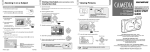
● Convenient Playback Mode Functions
Button/lever
Fixing a far-distance focus.
No flash
Night scenes
rapidly.
Displays
Displays
previous
the next
image
image
Displays 10th image ahead
4. Press the monitor button (
Taking close-up pictures (about 20 ~ 80 cm).
Quick focus
Fill-in flash
CAM
Item
Automatic playback*
(Slide show)
Adjusting image brightness.
➞
pad to play back a different picture.
Macro
Group
DIGITAL CAMERA
Exposure is measured at only the center of the subject.
➞
3. If you’ve already taken more than one picture, you can use the arrow
Suitable for ordinary shots (80 cm ~ infinite).
Purpose
Spot metering mode
Descriptions
Auto focus
Item
Pressing the menu button ( ) when in the playback mode displays the
playback menu on the monitor.
➞
Power on/off
Group
Up
SET
EXIT OK
Function
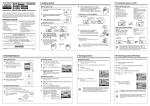
Pressing the menu button ( ) when in the shooting mode displays the
shooting menu on the monitor.
➞
2001-01-23
2
Mark
Group
CARD
Flash
2. Press the monitor button (
on the arrow pad to display the next screen.
Playback Menu
➞
Lens barrier
1. Press the menu button ( ) to display the menu.
2. Press or on the arrow pad to select the group, and press
Shooting Menu
➞
In the shooting mode (with the lens barrier
open), use the arrow pad buttons to display the
mark indicating the current function on the monitor. Pressing these buttons lets you scroll
through the available functions until the one you
want to use is displayed.
Use the Menu Functions
For more details on the functions described here, refer to the camera’s Reference
Manual on the software CD.
For more details on the functions described here, refer to the camera’s Reference
Manual on the software CD.
C-200 ZOOM
D-510 ZOOM
C-200 ZO
OM
This is all you need to take great pictures!
OLYMPUS OPTICAL CO., LTD.
San-Ei Building, 22-2, Nishi Shinjuku 1-chome, Shinjuku-ku, Tokyo, Japan.
(Customer support) Tel. 0426-42-7499 Tokyo
http://www.olympus.co.jp
OLYMPUS AMERICA INC.
Two Corporate Center Drive, Melville, NY 11747-3157, U.S.A. Tel. 631-844-5000
(Technical support)
Tel. 1-888-553-4448 (Toll-free for within 30 days of purchase.)
Tel. 1-631-844-5520 (After 30 days of purchase, contact this
number.)
[email protected]
http://www.olympus.com
OLYMPUS OPTICAL CO. (EUROPA) GMBH.
5. Press the OK button several times until the menu disappears.
(Premises/Goods delivery) Wendenstraße 14-18, 20097 Hamburg, Germany. Tel. 040-237730
(Letters) Postfach 10 49 08, 20034 Hamburg, Germany.
http://www.olympus-europa.com
C200ZOOM_QSG_E 7/3/01 7:37 PM Page 2
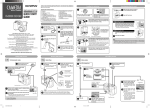
Confirm the Contents
Attach the Strap
1. Make sure the lens barrier is closed.
Please check the contents of the box to confirm that you have all of the
accessories shown below. If any of these are missing or damaged,
please contact your point of purchase.
Camera
Insert the Batteries and SmartMedia Card
Dedicated USB
(Universal Serial Bus) cable
Battery
compartment cover
The lens extends and the flash pops up.
When the lens does not extend, the lens barrier is not fully opened.
Slide the lens barrier open until it clicks.
Turn the Power Off
Push the zoom lever toward W
(Wide angle) to shoot wideangle shots.
1. Close
the lens barrier halfway. Just before the lens barrier
comes in contact with the lens, it will make a click that you can
feel with your fingers.
Pull the zoom lever toward T
(Telephoto) to zoom in.
Lens barrier
Lens barrier
2. Slide the battery compartment 5. Open the card cover.
lock from
to
. Slide the
battery compartment cover to
the side and lift it up to open.
Video cable
Enlarge Your Shots
1. Slide the lens barrier open until clicks.
Card cover
C-200 ZOO
M
Strap
Shoot the Picture
2. Bring
the camera into position and
look through the viewfinder.
The lens will recess into the camera.
Do not push the lens barrier against the lens.
2. Wait until the lens fully retracts, and then close the lens barrier
the rest of the way to turn the power off.
Four AA (R6) alkaline batteries
SmartMedia card,
Anti-static card case, Labels (2),
Write-protect adhesive seals (4),
Instructions
Made in Japan
Basic manual,
Quick Start Guide, Warranty,
User card (not included for
some regions)
Software CD-ROMs
(including reference manual,
the USB driver and other
necessary software)
the SmartMedia card
3. Insert the batteries into the 6. Insert
into the camera as shown in
Attach the strap to the camera as shown in the diagram.
camera as shown in the diagram, making sure that the
negative and positive poles
are correctly aligned.
the diagram, making sure
that it is pushed all the way
in.
7.
4. Close
the battery compartment cover, and slide the
battery compartment lock
from
to
.
3. Press
the shutter button gently, and confirm
the green lamp next to
the viewfinder is illuminating.
If the green lamp is blinking, it means the subject
is out of focus. If this is
the case, gently press
the shutter button again.
Monitor
HQ
Zoom bar
Green Lamp
T
W
W
4. Full-press the shutter button.
Close the card cover so it
clicks into place.
T
Zoom status
(Displayed during
zoom lever operation.)
NOTE
Pressing the monitor button ( ) turns the
monitor on.
It is also possible to take pictures while
looking at the monitor.
HQ
T
T
W
Made in Japan
Monitor
W
3. Close the flash.