1
Basic Settings
Advanced Settings — In your Browser
Wi-Fi Passwords
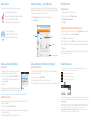
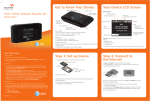
Change basic settings on the touchscreen, including:
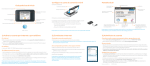
Change advanced settings such as Wi-Fi network name and password, the
maximum number of devices, and more, via the Unite Manager web interface.
1 Connect a Wi-Fi device to your mobile hotspot.
2 Go to http://attunite in the connected device’s browser.
3 Login is attadmin.
Hide password
• Adjust screen timeout (Screen)
• Hide Wi-Fi network name and password (Screen)
• Update software (Software Update)
• Find hotspot’s wireless number (About)
• Set Wi-Fi range (Options)
• Enable Guest Wi-Fi (Guest Wi-Fi)
• View connected devices (Devices)
Change Wi-Fi network name and password
Menu
Login
Data usage
Account information
Advanced Connection Options
Guest Wi-Fi
You can give guests one-time access to your mobile
hotspot by setting up a Guest Wi-Fi network:
1 On the touchscreen, tap Wi-Fi > Guest Wi-Fi. The
current (default) guest Wi-Fi network name and
password appear.
2 Select On.
Guest users can now use this Wi-Fi network name and
password in their device’s Wi-Fi/network connection manager.
Note: The Guest Wi-Fi network is turned off when the hotspot is restarted.
Block Device Access
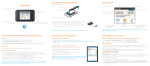
To prevent a device from reconnecting to the mobile hotspot, add it to the
hotspot’s blocked list:
1 On the touchscreen, tap Wi-Fi > Devices.
2 Select the device you want to block (there could be more than one page of
connected devices).
3 Follow the displayed instructions to block the device.
To hide the password on the touchscreen:
1 On the touchscreen, tap Settings > Screen.
2 Tap Wi-Fi Info on Homescreen.
3 Select Hide.
Advanced Connection Options (continued)
Connect WPS devices
Use Wi-Fi Protected Setup (WPS) to connect WPS-enabled devices without
entering the Wi-Fi password.
1 On the touchscreen, tap Wi-Fi > WPS.
2 Select pairing with your Main or Guest Wi-Fi network.
3 Press the WPS button on a device you want to connect to your mobile hotspot.
1 On your laptop (or other Wi-Fi device), go to http://attunite in the browser.
2 Log in as administrator. Default login is attadmin
3 Select Wi-Fi in the left-side menu.
4 In the Wi-Fi Info section, click Edit for the Wi-Fi details you want to change.
5 In the Credentials section, type your new Wi-Fi network name and password.
6 Click Save.
Note: If you change the network name or password, you may need to reconnect
your other devices to the Unite.
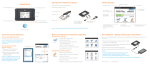
Network Indicators
Your 4G LTE wireless device will display one of the following network indicators to let you know
which of AT&T’s wireless networks you are connected to.
Connected to AT&T’s 4G LTE network.
Connected to AT&T’s HSPA+ network.
Connected to AT&T’s EDGE/2G network.
Limited 4G LTE availability in select markets. 4G speeds delivered by LTE, or HSPA+ with enhanced
backhaul, where available. Compatible data plan required. LTE is a trademark of ETSI. Learn more at
att.com/network.
A network indicator does not necessarily mean that you will experience any particular upload or
download data speeds. Actual upload and download data speeds depend upon a variety of factors,
including the device, network utilization, file characteristics, terrain, etc. Learn more at
wireless.att.com/learn/articlesresources/wireless-terms.jsp Your AT&T Wireless Customer
Agreement, Section 3.2 Where and How Does AT&T Service Work?