1
©1999. All rights reserved.
ALCATEL reserves the right, in
customer's interest, to alter material
or technical specifications without
prior notice
ON E TOUCH
300
301
302
3DS06962AAAA 01
303
English
BE4 ANGLAIS OK (msg OK)
24/07/00
14:26
Page 1
CONTENTS
p. 2
Safety and Precautions
1. Your
1.1 1.2 1.3 -
telephone
Keys
Icons
Conventions used in this User’s Guide
p.
p.
p.
p.
4
5
6
7
2. Getting started
2.1 - SIM card and battery
2.2 - Switching your phone on
2.3 - Switching your phone off
p. 8
p. 8
p. 10
p. 10
3. First steps
3.1 - Making a call
3.2 - Receiving a call
3.3 - Accessing your voice mail
3.4 - Displaying your number
3.5 - Accessing the MENU and scrolling
3.6 - MENU structure
3.7 - Changing the ring tone
3.8 - Creating a file
3.9 - Reading your new short messages
p. 11
p. 11
p. 11
p. 12
p. 12
p. 13
p. 14
p. 15
p. 15
p. 16
4. Directory
4.1 - Accessing your directory
4.2 - Creating a file
4.3 - Options
p. 17
p. 17
p. 17
p. 18
5. Calls
5.1 - Making a call
5.2 - Receiving a call
5.3 - During a call
p. 19
p. 19
p.20
p. 21
6. Call memory
6.1 - Accessing and resending
6.2 - Options
p.23
p.23
p.24
1
BE4 ANGLAIS OK (msg OK)
24/07/00
14:26
Page 1
7. Short messages
7.1 - Accessing short messages
7.2 - Reading your short messages
7.3 - Composing a short message
8. Calculator
8.1 - Accessing the calculator
8.2 - Calculation example
9. Currency converter
9.1 - Accessing the currency converter
9.2 - Conversion example
9.3 - Selecting currencies
10. Games
10.1 - Accessing games
10.2 - Options
11. Creating melodies
11.1 - Accessing the “Melody” MENU
11.2 - Composing a melody
11.3 - Options
12. Mobile internet
12.1 - How to access the Internet services
12.2 - Keypad layout
12.3 - Available options
12.4 - Information line
13. MENU
13.1 - Customising your MENU
13.2 - Audio
13.3 - Clock
13.4 - Numbers
13.5 - Services
13.6 - Set up
14. Warranty
14.1 - Warranty
14.2 - Information
15. Accessories
p.25
p.25
p.26
p.27
p.33
p.33
p.33
p.34
p.34
p.34
p.35
p.36
p.36
p.37
p.38
p.38
p.38
p.39
p.40
p.40
p.40
p.41
p.41
p.42
p.42
p.43
p.44
p.45
p.46
p.54
p.56
p.57
p.58
p.60
CONTENTS
1
BE4 ANGLAIS OK (msg OK)
24/07/00
14:26
Page 2
SAFETY AND PRECAUTIONS
We recommend that you read this chapter carefully before use.
CONDITIONS OF USE:
Switch the phone off before boarding an aircraft. Use could lead to legal action against
the user. Switch the phone off when in health care facilities except in areas specified.
Like many other types of equipment now in regular use, mobile telephones can
interfere with other electrical or electronic devices in their proximity. Persons with a
medical device (such as a pacemaker, hearing aid, insulin pump) should not carry the
phone in a place close to the device. When placing or receiving a call, persons with a
pacemaker or hearing aid should use the ear on the opposite side to the device.
Switch your phone off when near gas or flammable liquids. Strictly obey all signs and
instructions when in a fuel depot or chemical plant, at a refuelling point (service station)
or in any potentially explosive atmosphere. Do not let small children use the phone
without supervision. Do not attempt to open or repair it yourself. Use only the batteries,
battery chargers and accessories approved by the manufacturer. The manufacturer
disclaims any liability for damage caused by use of other batteries, chargers or
accessories. Switch your phone off before removing the battery. Do not expose the
phone to unfavorable environmental conditions (humidity, rain, ingress of liquid, dust,
sea air, etc.). Outside the manufacturer’s recommended operating temperature range
(-20° C to +55° C), the legibility of the phone’s display may be impaired, though this is
temporary.
ENVIRONMENT:
Do not attempt to open the battery because it contains chemical substances. Do not
dispose of used batteries in household waste. Batteries must be disposed of in
accordance with locally applicable environmental legislation.
TRAFFIC SAFETY:
Remember to always check whether local legislation allows operation of a mobile
phone while driving a vehicle. It is vital to connect the phone to an external antenna
when it is used in a vehicle. Electromagnetic waves may otherwise interfere with the
vehicle electronics. Check that the antenna is mounted and located away from the
driver and passengers or separated from them by a metal screen (e.g. car roof). We
recommend that you park your car before using the phone. However if you intend to
use your phone while driving, you must use it connected to the Alcatel Car Kit
accessory. Check with your car dealer or car manufacturer that the car’s electronic
systems (anti-lock brakes (ABS), airbag) are adequately shielded from mobile phone RF
energy. Always avoid placing the phone on the dashboard.
2
BE4 ANGLAIS OK (msg OK)
24/07/00
14:26
Page 3
GENERAL INFORMATION:
As with all radio transceivers, your mobile phone emits electromagnetic waves.
This phone conforms to international regulations insofar as when used under
normal conditions and in accordance with the instructions contained herein.
There has been speculation about the safety of mobile phones. Several expert
groups belonging to or having been appointed by official national or international
bodies have analyzed all the existing publications and, to this date, have
concluded that there is a lack of evidence as to any credible or convincing
hazardous effects of mobile phones on health. These studies have, in particular,
focused on the fact that mobile handsets receive and emit electromagnetic waves
via their antennae. Experts from such organizations as the European Commission
and the International Commission on Non-Ionising Radiation Protection (ICNIRP)
have established thresholds on a handset’s emissions to the human body. The
main measurement standard is known as SAR (Specific Absorption Rate).
ALCATEL can formally state that all its GSM mobile phones generate a SAR that
is significantly below these thresholds.
Furthermore, ALCATEL actively supports national and international research into
this issue carried out by authoritative and independent organizations. If you still
have concerns on this issue, you may use your mobile phone with a headset, or
using the handsfree feature integrated in the phone and, while driving, with the
car kit. The part numbers of these accessories can be found in Chapter 15 on page
60.
The manufacturer disclaims any liability for damage which may result as a
consequence of improper use or use contrary to the instructions contained
herein.
January 2000
3
SAFETY AND PRECAUTIONS
1
BE4 ANGLAIS OK (msg OK)
1
24/07/00
14:26
Page 4
YOUR TELEPHONE
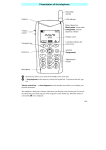
Earpiece
28 : 09
Directory
Short
messages
Network
Off hook
Hang up
Delete
Switch on
Switch off
MENU
Scroll
Confirm
Voice mail
Lock
keypad
Your
number
Microphone
4
24/07/00
14:26
Page 5
1
1.1 - KEYS
Access your directory (short keypress).
Access your short messages: SMS (long keypress).
Delete (short keypress).
Return to previous screen (long keypress).
Switch phone ON/OFF
(long keypress).
Access your voice mail (long keypress).
Display your number (long keypress).
Off hook/Hang up
Access call memory (Redial).
Lock keypad (long keypress).
Access the MENU.
Confirm an option.
Volume control during a call.
Scroll to select an option.
5
YOUR TELEPHONE
BE4 ANGLAIS OK (msg OK)
BE4 ANGLAIS OK (msg OK)
24/07/00
14:26
Page 6
1.2 - ICONS*
Battery charge level.
(See Chapter 2, page 10)
Vibrator mode: your telephone vibrates and emits no ring
tone or appointment reminder.
“Silent” mode: your telephone emits no ring tone or
appointment reminder, and does not vibrate.
(See Chapter 13, page 43)
Unanswered incoming call: you have been called but
have not answered. The icon clears when all the
unanswered incoming calls stored in the call memory
have been consulted.
(See Chapter 6, page 23)
Voice mail received: you must call your voice mail to
listen to your messages.
(See Chapter 3, page 12)
Unread short message (SMS): you have received a short
message but have not read it. The icon clears when all
the messages have been read in full.
(See Chapter 7, page 26)
Short message list (SMS) is full: your terminal cannot
store any more messages. You must access the short
message list and delete at least one message.
(See Chapter 7, page 27)
Call forwarding activated: your calls are forwarded.
(See Chapter 13, page 49)
Appointment (or alarm) scheduled.
(See Chapter 13, page 44)
6
24/07/00
14:26
Page 7
Signal strength indicator.
Preferred tariff area.
Keypad locked.
“Manual Network Search” mode.
(See Chapter 13, page 53)
Roaming in your subscription country.
1.3 - CONVENTIONS USED IN THIS
USER’S GUIDE
The following symbols are used in the text which follows:
Briefly press the scroll key in order to confirm an
option.
Move the scroll key up or down in order to select
an option.
Use the keypad keys to enter digits and letters.
*Icons and other illustrations shown in this User’s Guide are for information only.
7
1
YOUR TELEPHONE
BE4 ANGLAIS OK (msg OK)
BE4 ANGLAIS OK (msg OK)
2
24/07/00
14:26
Page 8
GETTING STARTED
2.1 - SIM CARD AND BATTERY
INSERTING THE SIM CARD
You must insert your SIM card in order to use your phone.
Fit SIM card with chip
facing downwards
Slide the SIM card into
its compartment
Check that it is
properly inserted
FITTING THE BATTERY
Insert the battery
Fit the cover
8
Slide it into position
BE4 ANGLAIS OK (msg OK)
24/07/00
14:26
Page 9
2
Connect the battery
charger
Wait for on-screen
indicator to stop
flashing
Disconnect the
battery charger once
charging is complete
A beep will sound when charging begins.
It takes a brief while before the charging indicator icon starts
to flash.
The mains socket outlet must be close to the phone and
easily accessible.
REMOVING THE BATTERY
Unclip and slide the
cover.
Remove it
Remove the battery
When you first use your phone you must charge the
battery for approximately 3 hours.
9
GETTING STARTED
CHARGING THE BATTERY
BE4 ANGLAIS OK (msg OK)
24/07/00
14:26
Page 10
2.2 - SWITCHING YOUR PHONE ON
PI N Co de
Please enter
PIN Code:
----------
Switch your
phone on (long
keypress)
28 : 09
Network
Enter your
PIN code
Confirm
Standby screen
If you do not know your PIN code, please contact your
network operator. Do not leave your PIN code near your
phone and store your card in a safe place when you are not
using it.
You are prompted to enter the time and date, enter new data if
necessary, then confirm by
.
If cell broadcast messages are displayed, use the
key to browse through them in full or press the
key to
return to the standby screen.
While the phone is searching for a network, <<<–>>> is displayed.
(???-??? is displayed if your SIM card is rejected by the network,
in this case please contact your operator).
2.3 - SWITCHING YOUR PHONE OFF
From the standby screen, press the
10
key (long keypress).
3
24/07/00
14:26
Page 11
2
FIRST STEPS
In order to make or receive a call, you must switch your
phone on.
3.1 - MAKING A CALL
Dial the
number
Make the
call
Talk
If you make a mistake, use the
Hang up
key to delete digits.
3.2 - RECEIVING A CALL
Call
Incoming call
Take the call
Talk
Hang up
The caller’s number is displayed if it is provided by the
network (check the availability of this service with your
operator).
11
FIRST STEPS
BE4 ANGLAIS OK (msg OK)
BE4 ANGLAIS OK (msg OK)
24/07/00
14:26
Page 12
3.3 - ACCESSING YOUR VOICE MAIL
The network provides the voice mail service to ensure that you
do not miss any calls: it works like an answering machine which
you can interrogate at any time.
Voicemail
Call?
Access voice mail
(long keypress)
Make
the call
If your operator’s voice mail access number is not shown, dial the
number that was supplied to you with your subscription. To later
modify this number use the “Numbers/Voicemail” MENU option,
page 45.
To use your voice mail abroad, contact your operator before
setting out on your trip.
3.4 - DISPLAYING YOUR NUMBER
You can display your own number by pressing the
(long keypress).
key
If your number is not displayed, enter it and confirm by pressing
the
key.
To later modify it, see the “Numbers/Your number” MENU option,
page 45.
12
24/07/00
14:26
Page 13
3.5 - ACCESSING THE MENU AND
SCROLLING
ACCESSING THE MENU
The MENU can be accessed from the standby screen by
pressing the
key.
Direct access to this function depends on your operator
and the SIM card which you are using.
CHOOSING AN OPTION
Menu
Menu
Audio
Clock
Calculator
Audio
Clock
Calculator
List of options
Select an option
Cl o ck
Time/Date
Appointment
For mat
Confirm
RETURN TO PREVIOUS SCREEN
Press
(short keypress).
RETURN TO STANDBY SCREEN
Press
(long keypress).
13
3
FIRST STEPS
BE4 ANGLAIS OK (msg OK)
BE4 ANGLAIS OK (msg OK)
24/07/00
14:26
Page 14
3.6 - MENU STRUCTURE
Audio
Customise the sounds made by your phone (key
beep, melody etc.).
Clock
Set the date and time.
Schedule an appointment.
Calculator
Perform 4 basic operations (add, subtract,
multiply, divide).
Convert
Convert an amount into euros or another
currency.
Games
Access one of the games provided.
Numbers
Program certain numbers: your number, voice
mail, dialling prefix, etc.
Services
Use the functions provided by your operator
(security, call forwarding, etc.)
Set up
Adjust and customise your phone.
14
BE4 ANGLAIS OK (msg OK)
24/07/00
14:26
Page 15
3
FIRST STEPS
3.7 - CHANGING THE RING TONE
From “Audio” in the MENU:
Ring tone
Aud io
Melodies
Volume
Mode
Ring tone
Key Beeps
Select “Ring tone”
Select “Melodies”
Confirm
Melodies
My Melody
Ballade
Rock
Confirm
Select melody
3.8 - CREATING A FILE
Directory
DUPOND
DURAND
MARTIN
Access the directory
Create
See number
Modify number
Access the options
C reate
Create
Please enter
the name:
BOUGHZ
Enter the name
(up to 12
characters)
Confirm
Enter Number?
0614253
Confirm
Enter the number
Confirm
If you wish to use your directory abroad, store the numbers
in international format with “+”.
If your directory is empty, you will see the prompt:
“Directory empty. Create a file?”:
Create by pressing the
key or decline by pressing
the
key.
15
BE4 ANGLAIS OK (msg OK)
24/07/00
14:26
Page 16
3.9 - READING YOUR NEW SHORT
MESSAGES (1)
The
icon and a beep(2) indicate that a message has been
received.
Messages
see
message
Unread (8)
Read (4)
Create
Network name
Access the messages
(long keypress)
M essa g e
Message
01/01
15:10
From:Marilyn
Hello! Could you
Marilyn
Florence
Martin
Select the message
to be read
Confirm
Confirm
Read the message
UNREAD RECEIVED MESSAGES
The
icon disappears as soon as you have read all the messages.
(1) Check the availability of this service with your operator.
(2) To deactivate the beep, see the “Audio/Message alert”
MENU option, page 43
16
BE4 ANGLAIS OK (msg OK)
14:26
Page 17
DIRECTORY
DIRECTORY
4
24/07/00
4.1 - ACCESSING YOUR DIRECTORY
Press the
screen.
key to access the directory from the standby
SEARCHING FOR A NAME BY ITS FIRST LETTER
You can also search for the name of the person you wish to
contact by pressing the key associated with the first letter of
their name.
Example: press the
key twice to find the first name beginning with
“N”. Then scroll the list to the name you want by using the
key.
DISPLAYING A PHONE NUMBER
Press the
directory key while the name is selected.
CALLING
Press the
key while the name is selected.
4.2 - CREATING A FILE
Directory
DUPOND
DURAND
MARTIN
Access the directory
Create
See number
Modify number
Access the options
17
Confirm then enter
the details
BE4 ANGLAIS OK (msg OK)
24/07/00
14:26
Page 18
4.3 - OPTIONS
From the list of names in your directory, you can access the
following options by using the
key:
Create
See
number
Display a complete file: name and number.
Modify the phone number corresponding to the
Modiy
number selected name.
Modify
File
Create a file (name and telephone number) which
will be stored in your SIM card (SIM card capacity
depends on your operator).
name
Number
Delete
Exit
Modify the selected name.
Modify the number of the selected file.
Delete the selected file (name and phone number).
Return to the names list in the directory.
To return to the standby screen, press the
keypress).
18
key (long
BE4 ANGLAIS OK (msg OK)
14:26
Page 19
CALLS
CALLS
5
24/07/00
5.1 - MAKING A CALL
Dial the
number
Make
the call
Talk
Hang up
If you make a mistake, you can delete digits by pressing
the
key.
To enter the characters “+” or “P” (pause), make a long
keypress on the
key (the following characters
scroll: 0, +, •, P).
MAKING AN EMERGENCY CALL
If your telephone is within the area covered by a network, to
make an emergency call, dial 112 or any other number
provided by your operator.
MAKING AN INTERNATIONAL CALL
Country list
Albania
Algeria
Andorra
Display the
Display list of countries
prefix “+”
(long keypress)
Select the
country
Confirm
Once the country code is displayed, dial the rest of the
number and make the call.
19
BE4 ANGLAIS OK (msg OK)
24/07/00
14:26
Page 20
5.2 - RECEIVING A CALL
Call
Incoming call
Take the call
Talk
Hang up
If the
icon is displayed, the vibrating system is enabled and
no ring tone is heard.
If the
icon is displayed, the vibrator and ring tone are
deactivated.
The caller’s number is displayed if provided by the network
(check the availability of this service with your operator).
SWITCHING THE RING TONE OFF (without losing the call)
Press the
key when the phone is ringing: you can still answer
the call by pressing the
key.
Pressing the
key again rejects the call.
20
24/07/00
14:26
Page 21
5
5.3 - DURING A CALL
AVAILABLE OPTIONS
During a call, you can use the
options:
Call
hold
Hands-free
key to access the following
Place an ongoing call on hold (you can later
resume the call by pressing the
key).
Activate/deactivate handsfree mode (
symbol is then replaced by
).
Caution: move the handset away from
your ear before activating this mode
because the amplified volume could cause
hearing damage.
Dial
Save
Make a second call (an ongoing call will be
automatically put on hold, you can switch
between calls by pressing the
key).
Number Store a phone number in the directory.
Messages
Services
Exit
Read your short messages.
Access the services supported by your
network operator.
Return to the previous screen.
21
CALLS
BE4 ANGLAIS OK (msg OK)
BE4 ANGLAIS OK (msg OK)
24/07/00
14:26
Page 22
HANDLING A SECOND INCOMING CALL
You already have a call:
OR
Call
Second
incoming call
Take the call
(
THEN
(
Refuse
If you press the
key, the incoming call is accepted and the
ongoing call is automatically put on hold: you can then swap
between calls by pressing the
key.
If you press the
key, you will access other options (the
incoming call is accepted by ending the ongoing call, etc.).
The caller’s number is displayed if provided by the network
(check the availability of this service with your operator).
22
BE4 ANGLAIS OK (msg OK)
14:26
Page 23
CALL MEMORY
CALL MEMORY
6
24/07/00
6.1 - ACCESSING AND RESENDING
Call Memory
Call Memory
Didier
Florence
20.07.1999 19:02
19.07.1999 12:13
Access the
call memory
Select the
number
Make
the call
Each call is identified by one of the following symbols:
Answered incoming call.
Unanswered incoming call.
Outgoing call.
23
BE4 ANGLAIS OK (msg OK)
24/07/00
14:26
Page 24
6.2 - OPTIONS
From the stored numbers list, you can access the following
options by using the
key:
Save in
Directory
Modify
Store the selected phone number in the directory.
number Modify the selected phone number.
Empty Call
Mem.
Exit
Clear all the numbers in the call memory.
Return to the standby screen.
To return to the standby screen, press the
keypress).
24
key (long
7
24/07/00
14:26
SHORT MESSAGES
Page 25
(1)
7.1 - ACCESSING SHORT MESSAGES
To access short messages (SMS) from the standby screen,
make a long keypress on the
key.
Messages
Unread (8)
Read (4)
Create
Access short messages (SMS)
(long keypress)
The following categories appear:
Unread
Read new messages.
Read
Read old messages: already read or written.
Create
Create a new message.
Parameters
Configure parameters, especially the number
of the service centre if it is not automatically
suggested (you cannot send a short
message without this number).
(1) Check the availability of this service with your
operator.
25
SHORT MESSAGES
BE4 ANGLAIS OK (msg OK)
BE4 ANGLAIS OK (msg OK)
24/07/00
14:26
Page 26
7.2 - READING YOUR SHORT MESSAGES
The messages are stored in your SIM card and classified in 2
categories: unread messages and read messages.
The capacity of your SIM card depends on your operator.
The
icon is displayed when the list of stored messages
is full: delete at least one message!
UNREAD MESSAGES:
Unread received messages: see page 16.
READ MESSAGES:
Received messages that have already been read and messages
that have been written, sent or stored.
Messages may be preceded by the following symbols:
Message sent and acknowledgement received.
Message sent and no acknowledgement received,
or message not delivered (in this case you must try to send
the message again).
26
BE4 ANGLAIS OK (msg OK)
24/07/00
14:26
Page 27
Delete
Delete the selected message.
Reply
Answer an incoming message.
Forward
Create
Save
Send the selected message again after
modifying the recipient’s name or the
parameters.
Create a new message.
Store the first number contained in the text
number of the message in the directory.
Parameters
Exit
Update the following parameters:
Service Centre: your operator’s service
centre call number (may be provided
automatically).
Format: format in which the message is to
be delivered to your correspondent (SMS, email, fax, etc.).
Retry Duration: time during which the
network presents the message again to your
recipient in case of unsuccessful delivery.
Receipt: acknowledgement receipt request.
Return to messages list.
7.3 - COMPOSING A SHORT MESSAGE
You can create a message or supplement a (canned) stored
message.
27
SHORT MESSAGES
7
AVAILABLE OPTIONS:
While reading a message, you can access the following
options by using the
key:
BE4 ANGLAIS OK (msg OK)
24/07/00
14:26
Page 28
COMPOSING A MESSAGE:
To make it easier to write short messages, your phone has an
assisted data entry system (1) (predictive data entry). To create a
word, all that is needed is a single keypress on the key for any
of the letters which the word contains. Example: to enter a “b”,
press the
key once.
Important: the displayed letter does not always match the
desired letter; the most common word is suggested. Ignore
words suggested at first, searching will become more accurate
as you enter more letters.
To confirm the entered word, press the
key downwards twice.
Example: you want to write “bleu”:
Creat e
Create
à
blé
Creat e
Create
blé
bleu
Create
Create
bleu
Confirm the word (2)
bleu
Go to next word
(1) Depending on your phone model and language.
(2) At this stage you can make grammatical agreements if they are not
suggested (e.g. in this case add an “s” 4 successive keypresses on
7 to display “bleus” before going to the next word (cf. page 33).
28
24/07/00
14:26
Page 29
The cursor shape depends on the selected entry mode:
• predictive mode
• normal mode
While composing the message, you can use the
access the following options:
key to
Select the current word or letter being
Validate
word entered.
Send the
Msg.
Other
words
Insert
digits
Send the message.
Access the list of other suggested words.
Insert figures in the text.
Punctuation
Insert a punctuation mark or a symbol in the
text.
Predictive
or normal
Choose the data entry mode: predictive or
normal (see page 32 “Character set”).
Add
Store a new word in your dictionary.
word
Exit
Return to message which is being written.
29
7
SHORT MESSAGES
BE4 ANGLAIS OK (msg OK)
BE4 ANGLAIS OK (msg OK)
24/07/00
14:26
Page 30
You can also use the following shortcut keys:
Create
Access to options
bleu
Delete
Confirm displayed
word or letter
(press downwards
only)
Space
Scroll the text
Punctuation
Upper case/lower
case/number
Other words
There is a dictionary in which you can add, modify or delete
words. Add a word while composing a message by pressing the
key and selecting the “Add word” option.
30
24/07/00
14:26
Page 31
7
SUPPLEMENTING A CANNED MESSAGE:
You can:
• Use an existing canned message.
• Create your own canned messages.
From the list of canned messages, you can use the
to access the following options:
Validate
Use the canned message.
Create
Create a new canned message.
Modify
Modify the canned message (if it is a
message which you have created).
Delete
Delete a canned message.
Exit
Exit the menu.
Press the
key (long keypress) to return to the
standby screen.
31
key
SHORT MESSAGES
BE4 ANGLAIS OK (msg OK)
BE4 ANGLAIS OK (msg OK)
24/07/00
14:26
Page 32
CHARACTER SET
In normal data entry mode, you can access the following
character set:
Key
Number of keypresses to get character
1 2 3 4 5 6 7 8 9 10 11 12
"
: space.
To enter a word, press the key which corresponds to the desired
letter several times until the letter you want appears.
32
BE4 ANGLAIS OK (msg OK)
8
24/07/00
14:27
Page 33
8.1 - ACCESSING THE CALCULATOR
From the standby screen, you can access the calculator in two
ways.
A)
Press the
key and select the “CALCULATOR” option.
B) Enter
a digit directly via the keypad, then press the
key and select the “CALCULATOR” option.
8.2 - CALCULATION EXAMPLE
Calculator
Calculator
10
10
Key in a number
Confirm
Select the type of
Confirm
operation to be performed
Calculator
Calculator
10
3
7
Enter a second number
Press
Result is displayed
To enter a decimal point (“.”), press the
key (long
keypress). To return to the standby screen, press the
key (long keypress).
33
CALCULATOR
CALCULATOR
BE4 ANGLAIS OK (msg OK)
9
24/07/00
14:27
Page 34
CURRENCY CONVERTER
Using the currency converter, you can:
• Convert a currency directly into euros and vice versa.
• Convert an amount into another currency (e.g. convert dollars
to French francs).
9.1 - ACCESSING THE CURRENCY
CONVERTER
From the standby screen, you can access the currency converter
in two ways:
A) Press the key, then select the “CONVERT” option.
B) Enter a digit via the keypad, then press the key and select
the “CONVERT” option.
9.2 - CONVERSION EXAMPLE
From the “CONVERT” option:
Convert
Euro
Currency/curren
Select conversion
type
Convert
FF in Euro
Euro in FF
Currencies?
Confirm
Convert
Enter the amount
to convert
Enter the value
to be converted
Confirm
Select direction
Convert
100
15,24
Confirm
34
FF
€
Result is displayed
24/07/00
14:27
Page 35
9
9.3 - SELECTING CURRENCIES
From the “Currencies?” option, access the currency table. From
this table use the
key to access the following options:
Validate
Select the currency.
Add
Add a new currency (which
subsequently be modified or cleared).
Exit
Exit the Menu.
can
If you are in the euro converter:
Once the currency has been selected or created, you must
enter the exchange rate of the currency in euros (or confirm
it if it is already shown).
If you are in the currency converter:
Having selected or created the first currency, repeat the same
operation for the second currency, then enter the rate for
exchanging these 2 currencies.
To return to the standby screen, press the
35
key.
CURRENCY CONVERTER
BE4 ANGLAIS OK (msg OK)
BE4 ANGLAIS OK (msg OK)
10
24/07/00
14:27
Page 36
GAMES
There are 3 games:
PUZZLE:
The aim is to redraw the original image as quickly as possible. To
do this, move the squares by pressing the
,
,
and
keys.
MUSIC:
The aim is to reproduce the musical sequence played by your
phone. To do this, press phone keys
to
.
SECRET:
The aim is to find the secret number combination generated by
the phone. Once you have entered and confirmed your
combination, you are given the following information:
- Correct numbers in the right place: ex.
- Correct numbers in the wrong place: ex.
2
3
10.1 - ACCESSING GAMES
Menu
Menu
Calculator
Convert
Games
Audio
Clock
Calculator
Access the MENU from
the standby screen
Select the “Games”
option
36
Confirm
BE4 ANGLAIS OK (msg OK)
24/07/00
14:27
Page 37
10
G ames
Puzzle
Puzzle
Music
Secret
Select the
desired game
GAMES
New Game
Go on
Level
Confirm
10.2 - OPTIONS
During a game, press the
options:
key to access the following
Save
Save the game or stage of the game that you
have reached.
Help
Display the rules of the current game.
Exit
Return to the game to finish it.
Quit
Quit the game and return to the list of games.
To return to the standby screen, press the
keypress).
37
key (long
BE4 ANGLAIS OK (msg OK)
11
24/07/00
14:27
Page 38
CREATING MELODIES
11.1 - ACCESSING THE “MELODY” MENU
From the “Ring tones” option, you can create two tunes which the
phone plays (“My melody”).
Melodies
Ring tone
Melodies
Volume
Select the
“Melodies” option
My Melody
Ballade
Rock
Activate
Modify melody
Modify the title
Select the “My
melody” option
Select the “Modify
melody” option
11.2 - COMPOSING A MELODY
To compose your melody, use the keypad as shown below:
Primary notes of an
octave (doh, ray, me,
fah, soh, lah, te)
Change octave
Change duration
(short, normal, long)
Add silent
pause
38
Add a sharp
24/07/00
14:27
Page 39
11
11.3 - OPTIONS
While you are composing your tune, use the
access the following options:
Record
Last
notes
Listen
all
key to
Save your tune.
Listen to the last five notes.
Listen to the entire melody.
Tempo
Choose the tempo: allegro, andante, lento.
Delete
Delete the selected melody.
Exit
Return to list of melodies.
To return to the standby screen, press the
keypress).
39
key (long
CREATING MELODIES
BE4 ANGLAIS OK (msg OK)
BE4 ANGLAIS OK (msg OK)
12
24/07/00
14:27
Page 40
MOBILE INTERNET(1)
12.1 - HOW TO ACCESS THE INTERNET SERVICES(2)
Access the internet services from the standby screen by pressing
the
key, then select "Services" from the menu.
Services
Services
Mobile Internet
Menu
When you use the telephone for the first time, you'll be asked to
enter your phone number using the international format.
12.2 - KEYPAD LAYOUT
Up/down scrolling in
the screen
Confirm (short press)
Access to the available
options (long press)
Move cursor left/right
in an edit screen
Access to the available
options
Send a call
1 to 9 keys: Access to
items listed on the
screen (short press)
Access to bookmarks
added by numbers(2)
(long press)
Return to the previous
page (short press)
Return to standby
screen (long press)
Deletes characters in
edit screen
(1) Depending on the telephone.
(2) Available if provided by the network
40
24/07/00
14:27
Page 41
12
12.3 - AVAILABLE OPTIONS
When you have accessed the Web pages, press
following options are available to you:
...
Help
Bookmark
Home page
Alert List
and the
Can be accessed from the current page.
Display on line help messages.
The current page may be added to your
bookmarks (1).
Go back to the homepage directly.
Access a list of alerts (1).
Display the icon bar during an internet
Connect. status session.
Exit Internet
Quit
Stop viewing the services provided.
Close the contextual menu and go back to
the current page.
12.4 - INFORMATION LINE
This information line is displayed as soon as you are
connected to the Net, or when you access a new page or
when an alert is displayed.
One message is
waiting in your
outbox
There is an The current
incoming connection is
alert
not encrypted
(1) Available if provided by the network
41
Access
time
Animation for data
transmission and
reception
MOBILE INTERNET
BE4 ANGLAIS OK (msg OK)
BE4 ANGLAIS OK (msg OK)
13
24/07/00
14:27
Page 42
MENU
13.1 - CUSTOMISING YOUR MENU
You can make the options that you use most frequently more
accessible (up to 9).
For example, if you want to place the “Clock/Appointment” option
before the “Audio” option in the menu: select this option and
press
(long keypress) to place it in first position.
The
icon appears after the “Clock/Appointment” option.
When you access the MENU again, it now looks as follows:
Appointment
Audio
Clock
Calculator
Convert
Games
Numbers
Services
Set up
To cancel repositioning,
select the option and
press
(long
keypress)
The procedure is the same to demote or promote any other MENU
option: press
(long keypress) to place it in 2nd position,
press
(long keypress) to place it in 3rd position, etc.
42
24/07/00
14:27
Page 43
13
13.2 - AUDIO
MODE
Depends on the model and the connected
accessory:
Normal
Normal ring tone (incremental).
Discreet
Normal ring tone (incremental) preceded
by vibrating system.
Vibrator
No sound is emitted (ring tone, message
or appointment beep, battery low) but the
vibrating system is activated. The
icon
is displayed.
Silent
No sound is emitted and the vibrator is
deactivated. The
icon is displayed.
RING TONE
Melodies
Melodies (use
to confirm).
to select and press
Volume
Volume of the ring tone (use the volume
control key
to adjust it).
KEY BEEPS
Short press
Activates/cancels the beep sound with
every short keypress.
Long press
Activates/cancels beep sound with every
long keypress.
MESSAGE ALERT
Activates/cancels the beep indicating an incoming short
message.
43
MENU
BE4 ANGLAIS OK (msg OK)
BE4 ANGLAIS OK (msg OK)
24/07/00
14:27
Page 44
13.3 - CLOCK
TIME/DATE
Set the time and date of your phone.
APPOINTMENT
Scheduling an appointment (enter the date and time - confirm
by
- enter the subject of the appointment - confirm by
)
and confirm daily activation. As soon as this function is
activated, the
icon is displayed. Only one appointment can
be scheduled at a time. The alarm will sound whether the phone
is on or off, pressing any key will switch the alarm off. When this
option is activated, deactivation is automatically proposed.
FORMAT
Date and time display format.
UPDATE
(1)
Depending on your phone model and the chosen option, the
date and time of your phone will be updated by the network:
Automatic
Without any action on your part.
Manual
After you have accepted an update.
None
No updating is possible apart from updating
produced by the “Clock/Time/Date” option.
(1) Check the availability of this service with your operator.
44
24/07/00
14:27
Page 45
13
13.4 - NUMBERS
YOUR NUMBER
Display your telephone number, usually stored in the SIM
card (enter the number - confirm by pressing
).
VOICEMAIL (1)
Voice mail number (enter the number - confirm by pressing
).
KEYPAD
Direct dial numbers: these numbers, once entered, can be
dialled from the standby screen only by a long keypress on
keys “2” to “9”.
If no numbers are stored:
Cr e a t e
Create
Enter the
number
Enter the key
number:
Enter the
key No.
Confirm
Enter the
number (2)
Confirm
C reate
Enter the key
name:
Enter the name (2)
Confirm
(1) Contact your operator, if necessary, before first use.
(2) If you make a mistake, you can erase a character by pressing
the
key (short keypress).
45
MENU
BE4 ANGLAIS OK (msg OK)
BE4 ANGLAIS OK (msg OK)
24/07/00
14:27
Page 46
If a number is stored:
Keypa d
2 DUPOND
3 DURAND
4 MARTIN
Modify
Delete
Exit
Select the key to
be modified
Access the options
Update the
selected key
PREFIX
Activates/cancels the prefix which will be added automatically in
front of the phone number entered when making the call (enter
the number - confirm by pressing
).
13.5 - SERVICES
SECURITY
PIN(1) Code
Protection code for the SIM card, requested
every time the phone is switched on if the
code is activated.
Activ./Deactiv.
Activate (or cancel) the code.
Change
Update the code (4 to 8 digits).
PIN2 (1) Code
Protection code for certain functions on the
SIM card (Billing/Cost/FDN etc.) requested
when functions are used if the code is
activated.
(1) Contact your operator if necessary.
46
Change
Network Code
24/07/00
14:27
Page 47
Update the code (4 to 8 digits).
(1)
Password requested for the “Call bars”
options associated with the network.
Menu Code
Protection code for certain MENU options
(Services, Set up/Languages) requested
when options are used if the code is
activated.
Activ./Deactiv.
Activates (or cancels) the code.
Change
Update the code (4 to 8 digits).
Product Code
Phone protection code, requested every
time the phone is switched on if the code
is activated.
Activ./Deactiv.
Activates (or cancels) the code.
Change
Update the code (4 to 8 digits)
(1) Contact your operator if necessary.
47
13
MENU
BE4 ANGLAIS OK (msg OK)
BE4 ANGLAIS OK (msg OK)
24/07/00
14:27
Page 48
BILLING
Duration
Management of call time.
Last call
Duration of the last call.
Avail.Duration
Remaining time available compared to the
time under “Inclusive time” (for user’s
information only).
Cumul. Duration Total duration of calls made.
Inclusive time
Duration of subscription (enter the time confirm by
).
Reset to zero
Reset (immediately or periodically) the total
duration of calls made.
Beep duration
Activates/cancels the beep which sounds
during a call at an interval set by the user
(enter the interval - confirm by
).
Expense
Management of call charges.
(1)
Last call
Cost of the last charged call.
Credit
Remaining credit compared to “Set Credit”.
(1)
Cumulative cost Total cost of charged calls.
Set Credit
(1)
Reset to zero
Maximum credit beyond which all charged calls
are barred (enter credit - confirm by
).
Reset the total cost of charged calls.
(1) Check the availability of this service with your operator.
48
Unit value
CALL FORWARD
24/07/00
14:27
Page 49
Cost of one telecom unit in the chosen
currency (select the “Other?” option for
another currency and press the
key to
enter a decimal point).
(1)
Activates/cancels call forwarding to a specified number
(enter the number - confirm by
). This option applies in
the following cases:
All calls
All your calls are forwarded. The
displayed.
Conditional
Calls are forwarded if the line is busy, the
call isn’t answered or the phone is out of
range of the network.
If busy
Calls are forwarded only if your line is
busy.
No reply
Calls are forwarded only if the call isn’t
answered.
Unreachable
Only if the phone is out of range of the
network.
Data
Data calls are forwarded to the specified
number.
Fax
Fax calls are forwarded to the specified
number.
Activated
List of call forwarding operations activated
from this phone.
Cancel All
Cancels all activated call forwarding.
(1) Check the availability of this service with your operator.
49
icon is
13
MENU
BE4 ANGLAIS OK (msg OK)
BE4 ANGLAIS OK (msg OK)
CALLS
Answer
24/07/00
14:27
Page 50
Used to choose the way in which a call is
answered.
Auto. Answer
Automatically (no keypress) after approximately 2 rings (this option is only available if
your phone is connected to an audio accessory
(HF kits), cf. pages 60-61.
Key
Only after pressing the
Any key
After pressing any key on the keypad (1 to #).
Call wait
Caller ID
(CLIP)
Activates/cancels signalling of a second
incoming call by a beep.
(1)
Conceal ID
(CLIR)
(1)
key.
(1)
Activates/cancels the option which makes your
calls anonymous (your number is no longer
provided to recipients).
Activates/cancels presentation of the caller’s
number (or name if it is stored in the
directory) with every call.
50
BE4 ANGLAIS OK (msg OK)
24/07/00
14:27
Page 51
Activ./Deactiv.
Activates/cancels automatic call back if the
first call was unsuccessful.
Forbidden num. List of numbers where automatic call back
was unsuccessful (10 unsuccessful
attempts).
Reset to 0
Reset the black list.
CALL BARS
Outgoing
Activates/cancels call barring. This option
is applicable in the following cases:
Except Dir
All
Calls to a number not stored in the
phone’s directory are barred.
All outgoing calls are barred.
(2)
International
(2)
Except->Home
(2)
Outgoing international calls are barred.
Outgoing calls except those to the
subscription country are barred.
(1) Depending on your phone model.
(2) Check the availability of this service with your operator.
51
MENU
13
Auto redial(1)
BE4 ANGLAIS OK (msg OK)
Except FDN(1)
24/07/00
14:27
Page 52
Filter outgoing calls compared to a specific
“FDN” directory stored in the SIM card.
Activate/ All calls which do not start with numbers
Deactivate stored in the “FDN” directory are barred.
Change
If the “Exc. FDN” option is activated, you can
update the “FDN” directory after entering the
PIN2 code (update “FDN” directory by
).
Incoming
Activates/cancels incoming call barring. This
option is applicable in the following cases:
Except Dir.
All calls from a number not stored in the
phone’s directory are barred.
All
All incoming calls are barred.
(1)
If abroad
Activated
(1)
Incoming calls are barred if you are abroad.
List of call barring operations activated.
(1) Check the availability of this service with your operator.
52
BE4 ANGLAIS OK (msg OK)
24/07/00
14:27
Page 53
SMS CB
(1)
Messages broadcast over the network
(weather, traffic, etc.) are automatically
displayed on the standby screen.
CB codes list
List of network codes used to monitor the
broadcast messages.
Reception
Depending on the selected option, the
phone displays broadcast messages.
Full:
The phone permanently scans the network
and displays received messages in accordance with your list (see “CB list” option).
Limited:
Phone intermittently scans the network
and displays certain messages in
accordance with your list (see “CB list”
option).
None:
The phone receives no message.
Searching
Search for a home network.
Available
Networks available
environment.
Search Mode
Depending on the selected option, search
mode is:
Automatic:
First searched network is the last one
used.
Manual:
User chooses the home network.
in
the
(1) Check the availability of this service with your operator.
53
radio
MENU
13
NETWORKS
BE4 ANGLAIS OK (msg OK)
24/07/00
14:27
Page 54
Preferred
List of networks for priority connection
(update this list by ).
Forbidden
List of forbidden networks (update the list by
).
13.6 - SET UP
LANGUAGES
(1)
Message display language (use
to select it). “Automatic”
option selects the language which corresponds to the
subscription network (if available in the terminal).
DICTIONNARY
There is a dictionary to which you can add your own words to
those in the data entry help system. When you consult your
dictionary you can add, modify or delete words using the
options available when using the
key.
WELCOME MSG.
(1)
A welcome message is displayed every time the phone is
switched on: up to 4 lines of text are available for this message
(see Character set, page 32).
(1) Option is available depending on your phone model.
54
BE4 ANGLAIS OK (msg OK)
24/07/00
14:27
Page 55
Backlight
Backlighting intensity (use
to adjust
it): we recommend minimum intensity in
order to save battery power.
Contrast
Contrast of the display (use
it).
to adjust
BATT.SAVE
Power off
When this option is activated, the phone
is automatically switched off if it is not
used for a certain period of time (no
keypress, no calls, no incoming message)
chosen by the user (enter the duration confirm by
).
Keypad lock
When this option is activated, the keypad
will be automatically locked (if you are not
going to use your phone for a prolonged
period of time).
55
MENU
13
DISPLAY
BE4 ANGLAIS OK (msg OK)
14
24/07/00
14:27
Page 56
WARRANTY
14.1 WARRANTY
Congratulations for choosing this mobile phone - we hope that this product will
satisfy all your needs.
Notwithstanding any other applicable statutory warranties, this mobile phone
(and the battery charger) are guaranteed for parts and workmanship for a period
of ONE (1) year from the date of purchase shown on your invoice.
Nevertheless, if the statutory warranty in force in your country exceeds one (1)
year, the statutory warranty will apply in place of the manufacturer’s warranty.
Under the terms of this warranty, you must inform your dealer or any
maintenance centre (see list of maintenance centres at our website www.alcatel.com) without delay of any defect and present the invoice given to
you at the time of purchase.
The manufacturer or dealer reserves the right to deny service under this warranty
in respect of any equipment on which markings or serial numbers have been
removed or altered.
The dealer will decide whether to replace or repair, as appropriate, all or any part
of the equipment found to be defective. This warranty covers the cost of parts
and labour but excludes any other costs.
Servicing under the terms of this warranty, especially repair, modification or
replacement of parts shall not extend the warranty period unless there are
statutory provisions to the contrary. Repair or replacement may be carried out
using reconditioned components offering equivalent functionality. All defective
parts replaced under the terms of this warranty will become the manufacturer’s
property.
56
BE4 ANGLAIS OK (msg OK)
24/07/00
14:27
Page 57
WARRANTY
14
This warranty shall not apply to damage or defects caused by:
• Misuse or improper use, including but not exhaustively (a) use of the
equipment for a purpose other than that for which it was designed or not
in conformity with the manufacturer’s or dealer’s instructions regarding
the use and maintenance of the equipment and (b) installation or use of
the equipment not in conformity with applicable technical and safety
standards in the country where the equipment is used;
• Accidents, force majeure or any other external cause outside the
equipment, especially the consequences of theft, acts of vandalism,
lightning, fire, humidity, ingress of liquid, atmospheric influences, RF
interference produced by other equipment, fluctuations in mains voltage
and/or voltages on telephone lines, etc.;
• Combination or integration of the equipment in hardware not supplied by
the manufacturer or dealer unless the latter gave written, explicit consent
for such;
• Defects and deterioration caused by normal wear;
• Modifications or alterations made to the equipment even if they are
mandatory due to changes in regulations and/or modification of network
parameters;
• Connection faults resulting from unsatisfactory radio propagation or
caused by the absence of radio relay coverage.
Apart from the statutory warranty, the above provisions constitute the only claims
which can be made against the manufacturer and dealer on the grounds of
equipment defects, this warranty excluding any other explicit or implied warranty
associated with sale of the equipment.
57
BE4 ANGLAIS OK (msg OK)
24/07/00
14:27
Page 58
14.2 INFORMATION
• Web site: www.alcatel.com
• Alcatel hotline No.: see “Alcatel Services” leaflet (calls charged at applicable
local rate in your country).
Your telephone is designed to emit and receive calls. It operates on GSM
networks with 900 MHz and 1800 MHz bands.
Guarantee for batteries and accessories other than battery charger
Notwithstanding any other applicable statutory warranty, the battery of your
phone and accessories other than the battery charger are guaranteed for a period
of 3 months from the date of purchase shown on your invoice. Nevertheless, if
the statutory warranty in force in your country exceeds 3 months, the statutory
warranty will apply in place of the manufacturer’s warranty.
In case of defect, return the battery to your dealer for replacement.
This warranty shall not, however, apply in the case of use not conforming with
the instructions in the User’s Guide, damage due to external causes or repairs or
modifications carried out by parties not authorised by the manufacturer or dealer.
Unless there are statutory provisions to the contrary, batteries and accessories
that are replaced under the terms of this warranty shall not be covered by any
specific warranty extending beyond the initial warranty period.
The CE mark indicates that your telephone and battery comply with applicable
EC directives, namely:
- directive 73/23/EEC (electrical safety)
- directive 89/336/EEC (electromagnetic compatibility)
- directive 1999/5/EEC (R&TTE)
58
24/07/00
14:27
Page 59
14
WARRANTY
BE4 ANGLAIS OK (msg OK)
59
BE4 ANGLAIS OK (msg OK)
15
24/07/00
14:27
Page 60
ACCESSORIES
New Alcatel GSM phones have a handsfree feature so that you can
hear and talk using the phone when it is located a certain
distance away from you, e.g. placed on a desk. For those who
wish to maintain the privacy of their conversations, a combined
earphone and microphone is available as an accessory: the
headset.
Cigar lighter
charger
C 51
Headset
M 11
NiMH
battery
B 50
Mini desktop
charger
C 53
Belt
clip
BC 10B
Carrying
case
HC 24
60
BE4 ANGLAIS OK (msg OK)
24/07/00
14:27
Page 61
Basic
car kit
MP 73
Easy-to-install
HF car kit
MP 75
Antenna
cable
A1
Antenna
kit
A2
Buy on line: www.alcatel.fr
Changeable front(*) FB or FC(*)
Removing the front
Fitting the front
Insert the top of the
front case
Fit the bottom of
the front case
(*) Depending on model
61
Remove the front case from
the bottom of the phone
ACCESSORIES
15
©1999. All rights reserved.
ALCATEL reserves the right, in
customer's interest, to alter material
or technical specifications without
prior notice
ON E TOUCH
300
301
302
3DS06962AAAA 01
303
English