1
HP Multi-Site Traffic Director Server Appliance SA9200 Getting Started Guide
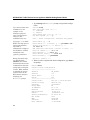
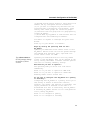
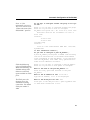
1. Type setup at the monitor> prompt to begin initial configuration.
User-entered names and
IP addresses in the
example are for
illustrative purposes
only. The appropriate
values for your
installation may vary.
monitor>setup
Auto config NIC card? [n] --->
1 - 100BaseTx
2 - 10BaseT
Select Media Type (1 or 2): [1] --->
Use Full Duplex? [n] --->y
If you type “y” to enable
DHCP, the setup process
jumps to the autoboot
step. DHCP
automatically configures
the IP address, netmask
and default route
(gateway) parameters.
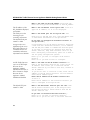
Enable DHCP? [y] --->n
Enter domain (’-’ to delete) [] --->yourdomain.com
Primary name server (’-’ to delete) [] -->10.54.67.40
Add additional name server (<return> to end)[] --->
Enter IP address [] --->10.1.1.2
Enter Netmask: [] --->255.0.0.0
Enter default route [] --->10.54.67.4
Enter hostname [] --->yourSA9200
During the initial setup,
you should enable
autoboot. This enables
the SA9200 to boot at the
Command Line Interface
prompt after subsequent
restarts. When Autoboot
is disabled, the startup
sequence boots to the
Boot Monitor interface,
displaying the
monitor> prompt.
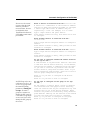
Autoboot? [enable] --->
12
Done... Ether configuration: 100basetx,full_duplex
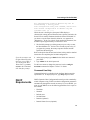
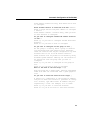
2. When you have completed the initial configuration, type boot at
the prompt.
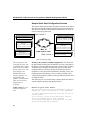
monitor>boot
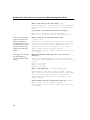
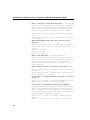
Current active configuration
---------------------------Product:
HP_SA9200
Version:
3.1
Patch Level:
1.0
Build:
D19
---------------------------Current time:
Thu Dec 7 08:03:48 2000
Current Config:
default.cfg
Hostname:
yourSA9200
Using DHCP:
No
IP Address:
10.1.1.2
Netmask:
255.255.0.0
Default Route:
10.54.67.4
Domain:
yourdomain.com
Primary nameserver:
10.54.67.40
NIC setup:
auto
NTP:
Disabled
Autoboot:
Enabled
Boot timeout:
5 (seconds)