1
CHAPTER 8. TOOLS
62
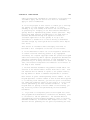
8.10.2 Color Balance Options
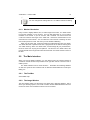
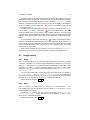
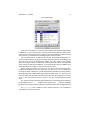
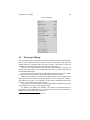
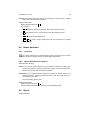
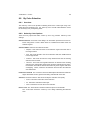
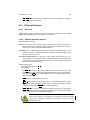
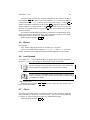
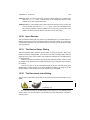
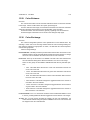
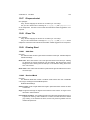
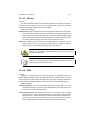
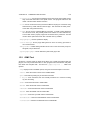
Color Balance Settings
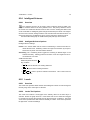
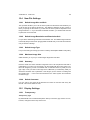
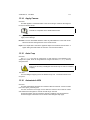
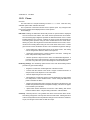
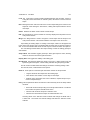
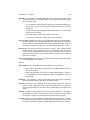
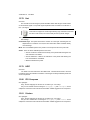
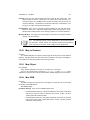
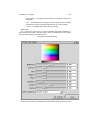
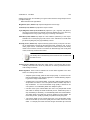
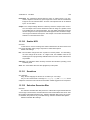
Color Levels The Color Levels input boxes provide a manual way of selecting the
RGB weights. The first box corresponds to the Red level, the second to Green,
and the third to Blue.
RGB Sliders The three sliders adjust the color balance interactively.
Shadows, Midtones, and Highlights Selecting one of these options will restrict the
range of colors that are changed with the sliders or input boxes for Red, Green,
and Blue.
Preserve Luminosity This option ensures that the brightness of the active selection or
layer is maintained.
Preview The Preview checkbox toggles dynamic image updating. If this option is on,
any change made to the RGB levels are immediately seen on the active selection
or layer.
8.11
Color Picker
8.11.1 Overview
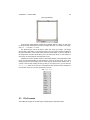
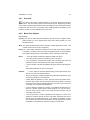
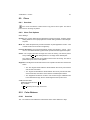
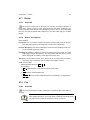
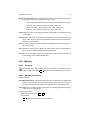
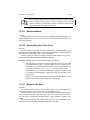
The Color Picker tool samples a color, displays it along with its hex value, and
optionally changes the current foreground color to match it.
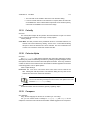
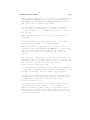
8.11.2 Color Picker Options
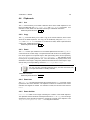
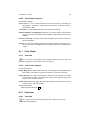
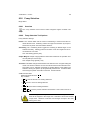
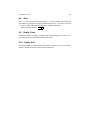
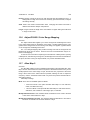
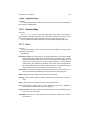
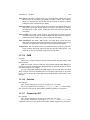
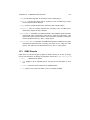
Color Picker Settings
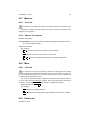
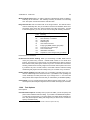
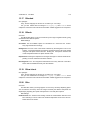
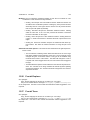
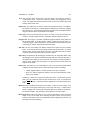
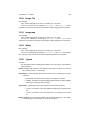
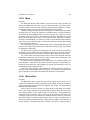
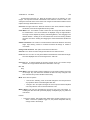
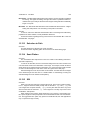
Sample Merged This option will allow the color to be sampled from all available layers.
The resulting color will be a composite of all layers, not just the current one.
Sample Average The Sample Average option will take the color sample from a radius
which is set by the slider. The resulting color will be an average of all colors found
by the tool to be inside the radius.
Update Active Color This toggle will activate the capturing of the selected color by the
foreground color well in the Toolbox.
Additional Information
Default Keyboard Shortcut: O 8.12
Convolver
8.12.1 Overview
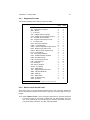
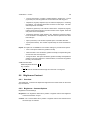
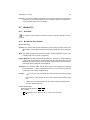
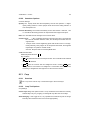
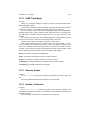
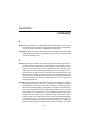
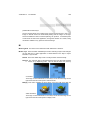
The convolve tool uses the current brush to blur or sharpen your image.
See also: Brush Selection.