1
CHAPTER 13. FILTERS
13.75
136
Guide Grid
Overview
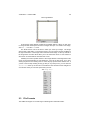
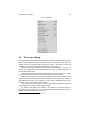
The Guide Grid filter places a grid arrangement of guides on the image. Guide
Grid Options
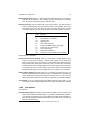
Guide Grid Settings
X spacing This option sets the number of pixels between vertical guides.
Y spacing This option sets the number of pixels between horizontal guides.
X offset This setting adjusts the starting point for the horizontal guides.
Y offset This setting adjusts the starting point for the vertical guides.
Remove old guides The Remove existing guides checkbox will remove all guides
from the image before laying down the new grid.
See also
For further guides information see the glossary entry for Guides.
13.76
Guillotine
Overview
The Guillotine tool slices up the current image based on the images guides. A
cut is made along every guide not unlike a guillotine might be used in an office to slice
documents. See also
For further guides information see the glossary entry for Guides.
13.77
GZ
Overview
T HE GIMP is capable of loading and saving images which have been gzip compressed. In order to save a gzipped file, either Save By Extension or the gz extension
can be used. The file must be named in a similar format to: filename.extension.gz,
whereextension is an extension for a supported file format. Saving a gzipped TIFF
If the file is named foo, the filename could be entered as either foo.tif.gz or
foo.tiff.gz. GZ : Further Information
For this plug-in to work, the GZIP application is required. To check if this application
is present, type gzip -version in a terminal window. If there is output similar to:
gzip: command not found then GZIPis not installed, and can not use this plug-in.
GZIP
is available from The gzip Homepage.