1
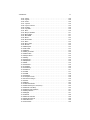
Contents
1 Introduction
1.1
What is The GIMP? . . . . . . . . . . . . . . . . . . . . . . . . . . . . . . . . . . . . . . . . . . .
1.1.1
A Brief List of Features and Capabilities . . . . . . . . . . . . . . . . . . . .
1.1.2
Platform Support . . . . . . . . . . . . . . . . . . . . . . . . . . . . . . . . . . . . . . .
1.1.3
About the Help System . . . . . . . . . . . . . . . . . . . . . . . . . . . . . . . . . .
1.2
What Can GIMP Do For Me? . . . . . . . . . . . . . . . . . . . . . . . . . . . . . . . . . . .
1.2.1
Image Editing . . . . . . . . . . . . . . . . . . . . . . . . . . . . . . . . . . . . . . . . . .
1.2.2
Video Editing . . . . . . . . . . . . . . . . . . . . . . . . . . . . . . . . . . . . . . . . . .
1.3
Bug Submission . . . . . . . . . . . . . . . . . . . . . . . . . . . . . . . . . . . . . . . . . . . . .
1.3.1
How to collect the information . . . . . . . . . . . . . . . . . . . . . . . . . . . . .
1.3.2
Where to submit your bug report . . . . . . . . . . . . . . . . . . . . . . . . . .
14
14
14
15
15
15
15
16
16
16
17
2 Using GIMP
2.1
Starting for the First Time . . . . . . . . . . . . . . . . . . . . . . . . . . . . . . . . . . . . . .
2.1.1
User Directory . . . . . . . . . . . . . . . . . . . . . . . . . . . . . . . . . . . . . . . . .
2.1.2
Performance Tuning . . . . . . . . . . . . . . . . . . . . . . . . . . . . . . . . . . . . .
2.1.3
Monitor Resolution . . . . . . . . . . . . . . . . . . . . . . . . . . . . . . . . . . . . . .
2.2
The Main Interface . . . . . . . . . . . . . . . . . . . . . . . . . . . . . . . . . . . . . . . . . . . .
2.2.1
The ToolBox . . . . . . . . . . . . . . . . . . . . . . . . . . . . . . . . . . . . . . . . . . .
2.2.2
The Image Window . . . . . . . . . . . . . . . . . . . . . . . . . . . . . . . . . . . . .
2.3
File Formats . . . . . . . . . . . . . . . . . . . . . . . . . . . . . . . . . . . . . . . . . . . . . . . . .
2.3.1
Supported Formats . . . . . . . . . . . . . . . . . . . . . . . . . . . . . . . . . . . . .
2.3.2
What Format Should I Use? . . . . . . . . . . . . . . . . . . . . . . . . . . . . . .
18
18
18
18
19
19
19
19
20
21
21
3 ToolBox
3.1
Toolbox Introduction . . . . . . . . . . . . . . . . . . . . . . . . . . . . . . . . . . . . . . . . . . .
3.2
The ToolBox . . . . . . . . . . . . . . . . . . . . . . . . . . . . . . . . . . . . . . . . . . . . . . . . .
3.3
Module Browser . . . . . . . . . . . . . . . . . . . . . . . . . . . . . . . . . . . . . . . . . . . . . .
3.4
Help Page for Help . . . . . . . . . . . . . . . . . . . . . . . . . . . . . . . . . . . . . . . . . . . .
3.5
Context Help . . . . . . . . . . . . . . . . . . . . . . . . . . . . . . . . . . . . . . . . . . . . . . . . .
3.6
Tip of the Day . . . . . . . . . . . . . . . . . . . . . . . . . . . . . . . . . . . . . . . . . . . . . . . .
3.7
About Dialog . . . . . . . . . . . . . . . . . . . . . . . . . . . . . . . . . . . . . . . . . . . . . . . . .
24
24
24
24
25
25
25
25
4 Image
4.1
Image Menu Introduction . . . . . . . . . . . . . . . . . . . . . . . . . . . . . . . . . . . . . .
4.2
The Image Window . . . . . . . . . . . . . . . . . . . . . . . . . . . . . . . . . . . . . . . . . . .
4.3
Image history . . . . . . . . . . . . . . . . . . . . . . . . . . . . . . . . . . . . . . . . . . . . . . . .
4.3.1
Undo . . . . . . . . . . . . . . . . . . . . . . . . . . . . . . . . . . . . . . . . . . . . . . . . .
4.3.2
Redo . . . . . . . . . . . . . . . . . . . . . . . . . . . . . . . . . . . . . . . . . . . . . . . . .
4.4
Clipboards . . . . . . . . . . . . . . . . . . . . . . . . . . . . . . . . . . . . . . . . . . . . . . . . . .
4.4.1
Cut . . . . . . . . . . . . . . . . . . . . . . . . . . . . . . . . . . . . . . . . . . . . . . . . . . .
4.4.2
Copy . . . . . . . . . . . . . . . . . . . . . . . . . . . . . . . . . . . . . . . . . . . . . . . . .
4.4.3
Paste . . . . . . . . . . . . . . . . . . . . . . . . . . . . . . . . . . . . . . . . . . . . . . . . .
26
26
26
27
27
27
28
28
28
28