1
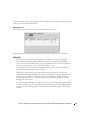
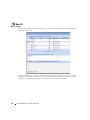
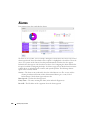
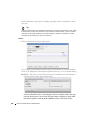
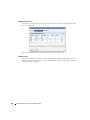
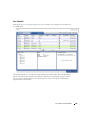
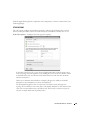
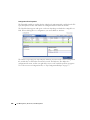
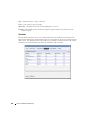
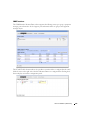
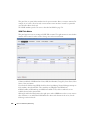
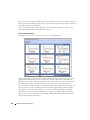
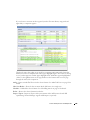
If you view H1 you see Template T’ is in use and this template creates a report with columns A, B
and D. Unfortunately, H1 only has data for columns A, B and C, so the report created has data for
columns A and B only. Column D is empty. When viewing H2 you can see Template T’ is in use
and can create a report with columns A, B and D. H2 has data for columns A, B and D, so all data
appears.
General
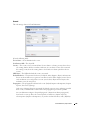
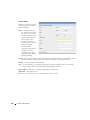
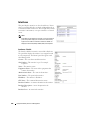
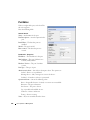
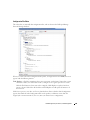
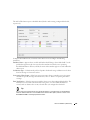
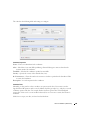
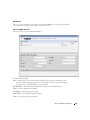
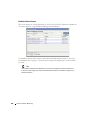
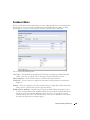
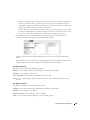
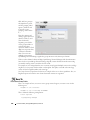
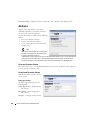
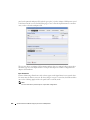
The following are fields that appear on these screens. Not all screens have all fields.
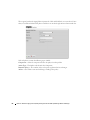
General Settings
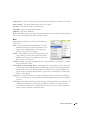
Name—An identifier for the template.
Description—An optional description of the template.
Chart Type—Select from the available alternatives (column, line).
Summarize by Group—Group similar results together.
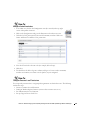
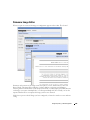
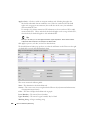
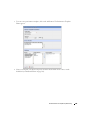
Advanced Settings
Orientation—Select from Portrait and Landscape
Include Chart Details—Enables the following fields
Report Summary—Enable a report summary
Row Separator—Display a row separator.
Page Header Position—Select none, top, bottom or both.
Auto Column Split—Enable automatic column splitting. This automatically aligns the columns
equally on the report providing the column widths that are most proportional.
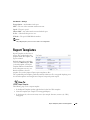
Group on First Attribute—Create a report that groups rows based on the first reported attribute.
This creates groups of items in the report whenever the left most column’s value changes.
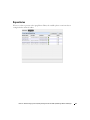
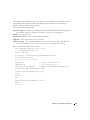
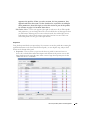
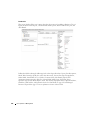
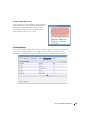
For example, with disabled, a report looks like this:
Device Name Gig/e Port Name
Health Status
M5
ge/0/0/1
Up
M5
ge/0/0/2
Down
M5
ge/0/0/3
Up
M5
ge/0/0/4
Unknown
M18
ge/0/1/1
Up
M18
ge/0/1/2
Starting
M18
ge/0/1/3
Up
Report Templates | Resource Management
197