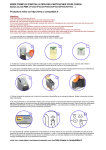
1
Continuous
Ink
Supply System
for
CANON PIXMA IP4200
Installation
Instruction
For ST Prefilled Version
With Original Chips
This Version of the Continuous Ink Flow System comes with Prefilled
Cartridges and Auto Reset Chips. You just need to fill the
Reservoir bottles and print! The whole operation is very easy. It’
s really an effective tool to save your money.
PDF 文件使用 "pdfFactory Pro" 试用版本创建 www.fineprint.cn
CIS for CANON PIXMA IP4200 Instruction
Thank you for purchasing DP Continuous Ink Supply System. We appreciate your support and will try
our best to make your experience with our products a pleasant one. Printing has been a different
experience ever since you installed ST Continuous Ink Supply system on your own printer. Just
imagining being able to print without regard to the ink level in those expensive little cartridges.
Please take your time installing ST Continuous Ink Supply system. Do not remove your old cartridge
until you have the ST CIS system primed and ready to install (to prevent the drying of heads). In
addition, make sure you are getting perfect nozzle checks before installing the ST CIS system. The ST
CIS system won’t be able to work properly if the nozzles are previously clogged.
Most people get a perfect nozzle check the first time after installing the ST Continuous Ink Supply
system; others may need to run two or three cleaning cycles or let the printer sit for a while before they
get the perfect results.
1、General Guide:
1) Components
A、CIS system
1 set
B、 Air filters
6pcs
C、Support Arm
1 set
D、Refill Kit
6 pcs
E、Instruction CD 1pc
2) Opening box inspection
a、Check whether all the accessories are ready.
b、Check whether there's leakage of CIS System, whether some tubes have been separated from CISS. If there
is, please kindly to contact the local dealer.
C、Check whether there is air space in the tube. If the length of air space is more than 20cm, please clean the
printer head for 2 or 3 times before printing.
2、Printer testing:
1) Check whether the printer is in normal condition, like mechanical status, lubrication status etc.
2) Print testing lines to ensure the printing head is good condition.
3) Print pictures to see whether the printing image is ok.
PDF 文件使用 "pdfFactory Pro" 试用版本创建 www.fineprint.cn
3、Installation Procedures:
1) First step
Put the CIS at the right side of printer
And make sure the tube line does not
twist.
Take off the rubbers from ink tank’s
Put the Air-filter into the Air-hole
Air-hole.
2) Install chips
、
Carefully remove the original chips
Pay attention when you remove original
from original cartridges as the picture
chips. Make sure that the chips are not
shows.
damaged.
Put some glue on the chip position of
CISS cartridge.
Then stick original chips according to
color of cartridges. Please make sure
that the chips number matches
cartridge number.
Finished.
Do the same for the other cartridges.
3) Install cartridges
Attache the support arm on the proper
Then put the CISS cartridges into printer
position as the picture shown above.
PDF 文件使用 "pdfFactory Pro" 试用版本创建 www.fineprint.cn
Please make sure that every cartridge is
well installed according to the color label.
4) Install the tubing.
Clip the tube into the support arm as the pictures shown.
5) Adjust tubing
Adjust the tube length and move from
Please make sure there will be no block Ensure the length of tube so that
Left to right for several times.
and collision when the cartridges move
the cartridge can thoroughly move to
from one side to the other.
Both sides.
Twist is not OK.
Perfect.
Too long is not OK.
6) Checking the printing head
Enter the Printer Services panel and print a Demo Page.
PDF 文件使用 "pdfFactory Pro" 试用版本创建 www.fineprint.cn
If it shows any breaks (maybe it caused by air bubbles in the printing head), please clean your printing head. If it still
shows little breaks, especially only for one color, it is unnecessary to repeatedly clean printer-head. Just keep the
printer unusing for about one hour and print a Demo Page again. If it is still abnormal, please kindly contact local
dealer.
7)When cartridges are not recognized, pls operate as the arrowhead shows, In which way, it will not damage the
printer then.
PDF 文件使用 "pdfFactory Pro" 试用版本创建 www.fineprint.cn
4、Refill Ink
Please pay attention to the ink level in the reservoirs; if the ink level is below 1CM as the above picture shown,
please use refill kits to fill ink into Reservoir bottles. Carefully pull out the rubber plugs from the refill holes.(there is
possibility of ink spattering. Be careful!) Refill ink according to the color in short supply. Then put the rubber back.
(Please keep the printer and the reservoir at the same horizontal line during the process of refilling ink.)
5. Attention for Maintenance:
Take out the CISS including the inner cartridges and other components. Then remove support arm from printer, and
re-install original cartridges. Please inquire local dealer before sending to maintenance.
6. Notice:
1. Please don’t take out cartridge at random after installing the CIS system. Keep the reservoir bottles on the same
level with the printer.
2. Try to keep at least 1/2 inch of ink in the bottles.
3. Don’t place the Reservoir Bottles too much higher or lower than the printer.
4. Suggested using in a dry place between 15 and 35 degree. Avoid exposure to direct sunlight.
5. Don’t reverse or lean the continuous ink supply systems during shipping. Please make sure all the ink filling holes
and ventilation holes are closed tightly during transportation. Otherwise, the ink may leak.
6. Don’t sway the cartridge frequently. It may cause ink leakage.
7. Don’t pull out the connector of cartridge and don’t tear off adhesive tape at the bottom of cartridge.
7. Warning:
1. Not drinkable; keep it out reach of children.
2. Avoid exposure to direct sunshine and don’t keep it in high or freezing temperature.
3. Avoid collision and fallen down.
PDF 文件使用 "pdfFactory Pro" 试用版本创建 www.fineprint.cn