1
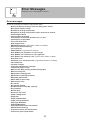
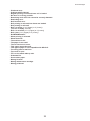
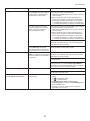
Error Messages
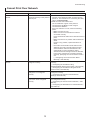
Error Message
Cause
Corrective Action
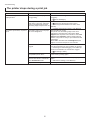
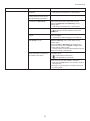
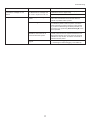
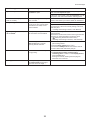
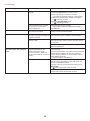
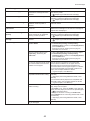
Cannot adjust printhead.
The Printhead nozzles are
clogged.
Execute Auto Head Adj. again, as follows.
1. Press the Online button to clear the error.
2. Print a test pattern to check the nozzles.
(→"Checking for Nozzle Clogging," User Manual)
3. Clean the Printhead if the nozzles are clogged.
(→ , If Printing is Faint)
4. Execute Auto Head Adj. again.
(→ , If Vertical Lines are Warped or Colors are
Misaligned)
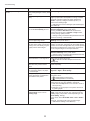
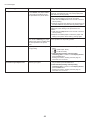
The Printhead cannot be aligned;
highly transparent film is loaded.
Press the Online button to clear the error.
We recommend using a type of paper that you often
use, other than film, for Printhead adjustment.
(→ , If Vertical Lines are Warped or Colors are
Misaligned)
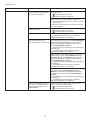
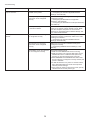
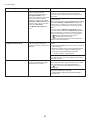
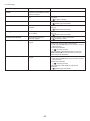
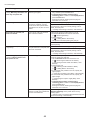
The Printhead is installed crooked. Straighten the Printhead as follows, and then execute
Auto Head Adj. again.
1. Press the Online button to clear the error.
2. Use Head Inc. Adj. to adjust the angle of inclination
of the Printhead.
(→"Adjusting Line Misalignment (Head Inc. Adj.),"
User Manual)
3. Execute Auto Head Adj. again.
(→ , If Vertical Lines are Warped or Colors are
Misaligned)
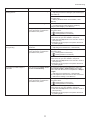
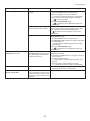
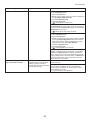
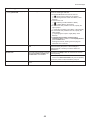
Cannot print as selected.
Another roll is in use.
A printed document remains in
the Output Tray without being cut
and a print job was received that
specifies the other roll.
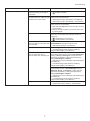
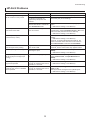
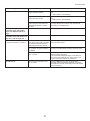
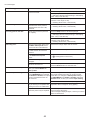
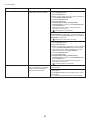
Maximum jobs stored.
100 jobs are stored in the personal Delete unneeded jobs stored in personal boxes.
box.
(→"Deleting Saved Jobs," User Manual)
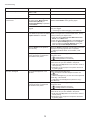
Mail box full. Now printing
without saving data.
No more space is available on the After printing, this message is cleared.
printer's hard disk, so jobs are now
printed without saving them. (Print
jobs can no longer be saved on the
hard disk.)
41
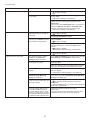
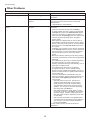
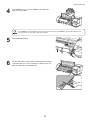
Follow these steps to load the other roll after cutting
the printed document.
1. Hold down the Stop button for a second or more to
cancel printing.
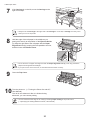
2. Cut the printed document.
(→"Specifying the Cutting Method for Rolls," User
Manual)
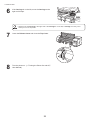
3. Load the other roll and resend the print job.
(→"Loading and Printing on Rolls," User Manual)