1
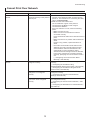
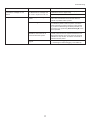
Error Messages
Error Message
Cause
Corrective Action
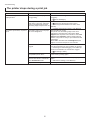
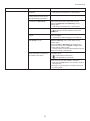
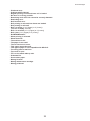
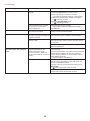
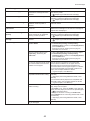
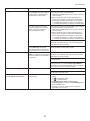
Papr Type Mismatch
When the Detect Mismatch menu
is set to Pause, the type of paper
loaded does not match the type
specified in the printer driver.
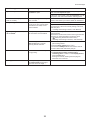
Follow these steps to ensure the paper type matches
on the printer and in the printer driver.
1. Hold down the Stop button for a second or more to
cancel printing.
2. Either change the type of paper specified in the
printer driver settings or replace the loaded paper
and change the paper type setting on the printer.
(→"Loading and Printing on Rolls," User Manual)
(→"Loading and Printing on Sheets," User Manual)
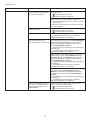
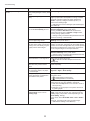
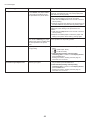
You tried to print a test pattern
for printer adjustment on several
sheets, but sheets of different
types of paper were used.
Follow these steps to ensure the paper type matches
on the printer and in the printer driver.
1. Hold down the Stop button for a second or more to
cancel printing.
2. Either change the type of paper specified in the
printer driver settings or replace the loaded paper
and change the paper type setting on the printer.
(→"Loading and Printing on Rolls," User Manual)
(→"Loading and Printing on Sheets," User Manual)
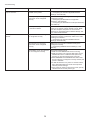
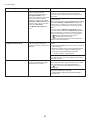
Press the Online button to resume printing.
However, note that this error may cause paper jams
and affect the printing quality.
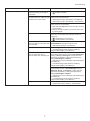
When the Detect Mismatch menu
is set to Warning, the type of
paper loaded does not match the
type specified in the printer driver.
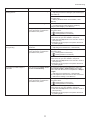
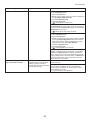
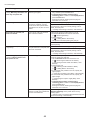
RollWdthMismatch
You can continue to print, but note that this error may
cause problems in the printing results.
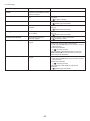
The roll width set in Fit Roll Paper Press the Online button to resume printing.
Width in the printer driver does not However, note that this error may cause paper jams
match the width of the roll loaded
and affect the printing quality.
in the printer.
Hold down the Stop button for a second or more to
cancel printing.
Make sure the roll width selected in the dialog box
displayed when you select Fit Roll Paper Width in
the printer driver matches the width of the roll loaded
in the printer, and then try printing again.
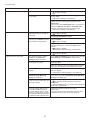
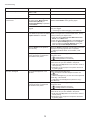
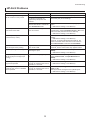
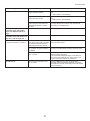
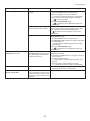
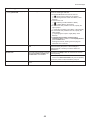
Rel lever is in wrong position.
The Release Lever is up.
Lower the Release Lever.
If the error occurs again, turn off the printer and wait a
while before restoring power.
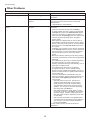
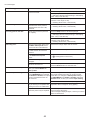
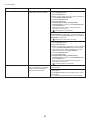
Roll x jam (x is 1 (Upper) or 2
(Lower)) Lift the release lever.
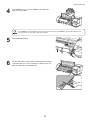
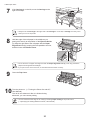
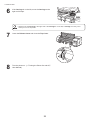
A paper jam occurred in the printer 1. Lift the Release Lever and remove the jammed
paper.
during printing.
(→ , If Roll Paper Jams)
(→ , If a Sheet Jams)
2. If Not finished printing. Finish printing
remaining jobs? is shown on the Display Screen,
press the OK button.
Printing will resume, starting from the page on
which the error occurred.
47