1
Configuring Traffic Filters and Protocol Prioritization
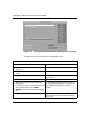
Monitoring Protocol Prioritization Statistics
To monitor and manage protocol prioritization, you use the Statistics Manager to
view statistics in the wfApplication.wfDatalink.wfProtocolPriorityGroup MIB
object group. For information about using the Statistics Manager to view MIB
objects and create custom screen reports, see Configuring and Managing Routers
with Site Manager.
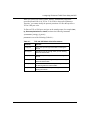
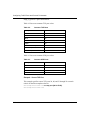
To determine whether there are enough buffers in each priority queue for the
traffic flow on your network, use the Statistics Manager to examine the following
protocol prioritization statistics:
•
High-Water Packets Mark
The greatest number of packets that have been in each queue.
•
Clipped Packets Count
The number of packets that have been discarded from each queue. (The router
discards packets from priority queues that become full.)
•
Transmitted Packets Count (ATM services only)
The number of packets transmitted for each queue.
•
Transmitted Octet Count (ATM services only)
The number of octets transmitted for each queue.
•
Packets Count (ATM services only)
The number of packets received and dropped from each queue.
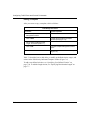
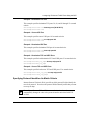
Note: To determine whether statistics reflect a transient event, you may want
to reset the statistics and check again later before changing the priority
queuing configuration. You can reset the High-Water Packets Mark using the
Configuration Manager Edit Protocol Priority Interface window. You can reset
both the Clipped Packets Count and High-Water Packets Mark using the
Statistics Manager.
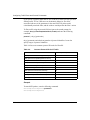
Generally, if a queue’s Clipped Packets Count is high and the High-Water Packets
Mark is close to its queue size, that queue does not have enough buffers.
2-16
308645-15.0 Rev 00