1
8
Part I: Great Things with Microsoft Dynamics GP
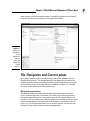
Toolbar buttons
Navigation pane
Menu bar
Content pane Address bar
Figure 1-1:
A typical
opening
window in
Dynamics
GP.
The current user
Navigation pane buttons
The current company
User date
Along the top of the screen, you can use the Address bar to type locations
within Dynamics GP and then press Enter or click the Refresh button at the
right end of the Address bar to view those locations. But most people use
the Menu bar, which appears just below the Address bar, and the Navigation
pane to move around Dynamics GP.
Menus and toolbars
The Menu bar is actually one of several toolbars available in Dynamics GP.
Its official name is the Main toolbar but it functions just like the menu bars
in other programs you’ve used, so I’m going to call it the Menu bar. Below
the Menu bar (refer to Figure 1-1) you see the Standard toolbar. If you’re
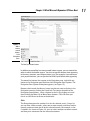
a “button” person, you can display any of the available toolbars by rightclicking the toolbar area to display the shortcut menu shown in Figure 1-2.
From this shortcut menu, click any toolbar you want to display. If a check