1
Chapter 1: What Microsoft Dynamics GP Does Best
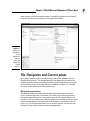
mark appears beside the toolbar name it’s already displayed, and clicking it
removes the check mark and hides that particular toolbar.
Figure 1-2:
Right-click
the toolbar
area to
display this
shortcut
menu and
control the
visible
toolbars.
The Navigation and Content panes
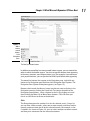
Let’s take a moment to focus on the main portion of the window, which is
divided into two parts. The Navigation pane runs down the left side of the
window, and the results of clicking something in the Navigation pane appear
in the Content pane on the right side of the window. In Figure 1-3, I clicked
the Sales series button in the Navigation pane.
Navigation pane buttons
The buttons along the bottom portion of the Navigation pane represent
series of related functions in Dynamics GP. When you click any particular
Navigation pane button, lists associated with that series appear above the
buttons in the Navigation pane, and the actions you can take within the series
fill the Content pane on the right side of the Dynamics GP window (refer to
Figure 1-3). I’ll tell you more about lists in the next section, but for the time
being let’s focus on the buttons in the Navigation pane.
9