1
10
Part I: Great Things with Microsoft Dynamics GP
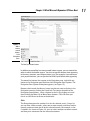
Lists for the selected series
Content pane containing actions for the selected series
Figure 1-3:
The
Navigation
pane.
Toolbar-like buttons for additional series
Navigation pane buttons
Looking back at Figure 1-3, you see “named” buttons for Home, Financial, Sales,
Purchasing, and Inventory. In addition to these named buttons, toolbar-like
buttons appear at the bottom of the Navigation pane (in Figure 1-3 they appear
under the named Inventory button). These toolbar-like buttons function the
same way that the named buttons function — they simply represent additional
series of related functions such as Human Resources and Payroll.
If you place the mouse pointer over one of the toobar-like buttons, a tool tip
appears to identify the button.
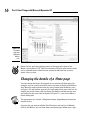
You can increase or decrease the number of named buttons that appear in
the Navigation pane. Click the Configure Buttons button, which is the last
button in the area where the toolbar-like buttons appear. When you click the
Configure Buttons button a shortcut menu appears, as shown in Figure 1-4.
To display more buttons with names, click Show More Buttons. To display
more toolbar-like buttons, click Show Fewer Buttons. When you show more
buttons, Dynamics GP moves a toolbar-like button up and displays it as a
named button. Similarly, if you show fewer buttons, Dynamics GP removes a
named button but displays a toolbar-like button for it.