1
iPhone 3G Portable Genius
Customizing the Home Screen to Suit
Your Style
The Home screen is your starting point for all things iPhone 3G, and what could be simpler? Just
tap the icon you want and the application loads lickety-split. Ah, but things are never so simple, are
they? In fact, there are a couple of hairs in the Home screen soup:
The icons in the top row are a bit easier to find and a bit easier to tap.
If you have more than 16 icons, they extend onto a second (or third or fourth) Home
screen. If the application you want isn’t on the main Home screen, you must first flick to
the screen that has the application’s icon (or tap its dot) and then tap the icon.
How do you end up with more than 16 icons? Easy: the App Store. This is an online
retailer solely devoted to applications designed to work with the iPhone 3G’s tech-
Note
nologies: multi-touch, GPS, the accelerometer, wireless, and more.You can download
applications via your cellular network or your Wi-Fi connection, so you can always
get applications when you need them. In the Home screen, tap the App Store icon to
see what’s available.
All this means that you can make the Home screen more efficient by moving your four most-used
icons to the top row of the main Home screen, and make sure that any icon you tap frequently
appears somewhere on the main Home screen.You can do all this by rearranging the Home screen
icons as follows:
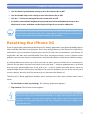
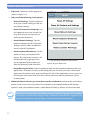
1. Display the Home screen.
2. Tap and hold any Home screen icon. When you see the icons wiggling, release your finger.
3. Tap and drag the icons into the positions you prefer.
4. Press the Home button. iPhone 3G saves the new icon arrangement.
The icons in the Home screen’s menu bar are also fair game, and you can drag them
left and right to change the order. Unfortunately, you can’t replace the menu bar
Note
4
icons with any other Home screen icons.