1
Part 1
The Vista User Experience
CO
PY
RI
GH
TE
D
MA
TE
RI
AL
If such a thing as a beautiful user interface for a personal computer operating
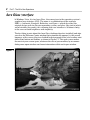
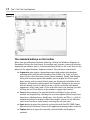
system exists, Microsoft’s Windows Vista, shown in the following figure, is surely
at the top of this list. However, as you find out in this part, the Windows Vista
desktop is much more than just a pretty face. Indeed, Vista is also Microsoft’s
most powerful and usable personal computer interface to date (and this is
coming from someone who really liked Windows XP).
In this part . . .
⻬
⻬
⻬
⻬
⻬
Meet the Aero Glass Interface
Guide for displaced Windows XP Users migrating to Windows Vista
Personalizing your copy of Windows Vista
Using the Start Search and Search features
Using the Vista taskbar
2
Part 1: The Vista User Experience
Aero Glass Interface
In Windows Vista, A is for Aero Glass, the name given to the operating system’s
graphical user interface (GUI). The name is a combination of the acronym
AERO — Authentic, Energetic, Reflective, and Open — which describes the
original design goals for the new operating system, and glass (the stuff of which
actual windows are made), this stunning new user interface is all about clarity,
in the sense of both brightness and simplicity.
The first thing to note about the Aero Glass desktop when first installed (and after
you close the Welcome Center window that automatically appears) is the overall
openness of the screen (due to a decided lack of program icons) and a rather minimalist Start button and taskbar, as shown in Figure 1-1. This open screen makes
the most of your screen space, whatever the size of your monitor, by accommodating more open windows and more information within each open window.
Figure 1-1
Aero Glass Interface
3
The second thing to notice is the relative transparency and high degree of reflectiveness displayed by the various Vista screen elements, especially the taskbar,
Start menu, and title bars of open windows (depending upon the graphics capability of your computer). You notice the transparency most in the title bars of
windows and in the right column of the Start menu (especially when the menu is
on top of another open window, as in Figure 1-2). You notice the reflectiveness
most when you position the mouse pointer over buttons and desktop icons —
they actually appear to glow. This effect is accomplished by backlighting the
graphic with various contrasting colors — blue for most buttons and icons and
bright red for a window’s Close button.
The third thing to notice about the Aero Glass interface is the extremely smooth
way in which screen elements change and the high degree to which this version
of the operating system supports live visual previews.
You notice the screen smoothness whenever you open or close a new window
and resize or move it on the Windows desktop. When Vista opens a window, it
does so in a much more fluid manner than previous Windows versions. So too,
when you drag an open window around the Vista desktop (even one playing a
video or showing a music visualization), the graphics don’t break up and
become pixilated as they pass over other screen elements.
Figure 1-2
4
Part 1: The Vista User Experience
The live visual previews in Vista show up in several really cool desktop features:
live taskbar thumbnails, Flip, and Flip 3D, which are used to switch between
open windows. The live taskbar thumbnails feature enables you to see a thumbnail version and name of any window that is currently minimized on the Vista
taskbar simply by positioning the mouse pointer over its icon. That way, you
can get tell whether a particular window icon on the taskbar contains the particular application or Vista window you want to restore to its previous position and
size on the Vista desktop.
Note that the Flip feature is a more graphic version of a switching feature first
introduced in Windows XP (and still activated by pressing Alt+Tab). This feature
enables you to activate a particular open window from among those currently
minimized on the Windows taskbar by selecting its icon and window name in a
band that appears in the middle of the desktop. In the Vista version of the Flip
feature, however, rather than just a generic window icon, you see an actual live
thumbnail of the contents of the window along with its window name (see Figure
1-3). This live preview helps you immediately identify the window you want to
open on the desktop.
Figure 1-3
The Flip 3D offers an even faster visual method for activating an open window
among those you have open. It accomplishes this by showing a stack of live 3-D
representations for all the windows you have open in Vista (see Figure 1-4). You
can then quickly flip through this stack until the thumbnail of the window you
want to activate is displayed at the front of the stack. See “Flip and Flip 3D” later
in this part for details on how to use Flip and Flip 3D to select a window.
Visual previews also show up in windows that contain file folders when using
the Extra Large Icons viewing option. Figure 1-5 illustrates such a situation. Here,
you see the contents of a few of the folders inside an Excel Wrkbk folder on my
computer’s hard drive after selecting Extra Large Icons on the window’s Views
pop-up slider. When any size between Large Icons and Extra Large Icons are
selected, Vista actually shows a live preview of the first few documents within
that folder so that you see a thumbnail of an actual graphic image, if the folder
contains photos, and a worksheet, if it contains spreadsheets.
As you can begin to see from this brief overview, the Aero Glass interface in
Windows Vista offers you an extremely visual and highly dynamic environment
in which to work. All around, when coupled with the many less glitzy enhancements that the Microsoft software stuck under the hood, Windows Vista makes
for a very satisfying user experience.
Aero Glass Interface
Figure 1-4
Figure 1-5
5
6
Part 1: The Vista User Experience
Ah, That’s What They Did with It!
If you’re coming to Windows Vista as a user of Windows XP who was completely
comfortable with its tried and true ways of doing business, the new Windows
Aero Glass desktop may appear to you initially as less open and simple than
originally promised. In fact, if your first few minutes with the new and improved
Windows graphical user interface are anything like mine, you may feel just a wee
bit lost when you first start doing the everyday tasks you seemingly did so
effortlessly in the past with Windows XP.
Never fear! You have absolutely no reason to panic: In no time at all, I can set
you straight on the new, more efficient ways of finding all the stuff on your computer system that you used in the past, while at the same time pointing out what
they did with some of your more familiar Windows elements such as the muchbeloved My Documents and the underrated Run command.
Start is a very good place to begin
The first thing to note is that the Start button on the Vista taskbar is no longer a
rectangular green button that says Start and sports the four-color Microsoft
Office banner. Instead, it’s now a real circular button sporting only the four-color
Microsoft Office banner icon.
Clicking the Start button on the Vista taskbar (or pressing the Start key on your
keyboard, if it’s so equipped) still opens the Start menu in a two-column format.
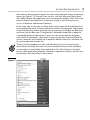
However, as shown in Figure 1-6, this Start menu has some new buttons and a
whole new way of displaying the information about the stuff on your computer.
The new elements located along the bottom of the Vista Start menu include
⻬ Start Search text box, where you can enter search text to find any folder or
document on your computer or any topic on the Internet by typing the first
few characters of its name. Note that Vista immediately starts matching the
characters in the Start Search text box against the contents on your computer (displaying the results in left-hand column of the Start menu) as you
type them.
⻬ Sleep button to save your work session and put your computer into a low
power mode so that you can quickly resume working with the current
desktop arrangement simply by pressing a key (such as Shift or Enter) or
by clicking the mouse button.
⻬ Lock This Computer button to lock up your computer when you’re away
from your desk so that nobody else can use it — keep in mind that you
must be able to accurately produce your user password in the text box at
the startup screen with your login and picture in order to unlock the computer so you can use it once again (assuming that you’ve been assigned a
password).
Ah, That’s What They Did with It!
7
Figure 1-6
Start
Power
Lock This Computer
Shut Down Options
⻬ Shut Down Options button to open a pop-up menu containing the follow-
ing options: Switch User to enable you to log onto the computer with a different user account, Log Off to close down your work session and select a
different user account, Lock to lock your computer (see the previous bullet
“Lock This Computer”), Restart to completely reboot the computer, Sleep
to put the computer into a low-power state (see “Sleep” earlier in this list),
Hibernate (if you’re running Vista on a laptop computer) to save any work
in memory to your hard drive and shut your machine down, and Shut
Down to close all windows and shut down all power to the computer.
The left-hand column of the Start menu still contains the icons for Windows programs you recently used (which you can fix to this part of the Start menu by rightclicking it and then clicking Pin to Start on the shortcut menu). The right-hand
column, although vaguely familiar, lacks all of your accustomed “My” windows
(from My Document to My Network Places). All of its items (from Documents to
Help and Support) are arranged under the icon you selected for your user account
and your username (see the dog icon above Admin in Figure 1-6). As you mouse
over the items in this column, you’ll notice that a new icon representing the type
of item replaces your user account picture at the top of the right-hand column.
8
Part 1: The Vista User Experience
Documents, Pictures, Music, Computer, and Network on the Windows Vista Start
menu respectively take the place of My Documents, My Pictures, My Music, My
Computer, and My Network Places on the Windows XP Start menu.
Using the All Programs item
The All Programs item on the Windows Vista Start menu performs the exact
same function as it did in Windows XP — opening menus that you can use to
launch Windows utilities and applications programs installed on your computer.
Here, however, Vista has it all over XP because it performs this in a much tidier
and more efficient manner.
Instead of opening sprawling menus and submenus that can take over pretty
much your entire desktop (depending upon how many programs you’ve
installed), Vista keeps all the All Programs menu action restricted to the lefthand column of the Start menu. When you click its All Programs button, Vista
displays a list of all the application programs and Windows utilities on your
computer (with a vertical scroll bar if there are too many items to display on the
left-hand column) and the button changes from an All Programs to Back.
To launch a program or utility, simply click its item in the left-hand column. If
the item sports a folder icon (such as Microsoft Office or Accessories), clicking
the icon causes an indented submenu to appear (still within the left-hand
column of the Start menu) and you can then click the icon for the program you
want to launch.
The role of Start Search
You may have noticed the Search item that appeared on the right side of the
Windows XP Start menu has changed into a Start Search text box at the very
bottom of the Start menu in Windows Vista. This Start Search text box is part of
the Search feature that permeates the Vista operating system (you find a similar
Search text box in most of the utility windows such as Documents, Pictures,
Music, and so on).
Unlike the old clunky search feature in Windows XP that simply opened a dialog
box where you had to specify the type of search before you entered the search
text and then started the search operation, Quick Search in Vista is always ready
to go. All you have to do to initiate a search is to start typing the first few characters of the item you’re looking for. Vista starts displaying matching items in
the open window (or on the left-hand side of the Start menu when using Start
Search) as you type.
For example, if I want to open Microsoft Word to create a new document on my
computer, I simply type wo in the Start Search text box. Doing this almost immediately displays Microsoft Office Word 2007 (among other items such as
WordPad and folders and files whose names contain the letters “wo” as part of
Ah, That’s What They Did with It!
9
their names) above the Start Search text box in the left-hand column of the Start
menu (see Figure 1-7). Then all I have to do is click this Microsoft Office Word
2007 link to launch this application in its own program window. (Note that to display the link for launching Excel, I only have to type e, which also gives me
access to Windows and Internet Explorer.)
In the same vein, on the rare occasion that I need to open the Run dialog box to
do something like enter a setup command to install a new program, I only type r
in the Start Search text box (no need even to type the u to display the Run icon)
and then click the Run item. To display the Command Prompt link to open the
Command Prompt window where I can access the system directly by typing
weird old DOS commands, I only have to type c in the Start Search text box (of
course, doing this also enables me to open the Media Center, the Calculator utility, and my personal contact list).
The key to living happily ever after with Windows Vista is to stop worrying
about where the items you want to use are actually located on your computer
system and just start finding them with Search. Use Start Search on the Start
menu to find application programs, Windows components, folders, and files just
by entering a few characters in their names.
Figure 1-7
10
Part 1: The Vista User Experience
Looking at virtual folders with Windows Explorer
Windows Vista, like all versions of Windows before it, relies on a structure of
Explorer windows that display all the document files and subfolders stored
within it. The big difference in Windows Vista is the appearance of an entirely
new type of folder called a virtual folder that can appear in these windows.
Virtual folders are quite a bit different from the ones you create manually by
actually moving and copying particular document files and subfolders into
them. Instead, virtual folders are created from some type of search. Because of
this, they can contain files that are not actually stored in the same folder (directory) and their contents are dynamically updated (as you add new files that fit a
virtual folder’s search criteria, they automatically appear in that virtual folder).
The best examples of virtual folders are found in the Documents window (opened
by clicking the Documents link in the right-hand column of the Start menu). When
this window opens, you see a list of Favorite Links in the Navigation pane on the
left side of the window that includes links to two virtual folders: Recently Changed
and Searches.
If you click the Recently Changed link, Windows displays the Recently Changed
virtual folder containing a listing of all the various files on your computer that
you’ve modified during the current day’s work session (including files you’ve
created, edited, or copied or moved onto your computer’s hard drive).
You can then filter this list of folders and files by clicking Organize 䉴 Layout 䉴
Search Pane to display the Search pane at the top of the Recently Changed
window, where you can click the particular type of files you want listed. Note
that the Search pane contains the filtering buttons E-mail, Document, Picture,
Music, and Other to the right of the already selected All button.
If you click the Searches link, Vista displays a number of virtual folders from
Attachments through Unread E-mail in the Name column to the immediate right
of the Navigation pane. To open the contents of one of these virtual folders such
as the Recent E-mail or Unread E-mail, double-click its folder icon. Note that you
can also use the Search pane to filter the contents of any of these virtual folders
by selecting the button representing just the kinds of file you want listed.
Notable differences in the Vista Windows Explorer
When you first open a folder such as Documents or Computer in Vista, you
immediately notice a big difference between the layout of its Windows Explorer
and that of earlier Windows versions such as Windows XP. For one thing, in
Vista, the Navigation pane on the left contains only Favorite Links in place of the
usual File and Folder and Other Places links of XP. For another, the address bar
in Vista now appears on top of the Standard Buttons toolbar (which doesn’t contain any of the standard buttons!). You also don’t see a menu bar in any of the
windows unless you click Organize 䉴 Layout 䉴 Menu Bar or press the Alt key.
Ah, That’s What They Did with It!
11
Finally, in Vista, Windows Explorer contains a fourth pane, the Details pane, that
appears at the very bottom of the window.
Pressing the Alt key when one of these windows is open acts like a toggle switch:
The first time you press it, Vista displays the menu bar; the second time you
press it, Vista hides the menu bar display.
In addition, you have the option to display two more new panes in Vista: a
Search pane, which appears immediately below the address bar and enables you
to quickly filter the contents of any open folder, and a Reader pane, which
appears on the right side of the Explorer window and shows you a large thumbnail of the currently selected folder or file.
Don’t forget that you can manipulate the size of the Navigation pane and Details
pane (when this pane is displayed) in the Vista Windows Explorer by positioning
the mouse pointer anywhere on the edge of the pane that abuts the central display of the subfolders and files in the open folder. When the pointer becomes a
two-headed arrow, drag the mouse to the left or right (or up and down in the
case of the Details pane) to make the pane smaller or larger.
The Navigation pane
When you first open Windows Explorer, the Navigation pane contains only the
Favorite Links Documents, Pictures, and Music along with the Recently Changed
and Searches links to its virtual folders. To display the contents of any of the
three main folders — Documents, Pictures, or Music — you simply click its link
in the Favorite Links area. Vista then displays a complete listing of all the folders
and files this folder contains to the right of the Navigation pane in the main part
of Windows Explorer.
When, however, you need to display the contents of a folder other than the three
main and two virtual listed in Favorite Links section of the Navigation pane, you
have to remember to click the Folders button, the one with the triangle pointing
upward at the bottom of this pane.
Clicking the Folders button displays a hierarchical listing of all the different components and folders on your computer (see Figure 1-8). You can then switch to a
new component on your system such as the Desktop, Control Panel, or Recycle
Bin or to open a new folder such as Downloads, Favorites, or Searches by clicking
its icon on this list. When you do, Vista displays the contents of the component
or folder you selected in the main part of Windows Explorer.
You can easily expand or collapse this hierarchical list of folders in the
Navigation pane. To expand a folder by displaying its subfolders indented and
underneath it, click the open triangle pointing to the right in front of the folder’s
icon and name. To contract a folder by removing the display of all its subfolders,
click the black triangle pointing downward to the right at a 45-degree angle.
12
Part 1: The Vista User Experience
Figure 1-8
The standard buttons on the toolbar
When you open Windows Explorer either by clicking the Windows Explorer or
Documents link on the Start menu, the toolbar may contain a variety of buttons,
depending on whether you’ve selected individual folder or file icons that are displayed in the open Windows Explorer window. These buttons can include
⻬ Organize button opens a drop-down menu with options that perform
common folder and file tasks including New Folder, Cut, Copy, or Paste,
Select All (to select the items in the current window), Delete, and Rename
along with a Layout option that enables you to display the Classic pulldown menus and to control which panes are displayed and hidden in the
Explorer. A Properties option opens the Properties dialog box (to turn on
and off sharing, revert to earlier versions, and to customize the default
appearance of its icons) and a Close item that closes the window (just like
clicking the red Close button in the window’s upper-right corner).
⻬ Views button changes the way that the file and folders in the current
window are displayed by selecting the next view option (Extra Large Icons,
Large Icons, Medium Icons, Small Icons, List, Details, and Tiles) — click its
drop-down button to display a slider that enables you to try out different
sizes in each of these views before selecting the one you want.
⻬ Open button to open the currently selected file with the XPS (XML Paper
Specification) Document Viewer or the application program that created it.
⻬ Explore button to open the currently selected folder and display its
contents.
Ah, That’s What They Did with It!
13
⻬ E-mail button to open a new mail message in the default e-mail program
with the selected file or files (if a folder icon is selected) as attachments to
the new message.
⻬ Share button to open the File Sharing dialog box, where you can designate
the people on the network with whom you want to share the computer’s
files.
⻬ Burn button to copy the items selected in the Explorer to a temporary
folder from which you can then burn them to a CD or DVD disc.
When you open Windows Explorer by clicking the Computer link in the Start
menu or by clicking Computer in the Folders section of the Navigation pane after
opening the Documents Explorer, the toolbar contains the standard Organize and
Views buttons. In addition, this toolbar also includes the following buttons when
one of the hard drives or a network drive on your system is selected:
⻬ Properties button to open the General tab of a Properties dialog box for
the selected drive. The General tab enables you to change the drive’s
name, view the amount of used and free space on the drive, compress it,
and index the folders and files on it for faster searching. In addition, this
dialog box contains tabs with options for customizing and sharing the
drive on a network, among other things.
⻬ System Properties button to open a new System window that displays
basic system information about your computer including its microprocessor, the amount of memory, version of Windows Vista installed as well as
the computer’s name, and its domain or workgroup on a network and the
Vista product ID.
⻬ Uninstall or Change a Program button to replace the Computer Explorer
window with the Programs and Features Control Panel window, where you
can remove a program you’ve installed or modify its installation (either by
adding components or reinstalling them).
⻬ Map Network Drive button to open the Map Network Drive dialog box,
where you can assign a drive letter to a folder located on a physical drive
of a network computer (to which you have access). You can then use the
mapped drive letter to open that network folder from the Computer
window in Windows Vista.
If you click the icon for a removable storage drive such as a CD or DVD disc
drive installed on your computer system, the following three additional buttons
appear on the toolbar:
⻬ AutoPlay button to begin playing the setup or multimedia files on the CD
or DVD disc you’ve inserted into the selected removable drive (on the odd
occasion when Vista doesn’t automatically start playing them right after
inserting the disc).
14
Part 1: The Vista User Experience
⻬ Eject This Disk button to have Vista open the CD or DVD disc drive so that
you can either remove the current disc or insert a new disc to play or
record to.
⻬ Burn to Disc button to open the Burn to Disc Wizard, which takes you
through the steps of burning selected folders and files to the CD or DVD
disc. Note that for this to work, your computer must be equipped with a
drive that is capable not only of reading but also of burning files, and a disc
of the correct type that is either blank or is re-recordable and has sufficient
room for all the files and folders you select.
Remember that a continuation button (>>) automatically appears on the toolbar
if the screen resolution is too large and the current size of the Windows Explorer
window too small to display all the buttons on the toolbar. In that case, click the
continuation button to display a drop-down menu with the missing options that
don’t currently fit.
Taking a good look at the Views
You have to admit that earlier versions of Windows such as XP did an excellent
job of hiding the Views button that you use to change the appearance of the icons
of the subfolders and files contained in the folder currently open in Windows
Explorer (this unmarked button at the right end of the Standard Buttons toolbar
uses a static icon with a dialog box with rows of tiny colored rectangles that just
doesn’t do a very good job of indicating its function). Contrast this to the Views
button in the Vista Windows Explorer that always appears as the second button
right after Organize on the toolbar, is clearly marked Views, and dynamically
changes its icon to reflect the currently selected view.
In addition, clicking the drop-down button attached to the Vista Views button
displays a slider rather than a static drop-down menu of options in XP. You can
then use this slider not only to select a new look for your folders and files (in
Vista, you have a choice between Extra Large Icons, Large Icons, Medium Icons,
Small Icons, List, Details, and Tiles), but also, when settling on one of the Icons
selections, you can use the slider to dynamically opt for sizes in between the
actual preset Extra Large Icons, Large Icons, Medium Icons, and Small Icons
sizes.
Keep in mind that you can cycle through four of the seven preset views (Extra
Large Icons, List, Details, and Tiles) by repeatedly clicking the Views button
without having to even open the slider. Each time you click the Views button to
select the next preset, Vista also updates the icon on the Views button itself to
reflect the new view you’ve selected.
Also, remember that you can sort the subfolders and files displayed in the open
folder in Windows Explorer by using any of the column headings listed at the
top of the area containing their icons regardless of what view you select
(although it’s only when you select the Details view that the folder and file info
Ah, That’s What They Did with It!
15
only line up with these column headings). To reorder the icons, click the column
heading or field. Click one time to sort the folders and files in ascending order
(from A to Z alphabetically, smallest to largest, or least recent to most recent)
and a second time to sort them in descending order (Z to A, largest to smallest,
or most recent to least recent).
Using the address bar
In Windows Vista, the address bar that keeps you abreast of the path of the
folder whose contents is currently displayed in Windows Explorer is not only at
the top of the window above the toolbar (in XP, it’s located immediately below
the Standard Buttons toolbar), but this bar is also flanked on the right by a
Search text box with its own More Search Options button and with Back,
Forward, and Recent Pages buttons on the left.
In Windows XP, the Back and Forward buttons are part of Standard Buttons toolbar along with an Up button, which is totally absent in Vista. Rather than the
Up button (to move up a level in the navigation hierarchy), Vista gives you a
Recent Pages drop-down button (the blue triangle pointing downward). When
you click this button, Vista displays a drop-down menu showing you all the folders you opened both before and after opening the current folder. To redisplay
the contents of a particular you folder you visited, just click its name on this
drop-down menu.
One really big difference between the address bar in Vista and that in Windows
XP is the way in which the current folder path is displayed on the bar. In place of
the backslash (\) separators and the all-squished-together-with-no-spaces pathname, Vista employs black right-pointing triangles (䉴) with plenty of space in
between the different folder names that make up the path. Moreover, the Vista
pathname begins with your username rather than the drive letter.
If you select the wrong folder as you’re building the path by opening subfolders
at lower levels in the file hierarchy, you can back up a level and select another
folder on that level by clicking the right-pointing triangle immediately in front of
the folder you selected by mistake. Vista then displays a drop-down menu with
the names of all the folders at that level and you can select the correct one by
clicking its name on this list.
If the path is too long to display all its components on the address bar, a <<
button appears at the beginning of the pathname. Click this button to display a
drop-down menu that lists all individual folders and subfolders in the hierarchical path in the top portion of the menu from the folder immediately above to the
Windows desktop. The bottom portion of this drop-down menu lists other folders (from your personal folder to the Recycle Bin) on your computer that you
can open by clicking their names.
Just like the address bar in the Windows XP Explorer Window, the one in the
Vista Explorer Window contains a drop-down button that that enables you to
16
Part 1: The Vista User Experience
select the paths of previously opened folders from a drop-down menu. Surprise
of surprises, clicking this drop-down button immediately converts the Vista path
separated by black triangles into the old backslash-separated and mushedtogether pathname of Windows XP. That’s the way that all the paths to all the
previously opened folders on the drop-down menu appear as well!
However, the moment that you click one of the old-fashioned mushed-together
pathnames on this drop-down menu, Vista immediately converts it back into the
new-fangled path separated by right-pointing black triangles.
For example, suppose earlier in my work session, I opened the Program Files
folder on my computer’s local hard drive, given the designation Local Disk (C:),
and I now want to reopen it in Windows Explorer. When I click the address bar’s
drop-down button, this path appears on the drop-down menu:
C:\Program Files
However, as soon I click the C:\Program Files item on this pull-down menu, Vista
opens this folder and displays the following path on Windows Explorer’s
address bar following an initial folder icon:
䉴 Computer 䉴 Local Disk (C:) 䉴 Program Files 䉴
Note how the new Vista pathname designations with the right-pointing triangles
are more accurate than the old ones in describing the actual process you followed to open the current folder. In the previous example, I actually selected the
Computer link on the Start menu followed by double-clicking the Local Disk (C:)
icon in the Computer window and the Program Files folder icon. The older designations with the backslashes are, however, more accurate in describing the
actual location of the folder in the computer’s hierarchy of directories and files.
Making the most of the Details pane
The Details pane at the bottom of the window gives you extra information about
the folder or file that’s currently selected in the main section of Windows
Explorer. When a folder is selected, the categories of this information can
include the folder name, number of files, and the date the folder was last modified. When a file is selected, the categories of the information can include the
filename, size, type, date created, date last modified, and date last accessed, as
well as any keywords that you’ve assigned to the file such as title, authors, and
rating. In the case of graphic files and Excel workbook files, Vista also automatically displays a tiny thumbnail of the image or initial worksheet on the left side
of the Details pane (see Figure 1-9).
Sometimes you need to enlarge the size of the window to display all the categories and information about the file currently selected in the Details pane.
Remember that you can also increase the height of the Details pane by dragging
its top border upward.
Ah, That’s What They Did with It!
17
Figure 1-9
The information displayed in the Details pane can be quite helpful in identifying
a folder or file for use. Moreover, the tags, ratings, and keywords assigned to
particular files can be used in doing searches for the file. (See “Search” later in
this part).
Vista enables you to add tags and edit keywords that you can assign to a file
directly from the Details pane. After clicking the file icon in Windows Explorer to
select it, you then position the mouse pointer over the category in the Details
pane and then, when an outline appears around the current entry and the pointer
becomes an I-beam shape, click the insertion point in the field and type the new
tag or keyword or edit its contents. Depending upon the type of file (text, graphic
image, audio, or video), you are able to edit various fields on this tab.
After you add or edit a tag, you then need to click the Save button that appears
the moment you set the insertion point in one of the fields to save the new data
as part of the file. Click the Cancel button if you decide not to add the tag or
save the editing change.
When you select a music or graphics file, you can give the file a rating between
one and five stars by clicking the star (from left to the right) that represents the
highest star you want to give it.
18
Part 1: The Vista User Experience
Displaying the Search pane and Preview pane
Vista’s version of Windows Explorer offers you the use of two extra panes that
aren’t normally displayed in the window. These are the Search pane (see
“Search” later in this part), which appears immediately beneath the address bar
when displayed (by clicking Organize 䉴 Layout 䉴 Search Pane) and the Preview
pane, which appears on the right side of the window when displayed (by clicking Organize 䉴 Layout 䉴 Preview Pane).
Figure 1-10 shows Windows Explorer with all its auxiliary panes — Navigation,
Search, Details, and Preview — displayed. Because I selected one of the chapter
files created in Microsoft Word in an open folder, the Preview pane in this figure
displays the first part of the actual document text.
Figure 1-10
Note that when you select a Microsoft Excel workbook file, the Preview pane displays the first part of the initial worksheet. So too, when you select a graphics
file, the Preview pane displays a larger version of the graphic image. When you
select a folder rather than a file icon, the Preview pane displays a large semiopen folder on its side with its best representation of the types of documents it
contains (assuming the folder’s not empty).
Ah, That’s What They Did with It!
19
Moreover, when you select a video clip or a movie file (perhaps created with
Windows Movie Maker — see Part 7) in Windows Explorer, the Preview pane
displays the first frame of the video file with a video controller beneath complete with Stop, Play/Pause, and Switch to Full Mode buttons that you can use
to actually preview the video from start to finish if you so desire.
Likewise, when you select an audio file in Windows Explorer, the Preview pane
displays a stock image of a multimedia file (including a music file above the same
controller with its Stop, Play/Pause, and Switch to Full Mode buttons). You can
then use the Play/Pause button to play the selected audio file from the Preview
pane.
Click the Switch to Full Mode button in the Preview pane if you want to listen
to the selected video or audio file in a separate Windows Media Player window.
Doing this gives you access to the full array of playback features of this muchimproved media player application (see “Windows Media Player 11” in Part 7
for details).
Restoring the Classic pull-down menus to Windows Explorer
If you’re anything like me, in your time working with earlier versions of Windows
such as 98, ME, and XP, you’ve come to rely upon the so-called Classic pull-down
menus in the Explorer Window and, to a lesser extent, the ordering and arrangement of items on the Start menu that you now know so well. Fortunately, you
can easily restore some of the good old classic look and feel of bygone Windows
versions to Vista anytime you want to.
By far the most important classic element to know how to restore to Vista is the
display of the Classic pull-down menus (File, Edit, View, Tools, and Help) in the
Windows Explorer windows. To bring back these very valuable (and in rare
cases indispensable) menus to all your Explorer windows, click Organize 䉴
Folder and Search Options to open the Folder Options dialog box. There, click
the View tab and then select the Always Show Menus check box at the top of the
Advanced Settings list box before you click OK. After this check box is selected,
these pull-down menus automatically appear on their own row between the
address bar and the toolbar in every Windows Explorer window you open
(including windows opened by clicking the Computer, Network, and Control
Panel links on the Start menu).
You can also restore the Classic pull-down menus to your Explorer windows by
pressing the Alt key one time. Press the Alt key a second time to once again hide
the menus.
Restoring the Classic Windows Start menu
Although I personally do not prefer the rather sloppy cascading submenu
arrangement of the Start menu in older Windows versions, preferring instead
the tidy new self-contained Start menu of Vista, you can, if you want, return
20
Part 1: The Vista User Experience
quite readily to the tried-and-true Start menu of your mother’s Windows. (After
all, the Classic Start menu does include a Run option immediately above the old
familiar Shut Down option.)
To make the switch back, right-click the Start button and then click Properties
on its shortcut menu to open the Taskbar and Start Menu Properties dialog box
with its Start Menu tab selected. On this tab, you click the Classic Start Menu
option button and then click OK.
Note, however, that when you first switch back to the Classic Start menu in
Vista, this menu does not resemble so much the Windows XP Start menu as it
hearkens back to an even earlier vintage, more like the Start menu of Windows
98 (now that takes me back a bit).
You can however, customize the look and feel of the Classic Start menu. One way
to do this is to click the Default Programs option that now appears at the very
top of the Start menu and then click the Set Your Default Programs link in the
Default Programs Control Panel window. You can then select the programs such
as Internet Explorer, Windows Mail, and the like that you always want to appear
on the Start menu.
The other way to customize the Classic Start menu is to reopen its Properties
dialog box and then click its Customize button on the Start Menu tab to open the
Customize Classic Start Menu dialog box. There, you can use Add, Remove, and
Sort buttons as well as the check boxes in the Advanced Start Menu Options list
box to customize what items do and don’t appear on the menu and in what order.
Getting rid of the Vista glassiness
Let’s face it: You either love the shiny new Aero Glass look of Windows Vista or
you find it to be totally distracting and a big waste of your precious computer
resources. If you happen to hold the latter opinion, follow these steps to get rid
of the ritzy glassy look and go back to the old clunky opaque view of yesteryear:
1. Right-click anywhere on the Vista desktop and then click the Personalize
item on its shortcut menu.
2. Click the Window Color and Appearance link in the Personalization
Control Panel window.
3. Click the Open Classic Appearance Properties for More Color Options link
at the bottom of the Window Color and Appearance Control Panel window.
4. Click the Windows Classic selection in the Color Scheme list box and then
click OK.
And that’s all there is to it: Vista fades to black. When the screen comes back up,
in place of all that glittery, semitransparent taskbar and windows nonsense,
every Vista screen now has a thick-as-mud look and feel that would do Windows
95 proud!
Ah, That’s What They Did with It!
21
Just click the Enable Transparency check box in the Window Color and
Appearance Control Panel window to remove its check mark if you’re happy
with the default Windows Vista color scheme and only want to get rid of the
transparency effects.
Adopting a Classic view of the Control Panel
Finally, you may find the default look of the Vista Control Panel (which is, fortunately a little less sparse than the Category View of the Windows XP Control
Panel) not to your liking. Switching back to the display of rows of individual
Control Panel icons (in alphabetical order from Add Hardware through Windows
Update) is really simple.
Click the Control Panel link on the Start menu and then click the Classic View
link in its Navigation pane immediately beneath Control Panel Home. Just
remember that when the Control Panel is in Classic View, you must double-click
the Control Panel icon whose settings you want to modify in order to open its
dialog box.
Click the Control Panel Home link in the Navigation pane to return to the default
category display.
Things that haven’t changed a bit
Although it may seem as though quite a bit of the user interface is radically different, you’ll be glad to know that many, many of the ways of doing things in
Windows Vista have remained the same. Here’s a short list of such things to give
you an idea of just how much you already know how to do:
⻬ You still move a window by dragging it by its title bar (which is a bit easier
given the larger size in Vista) and minimize, maximize, and close windows
with these buttons in the upper-right corner.
⻬ You still resize windows by dragging one of their side borders or corners.
⻬ All items still have shortcut menus associated with them that are opened
by right-clicking them.
⻬ All your common shortcut keystrokes such as Ctrl+C (for Copy), Ctrl+X (for
Cut), Ctrl+V (for Paste), Ctrl+Z (Undo) as well as Alt+← for Back, Alt+→ for
Forward, Alt+F4 for Close Current Window (or shut down Vista if all windows are closed) still work just as before.
⻬ You can still modify the desktop by selecting a new desktop background
image, screen saver, as well as add standard desktop icons (such as
Documents, Computer, and Internet Explorer) if you don’t like having
to choose them from the Start menu — right-click the desktop and then
click Personalize on its shortcut menu to open the Personalization Control
Panel window.
22
Part 1: The Vista User Experience
⻬ You can still map folders located on your network to virtual drive letters
(up to Z just as long as they don’t duplicate drive letters already assigned
to physical devices connected to the machine) that appear each time you
log on to the computer — just choose Tools➪Map Network Drive when the
Classic menus are displayed in Windows.
⻬ You can still add desktop shortcuts for any item (drive, program, folder, or
file) on your computer, network, or the Internet that you can then open by
double-clicking — see “Displaying additional desktop icons” later in this
part for details.
Flip and Flip 3D
When you have many windows open in Vista, the Flip and Flip 3D (also known as
the Window Switcher) features provide you with two quick methods for activating the window you want to work by displaying it on the top of the others.
To use the Flip feature, hold down Alt+Tab. Vista displays a band in the middle of
the desktop showing thumbnails of each open window in the order in which they
were opened (refer to Figure 1-3). To activate a new window, press Alt+Tab (or
hold down the Alt key as you press → or ←) until the thumbnail of that window
is highlighted and its name appears centered above in the band. Then release the
Alt key along with Tab or the left or right arrow key. To minimize all the open windows as buttons on the Vista taskbar, highlight the Desktop, Windows Explorer
thumbnail that appears as the last image on the right of the group.
To use the Flip 3D feature (refer to Figure 1-4), click the Switch between
Windows button (shown in left margin) on the Quick Launch toolbar. Vista
then dims the background of the desktop and displays all open windows in
3-D cascading arrangement. If your mouse is equipped with a center wheel,
you can then zip (and I mean zip) through the 3-D stack by turning the wheel
(forward to flip backward through the stack and backward to flip forward).
As soon as you’ve brought the image of the window you want to activate to the
front of the 3-D stack, click anywhere on the image. Vista then returns the desktop to normal, collapsing the 3-D stack while at the same time activating the
window you clicked by placing it on top. If your mouse doesn’t have a center
wheel, you can still select a window to activate by clicking the part of it that is
exposed in the 3-D stack.
When all the open windows in Vista are minimized as buttons on the taskbar —
as after clicking the Show Desktop button (shown in left margin) on the Quick
Launch toolbar — remember that you only need to position the mouse pointer
over each button to display a thumbnail of its window. Then when you see the
image of the window you want to activate, click its button on the taskbar to display it on the Vista desktop either full-screen or in its previous position and size.
Personalize
23
Personalize
Vista makes it easy for you to personalize your computer by selecting a new
desktop background image, a color scheme for the various Windows elements,
a screen saver to use when the computer has been idle for a certain period, as
well as the sound effects to play when different events take place.
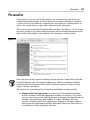
The easiest way to open the Personalization window (see Figure 1-11) for changing these settings is by right-clicking anywhere on the desktop background and
then clicking Personalize at the bottom of the desktop’s shortcut menu.
Figure 1-11
Note that you can also open this dialog box through the Control Panel (Start 䉴
Control Panel) by first selecting the Appearance and Personalization link followed by the Personalization link, but this method requires a whole lot more
steps to do the same thing.
The options for customizing Vista in the Personalization window include
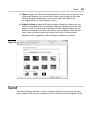
⻬ Window Color and Appearance to replace the Personalization window
with the Window Color and Appearance window (see Figure 1-12), where
you can select a new color and the amount of glassiness for the title bars of
windows, the Start menu, and taskbar. To select a Windows XP color
scheme, click the Open Classic Appearance Properties for More Options
link to open the Appearance Settings dialog box, where you then select or
customize one of its ready-made schemes.
24
Part 1: The Vista User Experience
Figure 1-12
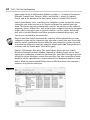
⻬ Desktop Background to replace the Personalization window with the
Desktop Background window (see Figure 1-13), where you can select a
new ready-made wallpaper image, select your own photo image as the
wallpaper (with the Browse button), change how the wallpaper image is
displayed on the desktop (Fit to Screen, Tile, or Center), or select a new
solid color for the background by clicking Solid Colors on the Picture
Location drop-down list.
⻬ Screen Saver to open the Screen Saver Settings dialog box, where you can
select a new screen saver to use, customize the amount of idle time before
the screen saver kicks in, and adjust your monitor and hard drive power
settings (by clicking the Change Power Settings link).
⻬ Sounds to open the Sounds dialog box, where you can assign new sounds
to different program events and save your new choices as a custom sound
scheme to reuse.
⻬ Mouse Pointers to open the Mouse Properties dialog box with the Pointers
tab selected, where you can select a new mouse pointer scheme (very
helpful if you suffer a vision impairment that makes it difficult to track the
normal mouse pointer), as well as customize what icons are used in various pointing situations.
Search
25
⻬ Theme to open the Theme Settings dialog box, where you can select a new
ready-made theme to use or save the changes you’ve made to the color
scheme, desktop background, screen saver, and sound effects (as
described below) as a new theme to reuse.
⻬ Display Settings to open the Display Settings dialog box, where you can
select a new monitor (if you have more than one connected to your computer) as well as new screen resolution and color-depth settings for the
monitor or monitors you have attached to your computer. Note that the
range of the resolution and color settings you have to choose from
depends on the capabilities of the monitor or monitors you have.
Figure 1-13
Search
The Search feature provides you an extremely efficient way to locate any program, folder, or file on your computer system. A Search text box appears in the
26
Part 1: The Vista User Experience
upper-right corner of all the major Explorer windows — Computer, Documents,
Network, Control Panel, Pictures, Music, and the like — where it’s labeled
Search, and at the bottom of the Start menu, where it’s labeled Start Search.
Search immediately starts searching your computer system for matches to any
characters you enter into one of its search text boxes the moment you type
them. The feature not only automatically searches for matches in the names of
programs, drives, folders, files, and so on on your computer, but in the metadata
in files (that is, keywords you assign and statistics such as author, date modified, and so on that Windows and other programs automatically assign), and
even in text contained in document files.
Keep in mind that Search automatically searches all the indexed files on your
computer system for the characters you type into a search text box. If you only
want to search a particular drive or folder on your computer system, you need
to perform an advanced search by using the Search pane (see “Doing advanced
searches with the Search pane” later in this part).
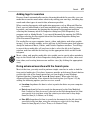
Figure 1-14 illustrates this point. This figure shows the results in a Search
Results in Indexed Locations window (opened by clicking Search on the Start
menu) after conducting a search for the term blue. Note that Vista not only finds
all the files whose filenames contain the word blue, but also several Excel workbook files whose spreadsheets contain references to blueberry muffins. It even
finds a Word document named Hidden Gems of Wisdom whose text contains a
reference to a precious blue gem.
Figure 1-14
Search
27
Adding tags for searches
Because Search automatically searches the metadata added to your files, you can
make these searches much more effective by adding your own tags, including keywords and other types of search data, whenever possible.
When creating documents with application programs such as Microsoft Word or
Excel, you can add all kind of your own metadata tags including subject, category,
keywords, and comments by opening the document in the program and then
selecting the Summary tab of its Properties dialog box (File➪Properties). In a
program such as Adobe Reader 7, you can add keywords by opening the PDF file
and then selecting the Description tab of the Document Properties dialog box
(File➪Document Properties).
For media files on your computer (music, video, and photos and other graphic
images), Vista actually enables you to add tags in the Preview pane that appears
along the bottom of Music, Videos, and Pictures Explorer windows. To add tags
to one of these media files, all you have to do is select the file in its Explorer
window, and then add the desired tags to the appropriate fields on the Details
tab pane.
Music, video, and graphic media files also enable you to specify other metadata
tags on the Details tab of their Properties dialog boxes such as titles, dates and
time taken, and a rating between one and five stars (by clicking the appropriate
star).
Doing advanced searches with the Search pane
Most of the time, you only need to perform simple searches in order to find the
item you’re looking for. Vista does, however, provide an Advanced Search button
on the right side of the Search pane that you can display in any Windows
Explorer window (Organize 䉴 Layout 䉴 Search pane). When you click the
Advanced Search button, Vista expands the Search pane (see Figure 1-15) by
adding the following options you can use in a search:
⻬ Location drop-down list box to select a particular drive on your computer
to search
⻬ Date drop-down list box to search for documents by the Date Modified,
Date Created, or Date Accessed (selected on the Date drop-down list) that
you specify in its text box, using the criteria you select on its Any dropdown list box (Is, Is Before, or Is After)
⻬ Size (KB) drop-down list box to search for documents by the file size that
you enter in the text box, using the criteria you select on its Any dropdown list box (Equals, Is Less Than, or Is Greater Than)
28
Part 1: The Vista User Experience
⻬ Name text box to search for a document by its filename by entering all or
part of the filename in this text box — you can use the asterisk (*) to stand
for one or more wild-card characters in the filename and a question mark
(?) to stand for individual wild-card characters
⻬ Tags text box to search for a document by the tags assigned to it by enter-
ing one or more of them into this text box
⻬ Authors text box to search for documents by a particular author whose
name is entered in this text box
Figure 1-15
When creating searches in the Advanced Search pane, keep in mind that all the
conditions you specify with the Location, Date, Size (KB), Filename, Tags, and
Authors options are inclusive so that all their conditions must be met in order
for the types of files you’ve specified to be returned to your Search Results
window.
Saving search results in a search folder
Instead of having to go through the whole rigmarole of reentering the same
search criteria each time you want to find the same types of items on your computer, you can save the results of your search as a search folder. That way, you
have access to the items simply by opening the search folder after selecting the
Searches link in a Windows Explorer window.
Sidebar and Gadgets
29
To save your search results as search folder, follow these steps:
1. Click the Save Search button on Windows Explorer or Search window’s
toolbar.
Vista opens a Save As dialog box where you specify the name and description for your new virtual folder.
2. (Optional) Add additional author names to the folder by clicking Authors
and entering them, or add tags that identify the search folder and can be
used in searching for it by clicking the Add a Tag text in the Tags field.
3. Click the Save button to create your search folder and close the Save As
dialog box.
After saving your search results as a search folder, Vista automatically re-creates
the search criteria, performs the Search, and then displays the same results
each time you select the folder in a Windows Explorer window.
Vista automatically saves your search folder as part of the Searches virtual
folder so that all you have to do to find your search folder and open up it up
again is to click the Searches link near the top of the Navigation pane in your
Windows Explorer window and then double-click its search folder icon.
Sidebar and Gadgets
Sidebar and gadgets are the names given to a new Vista’s desktop feature that
gives you instant access to volatile information such as the current time,
weather, stock quotes, and the like. The Sidebar is the name of the pane —
appearing either on the right or left side of your computer’s desktop — that contains the gadgets, the name given to the specialized miniapplications that give
you the up-to-date information.
Figure 1-16 shows you my desktop with the Search All Gadgets window displayed (see “Adding new gadgets to your Sidebar” later in this part) and the
Sidebar itself appearing on the right side of the computer’s desktop (its default
position). This Sidebar is running the three default gadgets that automatically
install with Windows Vista:
⻬ Clock, which shows an analog clock with the current time for any time
zone you select.
⻬ Slide Show, which displays a continuous slideshow of the images that you
have stored in your Pictures folder.
⻬ Feed Headlines, which shows you headlines for the RSS you select. (See
“Internet Explorer 7” in Part 4 for details on RSS feeds and how to subscribe
to them.)
30
Part 1: The Vista User Experience
Figure 1-16
Changing where and how the Sidebar appears
To display the Sidebar on the left side of your computer’s desktop or to make
sure that it always appears on the top of other windows you have open on the
desktop, you need to open the Windows Sidebar Properties dialog box. The easiest way to do this is by right-clicking somewhere in the Sidebar area on the right
side of the screen (but outside any of the gadgets) and then clicking Properties
on the Sidebar’s shortcut menu.
To have Vista display the Sidebar on the left side of the screen, click the Left
option button — just keep in mind that opening of the Start menu may overlap
some of the gadgets when the Sidebar is displayed on the left side of the screen.
To have Vista display the Sidebar on top of all open windows on the desktop, click
the Sidebar is Always on Top of Other Windows check box before clicking OK.
Sidebar and Gadgets
31
Note that when you do elect to have Vista display the Sidebar on the left side of
the screen and display the Sidebar on top of all other windows, Vista makes sure
that none of its gadgets obscure the Recycle Bin (and any other desktop icons
you add) by automatically offsetting such desktop icons to the right, out of the
way of the Sidebar. Vista also ensures that none of its gadgets obscure any items
on the Start menu by always displaying the Start menu on top of the Sidebar
when the Sidebar appears on the left side of the screen.
If you have more than one monitor connected to your computer, you can select
the monitor on which the Sidebar is displayed as well. To switch the Sidebar to a
new monitor, open the Windows Sidebar Properties dialog box and then select the
number of the monitor in the Display Sidebar on Monitor drop-down list box.
If you don’t know the number of the monitor on which you want the Sidebar
displayed, right-click the desktop. On the shortcut menu that appears, click
Personalize, followed by the Display Settings link in the Personalization Control
Panel window to open the Display Settings dialog box. Then click the Identify
Monitors button to find out the number of each monitor connected to your
computer.
Hiding or eliminating the Sidebar
If you want to temporarily hide the Sidebar and all its gadgets, right-click anywhere on the Sidebar outside of its gadgets and then click Close Sidebar on the
shortcut menu.
To redisplay the hidden Sidebar, click the Windows Sidebar icon (the blue icon
that at first glance looks like an old TV set) in the Notification area of the
Windows taskbar.
If you want to get rid of the Sidebar on a more-or-less permanent basis, open the
Windows Sidebar Properties dialog box by right-clicking somewhere on the
Sidebar (outside of the gadgets) and then click Properties on its shortcut menu.
Then click the Start Sidebar When Windows Starts check box to remove its
check mark before you click OK. Doing this prevents Vista from starting up the
hidden Sidebar the next time you boot up your computer.
You can also open the Windows Sidebar Properties dialog box by clicking Start
䉴 Control Panel 䉴 Appearance and Personalization 䉴 Windows Sidebar Properties.
Adding new gadgets to your Sidebar
You can easily add gadgets to the few that are initially displayed on the Sidebar
when you first install Windows Vista. Not only can you select new gadgets from
among those that are automatically shipped with the Vista operating system
(but just not displayed on the Sidebar), but you can always download gadgets
from an ever-expanding online library.
32
Part 1: The Vista User Experience
To add gadgets to the Sidebar from among those that are included with
Windows Vista, follow these steps:
1. Click the plus sign (+) that appears at the top of the Sidebar or right-click
somewhere on the Sidebar outside of any gadgets, and then click Add
Gadgets on the shortcut menu.
Vista opens the Gadget Gallery window that displays all the gadgets on
your computer similar to the one shown in Figure 1-16.
2. Click the Show Details link to expand the dialog box before you click the
thumbnail of the gadget you’re interested in adding to the Sidebar.
The Details pane of the Gadgets Gallery window displays a brief description of the purpose of the gadget whose thumbnail you click.
3. When you locate a gadget you want to add to the Sidebar, drag its thumb-
nail to the Sidebar or double-click its thumbnail or right-click it and then
click Add on its shortcut menu.
When you double-click the thumbnail or right-click and click Add, Vista then
immediately adds the gadget you selected to the top of the Sidebar, moving all
the existing gadgets down one. Note, however, that you can reorder any of the
gadgets displayed on the Sidebar by dragging them to a new position.
To download more gadgets from the Internet, open the Gadgets Gallery window
as outlined in the previous steps and then click the Get More Gadgets Online link.
Vista then opens the Microsoft Gadgets Web page in the Internet Explorer. This
page offers not only gadget news and instructions on how to download new gadgets, but also information how to build your own gadgets, if you’re so inclined.
To remove a gadget from the Sidebar, position the mouse pointer in the upperright corner of the gadget you want to remove and then click the X that appears.
Note that removing a gadget from the Sidebar does not delete it from your
computer — to do that, you need to open the Search All Gadgets window, and
then right-click the gadget’s thumbnail and click Uninstall on its shortcut menu.
To restore a gadget that you’ve removed from the Sidebar, just repeat the previous steps for adding a new gadget.
Customizing the contents of a gadget
Many of the gadgets you add to the Sidebar are generic and need to be customized. For example, you can customize the Clock gadget by selecting a new
clock face, giving it a name, and selecting a time zone other than your own (this
analog clock automatically displays the same time as the digital time display in
the Notification area of the Vista taskbar). You also need to customize the Feed
Headlines gadget so that it displays headlines for a particular RSS feed to which
you’ve subscribed (see “Internet Explorer 7” in Part 4 for details on how to subscribe to an RSS feed).
Sidebar and Gadgets
33
To customize the contents of a gadget, position the mouse pointer in the upperright corner of the gadget and then click the wrench icon that appears immediately beneath the X. Alternatively, you can also right-click its icon on the Sidebar
and then click Options on the gadget’s shortcut menu. Vista then opens a dialog
box specific to the gadget that enables you to customize its display.
For example, if you open the settings dialog box for the Clock gadget, you can
then select a new clock face by clicking the button with 䉴 symbol, and entering
a clock name (such as London or Beijing that then appears on the face of the
clock) in the Clock Name text box. Next, select the appropriate time zone for the
clock in the Time Zone drop-down list box. In addition, this dialog box contains
a Show the Second Hand check box that you select if you want the Clock gadget
to display a moving red second hand.
Changing the opacity of a gadget
In addition to customizing what information appears in the gadget (as in the RSS
feed headlines shown in the Feed Headlines gadget), you can also customize the
overall opacity of the gadget. Any gadget you add to the Sidebar is automatically
displayed at 100% opacity (making it as opaque and non-see-through as possible). You can, however, lighten up any of your gadgets, thereby making them
more see-through by changing the gadget’s opacity.
To modify the opacity of a gadget, right-click the gadget and then highlight
Opacity on its shortcut menu. Doing this displays a submenu where you click
the new opacity percentage you want to use (20%, 40%, 60%, or 80%). The lower
the percentage, the more transparent the gadget is.
Detaching a gadget from the Sidebar and freely moving it
around the desktop
Finally, Vista enables you to customize any gadget on the Sidebar by completely
detaching it from the Sidebar. This makes it possible for you to then drag the
gadget to any position you want on the entire desktop (to move a detached
gadget, you just drag its icon around the desktop like you would any other desktop icon or title bar of any open window).
To detach a gadget, position the mouse pointer in the upper-right corner of the
gadget and then drag the gadget off of the Sidebar to a new position on the desktop by using the handle that appears beneath the wrench. (This handle looks
like eight tiny white dots in two columns.)
You can also detach a gadget by right-clicking the gadget and then clicking
Detach from Sidebar on its shortcut menu. Vista then immediately redisplays the
gadget on the desktop off to the side of the Sidebar. You are then free to drag
the gadget to a new position on the desktop.
34
Part 1: The Vista User Experience
If you decide you no longer want a gadget to be free-floating on the desktop, you
can easily reattach it to the Sidebar by dragging it to the Sidebar and then dropping it into the position where you want it to appear.
Note that if you add a new gadget when the Sidebar is hidden, Vista automatically adds it as a detached gadget that you can immediately drag to the desired
position on the desktop.
Vista Desktop
The Vista desktop consists of the taskbar (see “Vista Taskbar” immediately following) that appears along the bottom of the screen, a background image (or
color) that fills the rest of the screen (see “Personalize” earlier in this part), the
Sidebar with its gadgets on the right side of the screen (see “Sidebar and
Gadgets” earlier in this part), and whatever desktop icons and desktop shortcuts you then choose to place on this background.
In keeping with Vista’s open and spacious Aero Glass design (see “Aero Glass
Interface” earlier in this part), the Windows desktop starts out with just a single
Recycle Bin desktop icon (where you drop any files, folders, and desktop shortcuts you want delete from the system).
Displaying additional desktop icons
In addition to the Recycle Bin icon, you can add the following icons to your Vista
desktop:
⻬ Computer to open your Computer window (same as choosing Start 䉴
Computer from the taskbar), which shows all the drives and components
connected to your computer (including virtual drives that you’ve mapped
onto a drive letter).
⻬ User’s Files to open your Documents window (same as choosing Start 䉴
Documents from the taskbar), which shows all the document files on your
computer. (See “Windows Explorer” in Part 2.)
⻬ Network to open the Network window (same as choosing Start 䉴 Network),
which shows all the computers on your local area network. (See Part 3.)
⻬ Internet Explorer to launch the Internet Explorer 7 (same as choosing
Start 䉴 Internet Explorer), which you use to browse the Web. (See
“Internet Explorer 7” in Part 4.)
⻬ Control Panel to open the Control Panel window (same as Start 䉴 Control
Panel), which enables you to customize all sorts of computer settings. (See
“Control Panel” in Part 5.)
Vista Desktop
35
To add any or all of these desktop icons, follow these steps:
1. Right-click somewhere on the desktop background (outside of any icon)
and then click Personalize on the shortcut menu.
2. Click the Change Desktop Icons link in the Navigation pane of the
Personalization window to open the Desktop Icon Settings dialog box.
3. Click the check boxes for all the desktop icons (Computer through
Control Panel) you want to appear on the Vista desktop.
4. Click OK to close the Desktop Icon Settings dialog box and then click the
Close button in the upper-right corner of the Personalization window.
After adding a desktop icon to the Vista desktop, you can open its window by
double-clicking the icon or right-clicking it and then selecting Open on its shortcut menu.
Creating desktop shortcuts
You can create desktop shortcuts to launch application programs you’ve
installed as well as to open drives, folders, and documents on your computer
system, and Web pages on the Internet.
To create a desktop shortcut, you need to do just two things:
⻬ Locate the icon for the program, drive, folder, or document for which you
want to create the shortcut on the Start menu or in the Computer, Network,
or Documents window. (To create a shortcut to a Web page, open the page in
the Internet Explorer.)
⻬ Right-click the program, drive, folder, or document icon and then select
Send To 䉴 Desktop (Create Shortcut) on the icon’s shortcut menu. (In the
case of a Web page, choose File 䉴 Send 䉴 Shortcut to Desktop on the
Internet Explorer’s pull-down menu when the Classic menus are displayed.)
Note that to create a desktop shortcut to a drive on your computer system, you
must choose the Create Shortcut item on its shortcut menu (there is no Send To
item).
You can also use a Wizard to create a desktop shortcut by following these few
steps:
1. Right-click anywhere on the desktop outside of an existing desktop item
and then choose New 䉴 Shortcut on the shortcut menu.
2. Enter the location of the item to which you want to create the shortcut
either by entering its path and filename or URL (Web) address or by clicking
36
Part 1: The Vista User Experience
the Browse button and locating the item in the Browse for Files or Folders
dialog box before you click OK.
3. Click the Next button and then, if you want, edit the name for the shortcut
in the Type a Name for This Shortcut text box before you click Finish.
After creating a desktop shortcut, you can open the program, drive, folder, document, or Web page associated with it by double-clicking the shortcut icon or by
right-clicking it and then clicking Open on its shortcut menu.
Use the options on the View desktop shortcut menu to change the size of all
desktop icons, to remove automatic arrangement of the icons and alignment to
an invisible grid, as well as to temporarily remove the display of all icons. Use
the options (Name, Size, Type, and Date Modified) on the Sort By desktop shortcut menu to change the order in which your desktop shortcuts appear in
columns across the desktop.
Vista Taskbar
The taskbar is your constant companion in Windows Vista. No matter where you
go or what you do, the taskbar and the buttons of the various toolbars continue
to be displayed along the bottom of the screen. That way, you have access to all
those features no matter whether you’re writing a letter in your favorite word
processor, surfing the Web with Internet Explorer 7, or perusing your favorite
graphic images in the Windows Photo Gallery or Media Center.
The taskbar forms the base of the Windows desktop. Running along the bottom
of the complete width of the screen, the taskbar is divided into three sections:
⻬ The Start button, with the accompanying Start menu at the far left
⻬ Buttons for open toolbars and minimized windows in the center area
⻬ The Notification area (at the far right; also called the system tray), with
current time and icons showing the current status of computer components and programs and processes that are running in the background
When you open an Explorer window or program window on the Vista desktop,
Windows adds a button representing that window to the center section of the
taskbar. When you have multiple windows open at a time, you can bring a
window to the top of the stack by clicking that button on the taskbar or with the
Flip or Flip 3D features (see “Flip and Flip 3D” earlier in this part).
Whenever you minimize a window by clicking the Minimize button, Windows
reduces it to just a button on the taskbar. When you click this button on the
taskbar, Windows restores the window to the previous size and position on the
Windows desktop.
Vista Taskbar
37
The Start menu
The Start button that opens the Start menu (shown in the left margin) always
appears as the first button on the taskbar. The Start menu is the most basic
menu in Windows, giving you access to all the stuff on your computer.
To open the Start menu, simply click the Start button icon in the lower-left
corner of the taskbar or press Ctrl+Esc or press the Windows button on your
keyboard (if your keyboard has this button).
The Start menu is divided into two columns, and your user picture and name
appears at the top of the second column on the right. The options appearing on
this right column of the Start menu are fixed and never change. In the left
column, only the All Programs button and Start Search button at the bottom and
the Internet Explorer options at the top are fixed. All the other icons that appear
in the area in between change over time as they represent icons of the programs
that you launch most frequently.
To fix a particular item on the Start menu, open the menu and then right-click
the item before you click Pin to Start Menu on its shortcut menu.
To open an Explorer window, such as Documents or Network, to connect to the
Internet, or to run one of the recently used programs, you simply click that icon
in the right column of the Start menu. To launch a program or open a Windows
component that does not appear in the right column, click the All Programs item
and then click the desired item in the left-hand column.
To lock your computer when you’re away from it so that nobody else in the office
can go messing with your files (unless you’re naïve enough to give them your
password), click the Lock button (the one with the padlock icon). Vista then displays a screen containing your username and personal icon below which you find
a Password text box. In order to get back to your desktop and resume work, you
must then correctly enter your password into this text box and then press Enter
or click the Arrow button to the right of the Password text box.
To give your computer a much-needed nap during lunch or when you’re on
break, you can put it to sleep (a lower-power mode in which all your work is
kept in memory for quick startup when you return) by clicking the Sleep button
(the one with the vertical bar in the middle of a circle) to the immediate left of
the Lock button.
To log off the computer, switch users, or to lock, restart, or shut it down, click
the pop-up button that appears to the immediate right of the Lock button (the
one with padlock — refer to Figure 1-6) and then click the desired item on its
pop-up menu.
To locate a program or Windows component on your computer, type the first
characters of the item’s name in the Start Search text box.
See “Customizing the Start menu” later in this part for details on how you can
change the look and contents of the Start menu.
38
Part 1: The Vista User Experience
Customizing the taskbar
The Taskbar and Start Menu Properties dialog box enables you to customize the
settings for the taskbar and the Start menu. To open this dialog box, right-click
the Start button or any open area (with no buttons) on the taskbar and then
click Properties on the taskbar shortcut menu. Click the Taskbar tab in the
Taskbar and Start Menu Properties dialog box that appears.
The check boxes in the Taskbar Appearance section at the top of the Taskbar
tab do the following:
⻬ Lock the Taskbar: Locks all the bars so that you can’t adjust the size of the
different areas of the taskbar, such as the Quick Launch toolbar.
⻬ Auto-hide the Taskbar: Hides the taskbar until you roll the mouse pointer
somewhere over that position. This way, the taskbar appears only when
you need it.
⻬ Keep the Taskbar on Top of Other Windows: Always places the taskbar in
front of any window that you move down so far that they overlap it.
⻬ Group Similar Taskbar Buttons: Displays buttons for files opened by the
same program in the same area of the taskbar. Moreover, if the taskbar
becomes so crowded with buttons that become too small to display,
Windows collapses the buttons for a particular program into one button
that, when clicked, displays a pop-up menu from which you can select the
file you want to display on the desktop.
⻬ Show Quick Launch: Displays the Quick Launch toolbar on the Windows
taskbar immediately following the Start button.
⻬ Show Window Previews (Thumbnails): Displays a thumbnail of each open
window that’s minimized on the taskbar when you position the mouse over
its button.
Customizing the Start menu
To customize the appearance of the Start menu, you need to click the Start
Menu tab in the Taskbar and Start Menu Properties dialog box. This tab gives
you a choice between the Start menu as it now appears in two columns and the
old single-column classic method used in previous versions of Windows. To
switch to this single-column view, click the Classic Start Menu option button.
Should you later decide to switch back to the default two-column arrangement,
you can do so by clicking the Start Menu option button.
Both option buttons are accompanied by Customize buttons that open dialog
boxes in which you can change what icons appear on the Start menu. Figure 1-17
shows the Customize Start Menu dialog box, which appears when you click the
Customize button associated with the Start Menu option button that controls
the default two-column Start menu arrangement.
Vista Taskbar
39
Figure 1-17
Use the check boxes in the list box of this dialog box to control which items
appear in the right-hand column of the Start menu. For example, to add a
Printers item that opens the Printers window (where you can add new printers),
click the Printers check box to put a check mark in it. Likewise, to remove the
Default Programs item that opens the Default Programs dialog box (where you
can configure what default programs to use for tasks such as Web browsing and
reading e-mail), click the Default Programs check box to remove its check mark.
To change the way fixed icons, such as Computer, Control Panel, Documents,
and the like, are displayed, click one of the following option buttons:
⻬ Display As a Link: This option button is the default setting for all fixed
items. It causes Windows to open a folder window showing the item folders
and files.
⻬ Display As a Menu: Select this option button when you want Vista to dis-
play the item folders and files as menu items on a continuation menu that
you can select and open from the Start menu.
⻬ Don’t Display This Item: Select this option button to remove the display of
the fixed item, such as Network Places.
After changing items in the Customize Start Menu dialog box, click its OK button
and then click the Apply button in the Taskbar and Start Menu Properties dialog
box. This enables you to open the Start menu to check that the modifications
you want on the Start menu have been put into place before you click OK in the
Taskbar and Start Menu Properties dialog box to close it.
40
Part 1: The Vista User Experience
By default, at the top of the Start menu, Vista displays the Internet Explorer as
the Internet link and Windows Mail as the e-mail link. If you have another Web
browser and e-mail program installed on your computer and you want to use
them, you can change these Start menu links by selecting the desired browser and
e-mail program in the Internet Link and E-mail Link drop-down list boxes, respectively, that appear near the bottom of the Customize Start Menu dialog box.
Using the Quick Launch toolbar
The Quick Launch toolbar adds a group of buttons to the Windows taskbar that
you can use to start commonly used modules to get back to the desktop. These
buttons may include
⻬ Internet Explorer: Starts Internet Explorer 7 for browsing Web pages —
note that this button does not appear until after your first use of the
Internet Explorer.
⻬ Show Desktop: Minimizes all open windows in order to obtain immediate
access to the Windows desktop and all the desktop icons and shortcuts it
contains.
⻬ Switch between Windows: Displays all open windows in a 3-D stack that
you can flip through by using the center wheel on your mouse (see “Flip
and Flip 3D” earlier in this part).
⻬ Windows Media Player: Starts Windows Media Player 11 so that you can
play music or video on your computer (see “Windows Media Player 11” in
Part 7).
In addition to these standard buttons, you can add your own custom buttons to
the Quick Launch toolbar by dragging a desktop shortcut to the desired position
on the Quick Launch toolbar. The mouse pointer indicates where the new button
will be inserted with a dark I-beam cursor at the tip of the pointer. A button for
the shortcut then appears at the position of the I-beam in the Quick Launch toolbar.
You can delete any of the buttons from the Quick Launch toolbar by right-clicking
the button, clicking the Delete command on the shortcut menu, and then clicking
the Yes button in the alert dialog box that asks you to confirm the deletion.
As you continue to add new buttons to the Quick Launch toolbar, some of the
existing buttons at the end of the bar become hidden from view when the Lock
the Taskbar option is selected (as it is by default). Vista then adds a continuation button (>>) to the end of the Quick Launch toolbar, which you can click to
display a pop-up menu with the other options you add.
Vista Taskbar
41
Adding other toolbars to the taskbar
Vista also includes the following toolbars that you can display on the taskbar:
⻬ Address toolbar where you can directly enter pathnames for folders and
files you want to open or URL addresses for Web pages you want to visit.
⻬ Windows Media Player to display the Windows Media Player as a button
on the taskbar when you minimize its window.
⻬ Links toolbar that enables you to add links to Web pages you visit regularly
by dragging the Web page icon to the immediate left of the page’s URL
address to a place on the toolbar.
⻬ Tablet PC Input Panel toolbar (button, really) that opens the Input Panel
on the Vista desktop where you can write rather than type your entries
(assuming that you’re running Vista on a Tablet PC laptop computer).
⻬ Desktop toolbar that gives you access to all the desktop items on your
computer.
To add any (or all) of these toolbars to your taskbar, right-click the bar at a
place where there isn’t already a toolbar and then click Toolbars on the pop-up
menu followed by the name of the toolbar to add.
Creating new toolbars
You can add your own custom toolbars to the Vista taskbar from the folders that
you keep on your computer. When you create a custom toolbar from an existing
folder, Windows creates buttons for each of the shortcuts and icons that the
folder contains.
To create a custom toolbar from a folder, follow these steps:
1. Right-click the taskbar (without clicking any of the buttons or icons it con-
tains) and then choose the Toolbars 䉴 New Toolbar command on the
shortcut menu that appears.
Windows opens the New Toolbar dialog box, where you select the folder
to be used in creating the new toolbar.
2. Select the folder whose contents are to be used in creating the new toolbar
by clicking the folder icon in the navigation list box.
42
Part 1: The Vista User Experience
3. Click the Select Folder button to close the New Toolbar dialog box.
As soon as you close the New Toolbar dialog box, Windows adds the new
toolbar, indicated by the folder’s name followed by a continuation button
(>>). When you click this continuation button, Vista displays a pop-up
menu showing all the subfolders and documents that it contains.
All custom toolbars that you create are automatically deleted the moment you
remove their display from the Vista taskbar (by right-clicking the taskbar and
then choosing Toolbars followed by the name of the custom toolbar).
The Notification area
The Notification area (or system tray) displays the current time and icons that
indicate the active status of various components such as the status of your network connection, Active Sync connection to your hand-held device, PCMCIA cards
inserted into a laptop computer, or the printer queue. In addition, the Notification
area displays icons representing various programs or processes that run in the
background, such as the Windows Sidebar for hiding and redisplaying the Sidebar,
the Language Bar for using Voice Recognition and Handwriting Recognition in
Microsoft Office programs, the Windows Clipboard when it contains multiple
items, and Windows Messenger.
This is also the place from which the Windows Update feature displays its
Update Reminder message telling you that new updates for the system are available; see “Windows Update” in Part 5.
To identify an icon that appears in the status area, position the mouse pointer
over it until the ScreenTip appears. To change the status of an icon, right-click it
to display the pop-up menu and then click the appropriate menu option. For
example, to open the Volume Control dialog box to adjust the volume of your
speakers, you right-click the speaker icon in the Notification area and then click
Open Volume Mixer on the pop-up menu.
To temporarily expand the Notification area so that all of its icons are displayed,
click the Show Hidden Icons button (the one to the left of the first displayed
icon in this area with an arrowhead pointing to the left). Note that you can also
customize the Notification area as part of customizing the taskbar and Start
menu properties. See the upcoming section, “Customizing the Notification area”
for more information.
Customizing the Notification area
You can also customize the settings for the Notification area of the taskbar by
altering the settings on the Notification tab of the Taskbar and Start Menu
Properties dialog box.
Vista Taskbar
43
By default, all the system icons and Hide Inactive Icons check boxes are
selected. To remove a system icon from the Notification area, click its check box
to remove the check mark. To display all the Notification icons, even when the
processes they represent are inactive, click the Hide Inactive Icons check box to
remove the check mark. Note that when the Hide Inactive Icons setting is active,
Windows adds a Show Hidden Icons button that you can click to temporarily display all the Notification icons.
In addition to changing these two settings for the Notification area, you can
change the circumstances under which particular notification icons are displayed in the Notification area. To do this, click the Customize button near the
bottom of the taskbar to open the Customize Icons dialog box.
The Customize Notification Icons dialog box contains a list box that is divided
into Current Items and Past Items sections. You can change the display status
for any icon listed in either section. To do this, click the icon and then click the
drop-down button that appears next to the current status (Hide when Inactive is
the default setting for all the icons). To always have the icon displayed in the
Notification area, click Show in this pop-up menu. To never have the icon appear
in this area, click Hide instead.
Switching between open windows
The Vista taskbar makes switching between programs and other open windows
as easy as clicking its minimized button. Doing this immediately activates the
program by restoring its window on the desktop.
Don’t forget that you can preview the contents of a window by positioning the
mouse over its minimized button on the taskbar. Also, you can quickly flip
through all the minimized windows to find the one you want to activate by using
the Flip and Flip 3D features (see “Flip and Flip 3D” earlier in this part).
Arranging windows on the desktop
Normally when you open multiple windows on the desktop, they overlap one
another, with only the most recently opened window fully displayed on top. As
you open more windows, it becomes increasingly difficult to arrange them so
that the information you need is displayed on-screen (this is especially true
when copying or moving files and folders between open windows).
To help you organize the windows you have open, Vista offers several arrangement options. To rearrange the open windows with one of these options, you
need to right-click the taskbar at a place that isn’t occupied by a window button
and then click one of the following options:
⻬ Cascade Windows to overlap the open windows so that the title bars are
all displayed one above the other in a cascade
⻬ Show Windows Stacked to place the windows vertically one on top of
the other
44
Part 1: The Vista User Experience
⻬ Show Windows Side by Side to place the windows horizontally side by side
⻬ Show the Desktop to reduce all the windows open on the desktop to mini-
mized buttons on the taskbar
Using the Task Manager
Windows Task Manager keeps tabs on your system and how it’s running. You
can use Task Manager to get an overview of what programs and processes are
running on your computer. You can also use it to switch to programs and to end
programs that have stopped responding (in other words, programs that have
frozen up on you).
To open Windows Task Manager, right-click the taskbar at a place where there
are no buttons and then click Task Manager on the shortcut menu. Figure 1-18
shows you Windows Task Manager when running three different applications.
Figure 1-18
To switch to another program or window from Windows Task Manager, click it in
the list box on the Applications tab and then click the Switch To button. Windows
then minimizes Task Manager and displays the selected window on the desktop.
To end a process or program that has frozen up on you, click it in the list box on
the Applications tab and then click the End Task command button. Note that
you will probably get an alert dialog box indicating that the program has
stopped responding. Click the End command button in this dialog box (as many
times as you have to) to get Vista to kill the process.
Welcome Center
45
The status bar of Windows Task Manager shows you statistics on the number of
processes running under the program, the percentage of the CPU (Central
Processing Unit, the big chip at the heart of the computer), and the memory
usage of the program. If you like to look at schematics, click the Performance
tab in this window to see a dynamic charting of the total CPU and memory usage
on your computer (and to find really useful stuff like the number of handles,
threads, and processes that are being run).
Welcome Center
The Vista Welcome Center (similar to the one shown in Figure 1-19, except that it
has your name and picture rather than mine) automatically opens on the desktop when you first start your computer — and every time thereafter until you
remove the check mark in the Run at Startup check box in the lower-left corner).
Figure 1-19
The top section of the Welcome Center window (Welcome) displays statistics on
your computer including its name, processing chip, and total amount of memory,
and the like. (To open the System Control Panel, where you can change a few
settings such as the computer name, click the Show More Details link in this top
section.)
46
Part 1: The Vista User Experience
The center section of the Welcome Center window (Getting Started with
Windows) displays icons that enable you to become more familiar with Windows
Vista as well as customize your computer. (To display a complete list of icons,
click the Show All 14 Items link in this section.)
The bottom section of the Welcome Center window (Offers from Microsoft) displays icons that you can click to get even more stuff for your Windows Vista,
including Microsoft’s new Windows Live programs. (To display a complete list of
icons, click the Show All 7 Items link in this section.)
To display information about the function of a particular icon in the top section
of the Welcome Center window, click the icon. To open a new information
window or start a new process (such as installing a new printer for use with
Windows), double-click its icon in the Getting Started with Windows section.
Windows Help and Support
Vista has an extensive help system that you can use not only to get general and
detailed information on how to use Windows, but also to get answers from
Microsoft on specific problems that you’re experiencing. To open the Windows
Help and Support window (see Figure 1-20), click Start 䉴 Help and Support.
The Windows Help and Support window contains six main links in the Find An
Answer section at the top:
⻬ Windows Basics to display a list of basic topics ranging from Introduction
to Computers to What Accessibility Features Does Windows Offer?
⻬ Security and Maintenance to display a page of information on Vista’s vari-
ous maintenance features including Security Center (see Part 6) and
Windows Update (see Part 5)
⻬ Windows Online Help to open the Windows Vista Help and Support
Web page in your computer’s Web browser (probably Windows Internet
Explorer 7)
⻬ Table of Contents to display a table of contents with links to the help
topics ranging from Getting Started to Mobile PC
⻬ Troubleshooting to open a page of troubleshooting tips with links to help
you identify particular problems in the areas of networking, surfing the
Web, using e-mail, and getting the correct drivers for your computer
hardware
⻬ What’s New? to display a page with an article on all the new and cool
features in Windows Vista
Windows Help and Support
47
Figure 1-20
In addition to these links, the Windows Help and Support window contains a
Search Help text box that you can use to search for particular topics. This text
box works just like any other Search text box in Windows Vista: Simply type the
name of the feature you need help on (such as printing or searching files) and
then click the Search Help button (the one with the magnifying glass icon) to
display links to all related topics in the Windows Help and Support window.
48
Part 1: The Vista User Experience