1
Aero Glass Interface
3
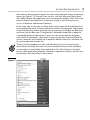
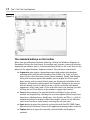
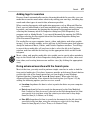
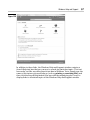
The second thing to notice is the relative transparency and high degree of reflectiveness displayed by the various Vista screen elements, especially the taskbar,
Start menu, and title bars of open windows (depending upon the graphics capability of your computer). You notice the transparency most in the title bars of
windows and in the right column of the Start menu (especially when the menu is
on top of another open window, as in Figure 1-2). You notice the reflectiveness
most when you position the mouse pointer over buttons and desktop icons —
they actually appear to glow. This effect is accomplished by backlighting the
graphic with various contrasting colors — blue for most buttons and icons and
bright red for a window’s Close button.
The third thing to notice about the Aero Glass interface is the extremely smooth
way in which screen elements change and the high degree to which this version
of the operating system supports live visual previews.
You notice the screen smoothness whenever you open or close a new window
and resize or move it on the Windows desktop. When Vista opens a window, it
does so in a much more fluid manner than previous Windows versions. So too,
when you drag an open window around the Vista desktop (even one playing a
video or showing a music visualization), the graphics don’t break up and
become pixilated as they pass over other screen elements.
Figure 1-2