1
Soliciting Help
19
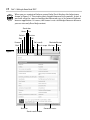
The major features of the help viewer follow:
Search box: You can enter specific search text in this box. The viewer
stores a list of your text searches for the current help session. Click the
drop-down arrow on the side of the box to view and select an item from the
list if you want to review a previous search result.
Search button: Click the Search button (or press Enter) to initiate a search
after you enter the search text in the search box. Click the arrow next to
the search button to define the search scope. By default, if your computer
is connected to the Internet, Excel will display help content from an online
source. If possible, you should use this source as your first choice because
Microsoft updates the contents of online help regularly.
If you are offline when you initiate a search, Excel uses help content internal to your system. You can force Excel to use internal help content always
by clicking the arrow next to the Search button and choosing Offline Excel
Help from the menu.
Whether online or offline, you can narrow you search scope further by
selecting an appropriate option from the Search button menu.
Search result window: This window displays the results of your search
request. If you use contextual help or enter text in the search box, the
window displays help information specific to the context of the search. If
you use general help, the window displays a list of general help topics in
the form of titled links. Clicking a link displays a new set of links with more
specific titles. Click the specific link title that best matches your search criterion to display detailed information on the topic.
Status bar: The left side of the status bar (located at the bottom of the help
viewer) displays the current search scope. The right side of the status bar
displays the connection status. You can click in the connection status area
to switch quickly between viewing online and offline help content.
Maximize/Restore button: Click this button for a full-screen view of the
help window. Click again to restore the window to its previous size.
Minimize button: Click this button to hide the help viewer window. Click
the Help button on the Windows taskbar (normally located below the Excel
window) to redisplay the viewer.
Close button: Click this button to close the help viewer.
Pin button: By default, Excel keeps the help viewer window on top when
you are working in the application. Use the Pin button to control this
behavior. If you “unpin” the viewer, Excel hides the window automatically if
you click anywhere inside the Excel window.