1
Chapter 6
Maintaining the Cisco 7204
Replacing or Recovering a Lost Password
Overview of the Password Recovery Procedure
Following is an overview of the steps in the password recovery procedure:
Step 1
If you can log in to the router, enter the show version command to determine the existing configuration
register value.
Step 2
Press the Break key to get to the bootstrap program prompt (ROM monitor). You might need to reload
the system image by power cycling the router.
Step 3
Change the configuration register so the following functions are enabled: Break; ignore startup
configuration; boot from Flash memory.
Note
The key to recovering a lost password is to set the configuration register bit 6 (0x0040) so that
the startup configuration (usually in NVRAM) is ignored. This will allow you to log in without
using a password and to display the startup configuration passwords.
Step 4
Power cycle the router by turning power off and then back on.
Step 5
Log in to the router and enter the privileged EXEC mode.
Step 6
Enter the show startup-config command to display the passwords.
Step 7
Recover or replace the displayed passwords.
Step 8
Change the configuration register back to its original setting.
Note
To recover a lost password if Break is disabled on the router, you must have physical access to
the router.
Details of the Password Recovery Procedure
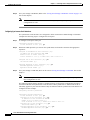
Complete the following steps to recover or replace a lost enable, enable secret, or console login
password:
Step 1
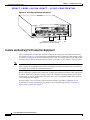
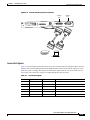
Attach an ASCII terminal to the console port on your Cisco 7204.
Step 2
Configure the terminal to operate at 9600 baud, 8 data bits, no parity, and 2 stop bits.
Step 3
If you can log in to the router as a nonprivileged user, enter the show version command to display the
existing configuration register value. Note the value for use later and proceed to Step 6. If you cannot
log in to the router at all, go to the next step.
Step 4
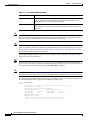
Press the Break key or send a Break from the console terminal. If Break is enabled, the router enters the
ROM monitor, indicated by the ROM monitor prompt (rommon1>). Proceed to Step 6. If Break is
disabled, power cycle the router (turn the router off or unplug the power cord, and then restore power).
Then proceed to Step 5.
Step 5
Within 60 seconds of restoring the power to the router, press the Break key or send a Break. This action
causes the router to enter the ROM monitor and display the ROM monitor prompt ( rommon1>).
Cisco 7204 Installation and Configuration Guide
6-14
OL-5101-02