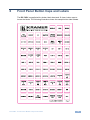
1
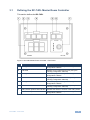
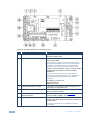
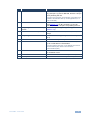
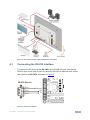
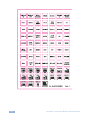
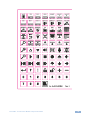
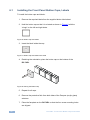
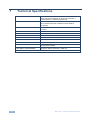
K R A ME R E LE CT R O N IC S L TD . USER MANUAL MODEL: RC-74DL Master Room Controller P/N: 2900-000691 Rev 4 Contents 1 Introduction 1 2 2.1 2.2 2.3 3 3.1 Getting Started Achieving the Best Performance Safety Instructions Recycling Kramer Products Overview Defining the RC-74DL Master Room Controller 2 2 3 3 4 5 4 4.1 4.2 4.3 Connecting the RC-74DL Connecting the RS-232 Interface Connecting the Ethernet Port Grounding the RC-74DL 8 9 10 10 5 Operating the RC-74DL 12 6 6.1 7 Front Panel Button Caps and Labels Installing the Front Panel Button Caps, Labels Technical Specifications 13 16 18 Figures Figure 1: RC-74DL Master Room Controller - Front Panel Figure 2: RC-74DL Master Room Controller - Rear Figure 3: Connecting the RC-74DL Master Room Controller Figure 4: RS-232 Connection Figure 5: Grounding Connection Components Figure 6: Button Cap Orientation Figure 7: Button Cap Orientation with Label Figure 8: Placing the Button Cap 5 6 9 9 10 16 16 16 RC-74DL – Contents i 1 Introduction Welcome to Kramer Electronics! Since 1981, Kramer Electronics has been providing a world of unique, creative, and affordable solutions to the vast range of problems that confront video, audio, presentation, and broadcasting professionals on a daily basis. In recent years, we have redesigned and upgraded most of our line, making the best even better! Our 1,000-plus different models now appear in 11 groups that are clearly defined by function: GROUP 1: Distribution Amplifiers; GROUP 2: Switchers and Routers; GROUP 3: Control Systems; GROUP 4: Format/Standards Converters; GROUP 5: Range Extenders and Repeaters; GROUP 6: Specialty AV Products; GROUP 7: Scan Converters and Scalers; GROUP 8: Cables and Connectors; GROUP 9: Room Connectivity; GROUP 10: Accessories and Rack Adapters and GROUP 11: Sierra Products. Congratulations on purchasing your Kramer RC-74DL Master Room Controller, which is ideal for the following typical applications: Controlling multimedia rooms, such as classrooms, auditoriums, conference rooms, and so on Enabling remote control and management of AV equipment RC-74DL - Introduction 1 2 Getting Started We recommend that you: Unpack the equipment carefully and save the original box and packaging materials for possible future shipment Review the contents of this user manual i 2.1 Go to http://www.kramerelectronics.com/support/product_downloads.asp to check for up-to-date user manuals, application programs, and to check if firmware upgrades are available (where appropriate). Achieving the Best Performance To achieve the best performance: Use only good quality connection cables (we recommend Kramer highperformance, high-resolution cables) to avoid interference, deterioration in signal quality due to poor matching, and elevated noise levels (often associated with low quality cables) Do not secure the cables in tight bundles or roll the slack into tight coils Avoid interference from neighboring electrical appliances that may adversely influence signal quality Position your Kramer RC-74DL away from moisture, excessive sunlight and dust ! 2 This equipment is to be used only inside a building. It may only be connected to other equipment that is installed inside a building. RC-74DL - Getting Started 2.2 Safety Instructions ! 2.3 Caution: There are no operator serviceable parts inside the unit Warning: Use only the Kramer Electronics input power wall adapter that is provided with the unit Warning: Disconnect the power and unplug the unit from the wall before installing Recycling Kramer Products The Waste Electrical and Electronic Equipment (WEEE) Directive 2002/96/EC aims to reduce the amount of WEEE sent for disposal to landfill or incineration by requiring it to be collected and recycled. To comply with the WEEE Directive, Kramer Electronics has made arrangements with the European Advanced Recycling Network (EARN) and will cover any costs of treatment, recycling and recovery of waste Kramer Electronics branded equipment on arrival at the EARN facility. For details of Kramer’s recycling arrangements in your particular country go to our recycling pages at http://www.kramerelectronics.com/support/recycling/. RC-74DL - Getting Started 3 3 Overview The RC-74DL is a highly versatile, 3 gang US, master room controller that acts as an all-in-one extended remote control panel for control of AV equipment— especially projectors and associated equipment—in any room (such as classrooms, boardrooms, or auditoriums). It streamlines operations and simplifies control by integrating audio, video, and computer-video sources into a centralized system. The RC-74DL features: 12 configurable, RGB backlit, front panel buttons in three groups (configured using the K-Config configuration software) Available from Kramer Electronics on our Web site at http://www.kramerelectronics.com/support/?soft=k-config 1 configurable rotary up/down controller with direction indicator LEDs (configured using the K-Config configuration software) 2 general purpose I/O ports that can be configured by K-Config as digital inputs, digital outputs or analog inputs for interfacing with a variety of devices such as sensors, switches, LEDs, or relays 3 bidirectional RS-232 ports that can control AV equipment such as projectors, LCD and PDP displays, power amplifiers, switchers and scalers 4 relay contact closure ports that can control other room items related to the AV system, such as, raising and lowering drapes, a screen or a projector IR control on 2 outputs (terminal blocks) IR Learning that learns commands from any IR remote Compatibility with Kramer Site-CTRL software for network remote control and management over the Ethernet port 2 K-NET™ control channels that connect compatible user interfaces and supply power and control data over a single cable K-NET™ is a proprietary Kramer protocol for interconnecting Kramer units 4 Flexible control via Ethernet and K-NET RC-74DL - Overview 3.1 Defining the RC-74DL Master Room Controller This section defines the RC-74DL. Figure 1: RC-74DL Master Room Controller - Front Panel # Feature Function 1 6 Configurable Button Switches Function is programmed by the K-Config configuration software 2 LCD Label Displays up to 8 characters at once (set by the K-Config configuration software) 3 4 Configurable Button Switches Function is programmed by the K-Config configuration software 4 LCD Label Displays up to 8 characters at once (set by the K-Config configuration software) 5 2 Configurable Button Switches Function is programmed by the K-Config configuration software 6 LCD Label Displays up to 8 characters at once (set by the K-Config configuration software) 7 Rotary switch up/down LED indicator Indicates the direction of travel of the rotary switch VOLUME Rotary Switch RC-74DL - Overview Function is programmed by the K-Config configuration software 5 Figure 2: RC-74DL Master Room Controller - Rear # Feature Function 1 ETHERNET RJ-45 Connector Connects to the PC or other serial controller through computer LAN 2 RESET TO DEFAULT Button Caution: The current LCD text and all button actions are erased This operation should be carried out by authorized Kramer technical personnel or by an external system integrator, and requires removal of the device from the wall by unscrewing the four wall mount screws Using a small screwdriver, push to erase all custom programming and reset to the factory default definitions: Disconnect the power and then connect it while pressing the Factory Reset button. The unit powers up and load its memory with the factory default definitions IP Address: 192.168.1.39 Mask: 255.255.0.0 Gateway: 0.0.0.0 3 PROGRAM (USB) Connector Connect to a computer for firmware upgrade or for uploading the configuration file 4 IR IN built-in IR receiver Use to learn the IR commands from a machine’s remote control transmitter 5 6 Power Supply 2-pin Terminal Block Connector K-NET TERM Switch Connect to power supply (see Section 4.1). Connect GND to GND, +12V to +12V Slide to the left (in the direction of the arrow) for K-NET termination, slide to the right up to leave bus unterminated The last physical device on a K-NET bus must be terminated 6 RC-74DL - Overview # 7 Feature K-NET1 Connector Function Connect the GND pin to the Ground connection; pin B (-) and pin A (+) are for RS-485, and the +12V pin is for powering the unit The ground connection is sometimes connected to the shield of the RS-485 cable (in most applications, it is not connected) 8 9 K-NET2 Connector Ring Tongue Terminal Grounding Screw Connect the GND pin to the Ground connection (see Section 4.3; pin B (-) and pin A (+) are for RS-485, and the +12V pin is for powering the unit Connect to grounding wire (optional), (see Section 4.3) 10 GP I/O Terminal Blocks (1 and 2) Connect to various sensors, switches, LEDs, or relays 11 Rel (Relay) Terminal Blocks Connect to low-voltage relay-driven devices (from 1 to 4) 12 Switch For internal factory use only 13 RS-485 Termination Switch Slide down for RS-485 termination with 120; slide up for no RS-485 Line Termination The first and the last units on the RS-485 line should be terminated (ON). Other units should be unterminated (OFF) 14 RS-485 Terminal Block Connector Connect to the RS-485 detachable terminal block on a switcher or PC 15 RS-232 Terminal Blocks Connect to the RS-232 devices (from 1 to 3) 16 IR Output Terminal Blocks Connect to IR emitter cables (from 1 to 2) RC-74DL - Overview 7 4 Connecting the RC-74DL i Always switch off the power to each device before connecting it to your RC-74DL. After connecting your RC-74DL, connect its power and then switch on the power to each device. To connect the RC-74DL, as shown in Figure 3, do the following: 1. Connect the IR outputs as follows: Connect an IR emitter to IR OUTPUT 1 and attach the emitter to the DVD player Connect an IR emitter to IR OUTPUT 2 and attach the emitter to the power amplifier 2. Connect the RS-232 ports (see Section 4.3) as follows: Connect RS-232 port 1 to the projector Connect RS-232 port 3 to the plasma display 3. Connect the RELAY terminal block connectors as follows: Connect RELAY 1 and 2 to the screen Connect RELAY 3 and 4 to the lighting system 4. Connect the GPI/O 1 port to a motion detector. 5. Connect the Ethernet port to a network (not shown in Figure 3). 6. Connect the K-NET port to any RC device with K-NET (for example, the RC-63DL). 8 RC-74DL - Connecting the RC-74DL Figure 3: Connecting the RC-74DL Master Room Controller 4.1 Connecting the RS-232 Interface To connect an AV device to the RC-74DL using the RS-232 port, connect the RS-232 9-pin D-sub port on your AV device to the RS-232 terminal block on the rear panel of the RC-74DL as shown in Figure 4. RS-232 Device Pin 5 Ground Pin 3 Pin 2 Rx Tx Figure 4: RS-232 Connection RC-74DL - Connecting the RC-74DL 9 4.2 Connecting the Ethernet Port The Ethernet connection of the RC-74DL lets you perform all control functions of the RC-74DL over the Internet using a PC running the Kramer Site-CTRL control program. To connect the RC-74DL to a network: 1. Connect the Ethernet port of the RC-74DL to the Ethernet port on a network hub or network router, via a straight cable with RJ-45 connectors. 2. At the other end, connect the Internet to a PC running Site-CTRL. 3. After connecting the Ethernet port, you have to install and configure it. For detailed instructions on how to install and configure your Ethernet port, see the K-Config Software Guide available from our Web site. 4.3 Grounding the RC-74DL The grounding screw is used to earth the chassis of the unit to the building ground preventing static electricity from impacting the performance of the unit. Figure 5 shows the grounding screw components. # Component Description 1 2 M3X6 screw 1/8" Toothed Lock Washer 3 M3 Ring Tongue Terminal Figure 5: Grounding Connection Components 10 RC-74DL - Connecting the RC-74DL To ground the RC-74DL: 1. Connect the Ring Tongue terminal to the building grounding point wire (it is recommended to use a green-yellow AWG#18 (0.82mm2) wire, crimped with a proper hand-tool). 2. Insert the M3x6 screw through the toothed lock washers and the tongue terminal in the order shown above. 3. Insert the M3x6 screw (with the two toothed lock washers and ring tongue terminal) into the grounding screw hole and tighten the screw. RC-74DL - Connecting the RC-74DL 11 5 Operating the RC-74DL You can operate your RC-74DL using: The front panel buttons. These are configured using the K-Config software. For instructions on using the software, see the K-Config Software Guide available from our Web site A PC running Site-CTRL control software: To operate your device using Site-CTRL, see the Site-CTRL User Guide available at the Kramer Web site 12 RC-74DL - Operating the RC-74DL 6 Front Panel Button Caps and Labels The RC-74DL is supplied with a button label sheet and 12 clear, button caps to house the labels. The following illustration shows the sample button label sheets. RC-74DL - Front Panel Button Caps and Labels 13 14 RC-74DL - Front Panel Button Caps and Labels RC-74DL - Front Panel Button Caps and Labels 15 6.1 Installing the Front Panel Button Caps, Labels To install the button caps and labels: 1. Remove the required labels from the supplied button label sheet. 2. Hold the button cap so that it is oriented as shown in Figure 6 with the “wings” on the left and right sides. Figure 6: Button Cap Orientation 3. Insert the label inside the cap. ON Figure 7: Button Cap Orientation with Label 4. Retaining the orientation, place the button cap on the buttons of the RC-74DL. Figure 8: Placing the Button Cap 5. Repeat for all caps. 6. Remove the protective foils from both sides of the Perspex (acrylic glass) windows. 7. Place the faceplate on the RC-74DL so that the four screw mounting holes are aligned. 16 RC-74DL - Front Panel Button Caps and Labels 8. Insert the four mounting screws and tighten with a screwdriver. 9. Install the volume control knob. RC-74DL - Front Panel Button Caps and Labels 17 7 Technical Specifications INPUTS: 3 RS-232, 1 RS-485, 2 GPI/O and 2 K-NET on terminal block connectors; Ethernet on an RJ-45 connector; 1 infrared sensor, 1 USB for programming OUTPUTS: 2 IR, 4 relays (36V AC or DC, 2A, 60VAC maximum on non-inductive load) and 2 GPI/O on terminal block connectors DEFAULT IP SETTINGS: IP number 192.168.1.39; Mask – 255.255.0.0; Gateway – 0.0.0.0 POWER CONSUMPTION: 12V DC, 570mA OPERATING TEMPERATURE: 0° to +40°C (32° to 104°F) STORAGE TEMPERATURE: -40° to +70°C (-40° to 158°F) HUMIDITY: 10% to 90%, RHL non-condensing DIMENSIONS: 16.2cm x 2.6cm x 11.4 (6.4" x 1.0” x 4.5") W, D, H WEIGHT: 0.6kg (1.4lbs) approx. INCLUDED ACCESSORIES: Power supply, Kramer K-Config Windows®-based configuration software OPTIONAL ACCESSORIES: IR emitter cables, KPOD-301, OWB-3G Specifications are subject to change without notice at http://www.kramerelectronics.com 18 RC-74DL - Technical Specifications For the latest information on our products and a list of Kramer distributors, visit our Web site where updates to this user manual may be found. We welcome your questions, comments, and feedback. Web site: www.kramerelectronics.com E-mail: [email protected] ! P/N: SAFETY WARNING Disconnect the unit from the power supply before opening and servicing 2900- 000691 Rev: 4