1
Using Direct Monitoring
You will frequently hear the term “latency” used in connection with digital audio systems. In the case
of the simple recording application described above, latency will be the time it takes for your input
signals to pass through your recording device (laptop or iPad, etc.) and the associated software.
Latency can be a problem for a performer who wishes to record while monitoring their input signals.
The iTrack Solo is fitted with a “Direct Monitoring” option, which overcomes this problem.
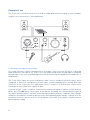
Setting the front panel DIRECT MONITOR switch to ON will route your input signals directly to the
iTrack Solo’s headphone and main monitor outputs. This enables you to hear yourself with zero
latency – i.e., in “real time” – along with the computer playback. The input signals to your computer
are not affected in any way by this setting.
When “Direct Monitoring” is set to ON, ensure that your recording software is not set to route its
input (what you are currently recording) to its output. If it is, you will hear yourself “twice”, with one
signal audibly delayed as an echo.
Headphone monitoring
Connect a pair of stereo headphones to the front panel headphones socket to hear both what you
are recording (your current input signal(s)) and any tracks you’ve already recorded in your laptop or
iOS device. The pre-recorded tracks will be heard in stereo, and the current input signals in mono –
central in the stereo image. If you are using both the mic and instrument inputs, the two inputs will
be summed in mono.
Connecting iTrack Solo to loudspeakers
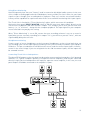
The phono (RCA) outputs on the rear panel can be used to connect monitoring speakers. Self-powered
monitors (i.e., typical computer speakers) incorporate internal amplifiers, and may be connected
directly. Larger, passive loudspeakers will require a separate stereo amplifier; in this case, the rear
panel outputs should be connected to the amplifier’s inputs.
13