1
Hardware Installation
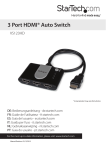
1. Connect two HDMI® cables (not included) from each of the HDMI® Output ports on
the switch to each of the HDMI® enabled display devices (i.e. televisions, projectors).
2. Connect an HDMI® cable (not included) from each input device to the HDMI® Input
Ports on each video source device (i.e. computers, Blu-ray Players).
3. Turn on each of the display devices, followed by each of the video source devices.
Hardware Operation
Mode Selection
Change the mode selection switch to select your desired operation mode. Instructions
for operating each mode are listed below:
Manual Mode
Using Manual Mode both displays show whichever port is selected.
1. Press the Manual switch to switch between input devices from 1 to 2.
2. The LED Port selection Indicator will light as video sources are toggled indicating
which port is selected.
Priority Mode
Using the Priority switch feature, you can automatically switch between which
video source is displayed on both screens simply by turning off and on the devices
connected to the prioritized ports.
For example: If you typically watch TV through your Cable or Satellite set top box,
but sometimes watch movies on your Blu-ray player. You can connect your set top
box to Port #1, and your Blu-ray player to Port#2. When the Blu-ray player is turned
on to watch a movie the HDMI® switch will automatically switch to the Blu-ray player.
When the movie is over, simply turn off your Blu-ray player and the HDMI® switch will
automatically switch back to your set top box.
Automatic Mode
Using Automatic mode both displays will automatically switch to the most recently
activated device. For example if you are watching TV and would like to watch your
Blu-ray player, simply turn your Blu-ray player on. To switch back to the TV you can
turn the Blu-ray player off, or switch the TV back on after being switched off when the
Blu-ray player is active.
Instruction Manual
3