1
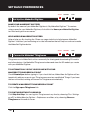
SCAN COMPLETE! NOW WHAT?
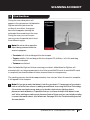
Next Steps
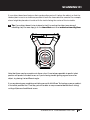
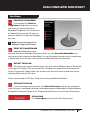
SHARE ON THINGIVERSE
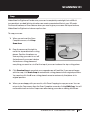
If you skipped the Share on
Thingiverse prompt after you saved
your scan, you can still publish to
MakerBot Thingiverse. Click this button
or choose Share from the File menu to
open the Share on Thingiverse dialog at
any time.
i
Note: You must be logged in to
MakerBot Thingiverse to share.
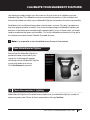
PRINT WITH MAKERWARE
MakerBot MakerWare is the
software that drives MakerBot 3D printers. When you click Print with MakerWare, the
most recent scan is opened in MakerWare. You can also open the most recently saved scan
in MakerWare at any time by choosing Open in MakerWare from the File menu.
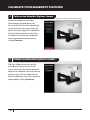
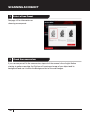
EXPORT THIS SCAN
This allows you to save another copy of the scan with a different name or file format,
or to a specific location. This new version will not replace the original file that was saved
to your Things or My Things folder. You can also save the most recent scan at any time by
choosing Save from the File menu.
Scans can be saved as STL files, Thing files or other available file formats.
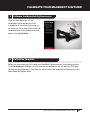
DISCARD THIS SCAN
If you’re not happy with your scan, click Discard this Scan to delete the completed
scan. Once you’ve accepted the delete confirmation prompt, MakerWare for Digitizer deletes
the saved file from your Things or My Things folder and returns you to the New Scan screen.
SCAN AGAIN
Click Scan Again to return to the New Scan screen.
SCANNING WITH YOUR MAKERBOT DIGITIZER
51