1
Getting Started
Connecting to your Camera over the Internet (Mac)
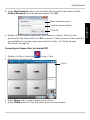
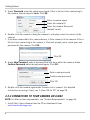
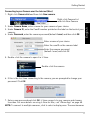
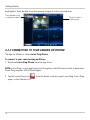
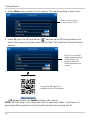
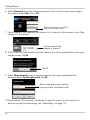
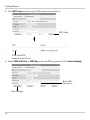
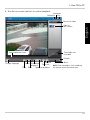
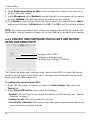
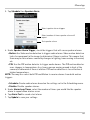
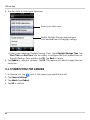
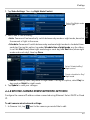
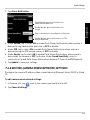
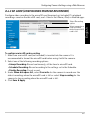
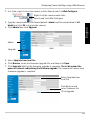
1. Right-click Camera List and then click New camera.
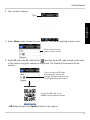
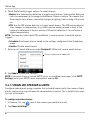
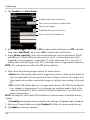
2. Under Camera Name, enter a name for your camera of your choice.
3. Under Camera ID, enter the CamID number printed on the label on the back of your
camera.
4. Under Password, enter the camera password (default: lorex) and then click OK.
Enter a name of your choice
Enter the camID on the camera label
Enter the camera password
(default: lorex) and click OK
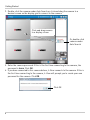
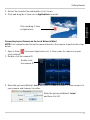
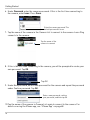
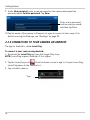
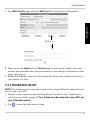
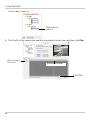
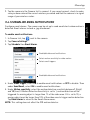
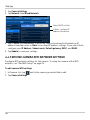
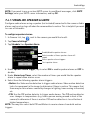
5. Double-click the camera to open it in L-View.
Double-click the camera
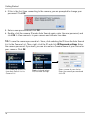
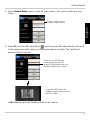
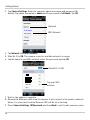
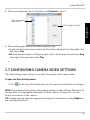
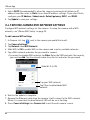
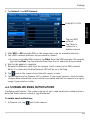
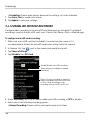
6. If this is the first time connecting to the camera, you are prompted to change your
password. Click OK.
7. Enter a new password and click OK. L-View connects to your camera and streams
live video. For more details on using L-View for Mac, see “iPhone App” on page 68.
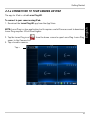
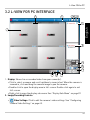
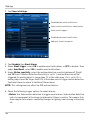
NOTE: To connect to multiple cameras, click to select a display area. The area becomes
11
English
Right-click Camera List
and click New Camera