1
How to:
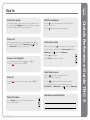
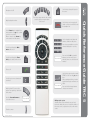
Mute the microphone
Picking up the remote control activates the system. When not used,
the system will enter Standby mode after several minutes, however,
a system in standby can still receive incoming calls.
Press the
key to mute the microphone. You will be notified
by an on-screen icon.
Press the
key again to reactivate the microphone.
Place a call
Use the keypad to enter a number or URI and press the
key to
key) or the
place a call. You may also use the Phone book (the
list of Recent calls to call any of your contacts.
Control your camera
With no menus open, the
keys will let you control the camera.
If a menu is open, you will need select Camera control from the
to display the Main menu).
Main menu (press
Press the
Answer an incoming call
To accept an incoming call press the key or the
Press the
key to reject an incoming call.
key when done.
Use the Zoom keys to zoom, if needed.
key.
Select video sources
Press the
key to share contents from your PC
(make sure your PC is connected).
End a call
Press the
confirm.
key to end a call. Press again (or press the
Adjust the volume
Use the Volume key to increase or decrease the volume.
A volume bar will appear.
D14844.01 May 2011
key) to
Press the
key again to switch back to the main camera.
To select other video sources (system dependent), use the
to display the Main menu).
Presentation in the Main menu (press
Help desk contact information
Quick Reference Guide TRC 5
Activate the system