1
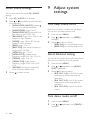
• To search during play, press and hold
/ , then release to resume
normal play.
• To navigate the menu, press , rotate
to select, then press to confirm.
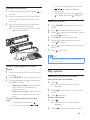
Connect iPod/iPhone
1
2
3
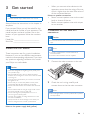
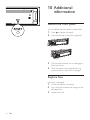
Slide the USB socket cover marked
the left.
to
Insert USB adaptor on one end of iPod/
iPhone cable to the USB socket on the
main unit.
Insert the other end of the iPod/iPhone
cable to the iPod/iPhone socket.
»» The unit starts playing from the USB
device automatically.
Search for a track
1
2
3
4
5
6
7
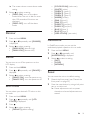
Press SOURCE repeatedly to select iPod
mode.
Press
to browse iPod/iPhone menu.
Rotate to select the Artist search mode,
and press to confirm.
Press DISP to search alphabetically.
Rotate to select desired artist, then
press to confirm.
Rotate
album.
Press
to select desired song in current
to start play.
Note
•• User cannot control the music via iPod/iPhone under
audio control mode.
Control music playback on iPod/
iPhone
1
2
3
Ensure that the iPod/iPhone is connected
correctly.
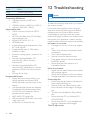
Press SOURCE to select iPod USB mode.
Press repeatedly to toggle between the
two control modes:
• iPod control mode: Use the buttons/
touch screen on iPod/iPhone to
control the music.
• Audio control mode: Use the control
buttons on car audio to control the
music.
To control playback under audio control
mode:
• To pause/resume play, press .
• To skip to a track, press
/ .
Play options
Search for an MP3/WMA track
Search within the current folder
1
Press .
»» The name of the current track is
displayed.
2
Rotate
folder.
to select anther track in current
3 Press to confirm.
Search in other folder
1
Press .
»» The name of the current folder is
displayed.
2
Rotate
to navigate through all folders.
EN
19