1
Using the On-Screen Display
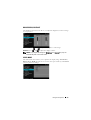
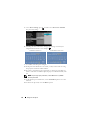
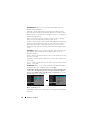
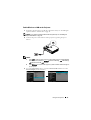
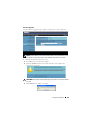
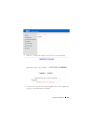
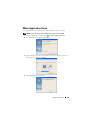
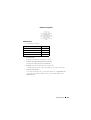
• The projector has a multi-language On-Screen Display (OSD) Menu that can
be displayed with or without an input source.
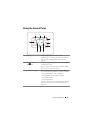
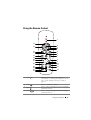
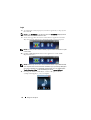
• Press the Menu button on the control panel or the remote control to enter the
Main Menu.
or
buttons on
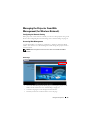
• To navigate through the tabs in the Main Menu, press the
your projector's control panel or remote control.
or
button on your projector’s control
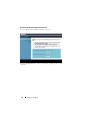
• To select a submenu, press the
panel or remote control.
or
buttons on your projector’s control
• To select an option, press the
panel or remote control. When an item is selected, the color changes to dark
blue.
or
buttons on the control panel or remote control to adjust the
• Use the
settings.
button on the control panel or the
• To go back to the Main Menu, press the
remote control.
• To exit the OSD, press the Menu button directly on the control panel or the
remote control.
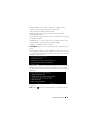
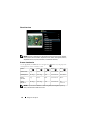
NOTE: OSD structure and set are the same for the S320 and S320wi models.
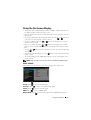
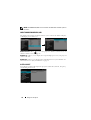
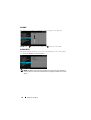
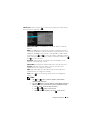
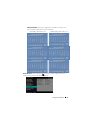
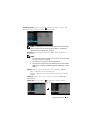
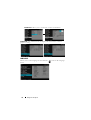
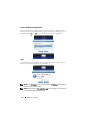
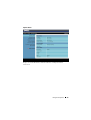
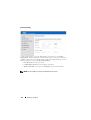
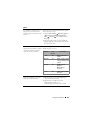
INPUT SOURCE
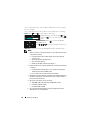
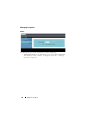
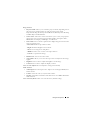
The Input Source menu allows you to select your projector's input source.
VGA-A—Press
to detect a VGA-A signal.
VGA-B—Press
to detect a VGA-B signal.
COMPOSITE—Press
S-VIDEO—Press
HDMI—Press
to detect a Composite Video signal.
to detect a S-Video signal.
to detect a HDMI signal.
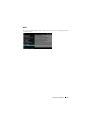
WIRELESS/USB—Press
to activate the Input Source WIRELESS/USB menu.
Using Your Projector
51