1
O pe r a tio n - E xter na l St orag e
7 Ex t er n al St ora g e
The HDX is not only able to replay material ripped and stored on its internal hard disk but
can also replay material stored on a variety of externally connected storage hardware.
Such hardware might be relatively small capacity devices temporarily connected via one
of the HDX’s USB interface sockets, or large capacity “Network Shares” connected via a
home network. Network Shares can also be configured as HDX rip locations.
7. 1 US B S torage D e v ic e s
•
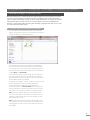
Folders containing audio files must be set up to
be “shared”. Refer to the folder’s host computer
operating system user manual for details on setting
up shared folders.
•
Music files must be in AAC, FLAC, MP3, WAV, Apple
Lossless, Ogg, AIFF or WMA formats (up to 24 bit,
192kHz).
•
Music files must be unprotected by DRM encoding
that restricts them to specific playback hardware.
A locally connected storage device will most likely be a
memory stick connected to one of the HDX’s USB sockets.
Note: The amount of music stored on an external device
determines how long the HDX will spend scanning the
device when it is first connected before the music is
available to browse.
Note: Locally connected devices are re-scanned every
time the HDX starts up.
The tracks found by the HDX on locally connected storage
will only be held in its database while the storage is
connected and switched on.
Note: Local connection is only intended for relatively small
music collections on temporarily connected memory sticks.
Any large capacity storage should always be connected
via a network.
In order for USB stored music to be available to the HDX,
for playback various conditions must be met:
•
•
Music files must be in AAC, FLAC, MP3, or WAV
formats (up to 24 bit, 192kHz).
Music files must be unprotected by DRM encoding
that restricts them to specific playback hardware.
7. 2 Network Share s
Before material stored on shared network devices can be
accessed by the HDX, it must scan the network to identify
the address of each share and to build a database of the
locations and details of the available audio files.
The HDX automatically scans the network when first
switched on and will then periodically scan to find new
network shares and identify any changes to the available
audio files. It may however take a considerable time
following connection of the HDX to the network for
changes to be reflected in the HDX’s database.
Note: Network scanning is carried out at up to several
hundred files per minute although this figure depends on
the speed of the file storage device.
The music files found by the HDX on network shares will
be incorporated into its database and remembered until
any changes are identified, irrespective of the HDX being
switched off.
In order for network shared music files to be available to
the HDX, for network or local playback various conditions
must be met:
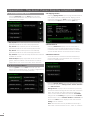
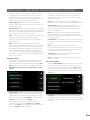
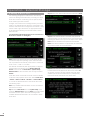
Network shares can be viewed and managed from the
Front Panel interface Network Shares menu. See Section
4.8.3
7 . 3 M u s i c S t or es
Network Shares can be converted to operate as HDX
Music Stores – locations where the data from ripped CDs
is stored. Promoting a Network Share to Music Store status
may be appropriate if the internal HDX drive is becoming
full or if external rip storage provides enhanced network
convenience or data security.
Note: Enhanced data security is only likely if the network
share is a RAID device.
Just as the HDX internal hard disk does not appear as
a Network Share, when a Network Share is converted
to Music Store status it will no longer appear in the HDX
Network Shares list.
Important: Network Shares converted to Music Store status
are not automatically backed-up by the HDX. They must
be backed-up manually.
Music Stores are used as rip locations by the HDX in order
of priority. CDs will be ripped automatically to the highest
priority Music Store until it is full, when the next priority Music
Store will be used.
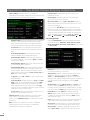
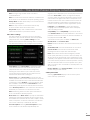
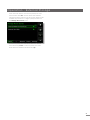
Network Shares can be converted to Music Store status
via the Add New Store option of the Music Stores Menu.
See the following section and Section 4.8.4 for more
information on Music Stores.
Important: Files should never be added to or deleted from
Music Stores via an alternative computer operating system.
Note: This is because Music Stores contain not only the
ripped CD data files but also the associated database
and meta-data files. External manipulation of a Music
Store will almost certainly result in database or meta-data
corruption.
19