1
5 - 12 MK3000 MicroKiosk for Windows CE 5.0 Product Reference Guide
Updating TCM 1.X Scripts
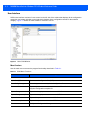
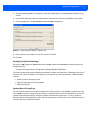
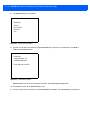
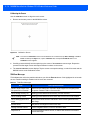
You can upgrade script files created with older versions of TCM to TCM 2.0 scripts. Click Open to open an
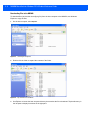
existing script created with an older version of TCM. The Conversion window appears.
Figure 5-8 Conversion Window - Upgrading to TCM 2.0
Copying Components to the Script
Script contents are managed using standard file operations such as New Folder, Delete and Rename. Items can
be added to the script by clicking files and folders in the File Explorer window and dragging them to the Script
window. The File Explorer window supports standard windows; multiple files may be selected by clicking while
holding the SHIFT or CTRL keys.
Saving the Script
Modifications to a script file can be saved using the Save or the Save As function. Saving changes to an existing
script writes over the original script. To use a Motorola-supplied standard script as a base and save the
changes in a new script, use the Save As function.
Building the Image
After creating the script, build the hex image defined by the script.
As part of the build, TCM performs a check on the script which verifies that all files referenced in the script
exist. This check is important for previously created scripts to ensure that files referenced in the script are still
in the designated locations.
To build scripts:
1.
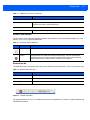
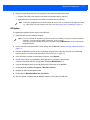
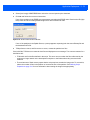
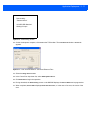
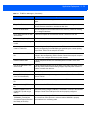
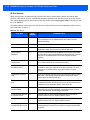
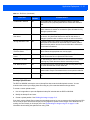
Click Build on the TCM toolbar. The Configure Build window appears.
Figure 5-9 Configure Build Window
2.
Select the items (partitions) to build using the check box(es) to the left of each named partition.
3.
Use the Build Path to define where to store all built partitions.