1
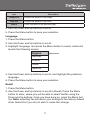
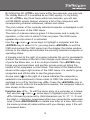
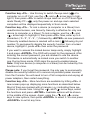
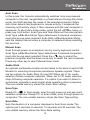
The short form hot-key menu can be turned on as an OSD function
(<F4>: more\Hotkey Menu) every time the left <CTRL> key is pressed
twice.
L-CTRL: is the <CTRL> key located at the left side of the keyboard.
1~8/A~H: are the number keys ‘1’ ~ ‘8’ at the upper row of the keyboard
and character keys ‘A’ ~ ‘H’ case insensitive. Do not use the keypad at
the right of the keyboard.
To select a computer by hot-key command, you must know its port
number, which is determined by the KVM Module connection. For a
computer connected to a Master, its port is represented by the PC
port label (1~8 or A~H). For a computer connected to a Slave, two
characters represent its port. The first character is the port number of
the Master unit (1~8) and the second one is the port number of the
Slave (1~8 or A~H). Please note that only Master’s ‘PC 1’ ~’PC 8’ ports
can be connected to a Slave.
Left Ctrl + left Ctrl + 7
Selects a computer connected to port 7 of the Master.
Left Ctrl + left Ctrl + 6 + C
Selects a computer connected to port C of a Slave connected to port 6
of the Master.
To start Auto Scan, automatically scan power-on computers one by
one at a fixed interval:
Left Ctrl + left Ctrl + F1
When Auto Scan detects any keyboard or mouse activity, it suspends
the scanning till activity stops; it then resumes with the next computer
in sequence. The length of the Auto Scan interval (Scan Rate) is
adjustable, see below. To abort the Auto Scan mode, press the left Ctrl
key twice.
* Note: Scan Type determines whether an eye-marked computer is to
be displayed during Auto Scan.
17