1
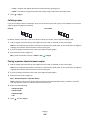
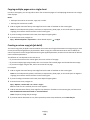
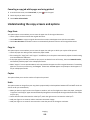
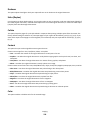
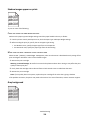
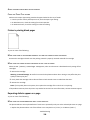
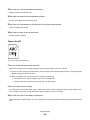
Shadow images appear on prints
ABCDE
ABCDE
ABCDE
Try one or more of the following:
CHECK THE PAPER TYPE AND WEIGHT SETTINGS
Make sure the paper type and weight settings match the paper loaded in the tray or feeder:
1 From the printer control panel Paper menu, check the Paper Type and Paper Weight settings.
2 Before sending the print job, specify the correct paper type setting:
• For Windows users, specify the paper type from Print Properties.
• For Macintosh users, specify the paper type from the Print dialog.
MAKE SURE THE PRINT CARTRIDGE IS NOT LOW ON TONER
When 88.xx [color] cartridge low appears, make sure that toner is distributed evenly among all four
print cartridges or whichever color has the shadow images.
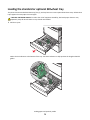
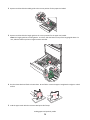
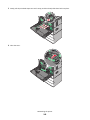
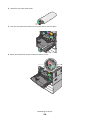
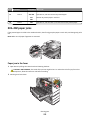
1 Remove the print cartridge.
Warning—Potential Damage: Be careful not to touch the photoconductor drum. Doing so may affect the print
quality of future print jobs.
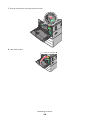
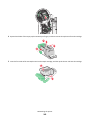
2 Firmly shake the cartridge side-to-side and front-to-back several times to redistribute the toner.
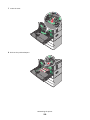
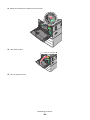
3 Reinsert the print cartridge.
Note: If print quality does not improve, replace the print cartridge of the color that is giving a shadow.
If the problem continues, the printer may need to be serviced. For more information, contact customer support.
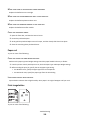
Gray background
ABCDE
ABCDE
ABCDE
Troubleshooting
331