1
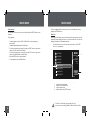
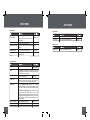
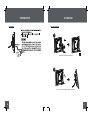
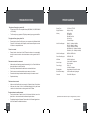
LOCATION OF CONTROLS
LOCATION OF CONTROLS
3
1
2
4
5
•
7
6
•
16
8
9
11
•
•
10
•
15
13
12
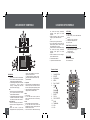
1. VOL • Press for left in Photo Thumbnail Mode.
• To turn down the volume level in Music,
Video and Photo / Slideshow mode.
• In File Manager Mode: press this button
to access the “ Copy to internal
memory? ” dialogue box, select and
confirm Yes to start copying.
VOL +
• Press for right in Photo Thumbnail Mode.
• To turn up the volume level in Music,
Video and Slideshow Mode.
• In File Manager Mode: press this button
to access the “ Delete files ? ” dialogue
box, select and confirm Yes to delete.
2. Enter / Slideshow
• Press for enter during menu selection.
• Press this button to play/pause music /
video.
• Press this button to pause the
background music in photo (full-screen)
6. Detachable Kickstand
7. Speaker and Ventilation Slots
LEFT VIEW
8. Power switch
9. USB Full-Size ( For use with USB flash
drives)
10. USB-Mini ( for PC connection)
11. Headphone / Earphone Jack
12. Power in Jack
RIGHT VIEW ( CARD SLOTS)
13. Secure Digital (SD) / Multi Media Card
(MMC) / Memory Stick (MS) /
XD-Picture (XD)
14. Compact Flash (CF)
FRONT VIEW
15. 8″ TFT LCD Screen
16. Remote Sensor
14
12
REAR VIEW
the current track during music/video
playback, press again for normal
playback.
Press this button to view the previous
image in photo / slideshow mode.
Up
Press for up during menu selection.
On the Main Menu Screen, select the
desired memory device, and then press
the ENTER button to confirm.
Press this button to fast-forward through
the current track during music/video
playback, press again for normal
playback.
Press this button to view next image in
photo / slideshow mode.
Remote Control
display mode/ slideshow mode, press
again to resume the music.
In photo (full-screen) display mode,
• press and hold this button to start / stop
photo slideshow.
3. Change View
• Press this button to shift between the view
modes Crop to Fill, Full Screen and Fit to
Screen in photo (full-screen) display mode.
• Press this button to shift between the five
display modes in calendar mode.
4. Menu
• Press for exit.
• On the Main Menu Screen, press this
button to move the cursor to the memory
device list.
5. Down
• Press for down during menu selection.
• On the Main Menu Screen, select the
desired memory device, and then press the
ENTER button to confirm.
• Press this button to fast-reverse through
1.
2.
3.
4.
5.
6.
7.
8.
9.
10.
11.
12.
13.
CHANGE VIEW
ROTATE
SLIDESHOW
MENU
PLAY / PAUSE
UP
LEFT
DOWN
RIGHT
ENTER
CLOCK
COPY / DELETE
ZOOM
THUMBNAIL
VOL +
VOL -
1
8
CHANGE
VIEW
CLOCK
9
2
ROTATE
+
3
4
5
10
COPY
/DEL
MENU
-
11
12
13
6
7
13