1
CHAPTER 3
6
Managing the Database
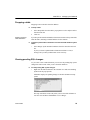
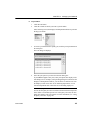
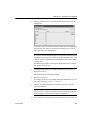
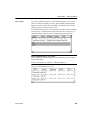
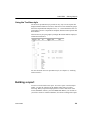
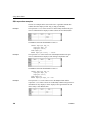
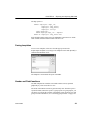
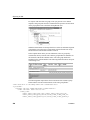
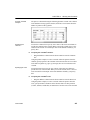
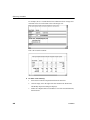
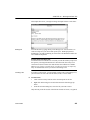
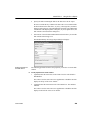
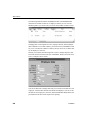
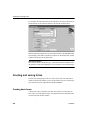
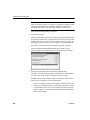
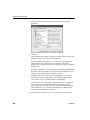
Right-click on the Object Details view and select Save Changes from the
pop-up menu.
Any changes you make in the view are immediately saved to the table
definition.
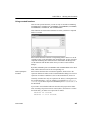
Modifying keys
You can modify a primary key in InfoMaker.
❖
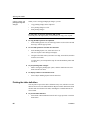
To modify a primary key:
1
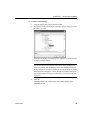
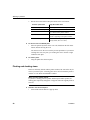
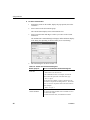
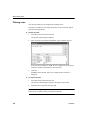
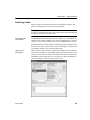
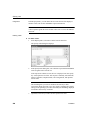
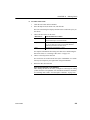
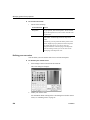
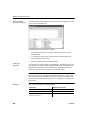
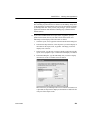
Do one of the following:
•
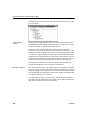
Highlight the primary key listed in the table’s expanded tree view and
click the Properties button.
•
Select Properties from the Object or pop-up menu.
•
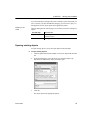
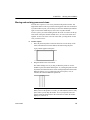
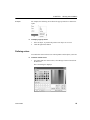
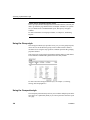
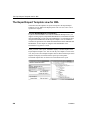
Drag the primary key icon and drop it in the Object Details view.
2
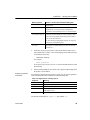
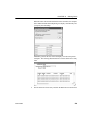
Select one or more columns for the primary key.
3
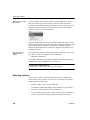
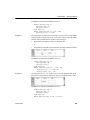
Right-click on the Object Details view and select Save Changes from the
pop-up menu.
Any changes you make in the view are immediately saved to the table
definition.
Dropping a key
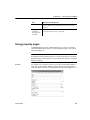
You can drop keys (remove them from the database) from within InfoMaker.
❖
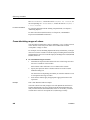
To drop a key:
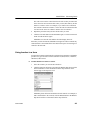
1
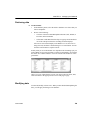
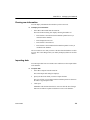
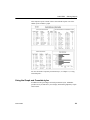
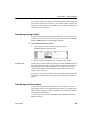
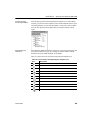
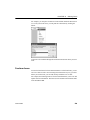
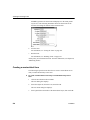
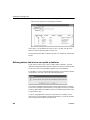
Highlight the key in the expanded tree view for the table in the Objects
view or right-click the key icon for the table in the Object Layout view.
2
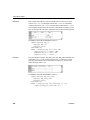
Select Drop Primary Key or Drop Foreign Key from the key’s pop-up
menu.
3
Click Yes.
Working with indexes
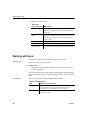
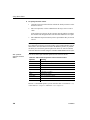
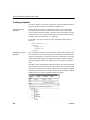
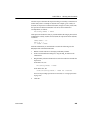
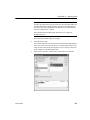
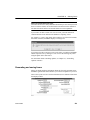
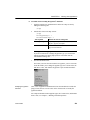
You can create as many single- or multi-valued indexes for a database table as
you need, and you can drop indexes that are no longer needed.
Update limitation
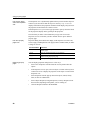
You can update a table in a form only if it has a unique index or primary key.
Users Guide
101