1
BitDefender Internet Security 2010
25. Game / Laptop Mode
The Game / Laptop Mode module allows you to configure the special operation
modes of BitDefender:
⚫ Game Mode temporarily modifies the product settings so as to minimize the
resource consumption when you play.
⚫ Laptop Mode prevents scheduled tasks from running when the laptop is running
on battery in order to save battery power.
25.1. Game Mode
Game Mode temporarily modifies protection settings so as to minimize their impact
on system performance. While in Game Mode, the following settings are applied:
⚫ All BitDefender alerts and pop-ups are disabled.
⚫ The BitDefender real-time protection level is set to Permissive.
⚫ The BitDefender firewall is set to Allow all. This means that all new connections
(both incoming and outgoing) are automatically allowed, regardless of the port
and protocol being used.
⚫ Updates are not performed by default.
Note
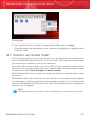
To change this setting, go to Update>Settings and clear the Don't update if
Game Mode is on check box.
⚫ Scheduled scan tasks are by default disabled.
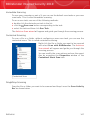
By default, BitDefender automatically enters Game Mode when you start a game
from the BitDefender's list of known games or when an application goes to full
screen. You can manually enter Game Mode using the default Ctrl+Alt+Shift+G
hotkey. It is strongly recommended that you exit Game Mode when you finished
playing (you can use the same default Ctrl+Alt+Shift+G hotkey).
Note
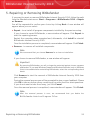
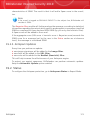
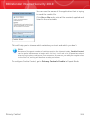
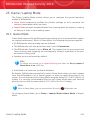
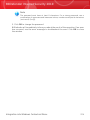
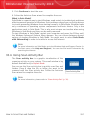
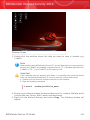
While in Game Mode, you can see the letter G over the
BitDefender icon.
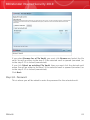
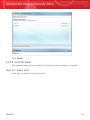
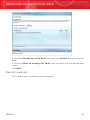
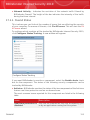
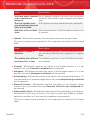
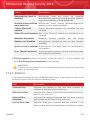
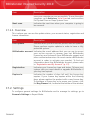
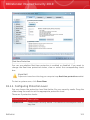
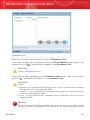
To configure Game Mode, go to Game / Laptop Mode>Game Mode in Expert
Mode.
Game / Laptop Mode
243