1
Determining the Current Configuration
Now that you have successfully installed the software, you need to use it to identify
each RAID Module connected to your host system and determine the module’s
current configuration (number of drives, number of controllers, logical units, and so
on).
Note – You must perform this step from each host machine if using the independent
controller configuration.
Note – Most RAID Modules come pre-configured with logical units already defined.
This logical unit configuration may or may not be desirable for your particular
environment.
This software has assigned a name to each RAID Module connected to your host
system. These designations are shown in the RAID Module selection list near the top
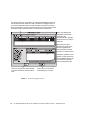
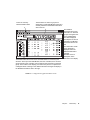
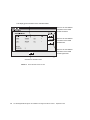
of each application’s screen (see Figure 3-8 on page 53).
Perform the following steps for each RAID Module to identify the module and
determine its current configuration. If you need a definition of a Drive Group, RAID
Module, or Logical Unit, see the “Common Definitions” section in the Sun StorEdge
RAID Manager User’s Guide or the Online Help glossary.
1. Use the following steps to view the current drive groups and logical units in a
RAID Module.
a. Start the Configuration Application.
The Select Module main screen appears. If you have more than one RAID Module
connected to your host system, each RAID Module appears in the list.
b. Highlight the first RAID Module in the list, and select OK.
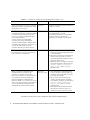
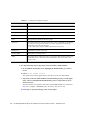
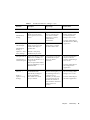
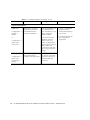
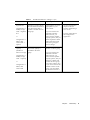
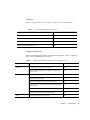
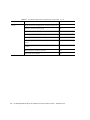
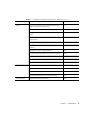
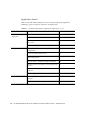
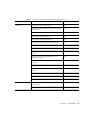
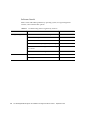
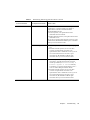
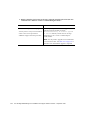
The Configuration application main screen is displayed (see Figure 3-8). Table 3-2
on page 54 describes the items that are displayed.
c. View the current drive groups and logical units.
As you highlight an element in the Module Information area on the left of the
screen, the display on the right changes to show those elements. You cannot select
or highlight any item in right side of the display (it is information only).
52
Sun StorEdge RAID Manager 6.22 Installation and Support Guide for Solaris • September 1999